 Help Center
Document Storage
Let Website Visitors Upload Documents with Your Document Portal Link
Click here to open the Secure client portal page in LeadCenter.
Your account has one Document portal link that you can put on your website. A visitor enters their email address, verifies it with a code, and then uploads documents straight to their own contact record. You don't need a shortcode or a separate link for each client.
Find Your Document Portal Link
- Go to Settings and open Basic settings.
- Click Secure client portal.
The Document portal link card shows your link. It looks like https://fq.yourdomain.com/documents/ followed by a code for your firm.
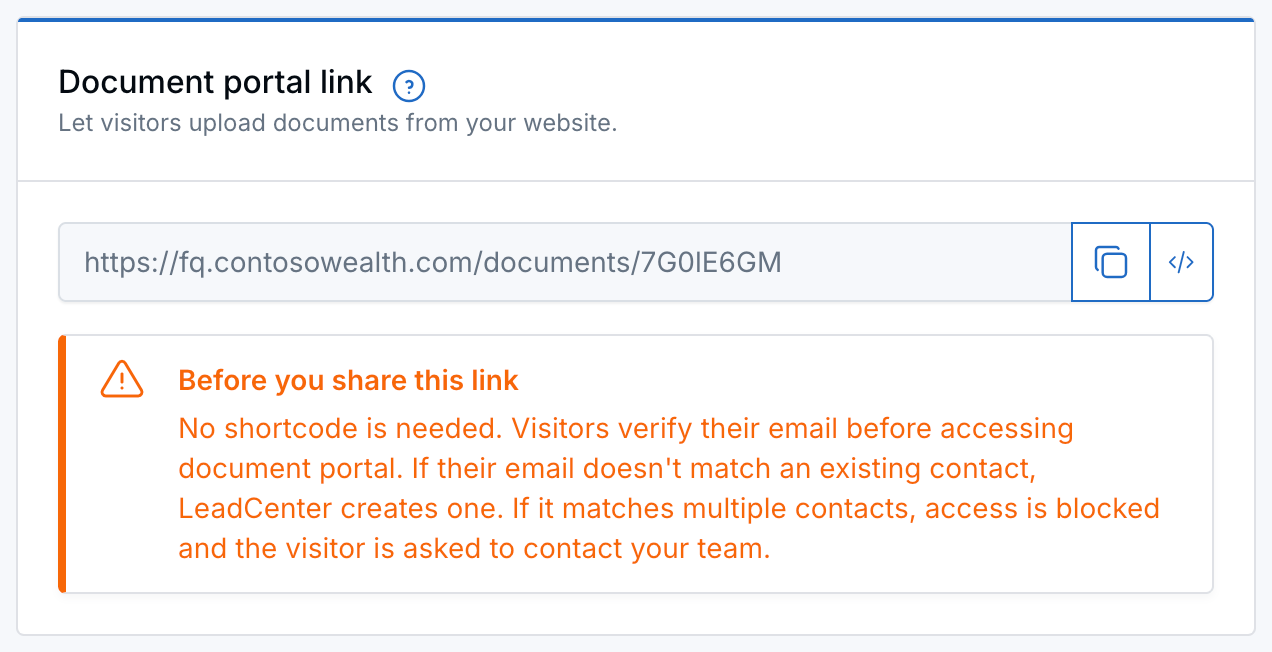
Copy your Document portal link, or click the code icon to embed it on your website.
Share the Link on Your Website
- Copy the link: Click the copy icon (Copy link). You'll see Document portal link copied successfully! Add it to a button on your website. We suggest the button text Upload Documents.
- Embed it in a page: Click the code icon (Add to website). The Document portal integration window shows iframe code you can paste into your website. In the embedded version, your logo and firm name are hidden so the form blends into your page.
What Visitors See
- The visitor opens the link and sees Upload documents.
- They enter their email address and click Send verification code.
- LeadCenter emails them a code. After they enter the correct code, their document page opens and they can upload files.
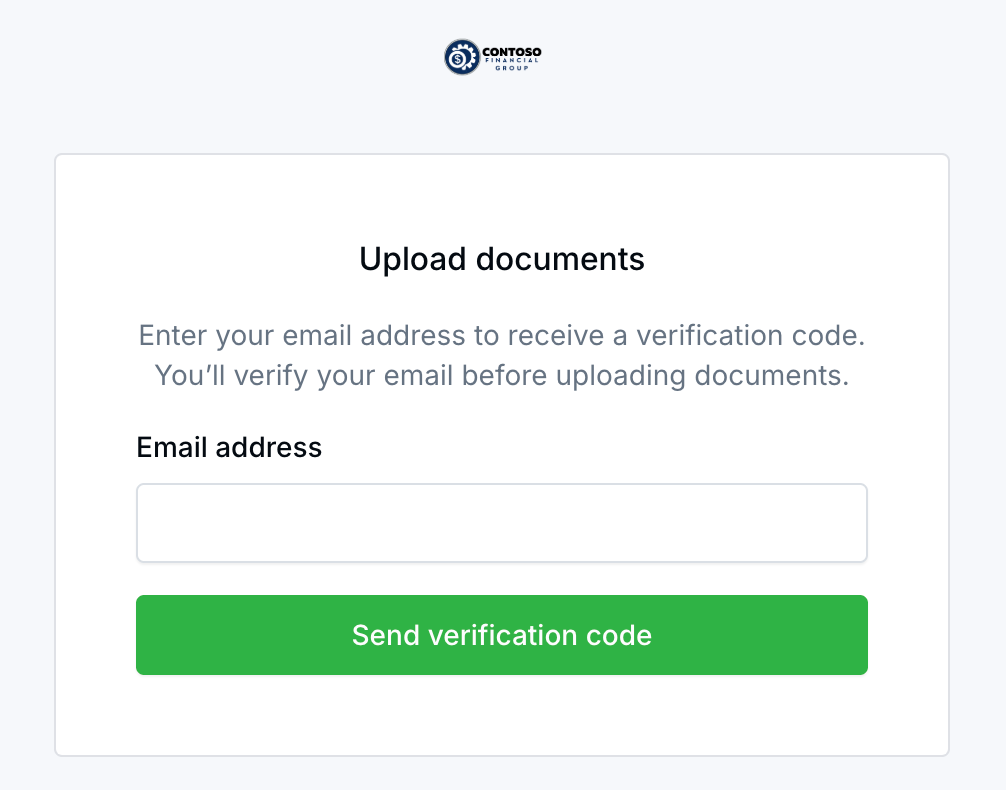
What visitors see when they open your Document portal link.
How LeadCenter Matches the Email
- Matches one contact: The visitor gets a code and then opens that contact's document page.
- Matches no one: LeadCenter creates a new contact, then sends the code. The document page opens only after the code is verified.
- Matches more than one contact: The portal doesn't open and no contact is created. The visitor sees: We couldn't open the document portal for this email address. Please contact [your firm name] for help uploading your documents. If your firm's phone number or email is visible, it's shown so they can reach you.
Capital letters and extra spaces in the email don't create a second contact.
New Contacts from the Portal
A contact created from the portal has no lead source. Its medium and channel are set to Client Document Portal, so you can find these contacts with a filter.
Use Your Own Domain
The link works right away. To show it on your own domain, such as fq.yourdomain.com, use the Secure client portal domain card on the same page. After the domain is verified, both your financial questionnaires and your Document portal link use it. See Document Storage for the setup steps.
Portal Link vs. a Client's Personal Link
- Document portal link: One link for everyone. Best for your website, where any visitor may arrive.
- Personal document link: A unique link for one contact, inserted in emails and texts with the
[[dms_url]]shortcode. Best when you already know who should upload.
Questions? support@leadcenter.ai

Need more help?
If you can't find the answers you're looking for, our support specialists are available to answer your questions and troubleshoot if necessary.
-
Phone Call (888) 291-7116. Our main hours are Monday to Friday 7 am-5 pm Central Time.
-
Support Send your questions and inquiries via email to support@leadcenter.ai. A support ticket will be created and one of our team members will get back to you as quickly as possible.