 Help Center
Document Storage
Document Storage
Link a Box Folder to a Contact
Keep a client's Box files one click away. Link a Box folder or file to a contact, and it shows on that contact's Documents tab, so you can open the files without leaving LeadCenter.
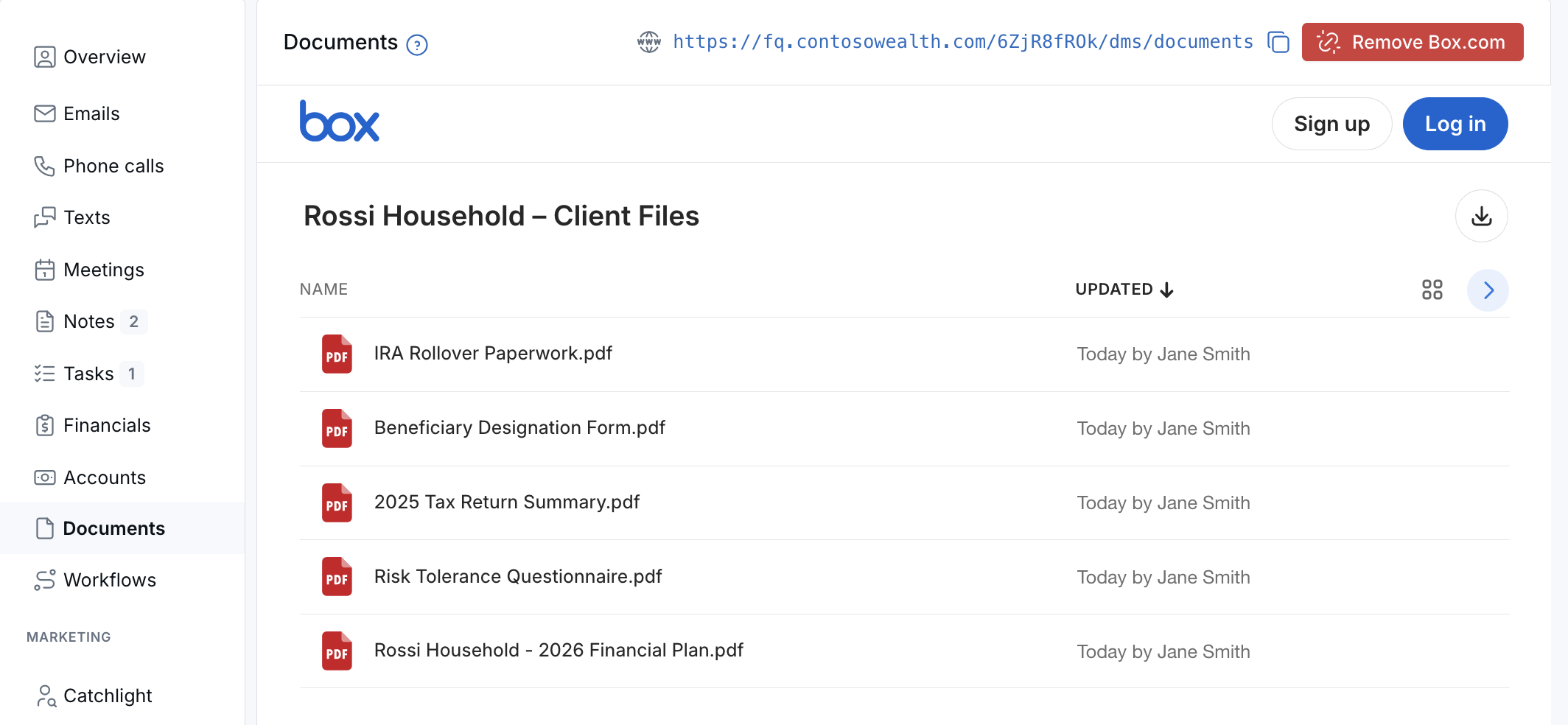
A linked Box folder on a contact's Documents tab.
Before You Start
- You need a folder or file in Box.com and a Box account that can share it.
- To link or remove a Box folder, your role needs permission to update documents. To see a linked Box folder, your role needs permission to view documents. Learn more in Roles & Permissions.
Step 1: Copy the Shared Link or Embed Code from Box
- In Box, open the folder or file you want to show.
- Copy its shared link, or choose More Actions, then Embed Widget, and copy the embed code.
Either one works. If you paste a shared link, LeadCenter turns it into an embed for you.
Step 2: Link It to the Contact
- Open the contact from Contacts and go to the Documents tab.
- Click Link Box.com at the top right of the Documents section.
- Paste the shared link or embed code into the Box.com embed code box.
- Click Save Box.com URL.
You'll see Box.com URL saved successfully. The Box folder now shows at the top of the Documents tab, above the documents stored in LeadCenter. It shows even if the contact has no LeadCenter documents yet.
Remove a Box Folder from a Contact
- Open the contact's Documents tab.
- Click the red Remove Box.com button, where Link Box.com used to be.
- Confirm.
This only takes the Box view off the contact. Your files stay in Box.
Who Can Open the Files
Box's sharing settings on the folder or file decide who can open the files:
- People with the link: anyone who can see the contact's Documents tab in LeadCenter can open the files without signing in to Box.
- People in your company or Invited people only: Box asks the user to sign in to Box before showing the files.
Troubleshooting
- "Paste the embed code from Box.com or an https Box.com URL." The text you pasted isn't from Box, or the address doesn't start with https. Copy the shared link or embed code from Box again and paste it exactly as Box gives it.
- Box asks you to sign in. The folder is shared with your company or invited people only. Sign in to Box, or change the sharing setting in Box.
- You don't see Link Box.com. Your role may not have permission to update documents. Ask your account admin.
Related Articles

Need more help?
If you can't find the answers you're looking for, our support specialists are available to answer your questions and troubleshoot if necessary.
-
Phone Call (888) 291-7116. Our main hours are Monday to Friday 7 am-5 pm Central Time.
-
Support Send your questions and inquiries via email to support@leadcenter.ai. A support ticket will be created and one of our team members will get back to you as quickly as possible.