 Help Center
Document Storage
Link and Import Files from OneDrive and SharePoint
* Page referenced in this article: documents page.
Keep client files in OneDrive or SharePoint and still see them in LeadCenter. You can link a file so it stays in Microsoft, import a copy into LeadCenter, or send a LeadCenter file to OneDrive or SharePoint. Linked files and LeadCenter files show together on the Documents page and on a contact's or household's Documents tab.
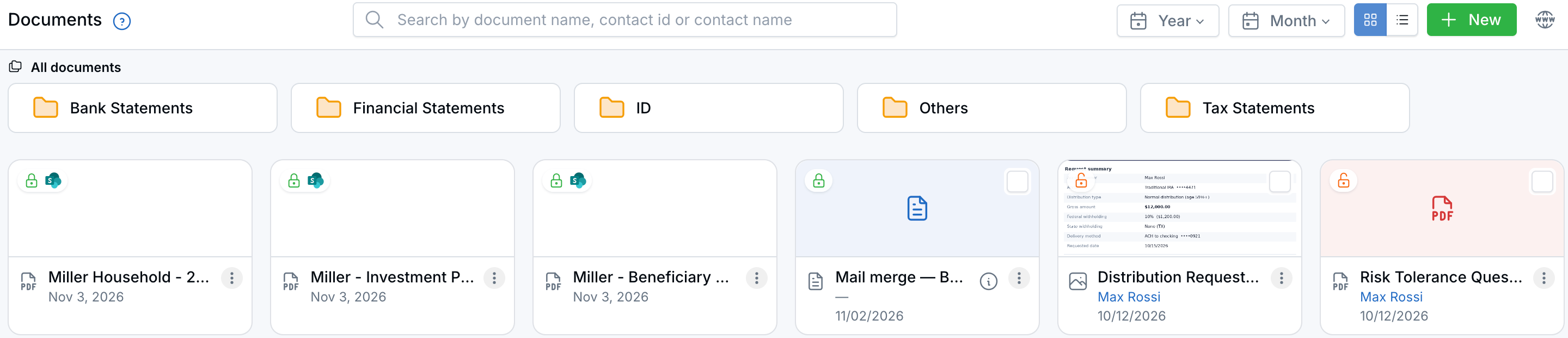
Linked files show a SharePoint icon next to the lock.
Before You Start
- Use a work or school account: OneDrive and SharePoint need a Microsoft 365 work or school account. Personal accounts, such as @outlook.com or @hotmail.com, can't be connected. If you try, you'll see: Personal Microsoft accounts aren't supported. Use a work or school account to connect OneDrive and SharePoint.
- Connect your account: The first time you choose Import or Link, LeadCenter asks you to sign in to Microsoft. You can also connect from Integrations, under File storage, on the Microsoft OneDrive and SharePoint card.
- Your connection is yours: Each user connects their own Microsoft account, so you only see the files your account can open.
- SharePoint needs your admin's approval once: Before anyone at your firm can open SharePoint sites, a Microsoft 365 admin must approve LeadCenter for your organization. OneDrive doesn't need this step.
Approve SharePoint for Your Organization (Microsoft Admins)
If you see Your organization has not approved SharePoint site access yet when you expand SharePoint, ask your Microsoft 365 admin to do this once:
- Sign in to LeadCenter and open Integrations, then File storage.
- On the Microsoft OneDrive and SharePoint card, click Approve for my organization.
- Microsoft's approval page opens. Review the permissions and accept.
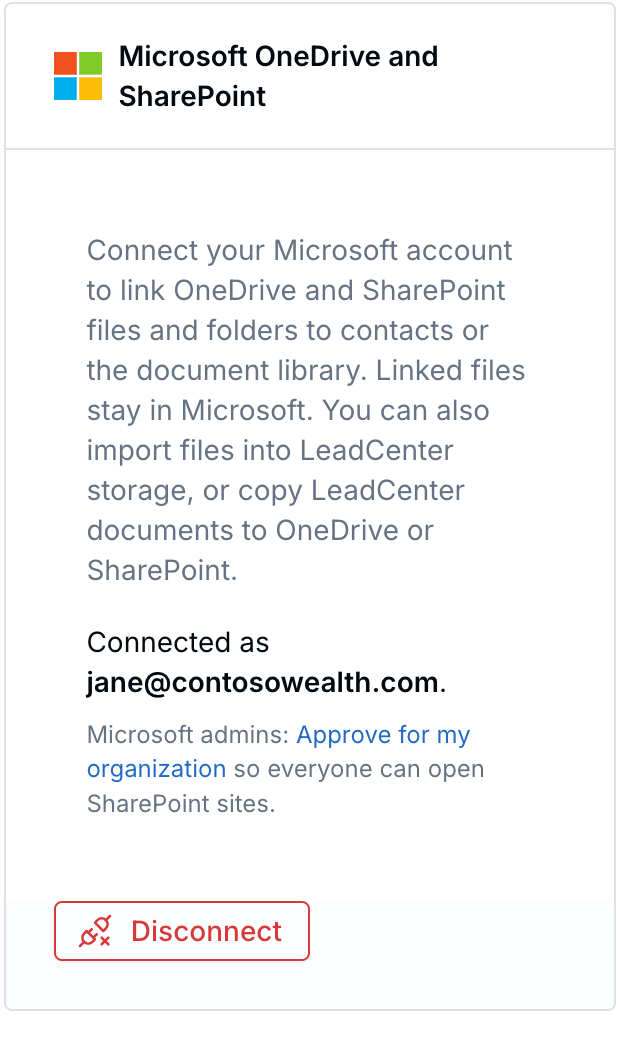
Microsoft admins click Approve for my organization once.
When it's done, you'll see SharePoint site access is approved for your organization. Everyone at your firm can then open the SharePoint sites their own Microsoft account has access to, without reconnecting.
If the person who clicks isn't a Microsoft admin, they'll see Microsoft did not approve SharePoint site access. Only a Microsoft admin can approve it for your organization.
Link or Import: Which One?
Click + New on the Documents page or a contact's Documents tab. Hover the (i) next to each option for a quick reminder.
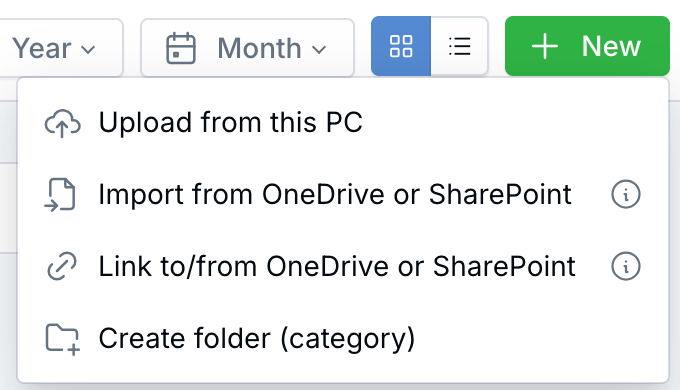
The New menu on the Documents page.
- Link to/from OneDrive or SharePoint stores a link, not a copy. The file stays in Microsoft, and any changes there show when you open it. Someone can open it only if their own Microsoft account has access. Linked files don't show in the Secure Document Portal.
- Import from OneDrive or SharePoint makes a separate LeadCenter copy. That copy follows LeadCenter permissions, including whether it shows in the Secure Document Portal. The two copies don't stay in sync.
Link Files from OneDrive or SharePoint
- Open the Documents page or a contact's Documents tab.
- Click + New, then Link to/from OneDrive or SharePoint.
- Choose OneDrive, or expand SharePoint and choose a site.
- In the Microsoft window, select one or more files or folders and click Select. You can also upload a file there first, then select it.
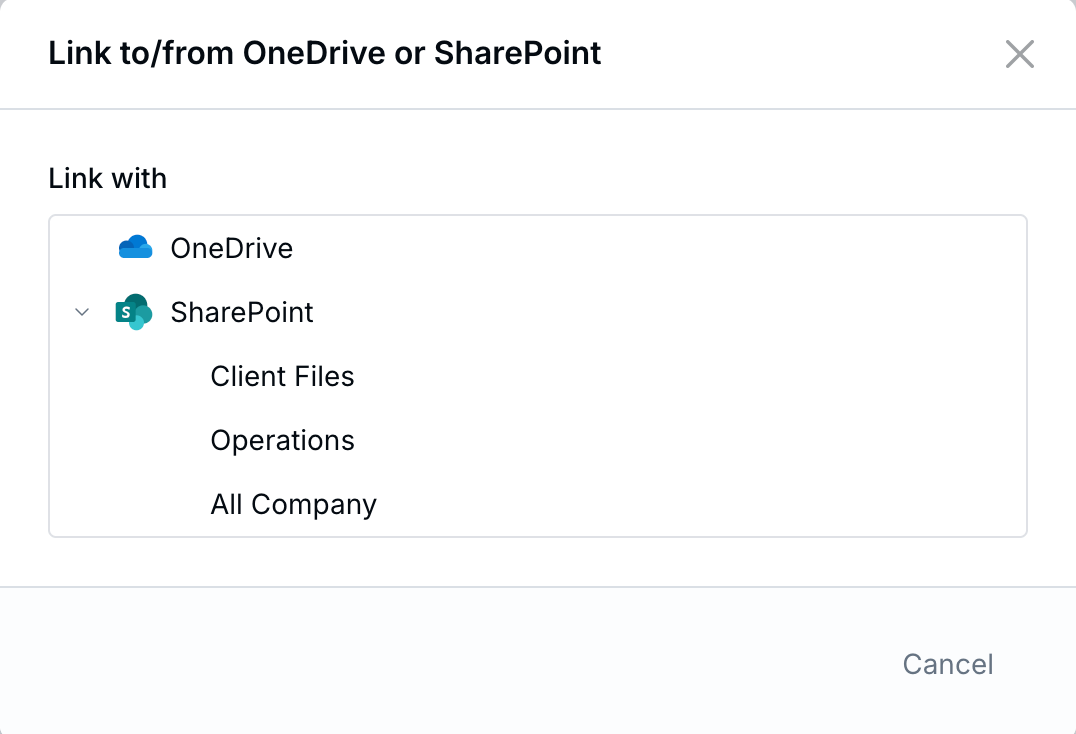
Pick OneDrive or one of your SharePoint sites.
On a household's Documents tab, the option is Link from OneDrive or SharePoint. It's available when the household has a head of household.
Work with Linked Files
A linked file or folder shows a SharePoint icon next to the lock. The lock means it doesn't show in the Secure Document Portal. Click a linked folder to see what's inside, and click All documents to go back.
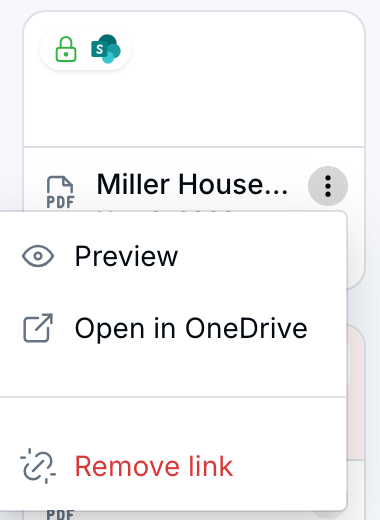
The menu on a linked file.
- Preview: Opens the file inside LeadCenter.
- Open in OneDrive: Opens the file in Microsoft in a new tab.
- Remove link: Takes the link off LeadCenter. The file in Microsoft isn't deleted.
If you can't open a linked file, the card tells you why:
- Not signed in: Sign in to OneDrive and SharePoint from the banner or from Integrations.
- No access: Your Microsoft account can't open this file. Choose Request access from the menu.
- Not found in OneDrive or Not found in SharePoint: The file was moved or deleted in Microsoft. You can still try the old link or remove it.
Import Files from OneDrive or SharePoint
- Open the folder where you want the files, or stay at All documents to add them at the top level.
- Click + New, then Import from OneDrive or SharePoint.
- Choose OneDrive or a SharePoint site.
- In the Microsoft window, select files or folders and click Select.
The files come in as regular LeadCenter files. If you pick a folder, the files inside it are imported too, but the Microsoft folders aren't recreated as LeadCenter folders. The originals stay in Microsoft.
Copy a LeadCenter File to OneDrive or SharePoint
- Open the menu (⋮) on a LeadCenter file and choose Copy to OneDrive or SharePoint. To copy several files at once, check the box on each file, then click Copy to OneDrive or SharePoint in the bar at the top.
- Click OneDrive or a SharePoint site, then choose a folder in the Microsoft window and click Select.
- Click Copy document.

Select several files to copy them together.
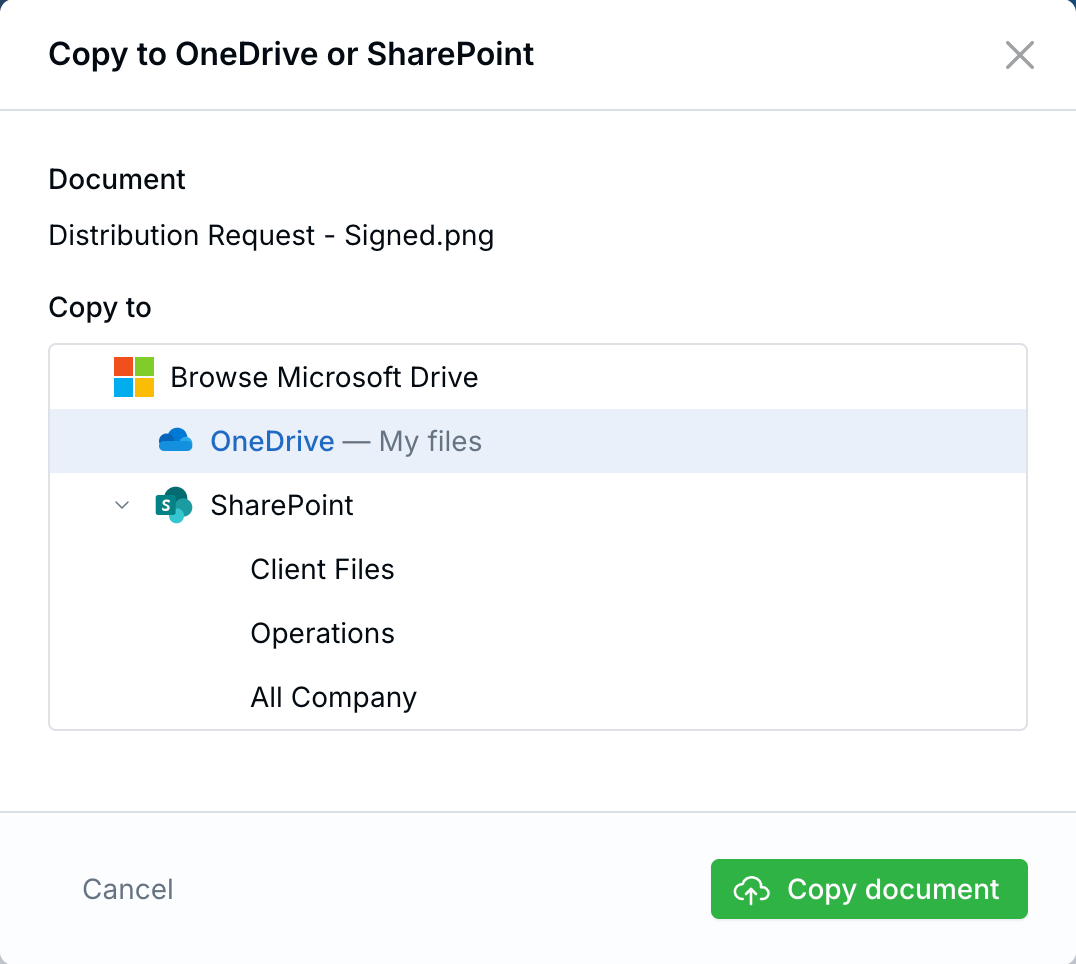
The selected folder shows next to OneDrive before you copy.
The file stays in LeadCenter just as it was, so nothing changes for the client in the Secure Document Portal. The new copy lives only in OneDrive or SharePoint.
Find Linked Files
- Search: The search box on the Documents page looks through LeadCenter files and linked files.
- Year and Month: These filters use the date the link was added.
- Folders: Linked files stay at the top level, since they don't belong to a LeadCenter folder.
- Contact: On the Documents page, a linked file can show the contact it belongs to.
Ask Troy AI About a Linked File
On a contact, Troy AI can read a linked Word document (.docx), spreadsheet, or text file, including CSV, that your Microsoft account can open. Ask about the file by name. Troy doesn't read linked PDF or PowerPoint files.
Disconnect Microsoft
Go to Integrations and disconnect the Microsoft OneDrive and SharePoint card. Linked files stay on your contacts and still open in Microsoft. To open them from LeadCenter again, reconnect your account.
Frequently Asked Questions
Do linked files stay in sync?
Yes. A link always opens the current file in Microsoft. Imported copies don't sync, because they're separate files.
Can clients see linked files in the Secure Document Portal?
No. Linked files only show inside LeadCenter. To share a file through the portal, import it instead.
Does removing a link delete the file?
No. Remove link only takes it off LeadCenter. The file stays in OneDrive or SharePoint.
Can I use my personal OneDrive?
No. OneDrive and SharePoint in LeadCenter need a Microsoft 365 work or school account.
Related Articles
Questions? support@leadcenter.ai

Need more help?
If you can't find the answers you're looking for, our support specialists are available to answer your questions and troubleshoot if necessary.
-
Phone Call (888) 291-7116. Our main hours are Monday to Friday 7 am-5 pm Central Time.
-
Support Send your questions and inquiries via email to support@leadcenter.ai. A support ticket will be created and one of our team members will get back to you as quickly as possible.