 Help Center
Workflows
Using Appointment-Based Workflow Triggers & Waits
LeadCenter’s workflow system allows you to automate actions based on newly created appointments. With the Appointment Created trigger and the appointment-based Wait node, you can build workflows that send reminders, prepare clients, and automate follow-ups relative to the appointment time.
Appointment Created Trigger
The Appointment Created trigger starts a workflow automatically whenever a new appointment is added to your calendar.
- Triggers only when a new appointment is created.
- Recurring appointments, exceptions, and past appointments are excluded.
- The appointment and its associated contact are automatically available to all workflow nodes.
- You can apply Appointment Filters or Contact Filters to make sure the workflow runs only for specific appointments.
Understanding Appointment-Based Waits
The Wait node allows you to pause workflow execution until a specific moment relative to the appointment. This is ideal for reminders, preparation tasks, or follow-up actions.
- Wait before appointment — for example, 1 hour before
- Wait after appointment — for example, 2 hours after
These waits depend entirely on the appointment’s scheduled time.
How the Wait Node Behaves With and Without Appointment Triggers
The Wait node behaves differently depending on whether the workflow begins with an appointment trigger or a different trigger.
With Appointment Created Trigger
- The Wait node becomes appointment-aware.
- You can use Wait before appointment and Wait after appointment.
- The wait time is calculated from the appointment’s start time.
Example: If the appointment is at 3:00 PM and your wait is 15 minutes before appointment, the workflow continues at 2:45 PM, no matter when the appointment was created.
Key Benefit: Timed reminders and follow-ups always send at the right moment.
With Any Other Trigger
- The Wait node behaves as a regular wait.
- Only standard options appear, such as Wait 1 hour or Wait 3 days.
- The wait is calculated from the moment the workflow reaches the Wait node.
Example: If the workflow reaches Wait 1 hour at 2:00 PM, it resumes at 3:00 PM.
Key Difference: Regular waits are based on the current time. Appointment-based waits are based on the appointment time.
Wait Limits
Standard waits have built-in limits depending on the unit you choose:
| Wait Type | Minimum | Maximum |
|---|---|---|
| Minutes | 10 minutes | 60 minutes |
| Hours | 1 hour | 24 hours |
| Days | 1 day | 90 days |
When using day-based waits in non-appointment workflows, you may also see a Resume at option to set the time of day the workflow should continue.
Using Filters with Appointment-Based Workflows
Filters let you control which appointments should continue through the workflow.
Appointment Filters
Appointment Filters control which appointments continue through the workflow. Available fields include:
- Category — Consultation, Review, and similar meeting types
- Status — Tentative, Confirmed, Cancelled, Completed, or No show
- Start Time
- End Time
- Location / Meeting Type — Virtual, In-person, or Phone
- Appointment Properties
Note: Appointment Filters can only be used with the Appointment Created trigger.
Filter by Appointment Status
Use the Status field to continue or branch a workflow based on the outcome of an appointment.
Available statuses include:
- Tentative
- Confirmed
- Cancelled
- Completed
- No show
To configure the status filter:
- Add an Appointment Filter node or open an existing one.
- Add a rule and select the Status field.
-
Choose a condition:
- (List) list contains selected items — matches when the appointment has one of the selected statuses.
- (List) list doesn't contain selected items — matches when the appointment has none of the selected statuses.
- Exists — matches when the appointment has any status set.
- Does not exist — matches when the appointment has no status set.
- Select one or more appointment statuses.
- Click Apply.
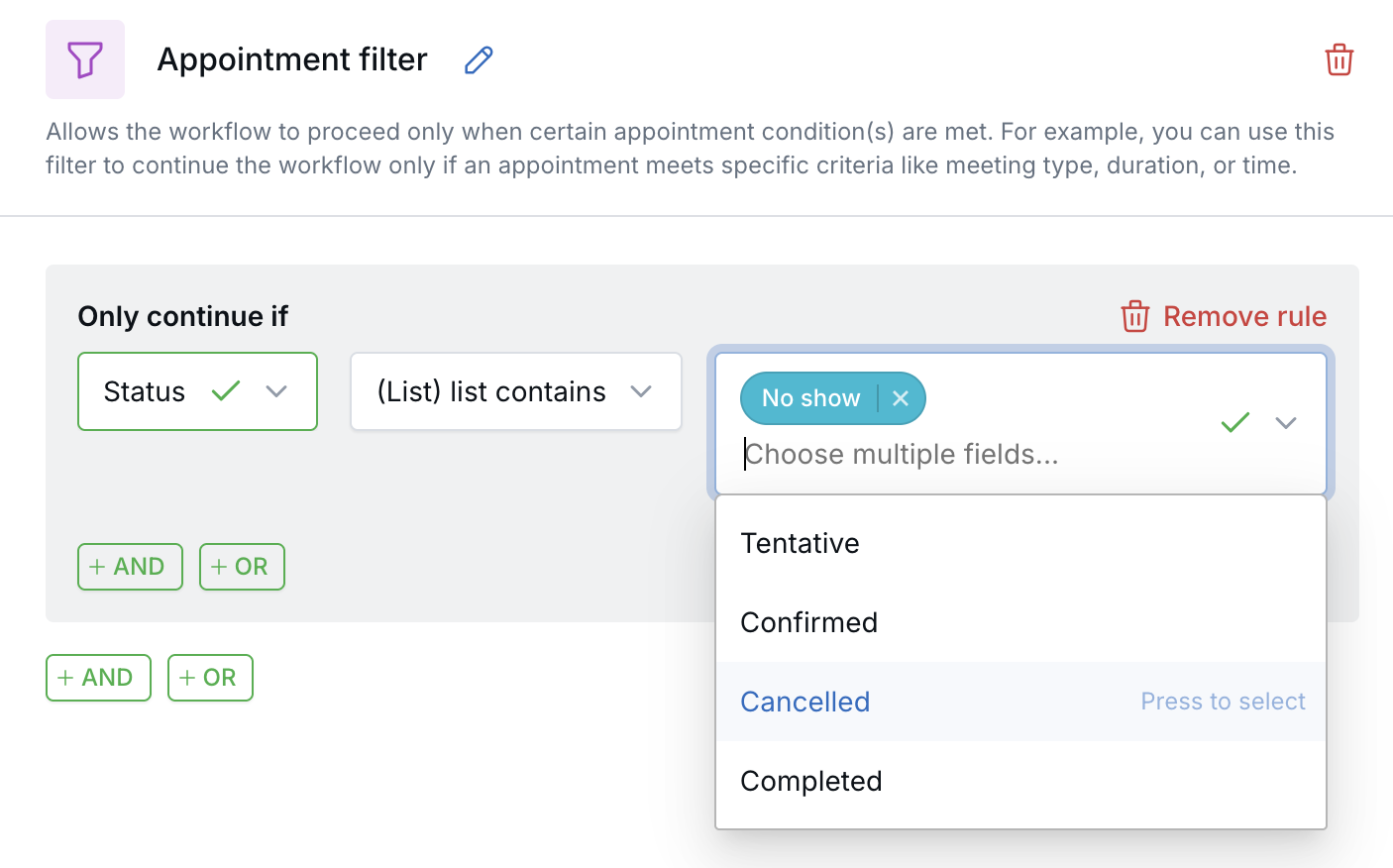
Tip: The Status field supports multiple selections. For example, one filter can match appointments marked No show or Cancelled.
Example: Follow Up on No-Shows
- Add an Appointment Filter with the rule Status → (List) list contains selected items → No show.
- Add a Branch node immediately after the filter and configure it to continue when the filter passes.
- On the passing path, add a rebooking email or create a follow-up task for the advisor.
Combine Status with other appointment fields, such as Category, Host, or Meeting Type, to target more specific scenarios.
Contact Filters
- Stage or status
- Category or tags
- Custom fields
- Personal or demographic data
Tip: Use Contact Filters to target VIP clients, new leads, or other segmented groups.
What Happens When an Appointment Is Canceled?
If an appointment is canceled while the workflow is waiting at an appointment-based Wait node:
- the workflow stops immediately
- remaining actions are discarded
- no reminders or follow-up messages are sent
Important: This applies only to appointment-based waits.
What Happens When Appointment Time Changes?
If the appointment time changes, LeadCenter recalculates any active appointment-based waits automatically.
- the wait shifts to match the new appointment time
Example: A workflow waiting for 1 hour before appointment adjusts itself if the meeting is rescheduled.
Note: Only active waits are updated. Past nodes are not affected.
Best Practices for Appointment Workflows
- Use appointment-based waits for reminders and preparation tasks.
- Use Appointment Filters to restrict automation to specific types of meetings.
- Use Contact Filters to target specific client types.
- Test workflows with canceled or rescheduled appointments.
- Add a small time buffer after appointments when building follow-up actions, especially if meetings may run long.
Common Use Cases
- Appointment Reminders: Automatically send reminders before confirmed appointments.
- Preparation Instructions: Send documents or instructions before a meeting.
- Follow-Up Tasks: Automate tasks after consultations.
- VIP Client Prep: Send premium content ahead of VIP meetings.
Frequently Asked Questions
Do recurring appointments trigger the workflow each time?
No. Only newly created individual appointments trigger the workflow.
What happens if the appointment is canceled after a reminder has already been sent?
Actions that already ran are not reversed. Only future actions waiting inside the workflow are discarded.
Can I use appointment-based waits without an Appointment Created trigger?
No. The Wait before appointment and Wait after appointment options appear only when the workflow uses the Appointment Created trigger.
Does the wait recalculate if the appointment is rescheduled?
Yes. Active appointment-based waits recalculate automatically to match the updated appointment time.
Need Assistance?
For help setting up appointment-triggered workflows, contact support@leadcenter.ai.

Need more help?
If you can't find the answers you're looking for, our support specialists are available to answer your questions and troubleshoot if necessary.
-
Phone Call (888) 291-7116. Our main hours are Monday to Friday 7 am-5 pm Central Time.
-
Support Send your questions and inquiries via email to support@leadcenter.ai. A support ticket will be created and one of our team members will get back to you as quickly as possible.