 Help Center
Marketing Management
How to Use Mail Merge for Letters and Labels
Mail merge lets you create personalized Word documents for one contact or for a list of contacts
using a reusable .docx template. You can use it for letters, mailing labels, and
other printed documents that need contact details filled in automatically.
Where to Find Mail Merge
To create and manage mail merge templates, go to Marketing Dashboard → Templates → Mail Merge .
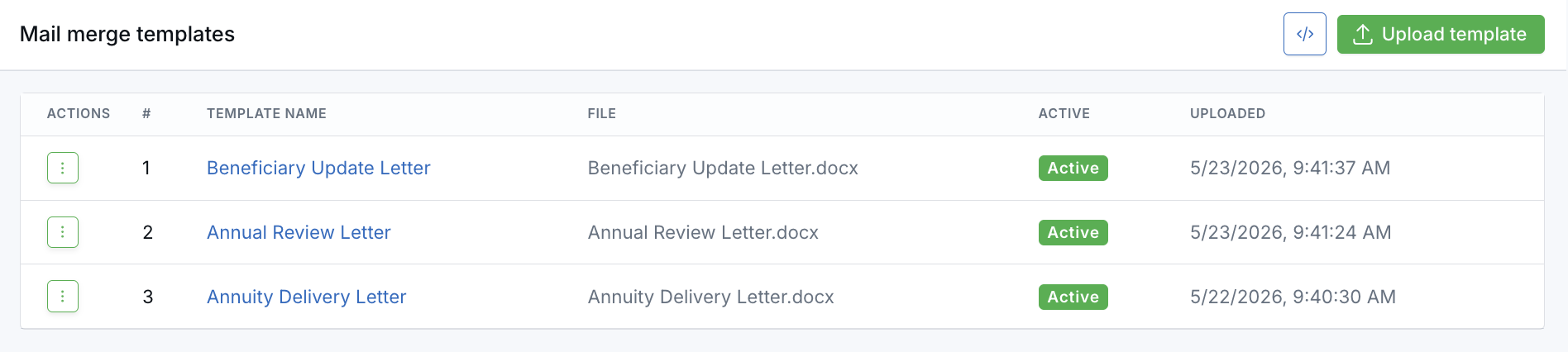
Mail merge supports Word .docx files only.
Create a Mail Merge Template
- Open Marketing Dashboard → Templates → Mail Merge.
- Upload your Word
.docxtemplate. - Give the template a name your team will recognize.
- Use the shortcode reference panel to copy the contact fields you want to include in your document.
- Add those shortcodes to your Word template before uploading, such as
[[first_name]].
Legacy .doc files, PDFs, and renamed non-Word files are not supported.
Run Mail Merge for One Contact
- Open the contact record.
- Open the contact’s action menu.
- Select Mail merge.
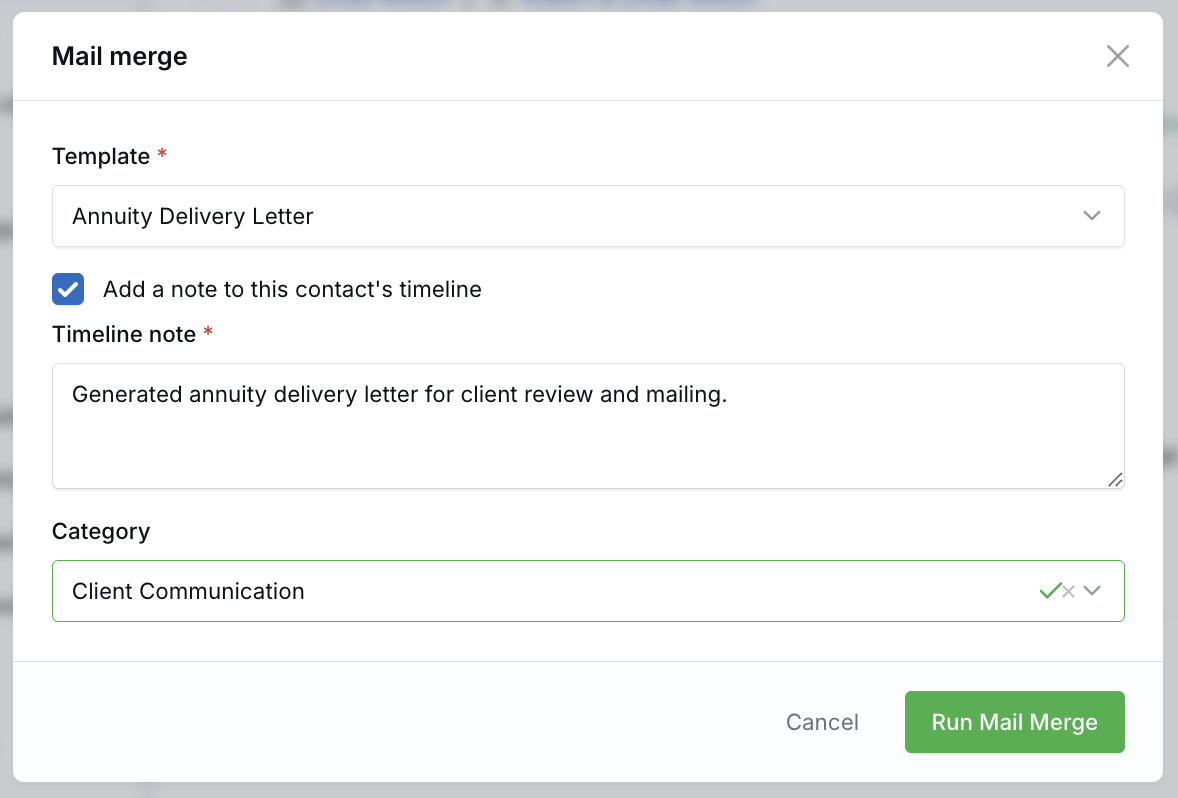
- Choose an active template in the pop-up window.
- Optionally add a timeline note.
- Click Run Mail Merge.
The personalized Word document downloads in your browser after the merge finishes.
Run Bulk Mail Merge
- Go to the Contacts table or Pipeline view.
- Select the contacts you want to include.
- Choose Mail merge from the bulk action bar.
- Select the template you want to use.
- Optionally add a timeline note.
- Run the mail merge.
Bulk mail merge supports up to 100 contacts per run and creates one combined Word document with a page break between each contact.
Bulk mail merge files are saved to Documents as private documents. When processing finishes, you receive an email with the download link.
Mail merge creates the document only. It does not email the document to contacts automatically.
Timeline Notes
If you enable the timeline note option, LeadCenter adds a note to each merged contact’s timeline. The note can include the template name, the user who created the mail merge, and any additional note text entered during the merge.
Mail merge notes appear on the contact timeline, family timeline, and the global Notes page.
Best Practices
- Use Word
.docxtemplates for all mail merge documents. - Keep each shortcode in one continuous block, such as
[[first_name]]. - Test a template with one contact before running a bulk merge.
- Keep bulk runs within the 100-contact limit.
- Use clear template names so your team can quickly choose the correct version.

Need more help?
If you can't find the answers you're looking for, our support specialists are available to answer your questions and troubleshoot if necessary.
-
Phone Call (888) 291-7116. Our main hours are Monday to Friday 7 am-5 pm Central Time.
-
Support Send your questions and inquiries via email to support@leadcenter.ai. A support ticket will be created and one of our team members will get back to you as quickly as possible.