 Help Center
Call Management & Attribution
Inbound Calls in LeadCenter
LeadCenter can ring incoming calls in the browser for selected team members. You can configure who rings, what happens after business hours, and what happens when no one answers.
Important: LeadCenter includes simple inbound VoIP calling for answering calls in the browser. It is not a full PBX phone system and does not include advanced PBX features such as call queues, extensions, IVR menus, or complex call routing.
Before You Start
- You need a standard LeadCenter virtual number. Hosted numbers are for text messaging only and cannot receive inbound calls in LeadCenter.
- Your store must have an emergency address on file.
- Team members who should answer calls must be logged in to LeadCenter with the site open in a browser tab.
Configure Inbound Call Settings
Each virtual number has its own inbound call settings.
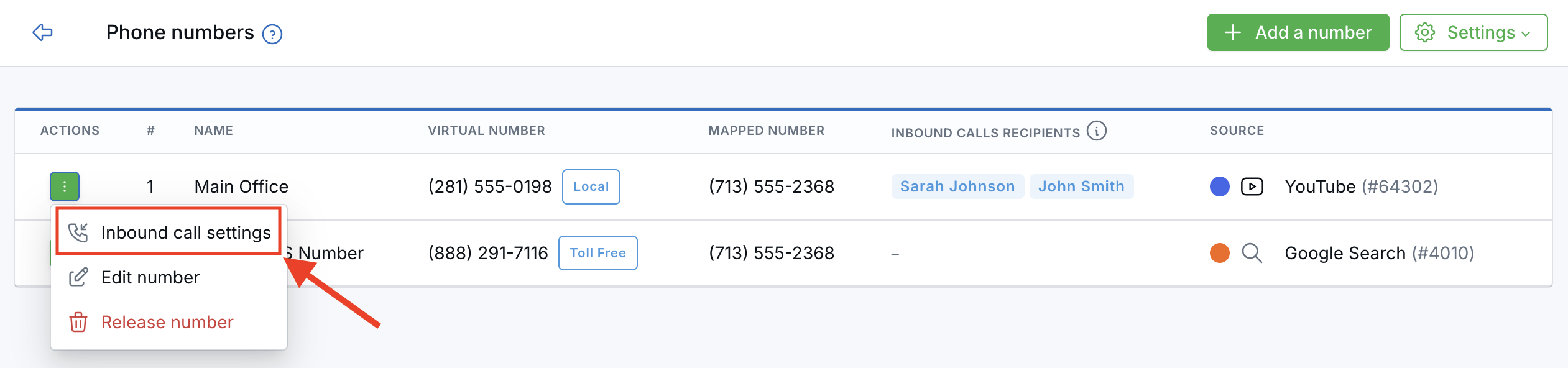
- Go to Settings > Phone & Text > Virtual Phone Numbers .
- Open the menu on the number’s row and choose Inbound call settings.
- Configure the settings below.
- Click Save.
Control Contact Creation from Unknown Calls and Texts
Each virtual number can control whether LeadCenter creates a new contact when an incoming call or text comes from a phone number that is not already associated with a contact.
- Go to Settings → Phones and Texts → Phone numbers .
- Open Actions on the virtual number you want to configure.
- Select Phone settings.
- In the Update mapped number window, set the two switches.
- Click Save.
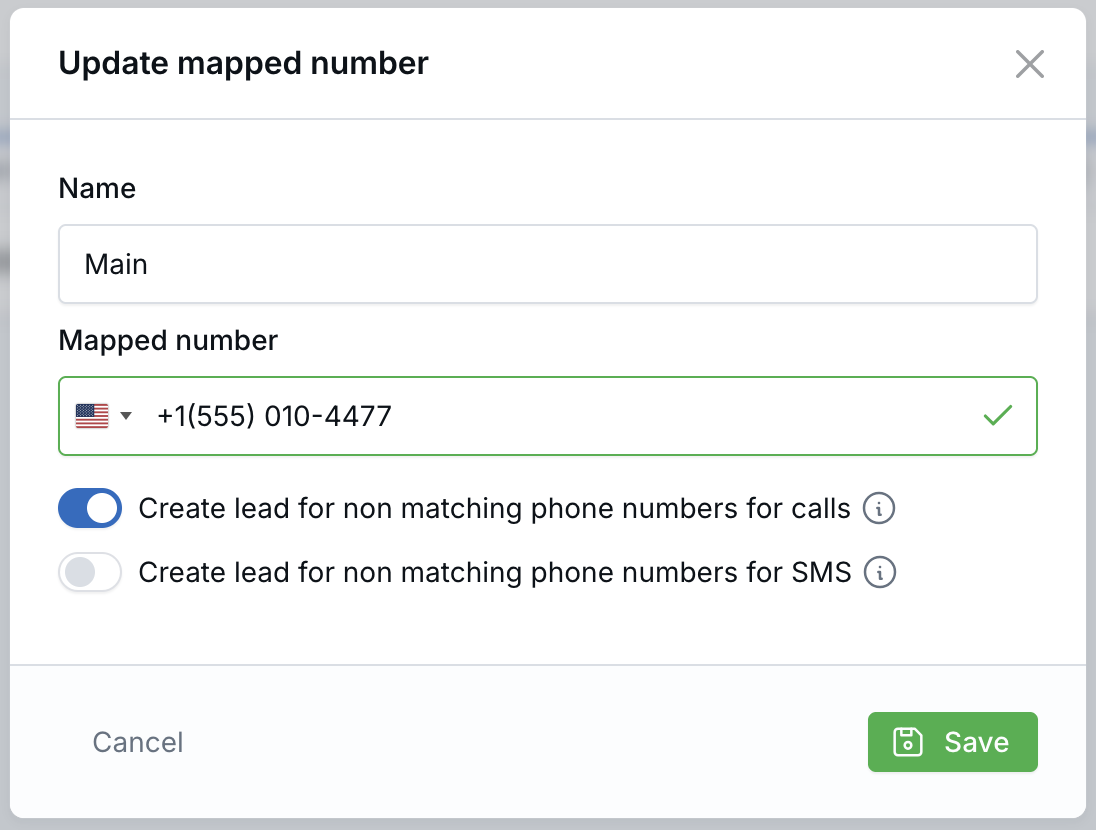
- Create contacts for calls from unknown numbers: When enabled, an incoming call from a number LeadCenter does not recognize creates a new contact. When disabled, the call still rings and is stored, but no contact is created.
- Create contacts for texts from unknown numbers: When enabled, an incoming text from an unrecognized number creates a new contact. When disabled, the text is still received, but no contact is created.
The switches work independently and are enabled by default. Each virtual number keeps its own settings.
Calls and texts from recognized phone numbers are always attached to the matching contact. If a contact is created later with a previously unrecognized phone number, LeadCenter automatically links the earlier call and text history to that contact.
Hosted numbers can use the text setting, but they cannot receive voice calls.
Choose Who Rings in LeadCenter
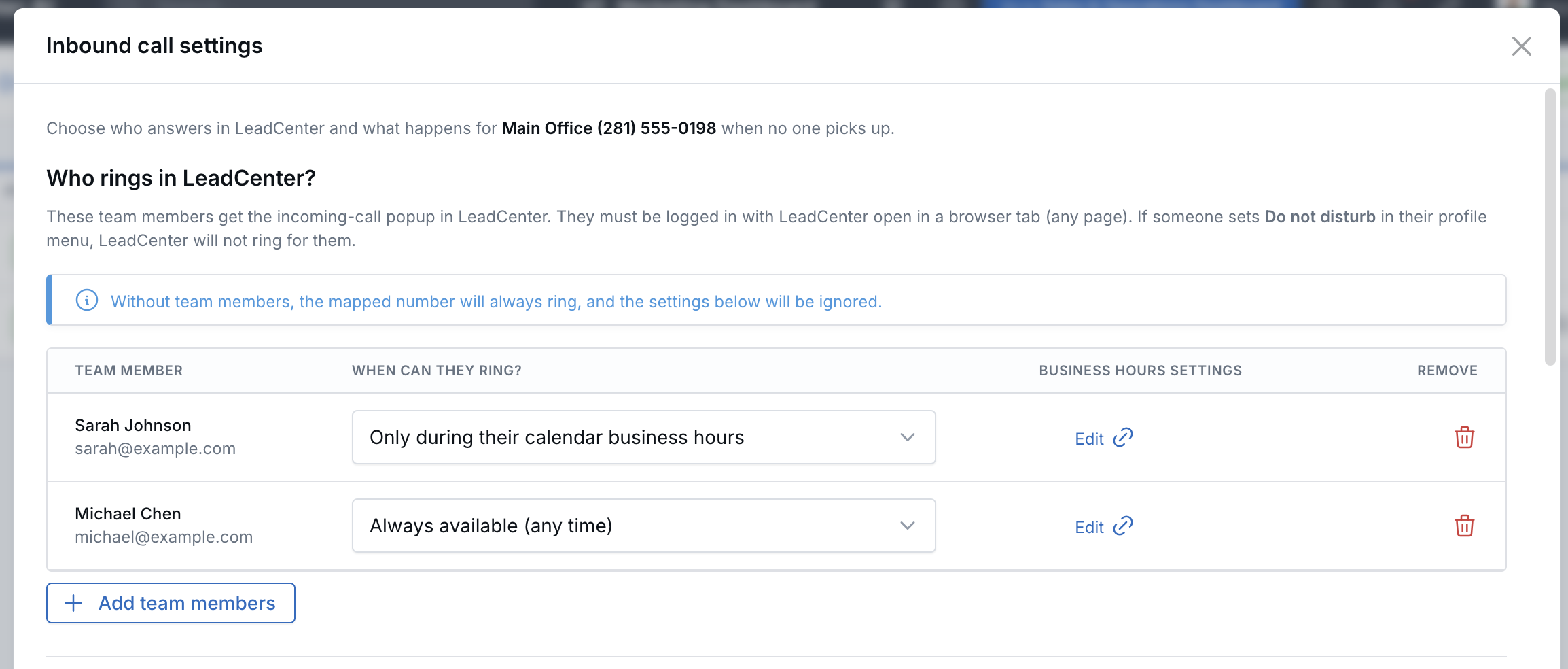
Add the team members who should see the incoming-call pop-up. For each person, choose when LeadCenter can ring them.
- Always available (any time): LeadCenter can ring the team member whenever they are logged in.
- Only during their calendar business hours: LeadCenter rings the team member only during their weekly schedule, set under Appointments > Calendars > Business hours.
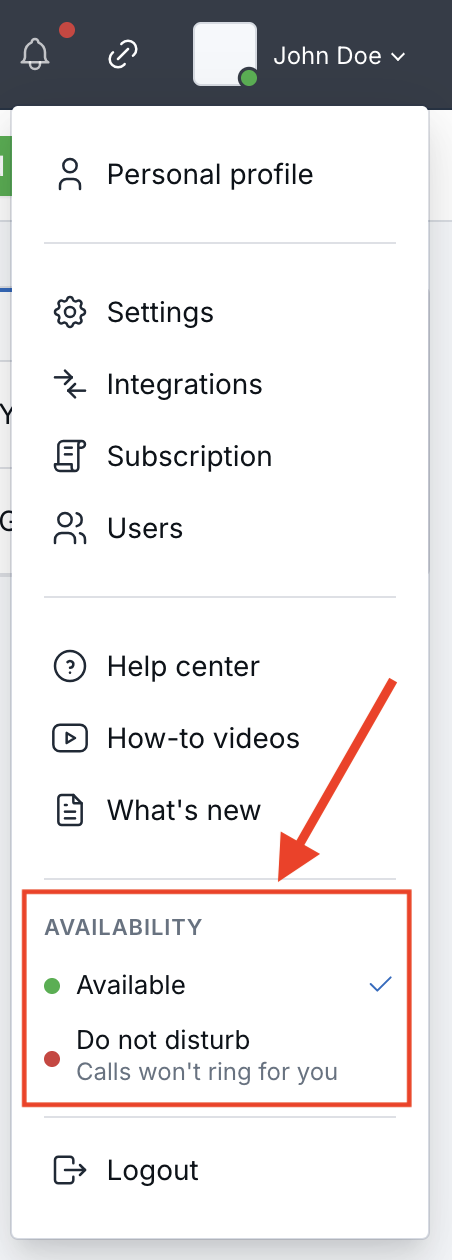
A team member who sets their status to Do not disturb from the profile menu will not be rung in LeadCenter, even if they are listed as a recipient.
Important: If no team members are added, only the mapped phone number rings. Business hours, after-hours, and unanswered-call options do not apply until at least one LeadCenter recipient is added.
Business Hours Ringing
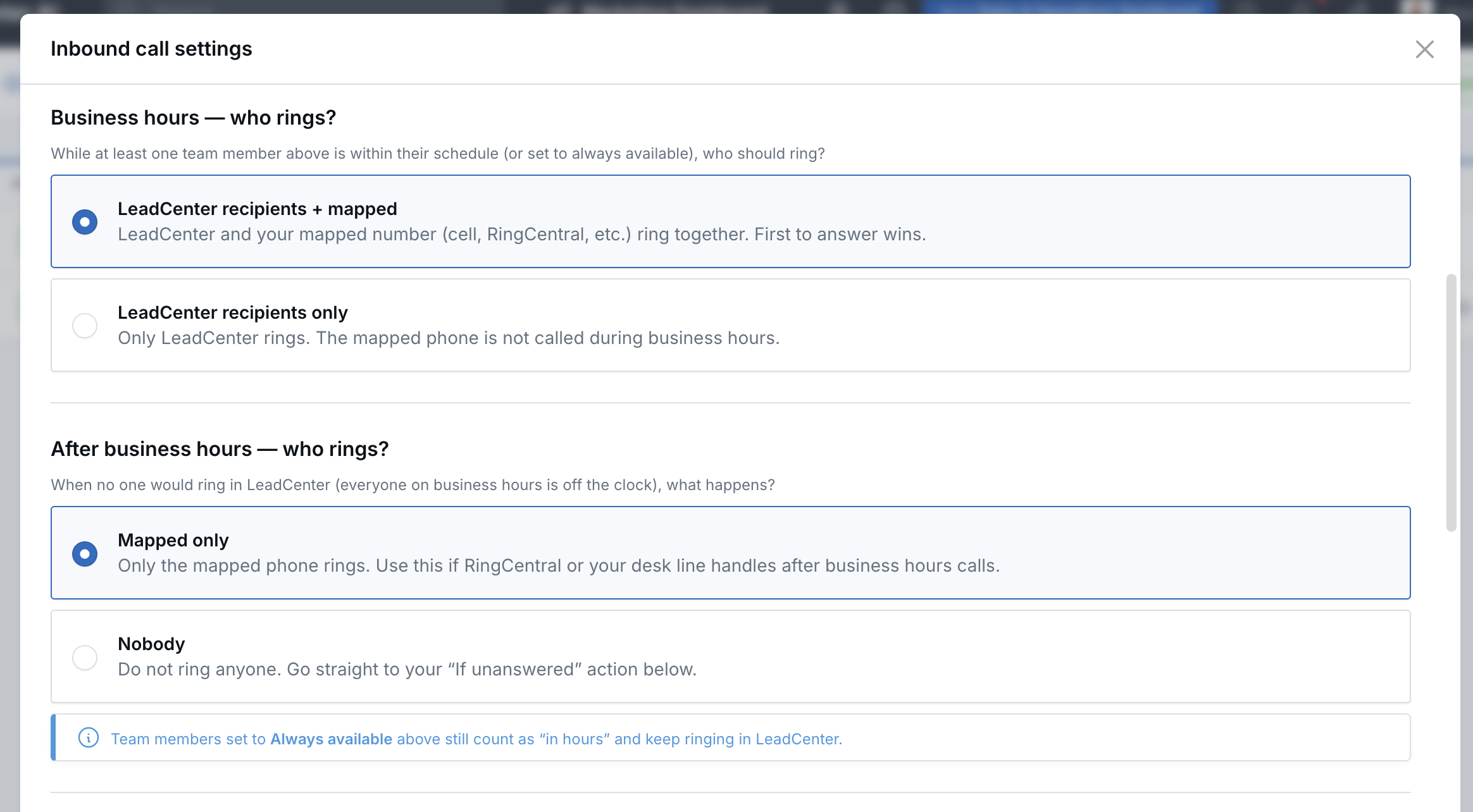
When at least one team member is available, choose how the call should ring.
- LeadCenter recipients + mapped: LeadCenter and the mapped phone ring together. Whoever answers first takes the call.
- LeadCenter recipients only: Only LeadCenter rings. The mapped phone is not called during this period.
After-Hours Ringing
When no team member would ring in LeadCenter, choose what happens after business hours.
- Mapped only: Only the mapped phone rings.
- Nobody: The call goes straight to the unanswered-call action.
Team members set to Always available (any time) still count as available and can continue ringing in LeadCenter.
If the Call Is Unanswered
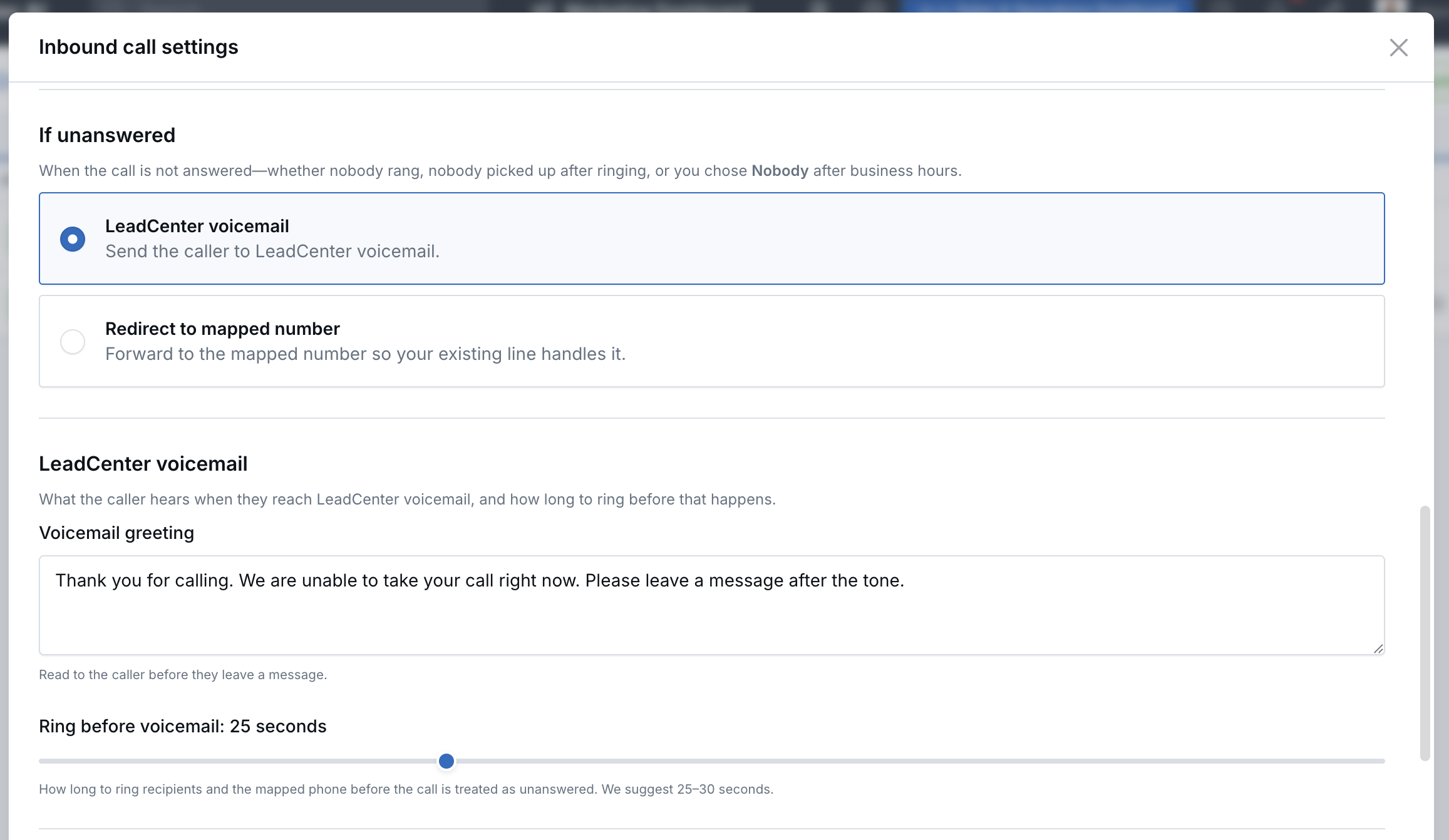
Choose what happens when nobody answers, nobody rings, or after-hours ringing is set to Nobody.
- LeadCenter voicemail: The caller hears your greeting and can leave a message in LeadCenter.
- Redirect to mapped number: The call is forwarded to the mapped phone line.
LeadCenter Voicemail Settings
- Voicemail greeting: The message callers hear before leaving a voicemail.
- Ring before voicemail: How long LeadCenter rings before treating the call as unanswered. The available range is 10–60 seconds, with a default of 25 seconds.
Your Availability
Each user can set their call availability from the profile menu in the top bar.
- Available: You can receive LeadCenter inbound calls when you are listed as a recipient and the number’s settings allow it.
- Do not disturb: LeadCenter will not ring for you. Other team members and the mapped phone may still ring.
Answer an Incoming Call
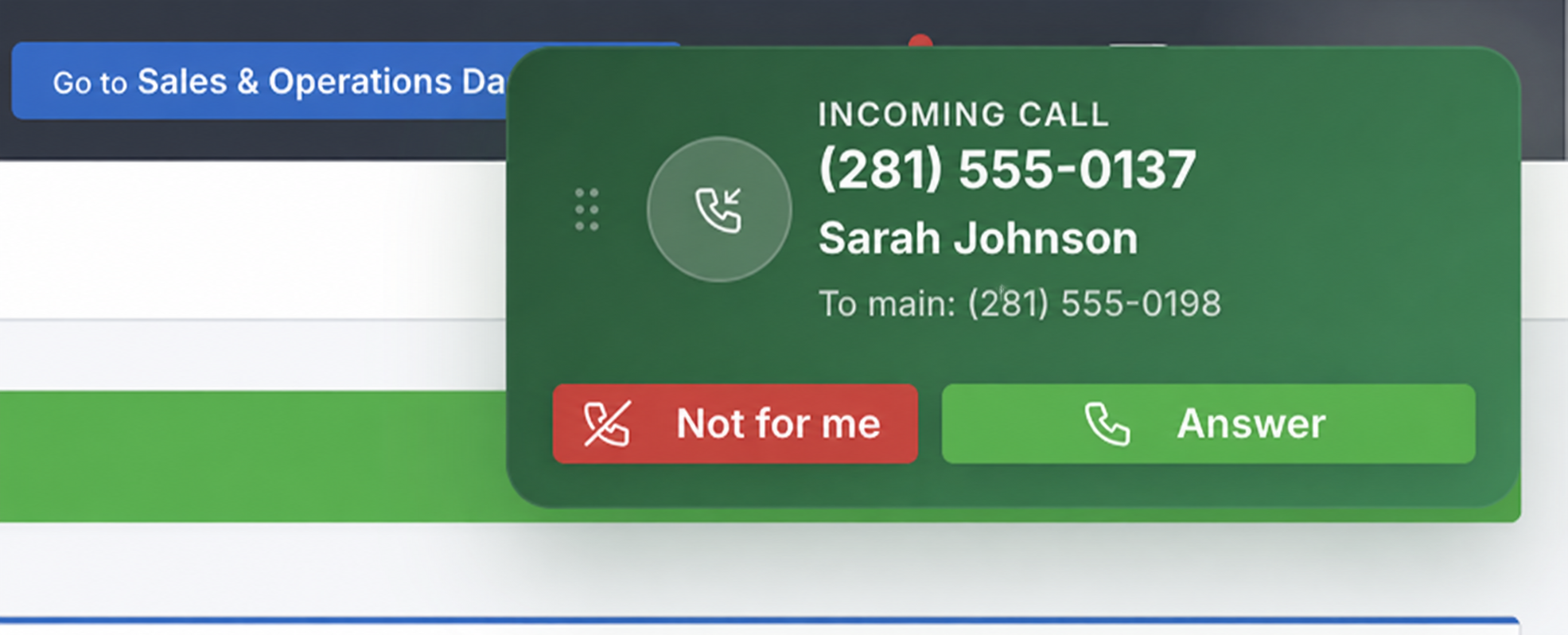
When a call comes in, a pop-up appears in LeadCenter. If the caller’s phone number matches a contact, the pop-up shows caller details.
- Click Answer to take the call.
- Click Not for me to stop ringing on your screen only. Other recipients can still answer.
- Click End call when you are finished.
Note: Your browser asks for microphone access when you click Answer. The microphone is not used until you accept a call.
Call History
Answered inbound calls, outbound calls from LeadCenter, and voicemails appear in Calls after the call ends. If the caller’s number matches a contact, the call is linked to that contact.
It may take a minute for a call to appear.
Calls from unknown numbers: Each virtual number can be configured not to create a contact when an incoming call does not match an existing contact. Turning off contact creation does not change ringing or call storage. If a contact with the same phone number is created later, the unmatched call history is automatically linked to that contact.
Outbound Calls
The click-to-call pop-up has an updated look. Making outbound calls works the same as before.
Troubleshooting
No Incoming Call Pop-Up Appears
- Confirm you are listed as a recipient in inbound call settings.
- Confirm your status is Available, not Do not disturb.
- Confirm you are logged in to LeadCenter with the site open in a browser tab.
- If calendar business hours are used, confirm the call is within your scheduled hours.
Only My Mobile Phone Rings
- Review the number’s inbound call settings.
- Confirm at least one team member is saved as a LeadCenter recipient.
- Review each person’s business hours.
- Confirm recipients have not turned on Do not disturb.
Voicemail Starts Too Soon
Increase Ring before voicemail in inbound call settings.
A Call Is Missing from Calls
- Wait a minute and refresh the page.
- Confirm the call was answered or went to voicemail.
- If you expected LeadCenter to ring, confirm at least one team member is saved in inbound call settings.
Related Articles

Need more help?
If you can't find the answers you're looking for, our support specialists are available to answer your questions and troubleshoot if necessary.
-
Phone Call (888) 291-7116. Our main hours are Monday to Friday 7 am-5 pm Central Time.
-
Support Send your questions and inquiries via email to support@leadcenter.ai. A support ticket will be created and one of our team members will get back to you as quickly as possible.