 Help Center
AI Agents
AI Agents
In person meeting (Claudia AI)
Use In person meeting (Claudia AI) when everyone is in the same room. Your computer microphone captures the conversation, and Claudia AI prepares the recording, transcription, and meeting notes afterward.
For Zoom, Microsoft Teams, or Google Meet calls, use Join Live Meeting (Claudia AI) instead.
Before You Start
- Use a computer with a working microphone.
- Allow microphone access in your browser.
- Keep the recording tab open during the meeting.
- Use Google Chrome, Microsoft Edge, or Mozilla Firefox.
Open In Person Meeting
Open the page from any of these locations:
- Open the + menu in the top navigation, then select In person meeting (Claudia AI).
- Select In person meeting (Claudia AI) from the shortcuts on your Home dashboard.
- Open an appointment, then select Start Claudia AI.
- Open a contact, open AI assistant or Meet, then select In person meeting (Claudia AI).
When you start from a contact, that contact is selected automatically when possible. You can change the selection before recording.
Select or Create the Appointment
- Open In person meeting (Claudia AI).
- Select the appointment you are recording from the list of today's meetings.
- If the meeting is not listed, click Create a new meeting, enter the subject, contact, guests, and team members, then click Create appointment.
- Review the selected meeting details and linked notes.
- Click Start to begin recording.
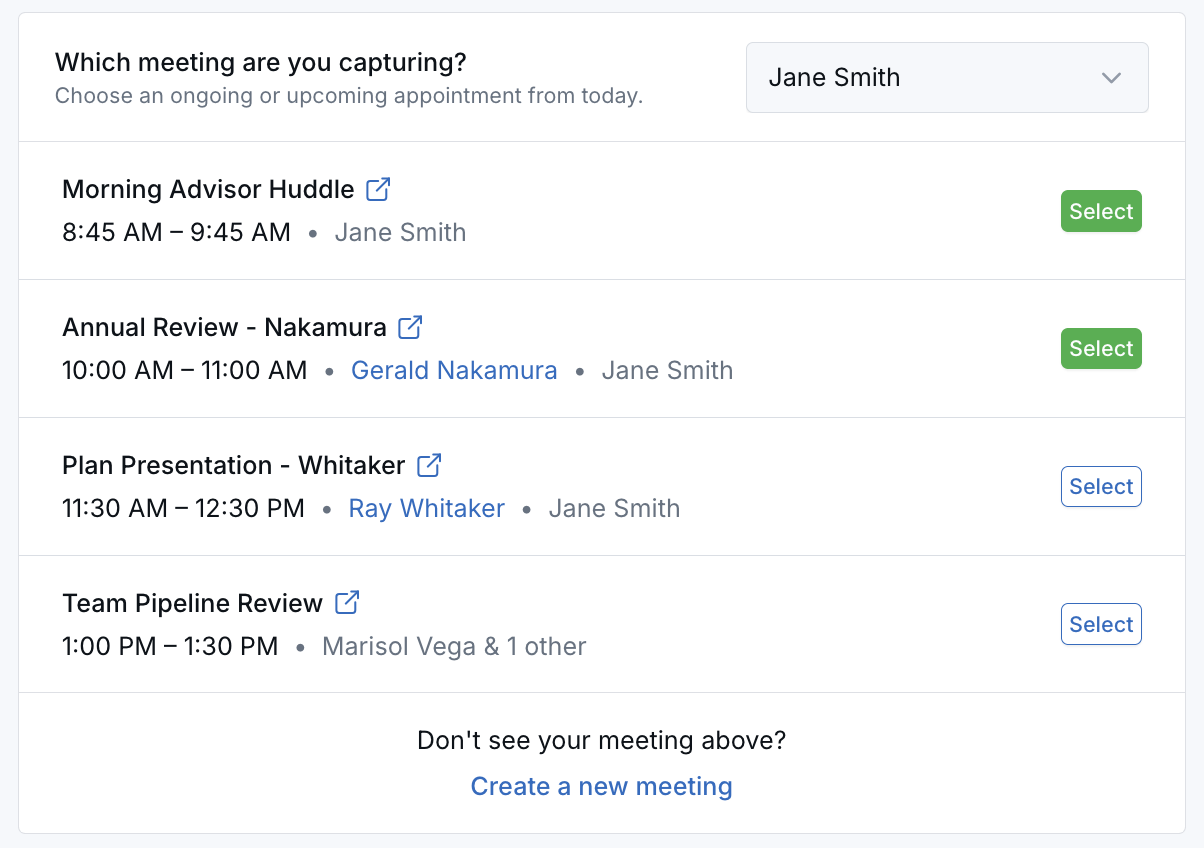
The selected appointment appears above the recorder. Notes linked to the appointment remain visible beside the recording area for reference.
Record the Meeting
- Confirm the meeting title and participants.
- Click Start.
- Keep the tab open while the meeting is in progress.
- Use Pause and Resume when needed.
- Click End meeting when the conversation is finished.
Upload a Pre-Recorded Meeting
If you already have a meeting file saved on your computer, you can upload it instead of recording the meeting live again. This is useful for recordings captured outside LeadCenter, such as a phone voice memo, exported audio file, or video file.
Use live recording when you are about to meet someone and want Claudia to capture the meeting from your microphone. Use Upload pre-recorded when the meeting already happened and you already have the file.
How to Start an Upload
- Open the same area you use for In person meeting (Claudia AI).
- Click Upload pre-recorded.
- Enter the meeting details, including title, optional description, and start and end time.
- Search for and select the main contact if there is one.
- Optionally add guest emails and attendees from your company.
- Choose the recording file and continue with the upload steps shown on the page.
Note: If you do not link a contact, LeadCenter treats the upload as an internal meeting.
File Size
The upload page shows the largest file size allowed for one upload for your account. If the file is larger than the limit shown on your screen, you may need to trim it before uploading.
What Happens After You Upload
- LeadCenter accepts the file and begins processing it.
- Longer or larger files take longer to prepare.
- When processing finishes, the meeting can produce the same types of Claudia results your team has enabled, such as a transcription and other meeting outputs.
- If you do not see the results yet, wait a few minutes and refresh the contact or appointment.
Recording Health Warnings
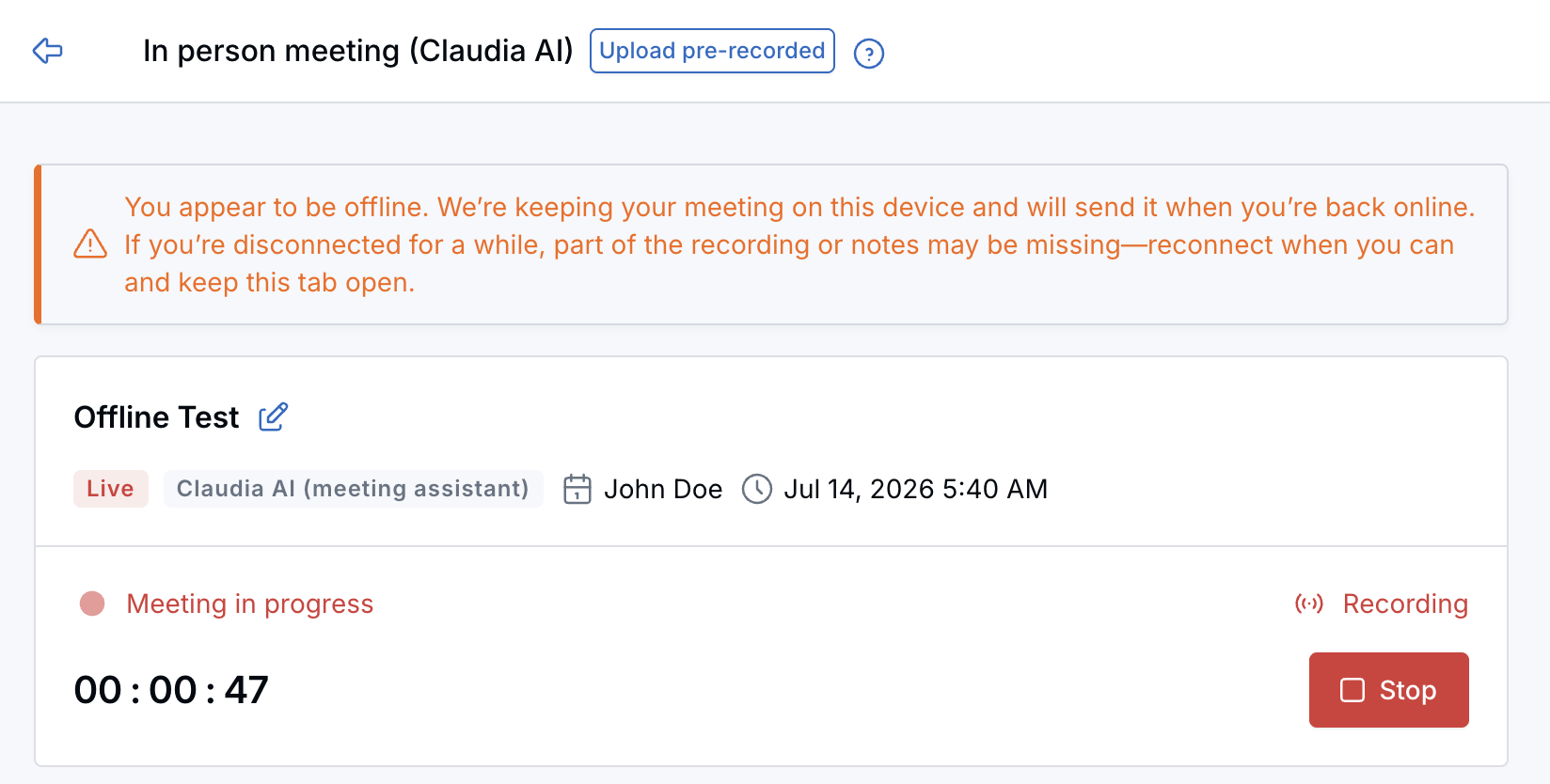
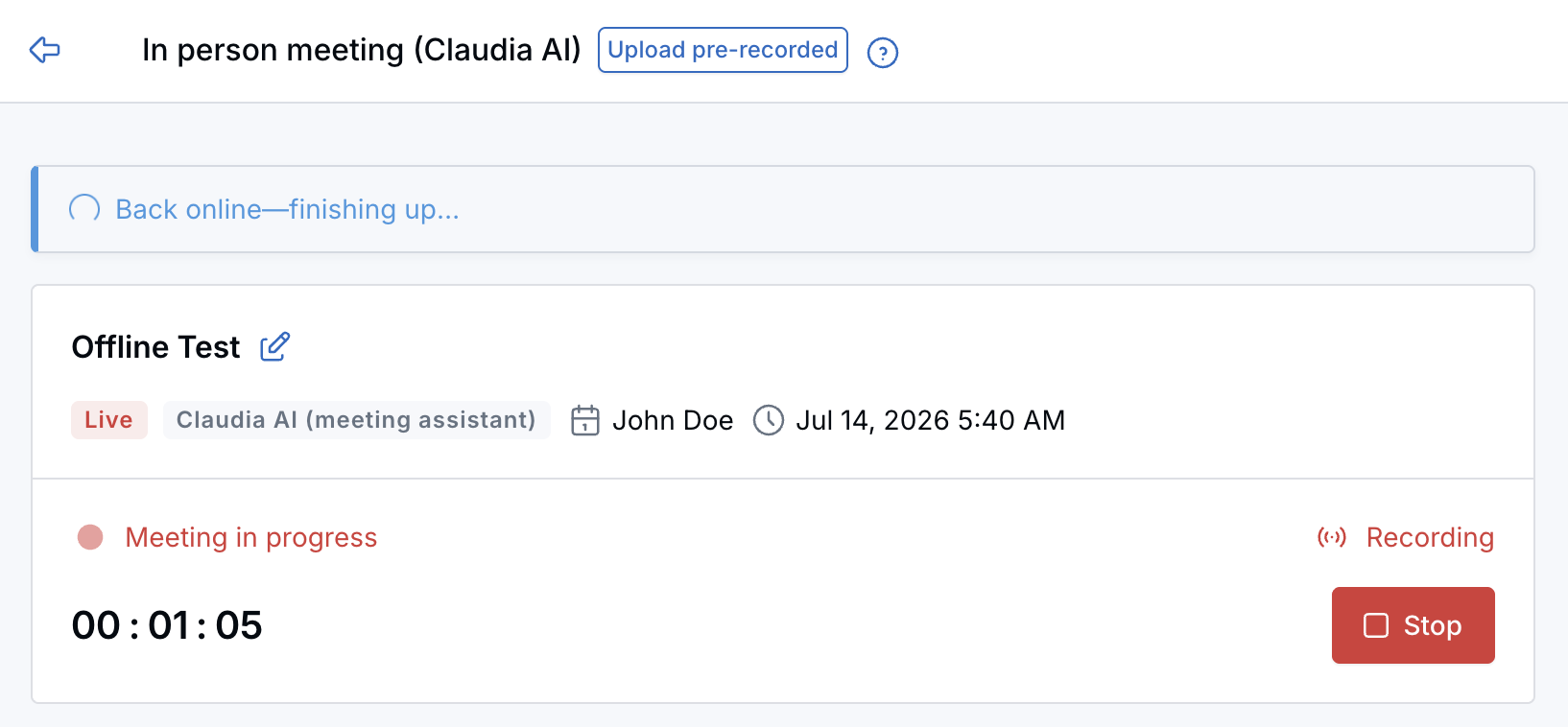
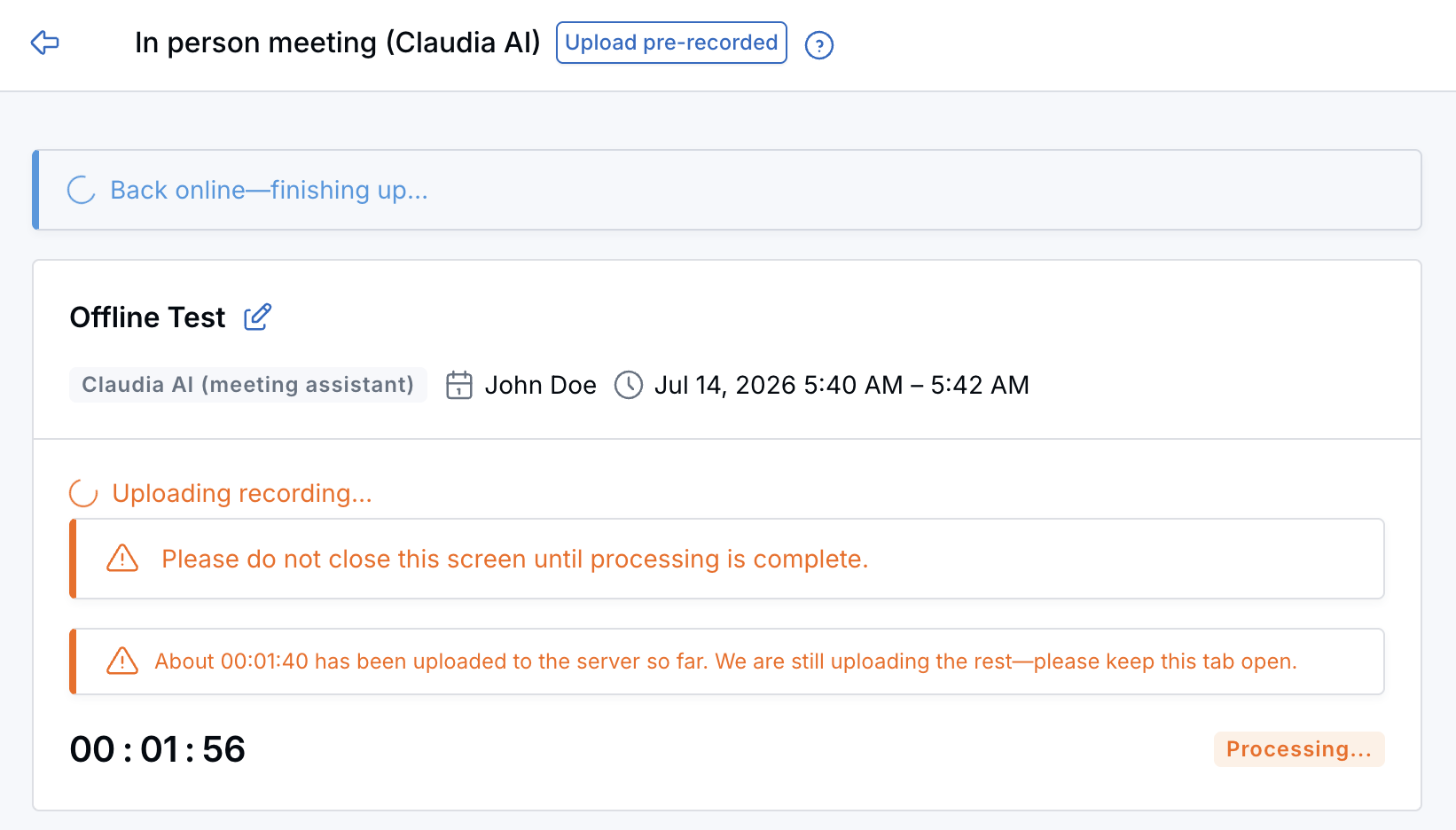
Claudia AI shows a warning when the browser tab is in the background, audio capture pauses, or the recording ends unexpectedly. Follow the instruction in the warning before continuing.
After the Meeting
Claudia AI processes the recording after the meeting ends. The recording, transcription, and summary appear on the appointment and related contact when processing is complete.
Mobile App Recording (Quick Meeting)
You can also record in-person meetings directly from the LeadCenter mobile app using Quick meeting. This is ideal when you are meeting in person and want a fast, reliable audio recorder.
Key Benefits of Mobile Recording
- Works offline — Recording continues even if internet connection drops
- Live waveform visualization
- Automatic cloud sync when connection is restored
- Link to contacts or appointments
How to Start a Mobile Recording
Option 1: From the Main Navigation
- Tap the floating + button at the bottom center of the screen.
- Select Quick meeting.
- The recorder opens immediately.
Option 2: From an Appointment
- Open Calendar in the mobile app.
- Tap an appointment.
- Tap Quick meeting.
The meeting will automatically link to that appointment.
Option 3: From a Contact
- Open Contacts in the mobile app.
- Select the contact.
- Tap Quick meeting.
The meeting will automatically link to that contact.
Recording a Meeting (Mobile Step-by-Step)
- Tap Start to begin recording.
- Status changes to Live and the waveform animates.
- The timer displays meeting duration.
- You may add participants by tapping the participants section.
- Tap Done to finish recording.
If your connection drops, recording continues locally. Audio segments upload automatically when internet access is restored.
Viewing the Meeting Transcription (Desktop & Mobile)
Processing Time
Transcriptions typically take a few minutes depending on meeting length. Longer meetings require more processing time.
How to View the Transcription
- Open the associated Contact.
- Go to the Appointments tab.
- Locate the recorded or uploaded meeting.
- Click or tap the three-dot menu (⋮).
- Select View Transcription.
A panel opens displaying the full conversation, organized by speaker.
Tips for Best Results
Before the Meeting
- Test your microphone beforehand.
- Choose a quiet location.
- Place your device close enough to capture all voices clearly.
During the Meeting
- Speak clearly and at a normal pace.
- Avoid talking over each other.
- Minimize background noise.
Troubleshooting
Microphone Permission Issues
If recording does not start, ensure microphone access is enabled in your browser (desktop) or in your device settings (mobile app).
Upload Processing Delays
- Larger files take longer to process.
- If the upload seems stuck, wait a few minutes and refresh the contact or appointment.
- If the file is larger than the allowed limit shown on the page, trim it and try again.
No Transcription Available
- The recording may still be processing.
- The recording may have been too short.
- The audio quality may have been insufficient.
Deleting a Recording
If you need to delete a recording, please contact support@leadcenter.ai.
Need Help?
If you experience issues or have questions about in-person meeting recording, contact support@leadcenter.ai.

Need more help?
If you can't find the answers you're looking for, our support specialists are available to answer your questions and troubleshoot if necessary.
-
Phone Call (888) 291-7116. Our main hours are Monday to Friday 7 am-5 pm Central Time.
-
Support Send your questions and inquiries via email to support@leadcenter.ai. A support ticket will be created and one of our team members will get back to you as quickly as possible.