 Help Center
AI Agents
AI Agents
Claudia AI Overview
Claudia AI is LeadCenter’s built-in AI meeting and call assistant. It helps you prepare for conversations, capture discussions, generate structured documentation, draft follow-up emails, and analyze performance — all directly inside your CRM.
This page serves as a central guide to help you set up, use, and customize Claudia AI.
Step 1: Understand What Claudia AI Can Do
Claudia AI supports three core workflows:
1. Meeting Preparation
- Automatically generate structured prep before appointments
- Saved as a note on the contact record
View AI Meeting Preparation guide →
2. Capturing Conversations (Recording + Transcription)
Virtual Meetings (Zoom, Microsoft Teams, Google Meet)
- AI Note Taker joins supported meeting links
- Meeting recordings and transcriptions are saved automatically
In-Person Meetings
- Record directly from your laptop
- Or record using the LeadCenter mobile app
View In-Person Meeting Recorder guide →
Phone Calls
- LeadCenter Phone
- RingCentral
- GoTo
- Dialpad
3. Automatic Documentation
- Meeting transcriptions
- Structured meeting summaries
- AI-generated follow-up email drafts
- Call summaries
Meeting Visibility
- Control whether Claudia-generated meeting content is visible only to the meeting host or visible to all users
- Applies to transcripts, recordings, summaries, scorecards, follow-up tasks, and follow-up draft emails
- Internal meetings with no external client or contact attached stay private to the host by default
Meeting Transcriptions: View guide →
Meeting Summaries: View guide →
Meeting Email Drafts: View guide →
Call Summaries: View guide →
Step 2: Enable Claudia AI
For Meetings
- Go to Calendars.
- Edit the calendar you want to configure.
- Open Claudia AI (Meeting Assistant).
- Enable the features you want:
- AI Note Taker
- Meeting Transcription
- Meeting Summary
- Draft Follow-Up Email
- Meeting Analytics
- Click Save.
Review Category Settings by Calendar
Claudia AI settings can use a default template for all appointment categories, or separate templates for specific appointment categories. Review each calendar separately if your team uses different Claudia AI templates or timing rules by calendar.
- Go to Calendars.
- Click the settings (gear icon) on the calendar you want to configure.
- Open Claudia AI (Meeting Assistant).
- Review the sections that use templates, such as Meeting Prep, Meeting Summary, Follow-up Email, or Meeting Scorecard.
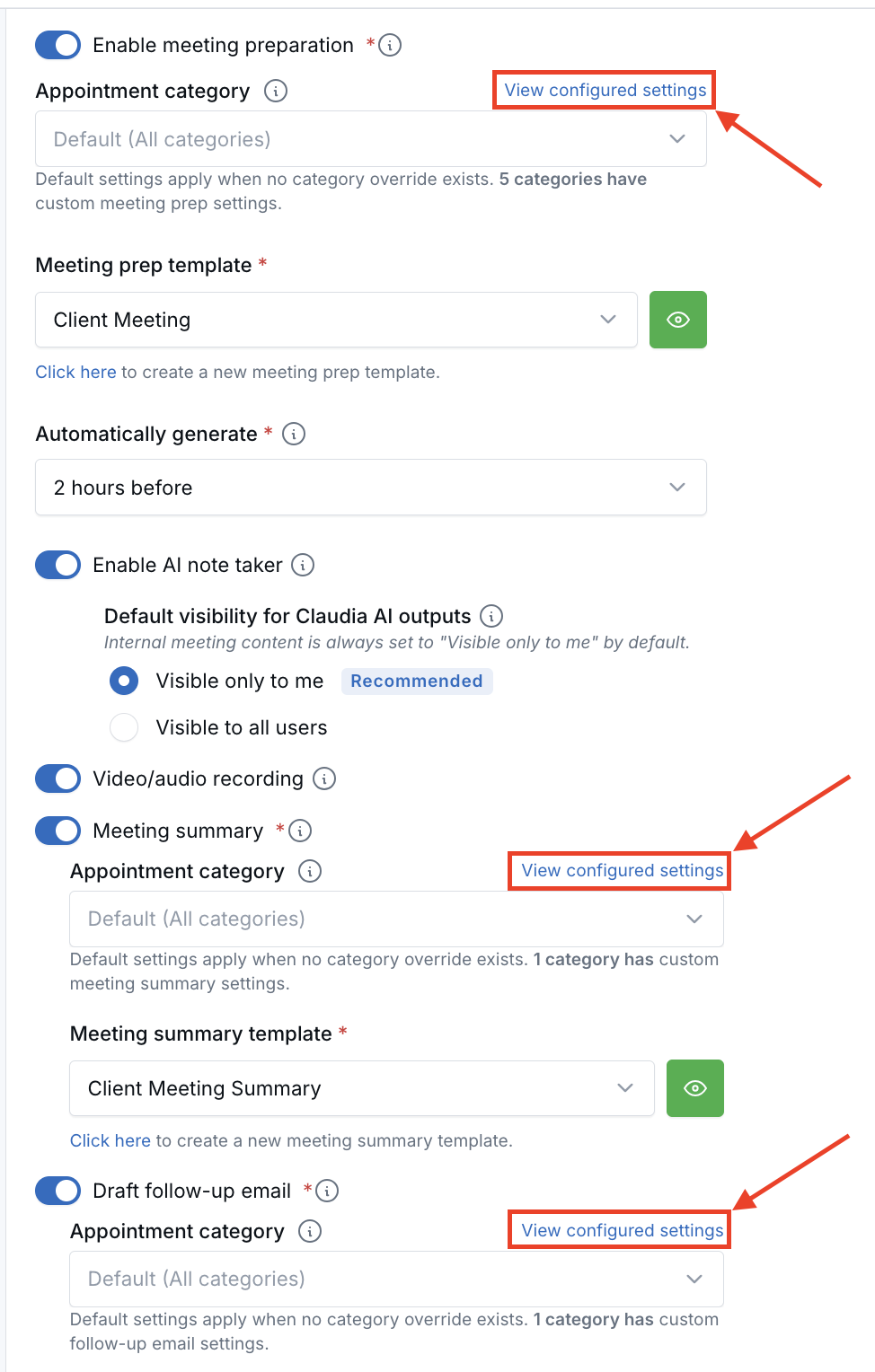
Each section can use a default setting when no appointment category override exists. You can also select an appointment category and assign a specific template or setting for that category.
Under the Appointment category dropdown, LeadCenter shows a short message to help you understand the current setup. If one or more categories have custom settings, the message shows how many categories are customized.
Click View configured settings next to the Appointment category label to open a summary of the saved settings for that section.
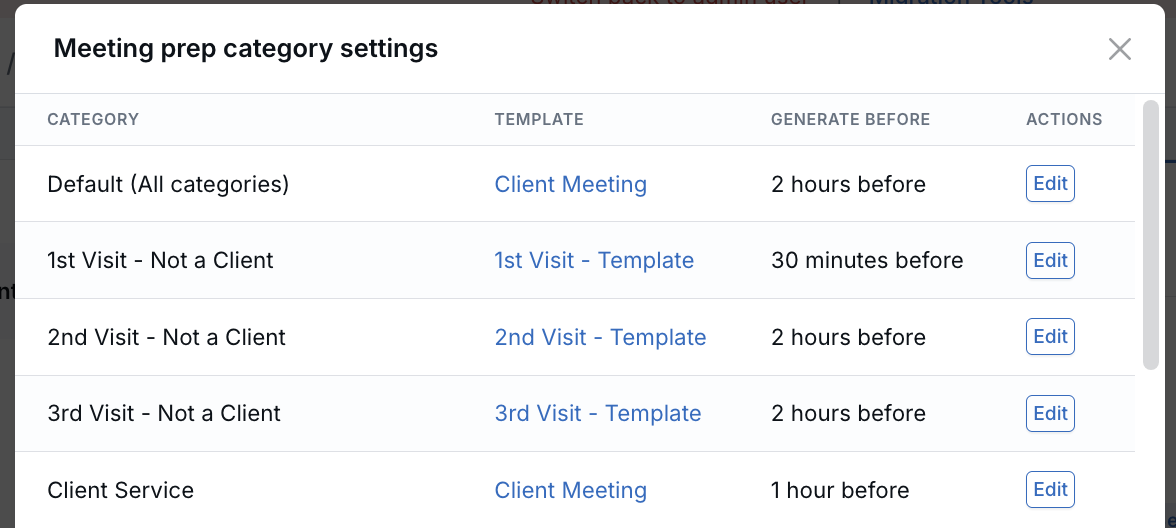
The summary shows:
- Each category with configured settings, including the default setting.
- The template assigned to each category.
- The Generate before timing for Meeting Prep, when applicable.
- An Edit option that takes you directly to that category's settings.
Categories with custom settings appear first, making it easier to see which categories have their own templates and which ones still use the default.
Category selections are saved separately for each calendar. When you switch between calendars, LeadCenter loads the category settings for the calendar you are viewing.
For Phone Calls
- Go to Settings → Phones and texts → Phone numbers.
- Click the Settings (gear icon).
- Select Claudia AI settings.
- Enable:
- Call Transcription
- Call Summary
- Call Sentiment Analysis
- Call Participation Metrics
- Call Scorecard
- Click Save.
Step 3: Templates (Optional Customization)
Claudia AI includes default templates for:
- Meeting preparation
- Meeting summaries
- Call summaries
- Follow-up email drafts
- Scorecards
You can use these default templates immediately — no setup required.
If you want to customize structure, wording, or evaluation criteria, you can create your own templates:
-
Create AI Meeting Prep Templates
View guide → -
Create Meeting or Call Summary Templates
View guide → -
Create Email Draft Templates
View guide → -
Create Scorecard Templates
View guide →
Step 4: Analyze & Improve Performance
Claudia AI provides analytics for both meetings and calls.
-
Sentiment Analysis — Understand emotional tone
Phone Call Sentiment → -
Participation Metrics — Talk vs. listen ratios
Call Participation Metrics → -
Scorecards — Evaluate calls against your process
Call Scorecard → -
Meeting Analytics Overview
Meeting Analytics →
Where Claudia AI Outputs Appear
- Meeting prep — Saved as a note on the contact record
- Transcriptions — On the appointment
- Meeting summaries — Saved as notes on the contact record
- Email drafts — Contact → Emails → Drafts
- Call summaries — Saved as notes on the contact record
- Analytics & scorecards — Saved as notes on the contact record
Claudia-generated meeting content may be visible only to the meeting host, depending on the calendar’s visibility setting and whether the meeting is internal.
Important Configuration Requirements
- Meeting features require transcription. If Meeting Transcription is not enabled in Calendar Settings, summaries, email drafts, and analytics will not be generated.
- Call features require recording and transcription. If call recording or transcription is disabled, AI summaries and analytics will not be available.
- Meetings scheduled less than 10 minutes in advance may not allow the AI Note Taker to join automatically.
Supported Communication Types
- Virtual Meetings: Zoom, Microsoft Teams, Google Meet
- In-Person Meetings: Desktop recording or LeadCenter mobile app
- Phone Providers: LeadCenter Phone, RingCentral, GoTo, Dialpad
Getting Started Checklist
- Enable Meeting Transcription in your calendars.
- Enable Call Transcription on your phone numbers.
- Review the default templates (customize only if needed).
- Run a test meeting or call.
- Review outputs inside the contact record.
Data Retention
Account owners and admins can set how long Claudia AI keeps meeting and phone call recordings and transcriptions in Claudia AI data retention, with a separate policy for each. When a policy deletes content, AI notes, summaries, and tasks stay available.
- To set a policy, see Claudia AI Data Retention Policies.
- To learn what users see after content is deleted, see What Happens When a Retention Policy Removes Claudia AI Content.

Need more help?
If you can't find the answers you're looking for, our support specialists are available to answer your questions and troubleshoot if necessary.
-
Phone Call (888) 291-7116. Our main hours are Monday to Friday 7 am-5 pm Central Time.
-
Support Send your questions and inquiries via email to support@leadcenter.ai. A support ticket will be created and one of our team members will get back to you as quickly as possible.