 Help Center
Security & Compliance
Security & Compliance
Claudia AI Data Retention Policies
Claudia AI data retention policies let account owners and admins control how long Claudia AI keeps meeting and phone call recordings and transcriptions. Each has its own policy, so you can keep one longer than the other to match your firm's compliance and record-retention requirements.
Both policies are off by default. Until you turn one on, Claudia AI keeps every recording and transcription, as it always has.
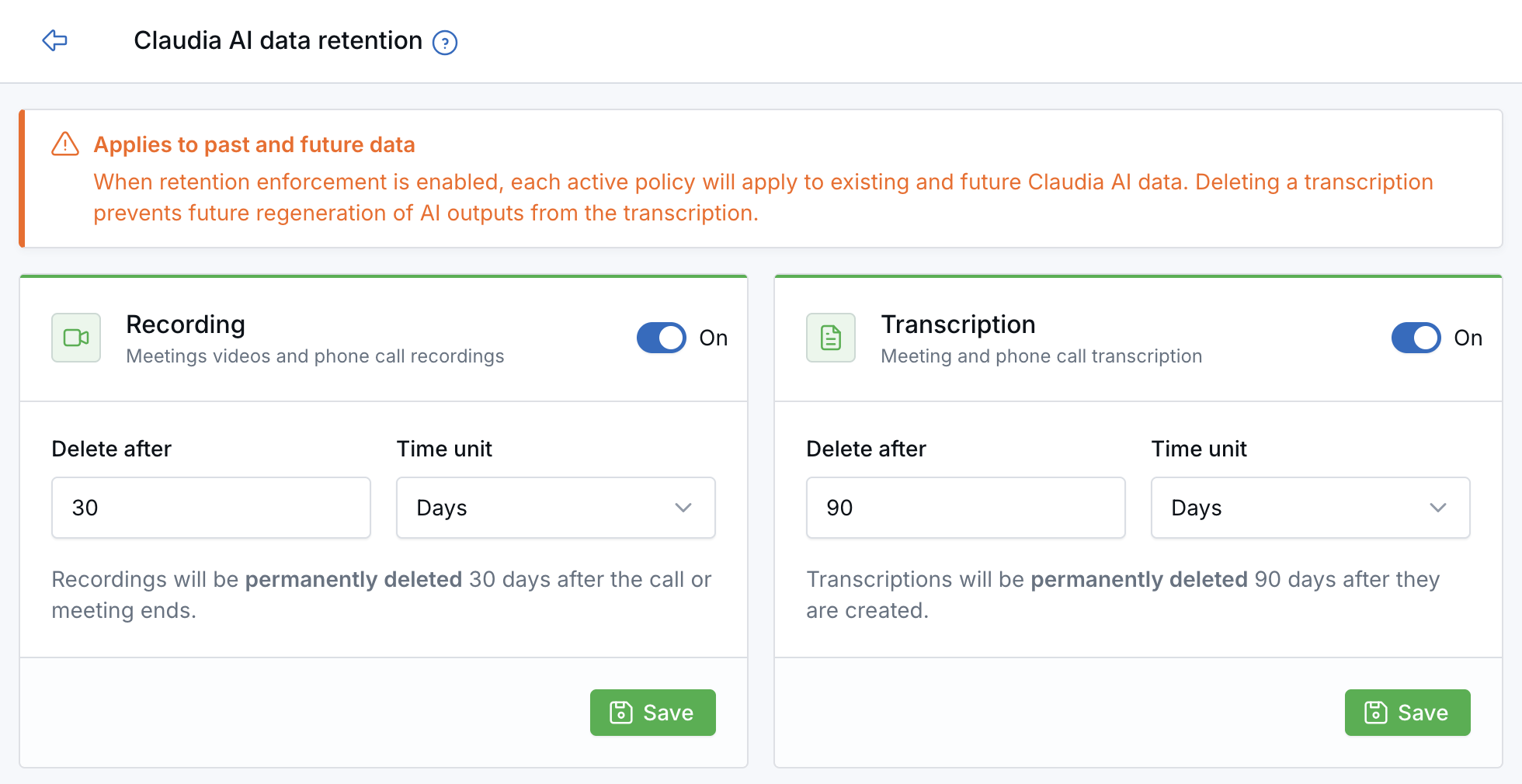
Each policy has its own retention period and deletion summary.
Before You Start
- Only account owners and admins can change retention policies. Other users with access can view them.
- Confirm how long your firm must keep recorded conversations and transcripts before you turn a policy on.
- If your firm archives transcriptions, confirm that Smarsh archiving is set up. Each transcription is archived to Smarsh before it is deleted.
- Claudia AI records calls and meetings to create notes, even when a policy deletes the recording right after. Follow your firm's client-consent requirements as usual.
Open the Retention Settings
Open Claudia AI data retention directly, or use either path below.
From Settings:
- Go to Settings → Security management.
- Click Claudia AI data retention.
From the AI page:
- Go to AI.
- On the Claudia AI card, click Settings.
- Select Retention policy.
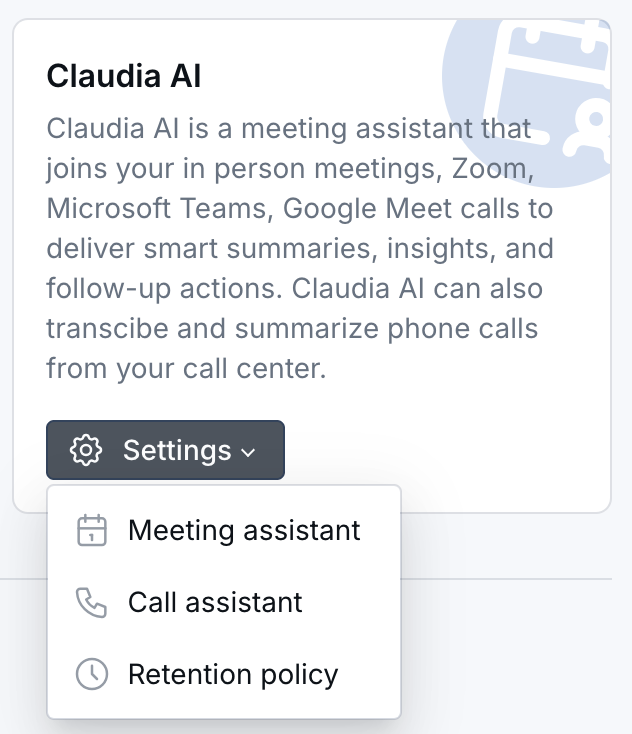
Retention policy in the Claudia AI Settings menu.
Set a Retention Policy
The page has two cards: Recording (meeting videos and phone call recordings) and Transcription (meeting and phone call transcriptions). Set each one separately.
- On the Recording or Transcription card, turn the switch On.
- Under Time unit, choose Hours, Days, or Weeks, and enter the number in Delete after. To delete content as soon as Claudia AI finishes processing it, choose Immediate. A line under the fields confirms exactly when content will be deleted.
- Click Save on that card.
- In the Enable permanent deletion? window, type Yes, delete permanently.
- Click Enable and save.
Repeat these steps on the other card if you want a policy for both recordings and transcriptions.
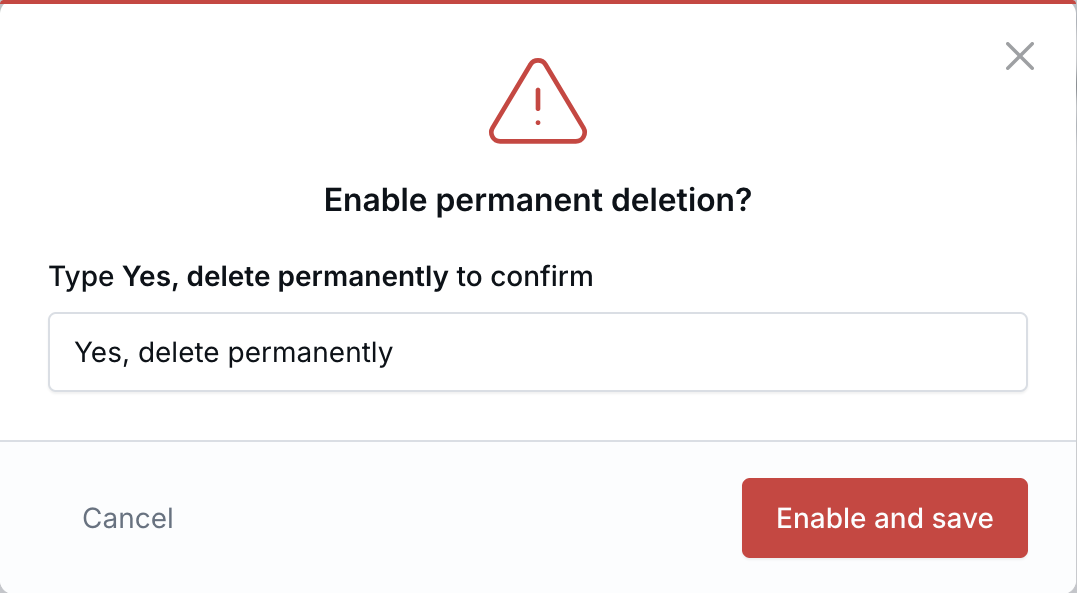
Type the confirmation phrase to turn on permanent deletion.
When Content Is Deleted
| Policy | Recordings | Transcriptions |
|---|---|---|
| Immediate | After Claudia AI finishes transcribing the recording and generating AI notes | After Claudia AI finishes generating summaries and other AI outputs |
| Hours, days, or weeks | The chosen time after the call or meeting ends | The chosen time after the transcription is created |
Change or Turn Off a Policy
- Open Claudia AI data retention.
- To change a policy, update Delete after or Time unit. To stop a policy, turn the card's switch Off.
- Click Save on that card.
Turning a policy off stops it from deleting content from then on. Content that was already deleted cannot be restored.
What Stays in LeadCenter
- AI notes, summaries, tasks, and follow-up email drafts that Claudia AI already created.
- The call or meeting record, such as the date, duration, and participants.
To learn what your team sees after a recording or transcription is deleted, see What Happens When a Retention Policy Removes Claudia AI Content.
Questions? Contact support@leadcenter.ai.

Need more help?
If you can't find the answers you're looking for, our support specialists are available to answer your questions and troubleshoot if necessary.
-
Phone Call (888) 291-7116. Our main hours are Monday to Friday 7 am-5 pm Central Time.
-
Support Send your questions and inquiries via email to support@leadcenter.ai. A support ticket will be created and one of our team members will get back to you as quickly as possible.