 Help Center
Pricing Plans
Control AI Spend for Your Team
Click here to open Control AI spend in LeadCenter.
Set a monthly cap on what your team spends on Troy AI chat and Claudia AI meetings. You can give each person their own cap, or set one shared cap for your whole firm. The cap resets at the start of each billing cycle.
Open Control AI Spend
- Click your name in the top right corner and choose Subscription.
- Click Control AI spend at the top of the page.
You'll also find the Control AI spend button on the AI page and on AI agent pages.
Set a Monthly Cap
- Turn on Control AI Spend per user.
- Under Type, choose Per user or Organization.
- Under Monthly limit, pick an amount. To enter your own amount, choose Custom. The smallest amount is $0.01.
- Click Save limit.
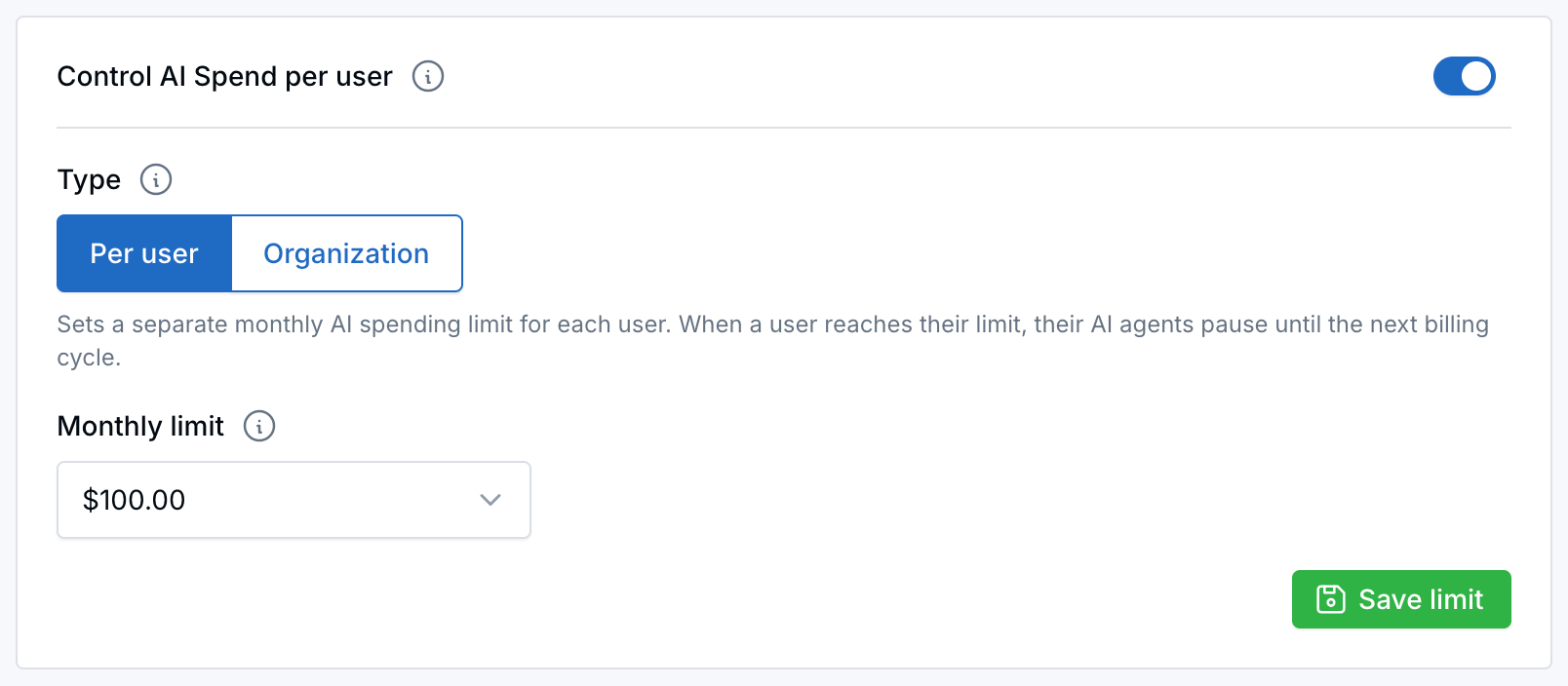
Turn on the cap, choose Per user or Organization, pick a monthly limit, and click Save limit.
The cap starts only after you click Save limit. The first time you turn it on, the page starts on Per user at $100. Change it before you save if you want a different amount.
Per User or Organization
- Per user: Each person gets their own monthly cap. The preset amounts are $50, $100, $200, $300, and $500. When someone reaches their cap, Troy AI chat stops for them and Claudia AI won't join new meetings on their calendar until your next billing cycle. The rest of your team isn't affected.
- Organization: One shared monthly cap covers everyone. The preset amounts are $600, $1,200, $2,400, $3,600, and $6,000. When your team's combined spending reaches the cap, Troy AI chat and new Claudia AI meetings stop for everyone until your next billing cycle.
What Counts Toward the Cap
- Troy AI chat for each person.
- Completed Claudia AI meetings. The cost goes to the calendar owner who hosts the meeting, not to everyone who attended.
If someone reaches the cap while Claudia is in a meeting, Claudia stays until the meeting ends. That meeting's cost is added when it finishes.
A person who has reached the cap sees this message: You've reached your monthly AI spend limit. Ask an administrator to raise the limit.
Track This Month's Spending
The Total spending card shows what your team has spent this month. The list below it shows each team member's spending, and you can search by name or email.
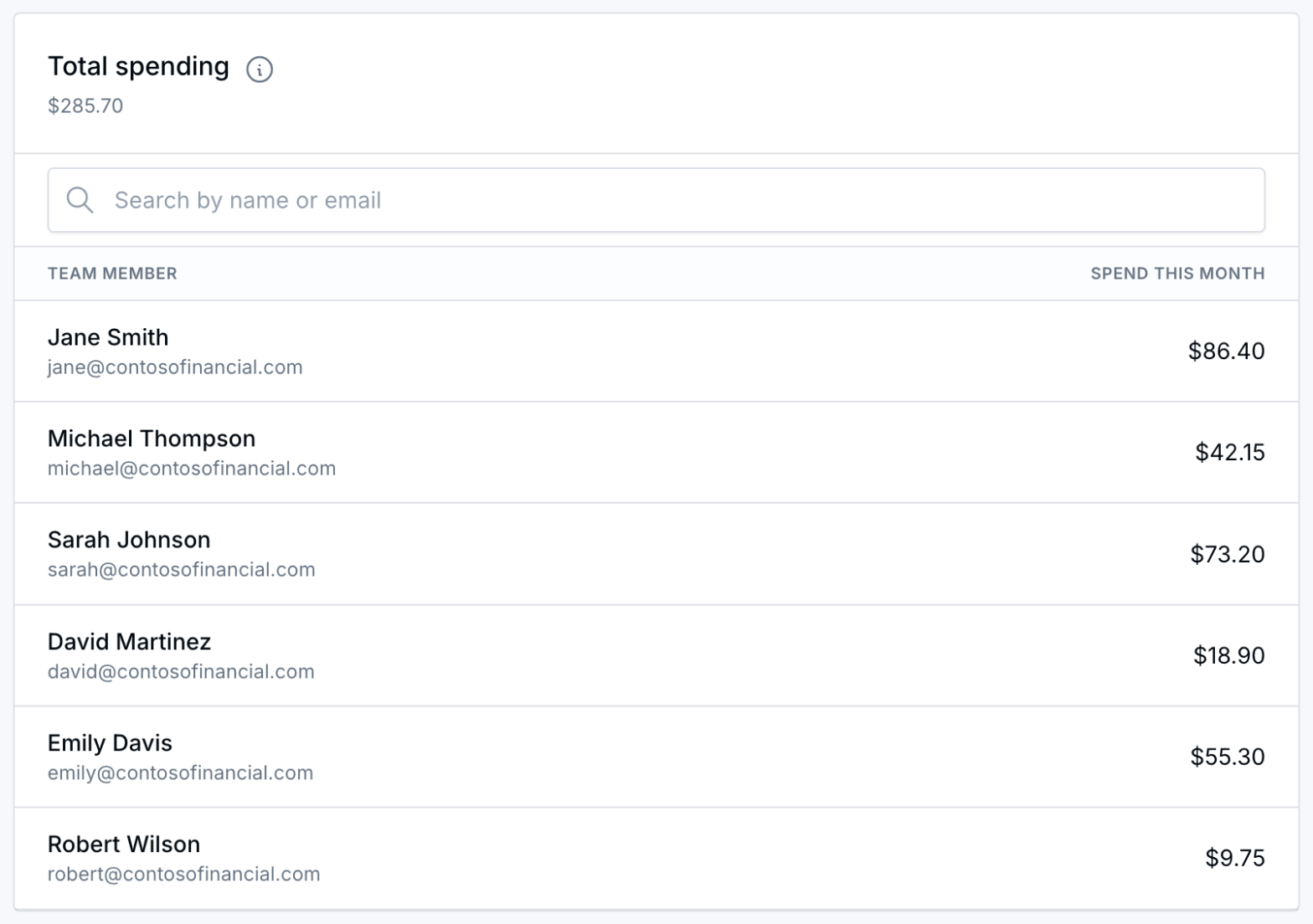
See what each person has spent this month.
- In Per user mode, anyone who has reached their cap shows an At limit badge next to their name.
- In Organization mode, the At limit badge shows on the total when the shared cap is reached.
When a cap is reached, account owners and admins get one email with a link back to this page. In Per user mode, that's one email per person each billing cycle. In Organization mode, it's one email for the whole firm each billing cycle.
Turn Off the Cap
Turn off Control AI Spend per user. The cap is removed right away.
Who Can Change the Cap
Two permissions control this page. You'll find both under AI Spend when you create or edit a role.
- View AI spend limit: Open the page and see the cap and this month's spending.
- Update AI spend limit: Turn the cap on or off and change the amount.
People who can view the page but not update it see the switch and Save limit grayed out.
Good to Know
- The cap doesn't change your subscription or your plan.
- Metered billing report at the top of the page opens your detailed AI usage report. That report is separate from the cap.
- For AI pricing, see AI Usage-Based Pricing.
Questions? support@leadcenter.ai

Need more help?
If you can't find the answers you're looking for, our support specialists are available to answer your questions and troubleshoot if necessary.
-
Phone Call (888) 291-7116. Our main hours are Monday to Friday 7 am-5 pm Central Time.
-
Support Send your questions and inquiries via email to support@leadcenter.ai. A support ticket will be created and one of our team members will get back to you as quickly as possible.