 Help Center
Text Message Marketing
Text Message Marketing
Hide System Texts in the Texts Inbox
Appointment reminders, event texts, and workflow texts can fill your Texts inbox. Turn on Hide system texts to focus on client replies and texts your team typed and sent, and set the automated ones aside.
Where to Find It
- Texts inbox: open Inbox → Texts. The Hide system texts switch is at the right end of the filter row.
- A contact or household: the same switch is on the contact's or household's Texts tab.
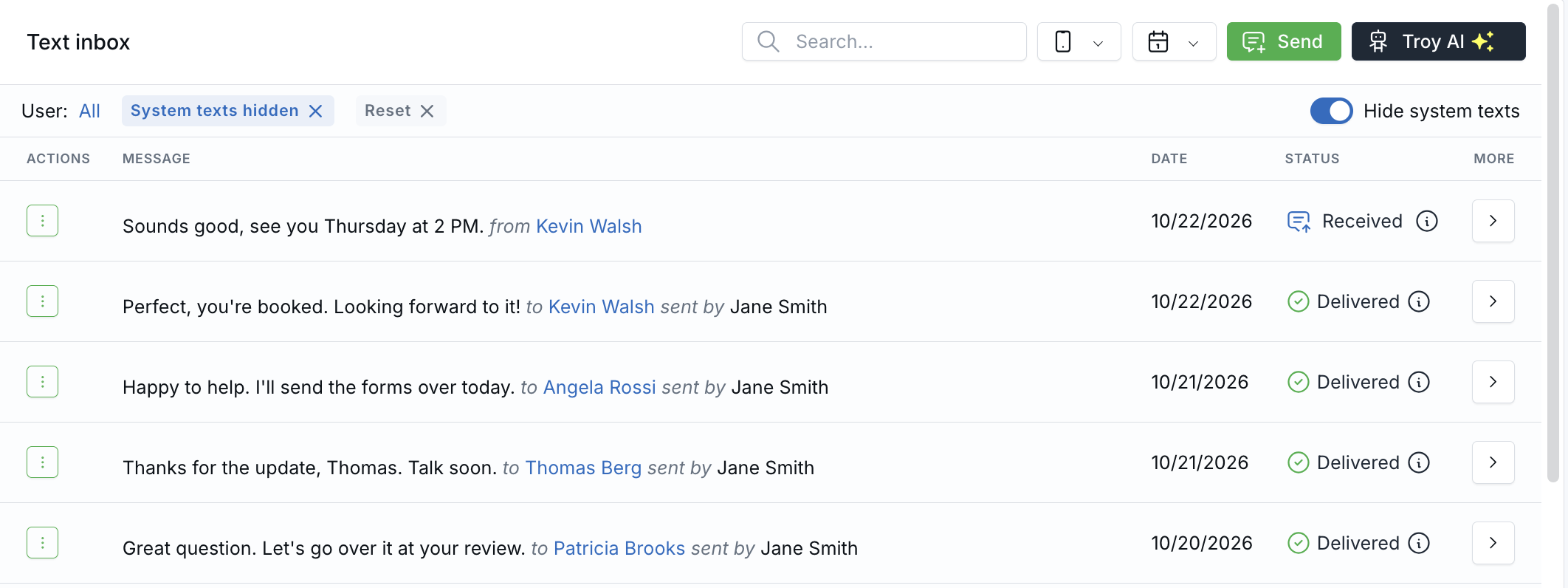
Hide system texts is at the right end of the filter row. The System texts hidden chip shows it's on.
What Stays and What's Hidden
- Stays: replies from contacts, and texts you or a teammate typed and sent.
- Hidden: texts labeled SYSTEM, including appointment, event, and workflow texts.
In the Texts inbox, a conversation stays in the list when it has a client reply or a text a person sent, and the row shows that latest text. Open the conversation and the system texts are still there, so you can see what the contact is replying to.
On a contact's or household's Texts tab, system texts are left out of the list while the switch is on.
Turn It On or Off
- Turn on Hide system texts. A System texts hidden chip appears on the filter row.
- To show system texts again, click the X on that chip, turn the switch off, or click Reset.
LeadCenter remembers your choice in this browser. The next time you open Texts, or a contact's or household's Texts tab, it opens the way you left it.
Note: The switch works on LeadCenter texts. It isn't on Drafts, or on the RingCentral or Intulse text lists.
Related Articles

Need more help?
If you can't find the answers you're looking for, our support specialists are available to answer your questions and troubleshoot if necessary.
-
Phone Call (888) 291-7116. Our main hours are Monday to Friday 7 am-5 pm Central Time.
-
Support Send your questions and inquiries via email to support@leadcenter.ai. A support ticket will be created and one of our team members will get back to you as quickly as possible.