 Help Center
Text Message Marketing
Text Message Marketing
Send and Receive Text Messages in the LeadCenter Mobile App
Use the LeadCenter mobile app to manage one-to-one SMS conversations with contacts. Messages are recorded with the contact and remain available to authorized team members.
Messages are sent from one of your account's virtual numbers. Your personal phone number is not used or shown to the contact.
Open the Texts Inbox
- Tap More in the bottom navigation bar.
- Select Texts.
The inbox displays the conversations you can access, with the most recent conversation first. Unread messages display a badge on both the conversation and the Texts entry in the More menu.
Opening a conversation marks its messages as read. Use the search icon to filter the conversation list, or swipe down to refresh it.
Start a Conversation
- Open a contact and tap the green Text icon. The icon appears when the contact has a phone number.
- Open More → Texts and tap +.
- Tap the blue + in the bottom navigation bar and select Text.
Search for the recipient by name. Contacts without a phone number remain visible but cannot be selected.
Send a Text
- Open the contact's conversation.
- Review the number shown in the From row. Tap it to choose a different account number when needed.
- Enter your message.
- Tap the send arrow.
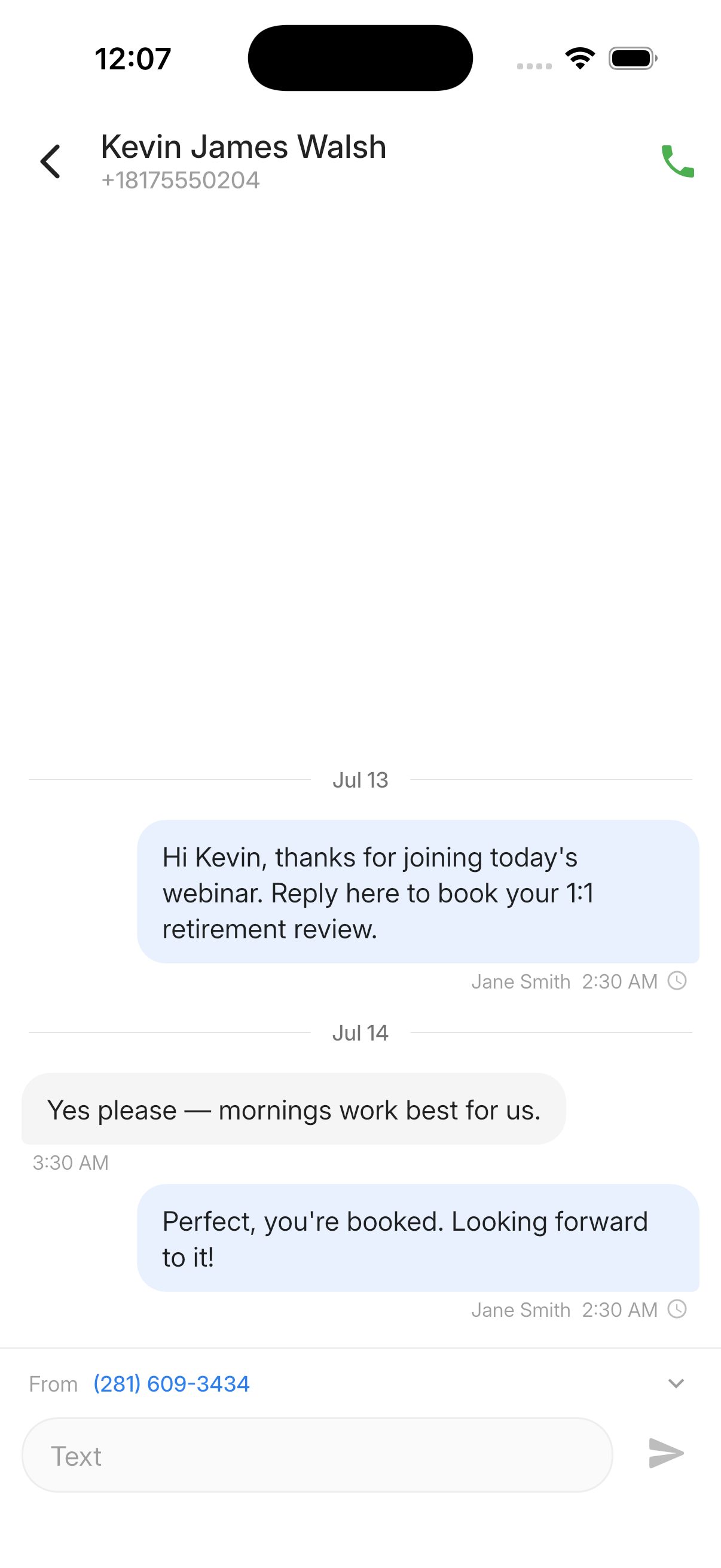
If the message cannot be sent, the app displays the reason and leaves your text in the input box so you can try again.
The message box is unavailable when the contact has no phone number or the account has no sending numbers configured.
Message Delivery Indicators
| Indicator | Meaning |
|---|---|
| Grey clock | The message is still being sent. |
| Green double tick | The message was delivered. |
| Red warning | The message failed or was not delivered. The reason appears beside it. |
Incoming Messages
- When the conversation is open, an incoming message appears automatically.
- Elsewhere in the app, a notification displays the sender and message. Tap Open to view the conversation.
- The unread badge updates in either case.
- Returning to the app refreshes an open conversation.
Attachments and Access
- The mobile app does not support sending attachments.
- An incoming picture message displays Attachment — open in the web app.
- Conversation visibility follows contact-access rules. Assigned-only users see text conversations for contacts they own or are the scheduler for.
- Switching accounts clears the inbox and unread badge before the other channel's conversations load.

Need more help?
If you can't find the answers you're looking for, our support specialists are available to answer your questions and troubleshoot if necessary.
-
Phone Call (888) 291-7116. Our main hours are Monday to Friday 7 am-5 pm Central Time.
-
Support Send your questions and inquiries via email to support@leadcenter.ai. A support ticket will be created and one of our team members will get back to you as quickly as possible.