 Help Center
Workflows
Workflows
Review and Restore Workflow Versions
LeadCenter keeps each workflow save as a separate version. Use version history to review earlier workflow configurations and restore one when needed.
Open Version History
- Open a workflow in the workflow builder.
- Click Versions in the header next to Delete.
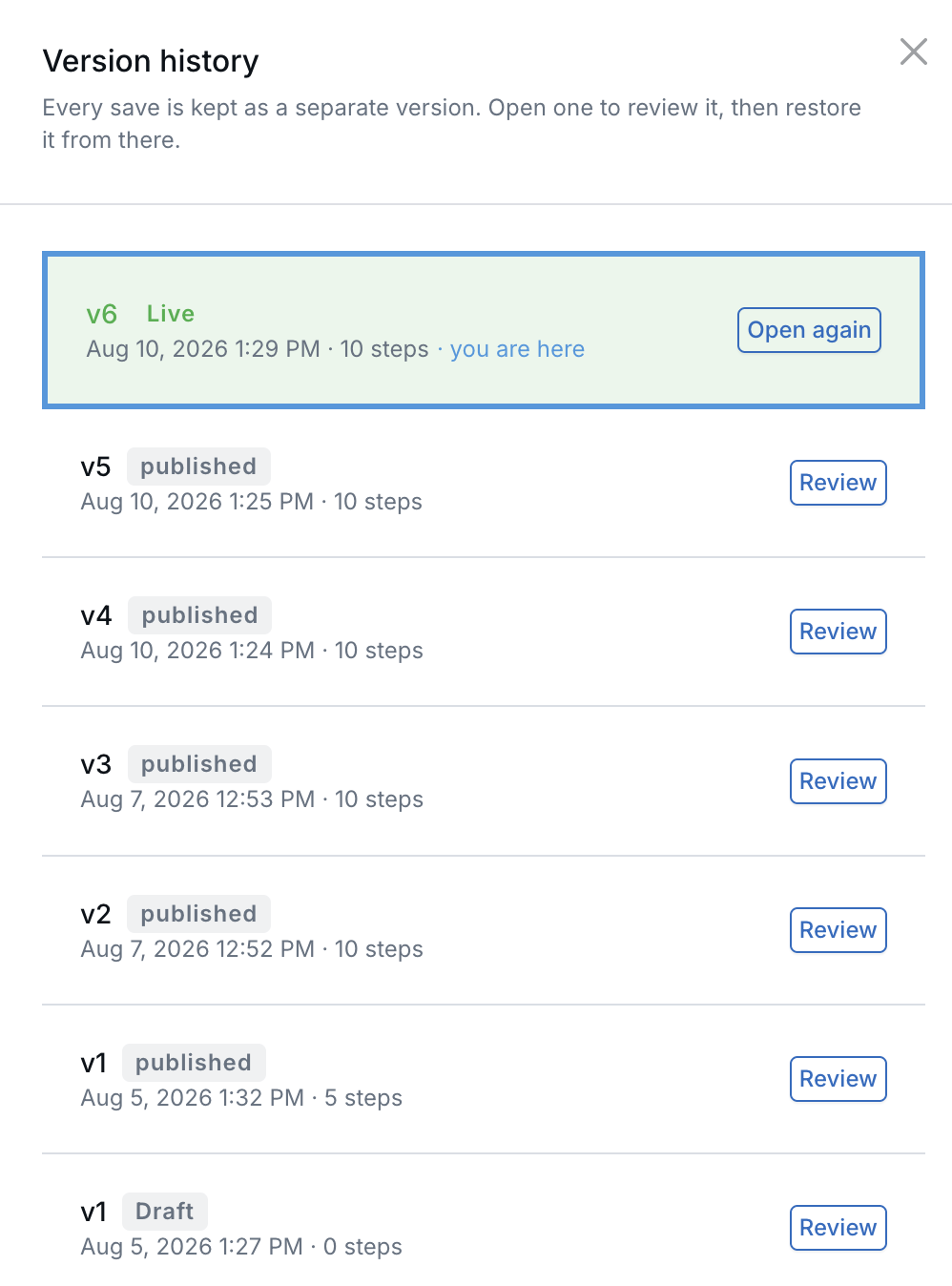
- Review the saved versions, listed from newest to oldest.
Each version shows:
- The version number
- When it was saved in your timezone
- Its status
- The number of workflow steps
LeadCenter identifies the currently published version and the version you are reviewing.
Review a Version
Click Review beside a version to open it in a new browser tab. The workflow builder displays the complete workflow as it existed in that version.
A banner indicates that you are reviewing workflow history. In review mode:
- Auto-save is disabled. Reviewing a version does not create a draft or change the running workflow.
- Save, Edit details, and Delete are replaced by Restore this version and Back to current. Versions remains in the header, so you can open a different version without leaving review mode.
- You can open and adjust steps before restoring. The workflow shown on the canvas when you restore becomes the restored version.
- Back to current closes the historical review and returns to the current version.

Tip: Open the historical version and current workflow in separate tabs to compare them before restoring.
Restore a Version
- Review the version you want to restore.
- Click Restore this version.
- Confirm the restore in the pop-up.
Restoring saves the workflow shown on the canvas as another version and makes it the current version. It does not overwrite or delete any previous version.
The version being replaced and the version used for the restore both remain available in version history.
Workflow Status After a Restore
- Published workflow: The restored version becomes the published version, and the workflow continues running.
- Draft workflow: The restored version becomes the current draft. Restoring a draft does not publish it.
Restore Validation
A restored workflow must pass the same validation checks used when publishing. LeadCenter prevents the restore when the workflow contains problems such as:
- An unconfigured workflow step
- A Branch placed where it cannot be evaluated
- Another issue that would prevent the workflow from being published
Review the listed problems, correct them on the canvas, and try the restore again.
Contacts Already in the Workflow
Contacts already moving through a workflow continue using the version on which they started. This includes contacts paused at a Wait step.
Only contacts entering the workflow after the restore use the restored version.
Best Practices
- Save regularly so version history contains useful restore points.
- Review a version before restoring it.
- Use restore when an earlier configuration is more reliable than the current version.
- Remember that each restore creates another version. If you restore the wrong version, you can restore the prior one again.
Related Articles

Need more help?
If you can't find the answers you're looking for, our support specialists are available to answer your questions and troubleshoot if necessary.
-
Phone Call (888) 291-7116. Our main hours are Monday to Friday 7 am-5 pm Central Time.
-
Support Send your questions and inquiries via email to support@leadcenter.ai. A support ticket will be created and one of our team members will get back to you as quickly as possible.