 Help Center
Workflows
Route Workflows by Selecting the Next Step from a Task
Task step routing lets a team member choose where a workflow should go next when completing a specific task. Use this when a task represents a decision point, such as deciding whether a contact should move to paperwork, nurture, or close-out.
Instead of forcing every contact through the same linear path, LeadCenter can pause at a routing task and continue to the Step selected by the person completing the task.
Where to Find It
- Open Workflows.
- Create a workflow or edit an existing workflow.
- Open a Create Task node.
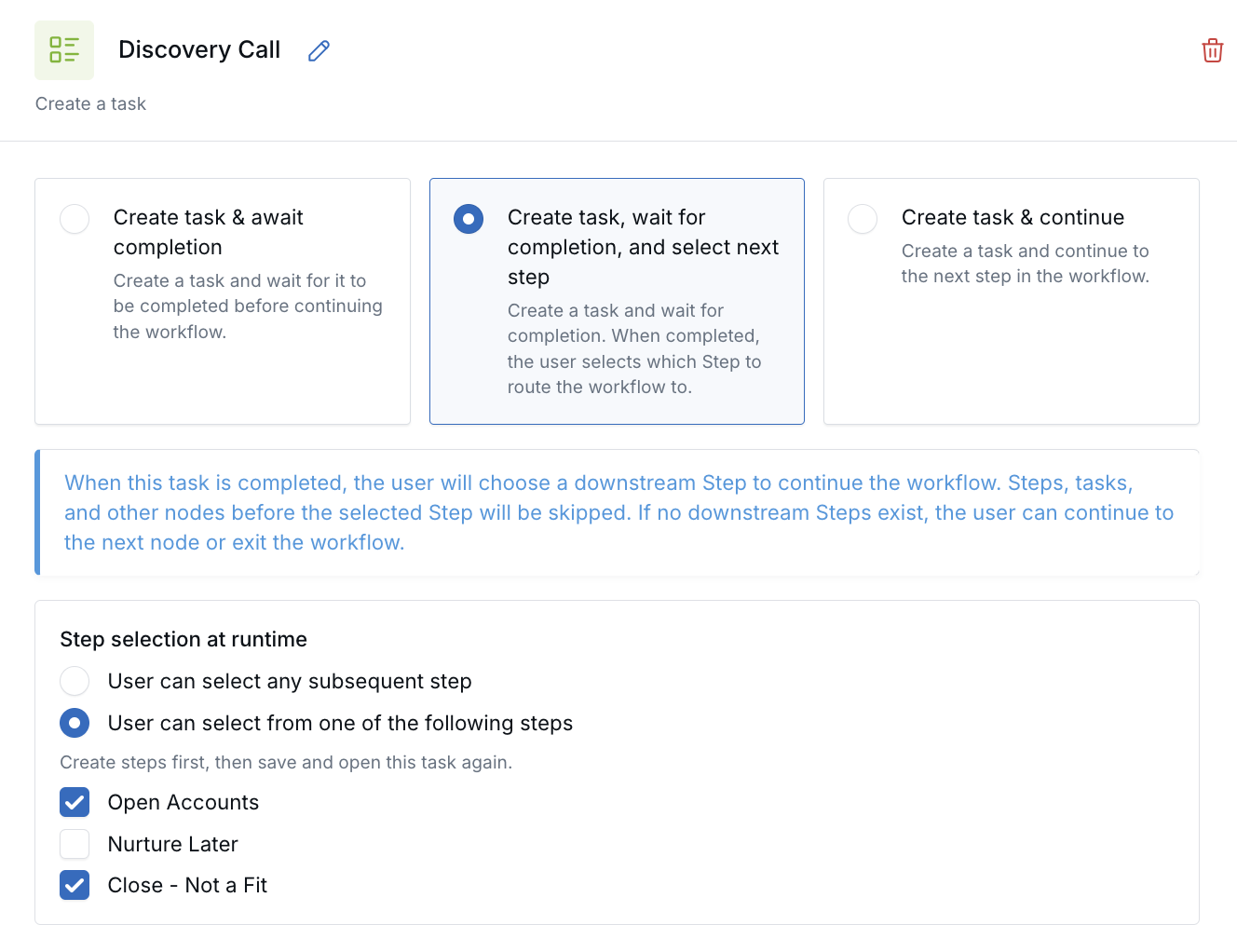
- Select Create task, wait for completion, and select next step.
How Task Step Routing Works
- You build the workflow with the possible downstream Steps.
- You choose the task that should act as the decision point.
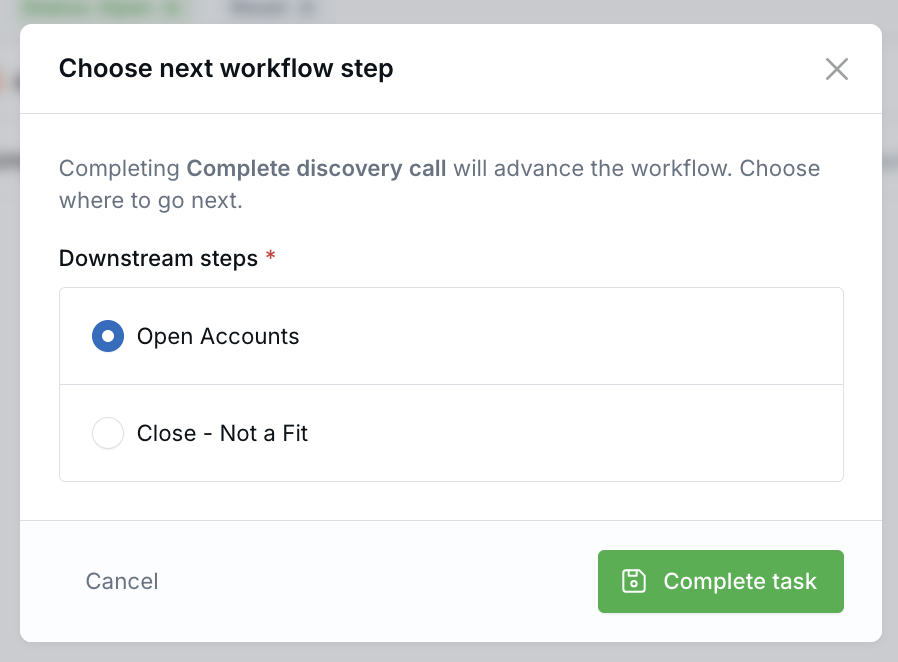
- When a user completes that task, LeadCenter asks which Step the workflow should move to next.
- The workflow continues to the selected Step and skips the intermediate path that does not apply.
Step Selection Options
When you enable next-step selection on a Create Task node, you can control which Steps users are allowed to choose.
- User can select any subsequent step: Shows available downstream Steps in the workflow.
- User can select from one of the following steps: Lets you choose a limited list of downstream Steps.
Use a limited Step list when you want staff to choose only from approved outcomes, such as Paperwork, Nurture, or Close — not interested.
When to Use Task Step Routing
- Discovery call outcomes: Continue to paperwork, nurture, or close-out based on the conversation.
- Post-event follow-up: Route contacts to a meeting path, nurture path, or unqualified path.
- Annual review workflows: Continue to implementation, no-change follow-up, or offboarding steps.
- Operations handoffs: Let a team member choose the correct next process after a review task is completed.
Important Behavior
- Routing tasks must be completed individually because each task requires a Step selection.
- Bulk task completion is not available for routing tasks.
- If a workflow task was already created before the workflow was updated, that open task keeps the routing options that existed when it was created.
- Workflow changes apply to new workflow runs after the workflow is saved and published.
To test updated routing options, start a new workflow run after publishing the workflow, then complete the newly created routing task.
Best Practices
- Use routing only for tasks where a person truly needs to choose the next path.
- Name Steps clearly so users understand the choices when completing the task.
- Use limited Step lists when only certain outcomes should be available.
- Add Exit Step nodes where a branch should stop instead of continuing into later workflow steps.
- Test the workflow with a sample contact before using it with your team.

Need more help?
If you can't find the answers you're looking for, our support specialists are available to answer your questions and troubleshoot if necessary.
-
Phone Call (888) 291-7116. Our main hours are Monday to Friday 7 am-5 pm Central Time.
-
Support Send your questions and inquiries via email to support@leadcenter.ai. A support ticket will be created and one of our team members will get back to you as quickly as possible.