 Help Center
Set Up Your Account
Set Up Your Account
Business Details
| Where to find it | Settings → Basic settings → Business name, address, & logo Open Business details |
|---|---|
| Who can do this | By default, Owners, Admins, and Limited users. Editors can’t open it unless their role is changed in Roles & Permissions. |
| Before you start | Have your business address exactly as it appears on letters you receive, and a logo file ready to upload. |
| Time needed | About 5 minutes. |
Your business details are the name, address, logo, and contact information that your clients see. LeadCenter uses them on your public scheduling pages, public financial questionnaires, and public client document storage. Filling this page in completely is the first thing we recommend doing in a new account.
How to Open the Page
- Click your name or profile picture in the top-right corner and select Settings.
- Open the Basic settings tab.
- Click Business name, address, & logo.
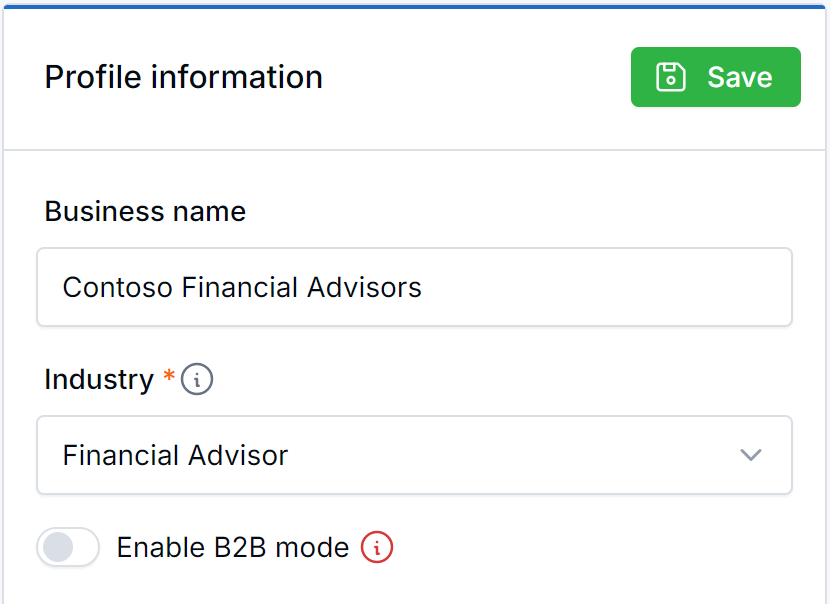
The Business details page.
Note: The page opens with the title Business details. Everything on it lives in a single card called Profile information, and nothing is saved until you click Save.
What to Fill In
Business name
The name your clients see on your public pages, including the consent wording on your booking pages.
Industry
This controls which features your account has access to. If you are a financial advisor, an insurance agent, or you sell financial products, leave Financial Advisor selected. For more detail, see Industry Field and B2B Mode Settings.
Enable B2B mode
Leave this off if you are a financial advisor or insurance agent; LeadCenter shows a warning if you try. Turning it on shows each contact’s company under their name in lists and pipelines, and on appointments. You can create companies and link them to contacts and deals without it.
Address
Enter Address line 1, City, State, Postal code, and Country. Use Address line 2 for a suite or office number.
Important: Your business address becomes the emergency address for your LeadCenter phone numbers, and you’ll need a valid address before you can make calls. After you click Save, check the Valid address? indicator at the top of the Address section. A green check means the address was verified. A red mark means it was not. Correct the address and click Save again.
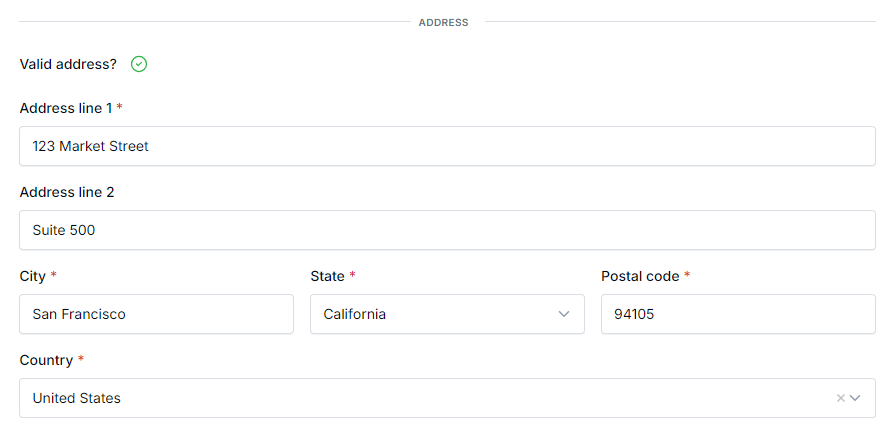
A green check means your address was verified.
Logo
Your logo appears on public calendar pages, public financial questionnaires, and public client document storage. Upload a version with a transparent or white background for the cleanest result.
Phone number and Privacy policy link
Your privacy policy link appears on public calendars, financial questionnaires, and document storage pages. Your phone number appears on financial questionnaires. Point the privacy policy link to the privacy page on your own website.
Public Forms Consent Notice
The consent wording shown to people who submit your public forms: scheduling pages, event registration, and financial questionnaires. If your firm has approved compliance language for web forms, put it here.
Business/Shared email signature
A shared signature your team can insert when composing emails in LeadCenter. This is separate from your own personal signature, which you set under Personal profile → Profile information. Tip: copy your firm signature from Outlook or Gmail and paste it here. Formatting, links, and images carry over.
Where These Details Show Up
| Detail | Where clients see it |
|---|---|
| Business name | Public pages, including the consent wording on booking pages |
| Address | The emergency address for your LeadCenter phone numbers |
| Logo | Public calendars, financial questionnaires, document storage pages |
| Privacy policy link | Public calendars, financial questionnaires, document storage pages |
| Public Forms Consent Notice | Scheduling pages, event registration forms, financial questionnaire forms |
| Business/Shared email signature | Emails your team composes in LeadCenter |
Best Practices
- Use your public-facing name, not your legal entity name. Clients see it on booking pages. “Summit Wealth Partners” reads better than “Summit Wealth Partners LLC”.
- Confirm the green check on your address before you make calls. Your LeadCenter phone numbers use it as their emergency address.
- Point the privacy policy link at a page that exists. Prospects see it on your public forms.
- Have compliance approve your Public Forms Consent Notice. It is the text prospects agree to when they submit a form.
Troubleshooting
The address will not verify
We validate against postal records, so abbreviations, a missing suite number, or a mismatched postal code will fail. Enter the address exactly as it appears on letters you receive, then click Save again. If it still fails, contact support before you start making calls.
My logo has not changed on my scheduling page
Refresh the public page in your browser, since the old image may be cached. If it still shows the old logo after a hard refresh, contact support.
The Industry dropdown is missing options I expected
The available industries are set by LeadCenter. If none of them fit your business, email support rather than picking the closest match, because Industry changes which features you can use.
I saved but the page still shows my old details
Check that you clicked Save and not just navigated away. If a required address field was empty, the page will have kept you on the form.
Frequently Asked Questions
My firm has several offices. Which one goes here?
Put your main office here. Add the others under Office Locations so you can assign contacts and events to them and filter reports by location.
Why do I have two email signatures?
The Business/Shared email signature here is shared with your whole team. The one under Personal profile → Profile information is yours alone.
Can I turn B2B mode on to try it?
You can, and turning it back off does not delete anything. Company associations stay saved and reappear if you re-enable it. LeadCenter warns financial advisors against turning it on, though, because it is built for firms whose clients are businesses.
What’s Next
Set up your own profile and timezone next: Personal Profile.
Need help? Email support@leadcenter.ai.

Need more help?
If you can't find the answers you're looking for, our support specialists are available to answer your questions and troubleshoot if necessary.
-
Phone Call (888) 291-7116. Our main hours are Monday to Friday 7 am-5 pm Central Time.
-
Support Send your questions and inquiries via email to support@leadcenter.ai. A support ticket will be created and one of our team members will get back to you as quickly as possible.