 Help Center
Set Up Your Account
Set Up Your Account
Office Locations
| Where to find it | Settings → Database lists → Other Lists → Office locations Open Office locations |
|---|---|
| Who can do this | By default, Owners and Admins. Your account Owner can change this in Roles & Permissions. |
| Before you start | Have a list of the offices you want to track, and agree on the names your team will recognize. |
| Time needed | About 1 minute per location. |
If your firm has more than one office, add each one here. Once a location exists, you can assign contacts and events to it and filter your contacts, sales pipeline, and first-appointment reports by office.
Only one office? Skip this page. Set your address under Business Details instead.
How to Open the Page
- Click your name or profile picture in the top-right corner and select Settings.
- Open the Database lists tab.
- Under Other Lists, click Office locations.
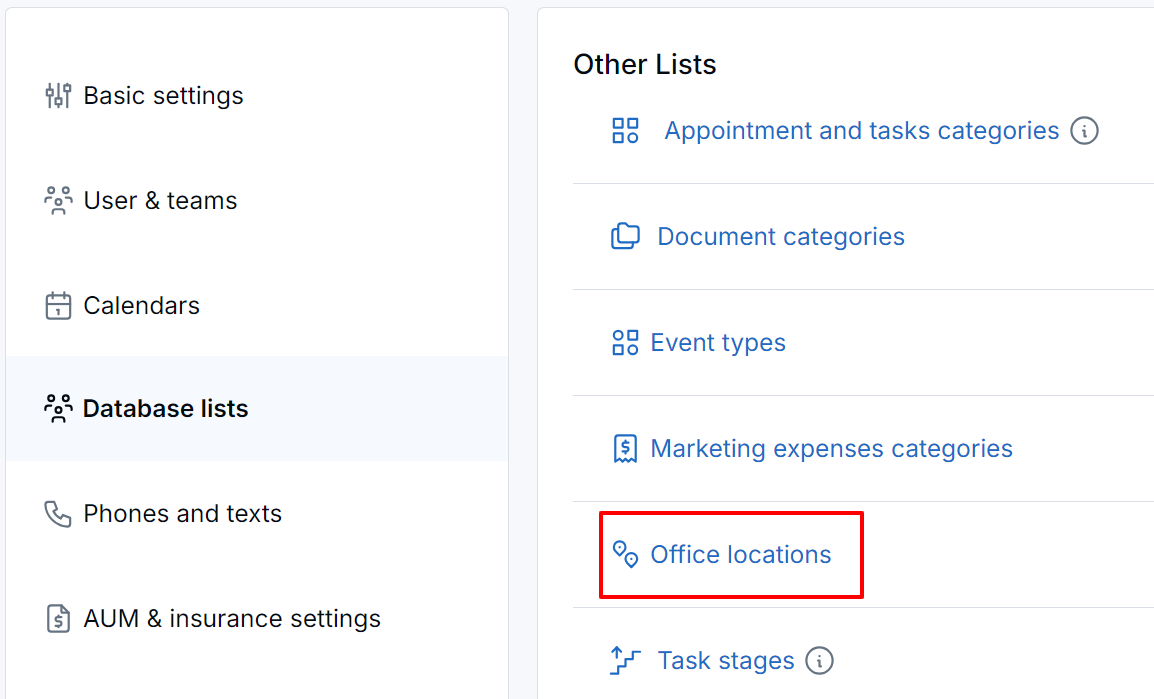
Office locations is under Database lists.
Add an Office Location
- Click Add office Location.
- Enter the name in Add office location name.
- Leave Public on if you want this office to appear as a filter on the events page of your website. Turn it off for internal-only locations.
- Click Save.
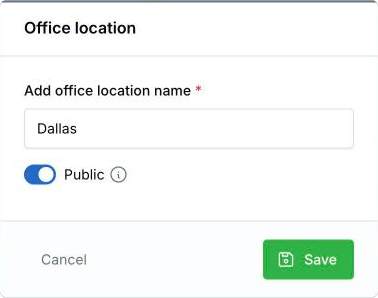
Type the name, leave Public on, and click Save.
Rename an Office Location
- Click Edit next to the location.
- Update Office location name, or turn Public on or off.
- Click Save.
Renaming is safe. Contacts and events already assigned to the location stay assigned and simply show the new name.
Delete an Office Location
You can’t delete a location that’s assigned to contacts; LeadCenter shows a message if you try. Use Edit to rename it instead. If you delete a location used only by events, those events will no longer show a location.
What You Can Do Once Locations Exist
- Assign a contact to an office: one at a time on the contact, or many at once from the Contacts list. See Bulk update advisors and office locations for contacts.
- Assign an event or seminar to an office: so attendees and costs roll up to the right location.
- Filter by office: on your contacts list, sales pipeline, and first-appointment reports.
Best Practices
- Name locations the way your team talks about them. A city or neighborhood such as Dallas or North Scottsdale works better in filters and reports than a street address.
- Add them before you import contacts or create events. Picking a location when you create a record is one click; back-filling later is not.
- Rename rather than delete. Renaming keeps your historical reporting.
- Use Teams, not locations, to group people. Go to Settings → User & teams → Teams.
Troubleshooting
My new location is not in the dropdown on a contact
Refresh the page. Newly added list items appear after the page reloads.
I cannot see Office locations under Database lists
Your role does not include permission to manage office locations. Ask your account owner to update it.
My report shows contacts with no office location
Location is not assigned automatically. Contacts created before you added locations, or created without one selected, will be blank. To fix many at once, go to Contacts, select the contacts, click More, and choose Assign office location.
Frequently Asked Questions
Is this the same as the address under Business details?
No. The address under Business details is your primary business address and is what clients see on your public pages. Office locations are internal labels for organizing and reporting. Your main office should be set in both places.
Can I filter contacts by office location?
Yes. Use Office location to filter your contacts list, sales pipeline, and first-appointment reports.
Do office locations affect what users can see?
No. Visibility is controlled by roles and record assignment, not by location. See Roles & Permissions (Role-Based Access Control).
What’s Next
Invite your team and set their access: Managing Users.
Need help? Email support@leadcenter.ai.

Need more help?
If you can't find the answers you're looking for, our support specialists are available to answer your questions and troubleshoot if necessary.
-
Phone Call (888) 291-7116. Our main hours are Monday to Friday 7 am-5 pm Central Time.
-
Support Send your questions and inquiries via email to support@leadcenter.ai. A support ticket will be created and one of our team members will get back to you as quickly as possible.