 Help Center
Set Up Your Account
Set Up Your Account
Shared Notification Settings
| Where to find it | Settings → Basic settings → Notifications settings Open Shared notification |
|---|---|
| Who can do this | By default, Owners, Admins, and Limited users. Editors can’t open it unless their role is changed in Roles & Permissions. |
| Before you start | Decide which shared mailboxes should receive alerts, for example your front-desk or compliance inbox. |
| Time needed | About 2 minutes. |
Shared notification settings send LeadCenter alerts to any email address you choose, including addresses that do not belong to a LeadCenter user. This is how you get alerts into a front-desk inbox, an office@ or compliance@ group address, or an assistant’s mailbox.
Looking for your own notifications? To change which emails you receive, use Personal profile → Notification preferences instead. See Personal Notification Preferences. You can jump straight there with the Personal notification button in the top-right corner of this page.
How to Open the Page
- Click your name or profile picture in the top-right corner and select Settings.
- Open the Basic settings tab.
- Click Notifications settings.
The page opens with the title Shared notification.
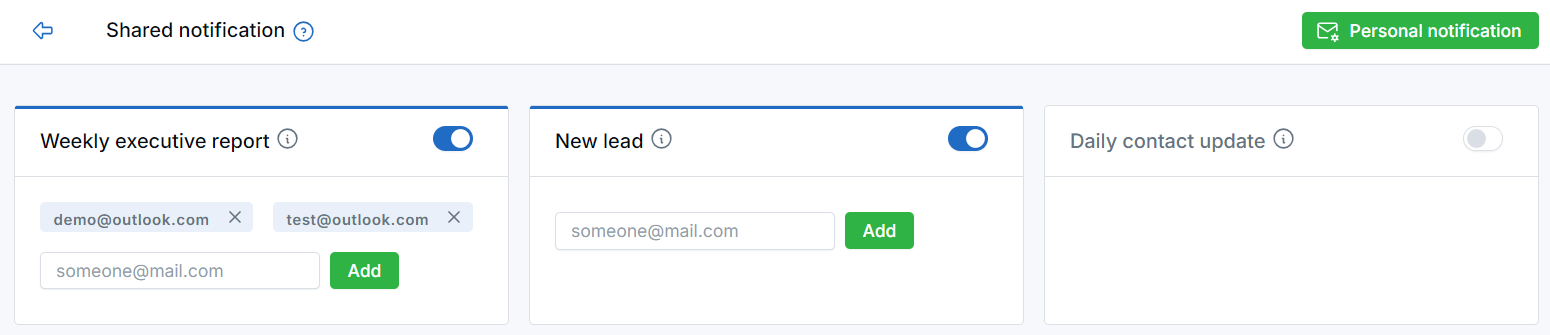
The Shared notification page. Each card is one notification type.
How the Page Works
Each notification type is its own card. A card has a switch to turn that notification on or off for the whole account, and a list of the email addresses that receive it.
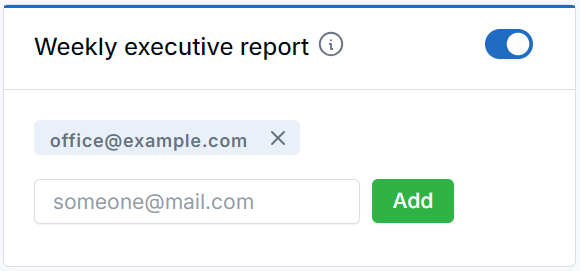
Type an address and click Add.
Turn a notification on or off
Click the switch in the top-right corner of the card. Turning a card off pauses that notification. The addresses stay listed, so you can turn it back on later.
Add a recipient
- Make sure the card’s switch is on. The email field only appears when the notification is enabled.
- Type the address in the someone@mail.com field.
- Click Add.
Remove a recipient
Click the × on the address you want to remove.
When you deactivate a user, their email address is removed from every notification card. If you reactivate them, add it back.
Limit: Each notification type can have up to 10 email addresses. If you need more than that, use a group or distribution address at your email provider and add that single address here instead.
Available Notifications
Which cards you see depends on your industry and which integrations you have connected, so your page may not show every row below.
| Notification | Sent when |
|---|---|
| New lead | A new contact comes in. |
| Daily contact update | Every morning except Mondays and the 1st of the month, listing contacts received the previous day. |
| Weekly contact update | Every Monday, listing contacts received the previous week. |
| Monthly contact update | On the 1st of each month, listing contacts received the previous month. |
| Weekly executive report | Every Monday at 7:00 AM Eastern, with production performance and lead scorecards. |
| Call transcription | A call transcription finishes. |
| Incoming text | A text message arrives on one of your LeadCenter phone numbers. |
| Event | Someone registers for an event, or an attendee moves to a different event or changes status. |
| Document upload | Someone uploads a document. |
| Financial questionnaire | Someone submits a financial questionnaire. Financial Advisor accounts only. |
| RMD (shown as Rmd) | A client reaches age 73 and has accounts that may be subject to a required minimum distribution. Financial Advisor accounts only. |
| Redtail | A push to Redtail completes or fails. Only shown when Redtail is connected. |
| Wealthbox | A push to Wealthbox completes or fails. Only shown when Wealthbox is connected. |
Daily, weekly, and monthly contact updates arrive at about 8:00 AM Central (9:00 AM Eastern). The weekly executive report arrives Mondays at 7:00 AM Eastern.
Need an Alert That Is Not Listed?
Build a workflow. Workflows can send an email or text on almost any trigger, for example when a contact moves to a particular stage or a task is overdue. Click Workflows in the left menu to get started.
Best Practices
- Use a shared mailbox address, not a person’s. Add office@yourfirm.com rather than an individual, so alerts keep arriving when that person is out or leaves.
- Use this page only for people who are not LeadCenter users. Users manage their own alerts under Notification preferences. Adding them here too means duplicate emails.
- Start with New lead and one digest. A shared inbox flooded with alerts gets ignored, and then a real new contact is missed.
- Send the Weekly executive report to leadership only. It contains production performance and scorecards.
Troubleshooting
The address I added is not receiving anything
Check three things in order: the card’s switch is on, the address is spelled correctly, and the receiving mailbox is not filtering our messages into spam. Adding your sending domain to the recipient’s safe-sender list usually resolves it.
I turned a notification off but a colleague still gets it
They have it enabled in their own Notification preferences. This page controls only the extra addresses you add here; each user controls their own emails separately.
The email field is not showing on a card
The field only appears when the notification is switched on. Turn the switch on first.
I cannot reach this page at all
Your role does not include permission to view notification preferences. Ask your account owner to update it.
Frequently Asked Questions
Does turning off a notification stop emails to my clients?
No. This page only controls internal alerts to your team. Client-facing emails such as appointment confirmations, reschedules, and cancellations are unaffected.
Can I send different notifications to different offices?
Not from this page. Each notification type has one recipient list for the whole account. Use a workflow if you need to route alerts by office location.
Do recipients here need a LeadCenter login?
No, and that is the point of this page. Any email address works.
What’s Next
Set up your own alerts: Personal Notification Preferences.
Need help? Email support@leadcenter.ai.

Need more help?
If you can't find the answers you're looking for, our support specialists are available to answer your questions and troubleshoot if necessary.
-
Phone Call (888) 291-7116. Our main hours are Monday to Friday 7 am-5 pm Central Time.
-
Support Send your questions and inquiries via email to support@leadcenter.ai. A support ticket will be created and one of our team members will get back to you as quickly as possible.