 Help Center
Set Up Your Account
Set Up Your Account
Account Settings
| Where to find it | Your name or profile picture (top-right) → Settings Open Settings |
|---|---|
| Who can do this | By default, Owners and Admins. Your account Owner can change this in Roles & Permissions. |
Settings is the control center for your company’s LeadCenter account. Everything that applies to everyone (your business name and logo, your users, your calendars, your phone numbers, your dropdown lists) is configured from this one page.
This article is a map. It tells you what lives under each tab so you can find what you are looking for.
Setting up a new account? Start with Getting Started: Set Up Your LeadCenter Account instead. It walks you through the essentials in order, and the first stage takes about 10 minutes.
How to Open Settings
- Click your name or profile picture in the top-right corner of any page.
- Select Settings.
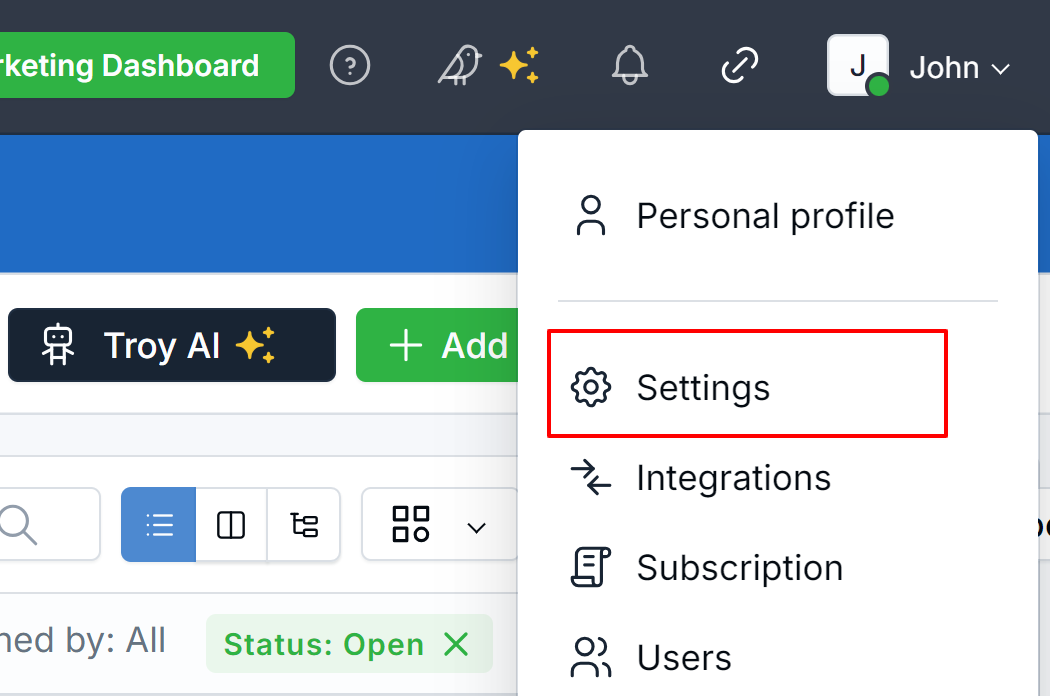
Personal profile and Settings are both in this menu.
Don’t see Settings in the menu? Access to Settings is controlled by your role. Ask your account owner to update your role, or see Roles & Permissions (Role-Based Access Control).
Settings vs. Personal Profile
This is the distinction that confuses people most, and it is worth getting straight before you change anything.
| Menu item | Affects | Examples |
|---|---|---|
| Settings | Everyone in your company | Business name and logo, users and roles, phone numbers, dropdown lists, shared email account |
| Personal profile | Only you | Your photo and name, your timezone, your own email and calendar, your password, your own notification preferences |
A naming quirk to be aware of. When you open Personal profile, the page itself is titled Account settings. It is still your personal page, not the company one. So if a colleague or an article tells you to go to “account settings”, check which of the two they mean. This page (the company one) is simply called Settings.
For your own settings, see Personal Profile.
Finding a Setting Fast
There is a Search settings box at the top of the page. Type what you are looking for and LeadCenter highlights both the matching setting and the tab it lives on. This is usually quicker than clicking through the tabs, and it finds settings you did not know existed.
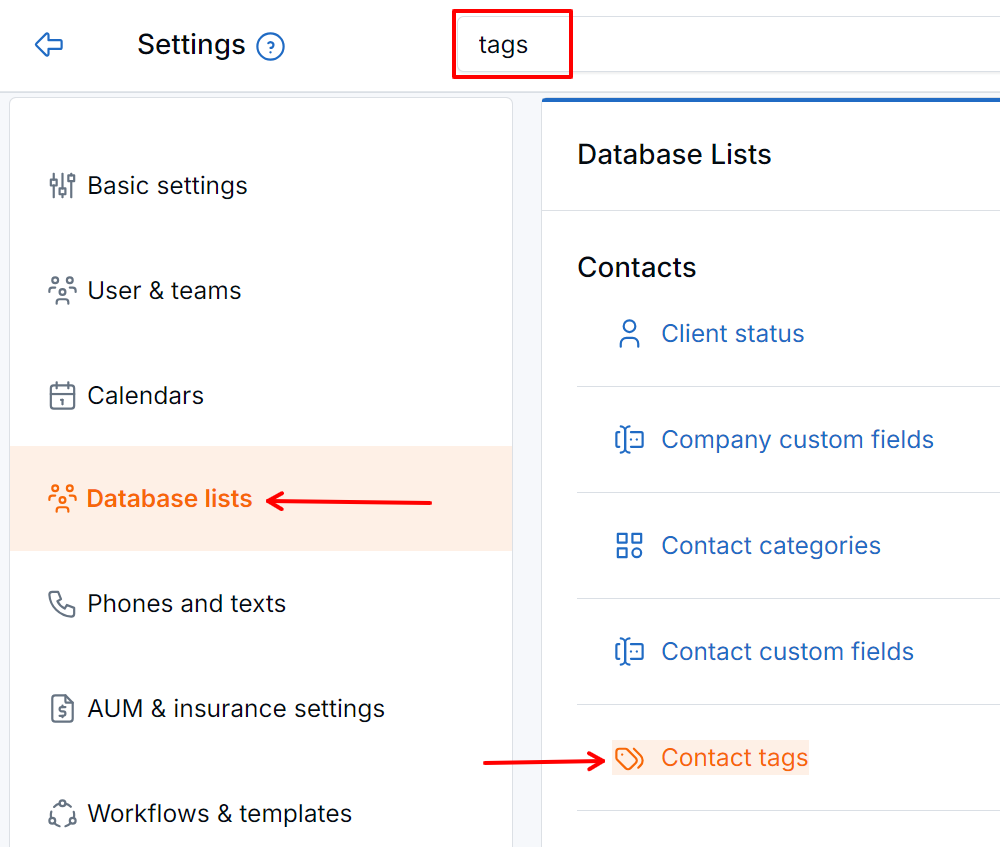
Search settings highlights the matching setting and its tab.
What Each Tab Contains
Basic settings
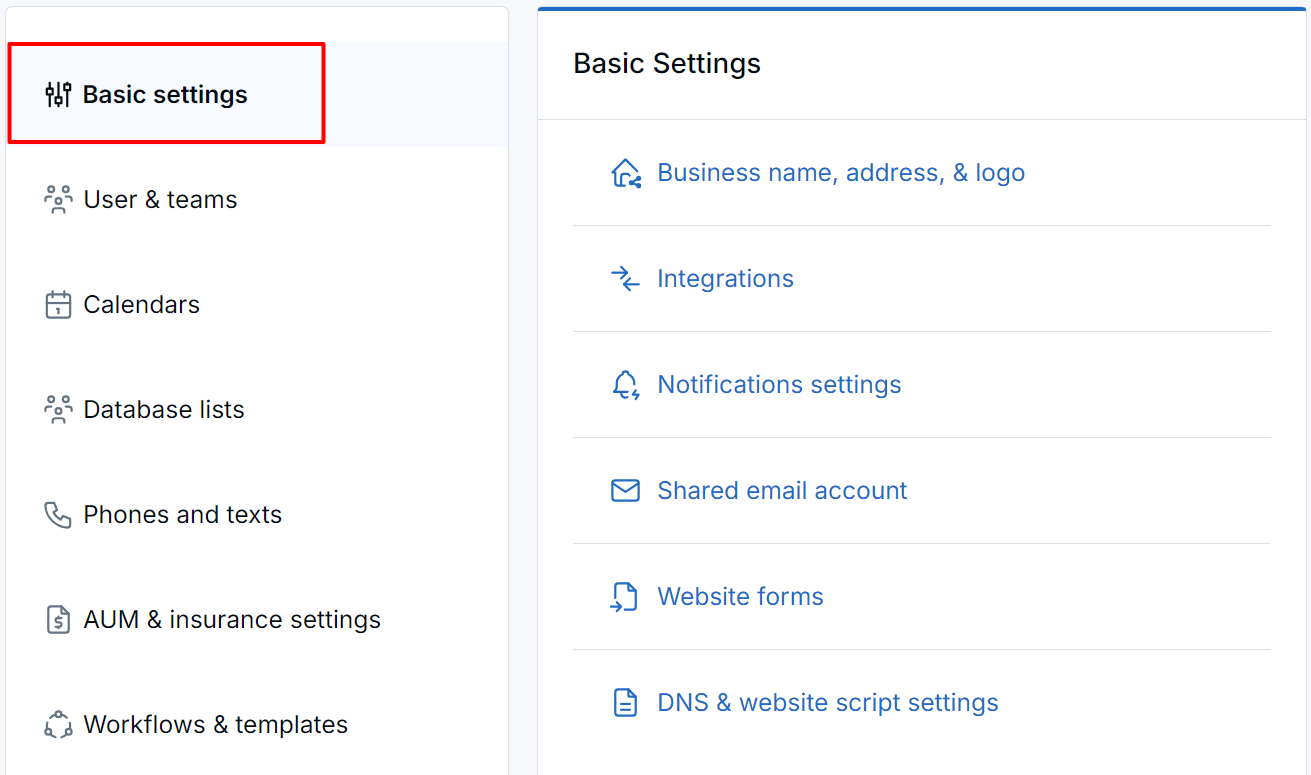
The Basic settings tab.
The essentials most accounts need first.
- Business name, address, & logo: what your clients see on public pages. See Business Details.
- Integrations: connect the outside tools your firm uses, such as your CRM, custodian, or phone system.
- Notifications settings: send alerts to email addresses that do not belong to a user, such as a shared inbox. See Shared Notification Settings.
- Shared email account: the company email used for marketing, workflows, appointment confirmations, and event emails. See Shared Email Account.
- Website forms: the forms you embed on your own website to capture contacts.
- Secure client portal: use your own web address, such as fq.yourdomain.com, for your financial questionnaire.
- DNS & website script settings: the DNS records and tracking scripts your web person needs.
User & teams
Add users, decide what each role can do, and group people into teams. Includes Users, Roles & permissions, Teams, and Workflow service teams. See Managing Users and Roles & Permissions (Role-Based Access Control).
Calendars
Create and manage your firm's booking calendars and shared calendars. See Calendar Settings.
Database lists
The dropdown lists used across LeadCenter, such as client status, contact categories, contact tags, custom fields, pipeline stages, sources and campaigns, task stages, event types, and office locations. Set these up before you import contacts. See Office Locations.
Phones and texts
Your LeadCenter phone numbers and text-in keywords.
AUM & insurance settings
The lists behind production tracking: advisor commission plans, financial planning products, asset types, AUM fees, custodians, AUM products, and insurance companies, products, and commissions. Your financial questionnaire domain is set here too.
Workflows & templates
Your email, text, note, task, and appointment templates, and your workflow templates.
Security management
Account security (two-factor authentication and session timeout), the audit log, login activity, and Claudia AI data retention. See Two-Factor Authentication (2FA).
Website builder
Your website's domain, theme, landing pages, menus, blog, media, and page redirects.
What’s Next
New account? Follow Getting Started: Set Up Your LeadCenter Account to set things up in the right order.
Need help? Email support@leadcenter.ai.

Need more help?
If you can't find the answers you're looking for, our support specialists are available to answer your questions and troubleshoot if necessary.
-
Phone Call (888) 291-7116. Our main hours are Monday to Friday 7 am-5 pm Central Time.
-
Support Send your questions and inquiries via email to support@leadcenter.ai. A support ticket will be created and one of our team members will get back to you as quickly as possible.