 Help Center
Set Up Your Account
Set Up Your Account
Teams
| Where to find it | Settings → User & teams → Teams, or click Teams on the Users page Open Teams |
|---|---|
| Who can do this | By default, Owners, Admins, and Editors. Your account Owner can change this in Roles & Permissions. |
| Before you start | Invite the people you want to group. See Managing Users. |
| Time needed | About 2 minutes per team. |
Teams group users so you can hand work to the whole group instead of one person. When a task is assigned to a team, it shows up for every member, so the first person free can pick it up.
Teams are not roles. A role controls what someone can see and do. A team controls who work is sent to. See Roles & Permissions (Role-Based Access Control).
How to Open the Page
- Click your name or profile picture in the top-right corner and select Settings.
- Open the User & teams tab and click Teams.
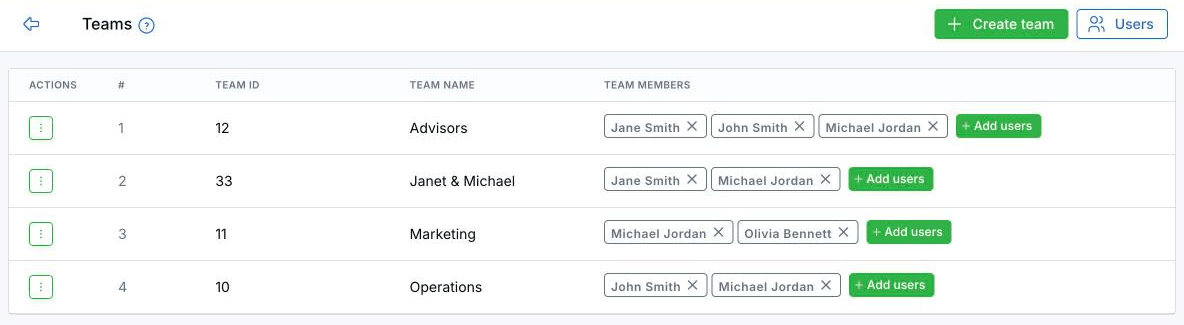
The Teams page.
You can also click Teams at the top of the Users page. Each team shows its name and its members.
Create a Team
- Click Create team.
- In the Add team window, enter a Team name.
- Click Save.
Add or Remove Members
- Click Add users on the team’s row.
- In the Add team member window, choose one or more people under Select members.
- Click Save.
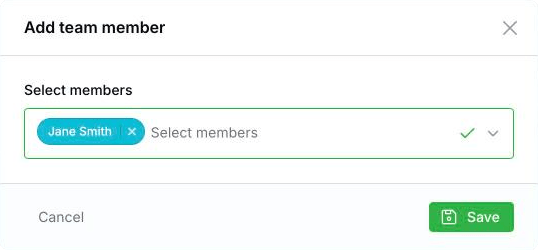
Pick one or more people, then click Save.
To remove someone, click the × on their name. They’re removed right away, with no confirmation. A person can belong to more than one team.
Rename or Delete a Team
- Rename: open the actions menu on the team’s row, click Edit, change the Team name in the Update team window, and click Save.
- Delete: open the actions menu, click Delete, and confirm with Yes, delete.
You can’t delete a team that tasks, task templates, or workflows still use. Reassign that work first. See Troubleshooting below.
Where You Can Assign Work to a Team
Anywhere LeadCenter offers Select User or Team, including:
- A task’s owner, including when you assign tasks in bulk
- The Owner or Team field on a task template
- The owner of a workflow’s Create Task step
- The owner filter on the Tasks list, so you can see everything assigned to a team
- For financial advisor accounts: Writing advisor, Servicing advisor, and Wealth manager
Appointments can’t be assigned to a team.
What Team Members Get
When a task is assigned to a team, every member:
- Sees it in their own task list
- Gets it in their daily task reminder email
- Gets an assignment notification
- Gets reminders when it’s nearly due
Private team tasks don’t notify every member.
Teams and Workflow Service Teams
They’re different. A Team is a fixed group you assign work to as a whole. A Workflow service team is set for each contact and assigns people by role, such as Paraplanner, so a workflow step goes to whoever holds that role for that contact.
Best Practices
- Name teams after the work, not the people. “Client Service” still makes sense after someone leaves.
- Use a team for work anyone on it can pick up. Assign to one person when a specific owner matters.
- Update members when people join or leave. Team tasks go to whoever is on the team now.
Troubleshooting
I can’t delete a team
LeadCenter shows one of three messages: the team is still used in tasks, in task templates, or in workflows. Find what uses it and reassign it:
- Tasks: filter the Tasks list by the team as owner.
- Task templates: check each template’s Owner or Team field.
- Workflows: check the owner on Create Task steps. Past workflow runs that used the team also count.
A team member didn’t get notified about a team task
Check whether the task is private. Private team tasks don’t notify every member.
Frequently Asked Questions
Can someone be on more than one team?
Yes.
Can I assign an appointment to a team?
No. Appointments go to a person or a shared calendar.
What’s Next
Fine-tune what each role can do: Roles & Permissions (Role-Based Access Control).
Need help? Email support@leadcenter.ai.

Need more help?
If you can't find the answers you're looking for, our support specialists are available to answer your questions and troubleshoot if necessary.
-
Phone Call (888) 291-7116. Our main hours are Monday to Friday 7 am-5 pm Central Time.
-
Support Send your questions and inquiries via email to support@leadcenter.ai. A support ticket will be created and one of our team members will get back to you as quickly as possible.