 Help Center
Set Up Your Account
Set Up Your Account
Getting Started: Set Up Your LeadCenter Account
Welcome to LeadCenter. This guide is the shortest path from a brand-new account to one you can actually work in.
You do not need to do everything at once. The setup is grouped into four stages below. Complete Stage 1 and you can start using LeadCenter straight away. It takes about 10 minutes. The later stages matter when you are ready to bring your team in and start emailing clients, and you can come back to them whenever that is.
At a Glance
- Add your business details
- Set your profile and timezone
- Connect your email and calendar
- Check roles
- Invite your team
- Set up shared email
- Verify your sending domain
- Add phone numbers
Steps 1 to 3 are all you need to start working. The rest can wait until you need them.
Use the Setup Checklist
From the Home dashboard, click Setup your account to open a task list that mirrors this guide.
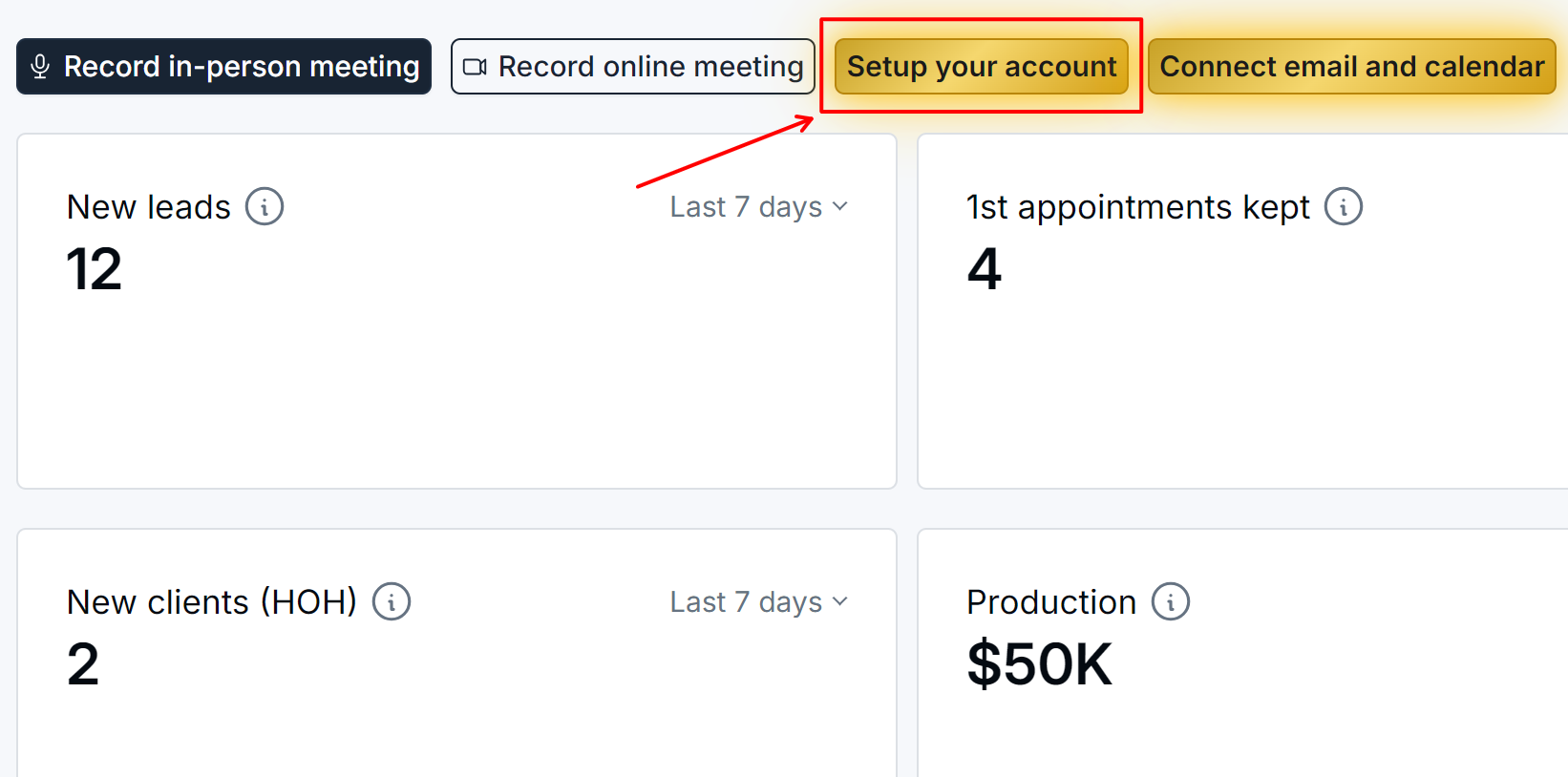
Click Setup your account on the Home dashboard.
It contains three tasks: Basic setup and users onboarding, Data migration, and Advanced setup, so you can tick things off and see what is left.
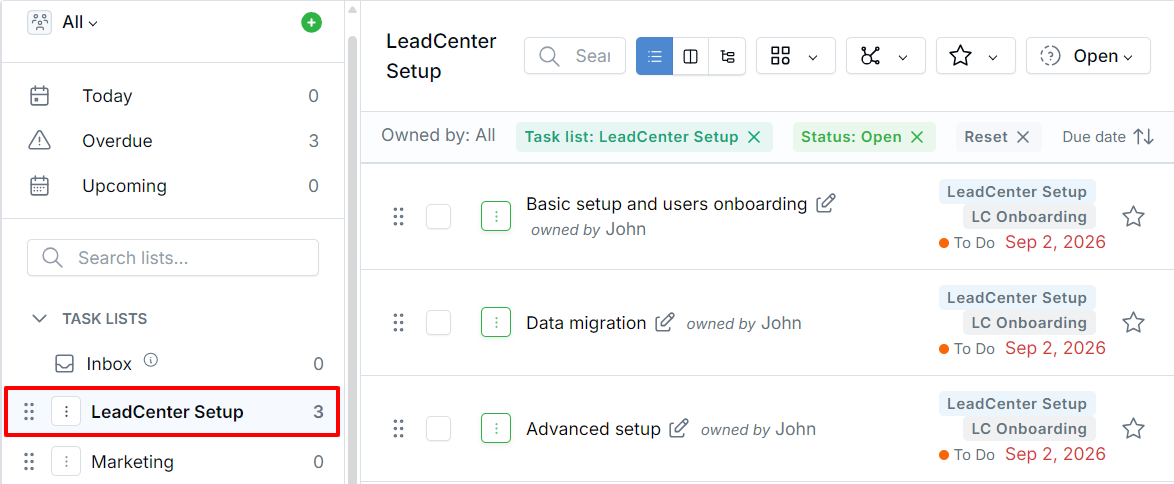
Your built-in setup task list.
First, One Thing That Saves a Lot of Confusion
LeadCenter keeps company settings and personal settings in separate places:
- Settings changes things for everyone in your company: your business name and logo, your users, your phone numbers, your dropdown lists.
- Personal profile changes things for you only: your photo, your timezone, your own email connection, your password, your own notification preferences.
Both are in the menu under your name or profile picture in the top-right corner.
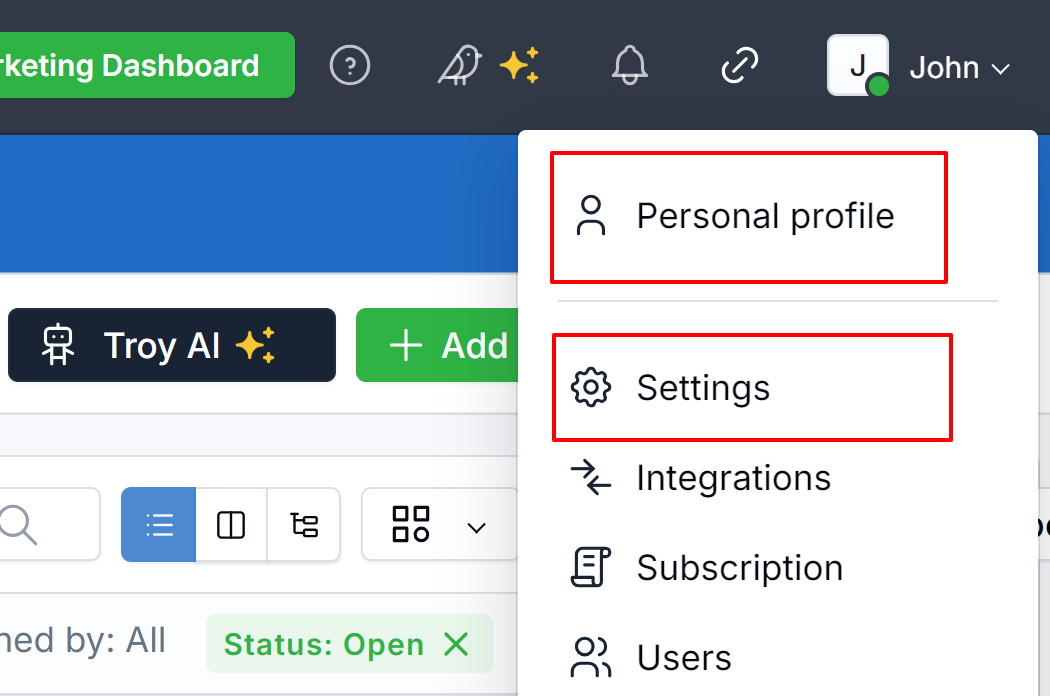
Personal profile and Settings are both in this menu.
Worth knowing: when you open Personal profile, the page is titled Account settings. It is still your personal page, not the company one. If someone tells you to check “account settings”, ask which of the two they mean.
Stage 1: The Essentials (about 10 minutes)
These three come first because everything else depends on them. Do them in this order.
1. Add your business name, address, and logo
This is what your clients see on your booking pages, questionnaires, and document storage. Your address also becomes the emergency address for your LeadCenter phone numbers, and you need a valid one before you can make calls, so getting it right now prevents a hold-up later.
Settings → Basic settings → Business name, address, & logo
→ Business Details
2. Set up your own profile, especially your timezone
Add your photo and details, and set Your timezone. Do this before you build any calendars. If your timezone is wrong, clients get offered the wrong appointment slots, and it is rarely the first thing anyone suspects.
Personal profile → Profile information
→ Personal Profile
3. Connect your own email and calendar
This is what makes LeadCenter useful straight away: emails you exchange with a contact appear on their record automatically, and your real calendar keeps you from being double-booked.
Personal profile → Email and calendars
→ Individual Email Configuration
The one step people miss. After you connect your email, you must also turn on Enable receiving contacts related emails. Check the badge next to it reads Enabled. Connecting alone does not pull any email in, and this is the most common reason a new account feels like it is not working.
That is the minimum. You can stop here and start working. Moving from another CRM? Our data migration and onboarding team will plan the import with you; see How Do I Migrate My Data to LeadCenter?. To add a short list of contacts yourself, see Importing Contacts using CSV.
Stage 2: Bring Your Team In (about 2 minutes per person)
4. Check what each role can see
The built-in roles cover most firms. Review them before you invite people rather than after, so nobody sees more than they should on day one.
Settings → User & teams → Roles & permissions
→ Roles & Permissions (Role-Based Access Control)
5. Invite your users
Invite each person and assign them a role. Ask every one of them to complete Stage 1 for themselves, particularly their timezone and their own email connection, which only they can do.
Settings → User & teams → Users
→ Managing Users
Stage 3: Before You Email or Text Clients
Your own connected inbox handles one-to-one email. Anything the system sends (appointment confirmations, event emails, workflow emails, marketing campaigns) needs a company sending address set up first.
6. Set up your shared email account
Choose how LeadCenter sends on your company’s behalf. For anything involving volume, LC email marketing is the option to pick.
Settings → Basic settings → Shared email account
→ Shared Email Account
7. Verify your sending domain, then add a sending address
This authenticates your email with your own domain so it reaches inboxes rather than spam folders. It needs someone who can edit your domain’s DNS settings, so involve your web developer or IT provider if that is not you.
→ Email Custom Sending Domain, then Sending Email Address for LC Email Marketing, then DMARC Security.
Start this well before your first campaign. The work itself takes about 10 minutes, but DNS changes can take up to 48 hours to take effect. Leaving it until the week you want to send means either delaying the campaign or sending it unauthenticated.
8. Add phone numbers, if you are using calls and texts
You need a valid business address from Stage 1 before you can make calls. To send text messages, your firm also needs A2P 10DLC registration, which carriers take about 2 weeks to approve, so start it early. See A2P 10DLC Campaign Registration (Business Text Messaging). Want to keep your existing office number? See Porting Phone Numbers into LeadCenter.
Settings → Phones and texts → Phone numbers
Stage 4: Tune It to Your Firm (whenever you are ready)
None of these block you. Pick them up as you need them.
| What | Why | Where |
|---|---|---|
| Your dropdown lists | Add your real sources, tags, and stages so your data lands in the right buckets. Best done before you import contacts. | Settings → Database lists |
| Calendars and booking links | Let clients book time with you directly. Set your timezone first. | Settings → Calendars Calendar Settings |
| Your own notifications | Trim the alerts you do not act on, before you start ignoring all of them. | Personal profile → Notification preferences Personal Notification Preferences |
| Alerts to a shared inbox | Send notifications to an address that is not a LeadCenter user, such as a front-desk mailbox. | Settings → Basic settings → Notifications settings Shared Notification Settings |
| Office locations | Only if you have more than one office and want to compare them in reports. | Settings → Database lists → Office locations Office Locations |
| Two-factor authentication | Strongly recommended for anyone with administrative access. | Personal profile → Two-factor authentication Two-Factor Authentication (2FA) |
Tips
- Do Stage 1 in the order given. Set your timezone before you build calendars or booking links, or you’ll have to redo your availability.
- Get every user through Stage 1 in the first week. Email only lands on a contact record if the person who sent it has connected their own mailbox.
- Set up your dropdown lists before you import contacts. Otherwise everything arrives unsorted and has to be cleaned up by hand.
- Verify your sending domain before your first campaign. Use LC email marketing for volume, not a personal Office 365 or Gmail mailbox, which can be throttled or suspended.
- Do not enable B2B mode if you are a financial advisor or insurance agent. LeadCenter warns against it, and you can create companies without it. See Industry Field and B2B Mode Settings.
Frequently Asked Questions
How much of this do I have to do before I can start working?
Only Stage 1. Everything after that can wait until you need it.
Can someone set this up for me?
Yes for most of it. Email support@leadcenter.ai and our onboarding team can walk through it with you. The exceptions are the personal steps that only you can do: connecting your own email and calendar, and setting your own password.
What about moving my existing contacts across?
Contact support@leadcenter.ai before you start. There is a data migration task in your setup list, and we would rather help you get the import right than clean it up afterwards. See How Do I Migrate My Data to LeadCenter?.
I cannot see Settings in my menu.
Access to Settings is controlled by your role. Ask your account owner to update it. See Roles & Permissions (Role-Based Access Control).
Where do I find a specific setting?
Use the Search settings box at the top of the Settings page, or see Account Settings for a map of what lives under each tab.
What’s Next
Start with Business Details.
Need help? Email support@leadcenter.ai.

Need more help?
If you can't find the answers you're looking for, our support specialists are available to answer your questions and troubleshoot if necessary.
-
Phone Call (888) 291-7116. Our main hours are Monday to Friday 7 am-5 pm Central Time.
-
Support Send your questions and inquiries via email to support@leadcenter.ai. A support ticket will be created and one of our team members will get back to you as quickly as possible.