 Help Center
Set Up Your Account
Set Up Your Account
Phone Numbers
| Where to find it | Settings → Phones and texts → Phone numbers Open Phone numbers |
|---|---|
| Who can do this | By default, Owners and Admins. Your account Owner can change this in Roles & Permissions. |
| Before you start | Save your business address on Business Details. You also need an AI Call Tracking & Phone License or an AI Text Messaging License. |
| Time needed | About 5 minutes. |
Your LeadCenter phone numbers let your team call and text contacts from LeadCenter, with every call and text logged on the contact’s record. This page is where you add numbers, choose who answers calls, and release numbers you no longer need.
How to Open the Page
- Click your name or profile picture in the top-right corner and select Settings.
- Open the Phones and texts tab.
- Click Phone numbers.
Each number shows its Name, the Virtual number itself, the Mapped number that calls forward to, the team members who answer calls (Inbound calls recipients), and its Source.
Add a Phone Number
- Click Add a number.
- Choose a Number type: Local or Toll Free. Numbers are available in the United States.
- In Search Criteria, type the digits you want, such as an area code, and click Search. Results include numbers with those digits anywhere, so check the area code before you choose.
- Click Assign next to the number you want.
- Enter the number where calls should be forwarded. It starts with your own phone number. Click Next.
- If LeadCenter asks you to confirm a purchase, click Buy Now. When the number is added, you’ll see “Virtual number purchased successfully.”
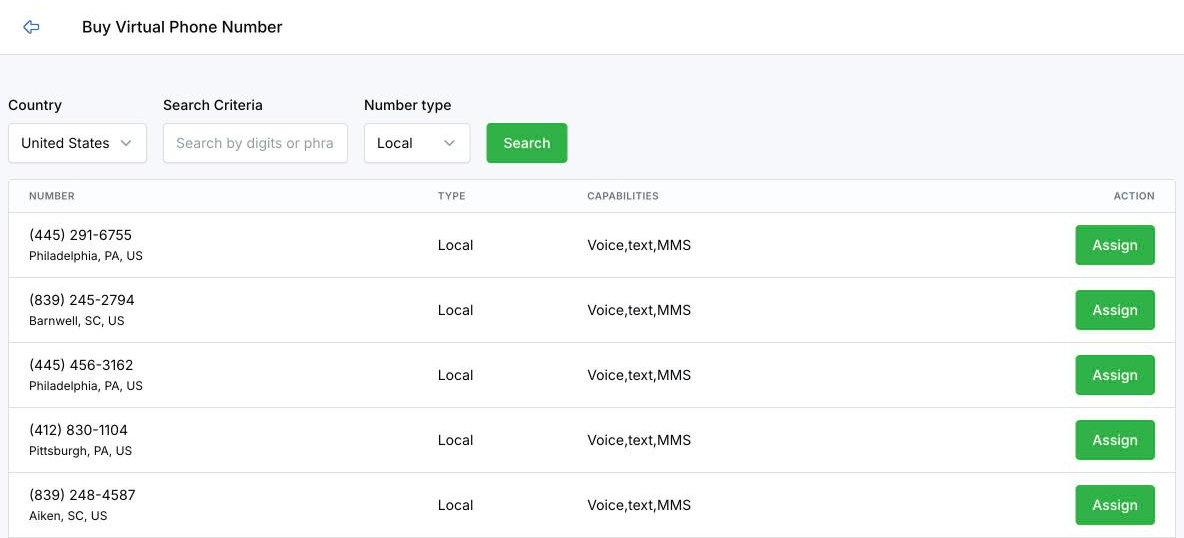
Search for a number, then click Assign.
No business address yet? LeadCenter asks you to add one first. It becomes the emergency address for your phone numbers. Click Set your Address to add it on Business Details.
What a number costs
Each plan of the AI Call Tracking & Phone License includes local numbers: 1 on Light, 3 on Starter, 6 on Corporate, and 10 on Enterprise. You only see a price when you add a number beyond what your plan includes: $10 a month for a local number or $20 a month for a toll-free number ($8 and $16 a month when billed annually). See AI Call Tracking & Phone License for full pricing, including call minutes.
Every plan of the AI Text Messaging License also includes 1 free local number for texting. It’s text-only: it can send and receive texts and receive calls, but it can’t make outbound calls. To make calls, you need the AI Call Tracking & Phone License.
Choose Who Answers Calls
Open the actions menu next to a number and click Inbound call settings.
- Who rings in LeadCenter? Click Add team members. For each person, choose Always available (any time) or Only during their calendar business hours.
- During business hours, ring LeadCenter recipients + mapped or LeadCenter recipients only.
- After business hours, ring Mapped only or Nobody.
- If unanswered, send the caller to LeadCenter voicemail or Redirect to mapped number. You can also set the Voicemail greeting and how long it rings first (Ring before voicemail, 10 to 60 seconds).
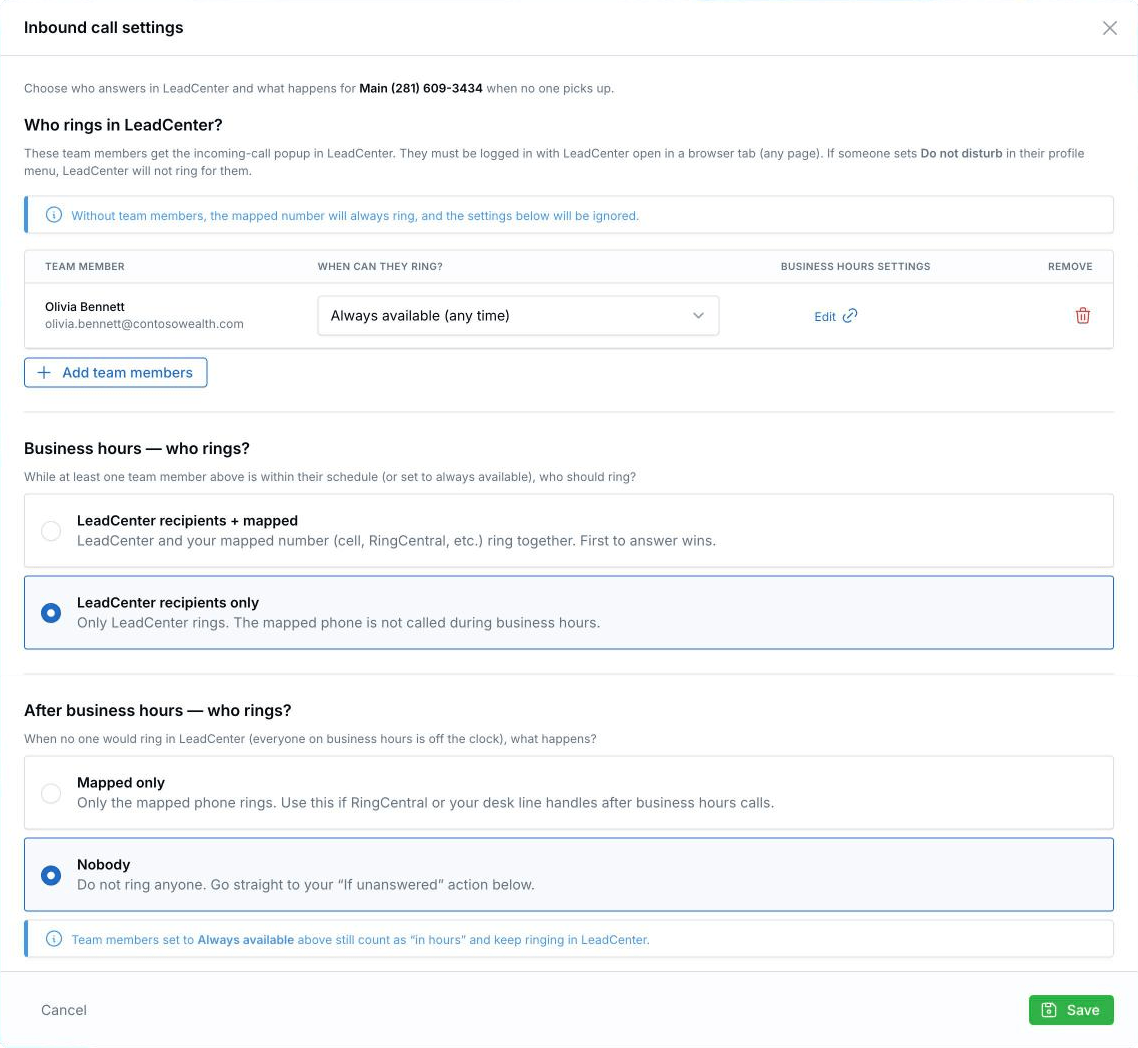
Choose who rings and what happens after hours.
LeadCenter rings team members in the browser and forwards calls to your mapped number. It isn’t a full office phone system, so there are no call queues, extensions, or phone menus.
Change a Number’s Name or Mapped Number
- Open the actions menu next to the number and click Phone settings.
- In the Update mapped number window, change the Name or the Mapped number.
- Choose whether a call or text from an unknown number creates a new contact: Create lead for non matching phone numbers for calls and Create lead for non matching phone numbers for SMS.
- Click Save.
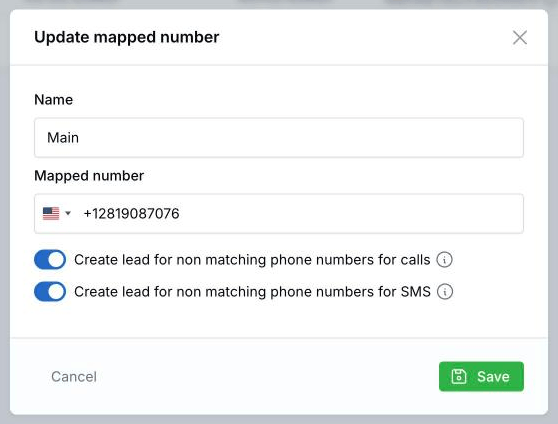
Change the name, mapped number, and new-contact options.
Set the Default Number for Texts
Open the actions menu next to the number and click Set as default for texts. LeadCenter uses this number when you send a text without choosing one.
Call and Text Settings for the Whole Account
The Settings menu at the top of the page has options that apply to all your numbers:
- Call Recording settings: record inbound and outbound calls, with rules for calls you don’t want recorded.
- Claudia AI settings: call transcriptions, summaries, tasks, email drafts, sentiment, participation metrics, and scorecards. See Call Summaries.
- Text messaging TCPA compliance: the compliance message added to your texts.
Before You Send Text Messages
U.S. carriers require A2P 10DLC registration before you can send outbound texts from a local number. Your firm registers once, through LeadCenter support, and carriers usually take about 2 weeks to approve it. Calls and incoming texts work without it. See A2P 10DLC Campaign Registration (Business Text Messaging).
Text-Only, Hosted, and Ported Numbers
- Your free texting number, included with the AI Text Messaging License, has a Text badge. It sends and receives texts and can receive calls, but it can’t make outbound calls.
- Hosted numbers have a Hosted badge. They are text only, so they can’t make or receive calls, and their call settings aren’t available. LeadCenter support adds them for you. See Hosted Numbers: Requirements & Approval Process.
- Ported numbers, numbers you moved from another provider, look and work like any other number. See Porting Phone Numbers into LeadCenter.
Release a Number
- Open the actions menu next to the number and click Release number.
- In the Release Virtual Phone Number window, click Release.
You can’t release a number while live workflows, calendars, text-in keywords, or events use it. Change those first. Calls and texts already logged with the number stay on your contacts’ records.
Released a number by mistake? Email support@leadcenter.ai within 10 days and we can try to get it back.
Troubleshooting
LeadCenter asks for an address when I click Add a number
Your business address isn’t saved yet. Click Set your Address, save your address on Business Details, then try again.
I see Upgrade Now instead of a list of numbers
Your account doesn’t have a phone or text messaging license yet. See AI Call Tracking & Phone License for plans, or contact support@leadcenter.ai.
I can’t release a number
Something still uses it: a live workflow, a calendar, a text-in keyword, or an event. Switch those to another number, then release it.
My outbound texts aren’t being delivered
Check that your firm’s A2P 10DLC registration is approved. Until it is, carriers block outbound texts from local numbers.
A number shows Not available for inbound calls
It’s a hosted number. Hosted numbers are text only.
I can’t make an outbound call from a number
Check whether it’s the free texting number that comes with the AI Text Messaging License (it has a Text badge). That number can’t make outbound calls. To make calls, add the AI Call Tracking & Phone License.
Frequently Asked Questions
Can I keep my existing office number?
Yes. You can port it to LeadCenter for calls, or host it for texts only. See Porting Phone Numbers into LeadCenter.
Does releasing a number delete its call and text history?
No. The history stays on your contacts’ records.
Can I choose an exact area code?
Type the area code in Search Criteria. Results include numbers with those digits anywhere, so pick one where they appear at the start.
Can my business name show as caller ID?
Yes, on the Starter, Corporate, and Enterprise plans (this is called CNAM). It isn’t included in Light. See AI Call Tracking & Phone License.
What’s Next
Turn on call summaries and transcriptions: Call Summaries.
Need help? Email support@leadcenter.ai.

Need more help?
If you can't find the answers you're looking for, our support specialists are available to answer your questions and troubleshoot if necessary.
-
Phone Call (888) 291-7116. Our main hours are Monday to Friday 7 am-5 pm Central Time.
-
Support Send your questions and inquiries via email to support@leadcenter.ai. A support ticket will be created and one of our team members will get back to you as quickly as possible.