 Help Center
Set Up Your Account
Set Up Your Account
Database Lists
| Where to find it | Settings → Database lists Open Database lists |
|---|---|
| Who can do this | By default, Owners and Admins. Your account Owner can change this in Roles & Permissions. |
| Before you start | If you plan to import contacts, decide on your values first: the statuses, tags, sources, and stages your team uses. |
| Time needed | About 5 minutes per list. |
Database lists hold the choices that appear in dropdowns across LeadCenter, such as client statuses, contact tags, sources and campaigns, and pipeline stages. Setting them up the way your firm works keeps your data consistent and your reports accurate.
Set these up before you import contacts. A contact import only uses values that already exist. It never creates new ones, so anything it can’t match is left blank.
How to Open the Page
- Click your name or profile picture in the top-right corner and select Settings.
- Open the Database lists tab.
- Click the list you want to change.
What’s on the Database Lists Tab
The lists are grouped into three sections. Some appear only for financial advisor accounts.
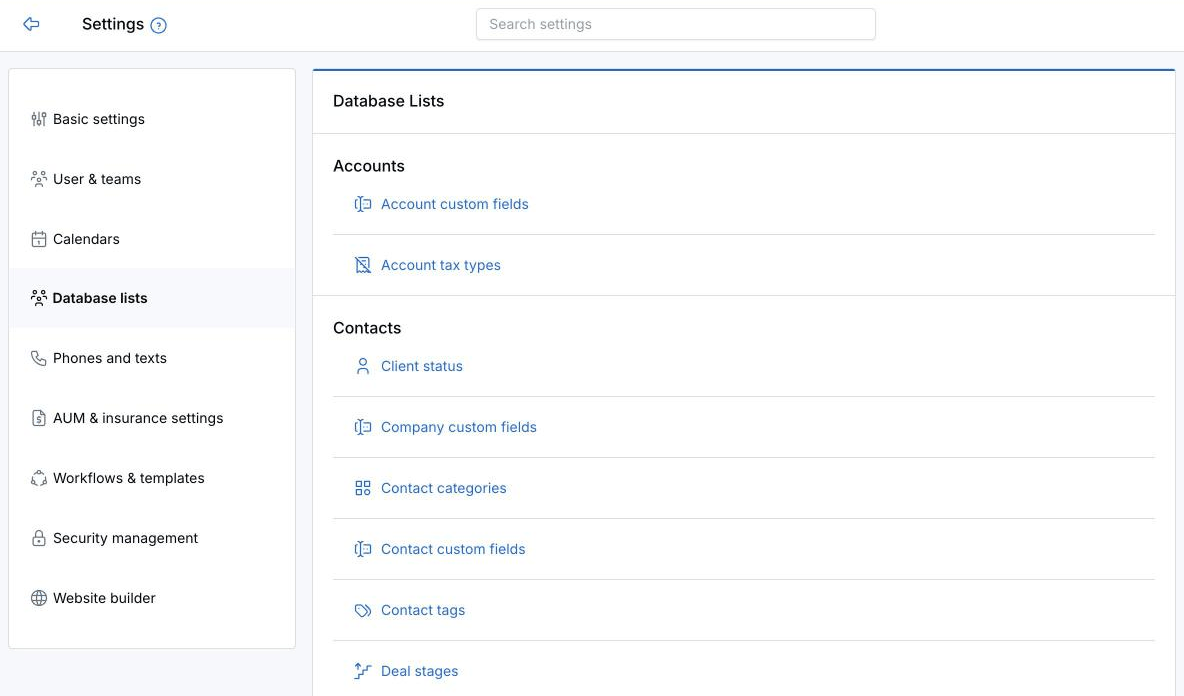
The Database lists tab.
Contacts
Client status, Company custom fields, Contact categories, Contact custom fields, Contact tags, Deal stages, Expense types, Export templates, Interests, Keywords, Mediums, Pipeline stages, Sources and campaigns, and Termination reasons. Financial advisor accounts also have Investment objectives and Professions.
Accounts (financial advisor accounts only)
Account custom fields and Account tax types.
Other Lists
Appointment and tasks categories, Document categories, Event types, Marketing expenses categories, Office locations, Task stages, Template categories, and Template tags. See Office Locations.
Add, Rename, or Delete a Value
Every list works the same way. For example, in Client status:
- Add: click Add status, enter the Name, and click Save. Other lists use their own button name, such as Add tag.
- Rename: click Edit next to the value, change it, and click Save.
- Delete: click Delete next to the value and confirm.
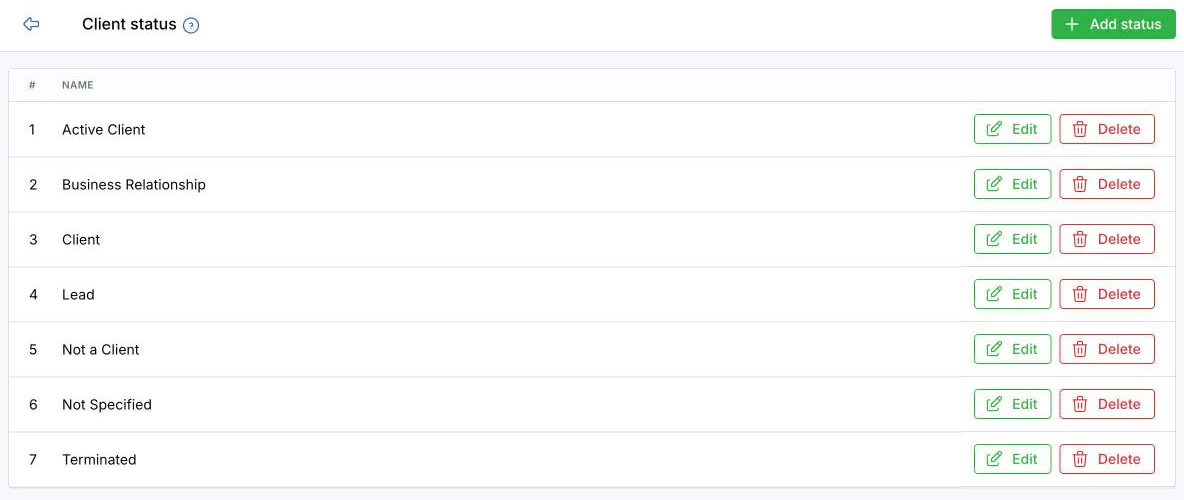
Each list has Add, Edit, and Delete.
Values are listed in alphabetical order. Only Pipeline stages, Deal stages, and Task stages can be reordered, by dragging them.
What Happens to Your Records
- Renaming a value updates it everywhere it’s used. Contacts and records keep the value and simply show the new name.
- Deleting a value is blocked while anything uses it, and LeadCenter shows a message saying it’s in use. Rename it instead, or move the records to another value first.
- Deal stages and Document categories aren’t checked before you delete, so make sure nothing uses the value first.
Values You Can’t Change
- Mediums is read-only. LeadCenter uses it to record how each contact was captured.
- In Template categories, Appointments and Events are system categories that can’t be edited or deleted.
- In Task stages, stages with a system badge can’t be deleted.
Before You Import Contacts
A contact import matches your file to these lists, so the values must already exist:
- Client status
- Contact categories
- Contact tags
- Pipeline stages
- Sources and campaigns
- Office locations
Anything the import can’t match is left blank, and the contact is still imported. The import also matches close spellings, so a typo in your file can land on a similar value. Check your values against these lists before you upload. See Importing Contacts using CSV.
Best Practices
- Agree on names with your team first. One value per meaning keeps filters and reports clean.
- Rename rather than delete. Renaming keeps every record and your reporting intact.
- Match your import file to these lists. It’s much easier than fixing blanks afterward.
Troubleshooting
I can’t delete a value
Something still uses it. Rename it, or change the contacts or records that use it and try again. Contact tags show a message that mentions a “Keyword”; it applies to the tag.
Imported contacts are missing a status, tag, or source
The value in your file didn’t match an existing value. Add the value to the list, then update the contacts.
I don’t see Database lists in Settings
Your role doesn’t include it. Ask your account Owner.
What’s Next
Bring in your contacts: Importing Contacts using CSV.
Need help? Email support@leadcenter.ai.

Need more help?
If you can't find the answers you're looking for, our support specialists are available to answer your questions and troubleshoot if necessary.
-
Phone Call (888) 291-7116. Our main hours are Monday to Friday 7 am-5 pm Central Time.
-
Support Send your questions and inquiries via email to support@leadcenter.ai. A support ticket will be created and one of our team members will get back to you as quickly as possible.