 Help Center
Lead Capturing & Tracking
Lead Capturing & Tracking
Connect Website Forms and Fix Connections with Troy AI
Troy AI can connect a form on your website to LeadCenter for you, and find out why a connected form has stopped sending leads. Troy inspects the public page, suggests the setup, and shows you everything on a card. Nothing is saved until you confirm.
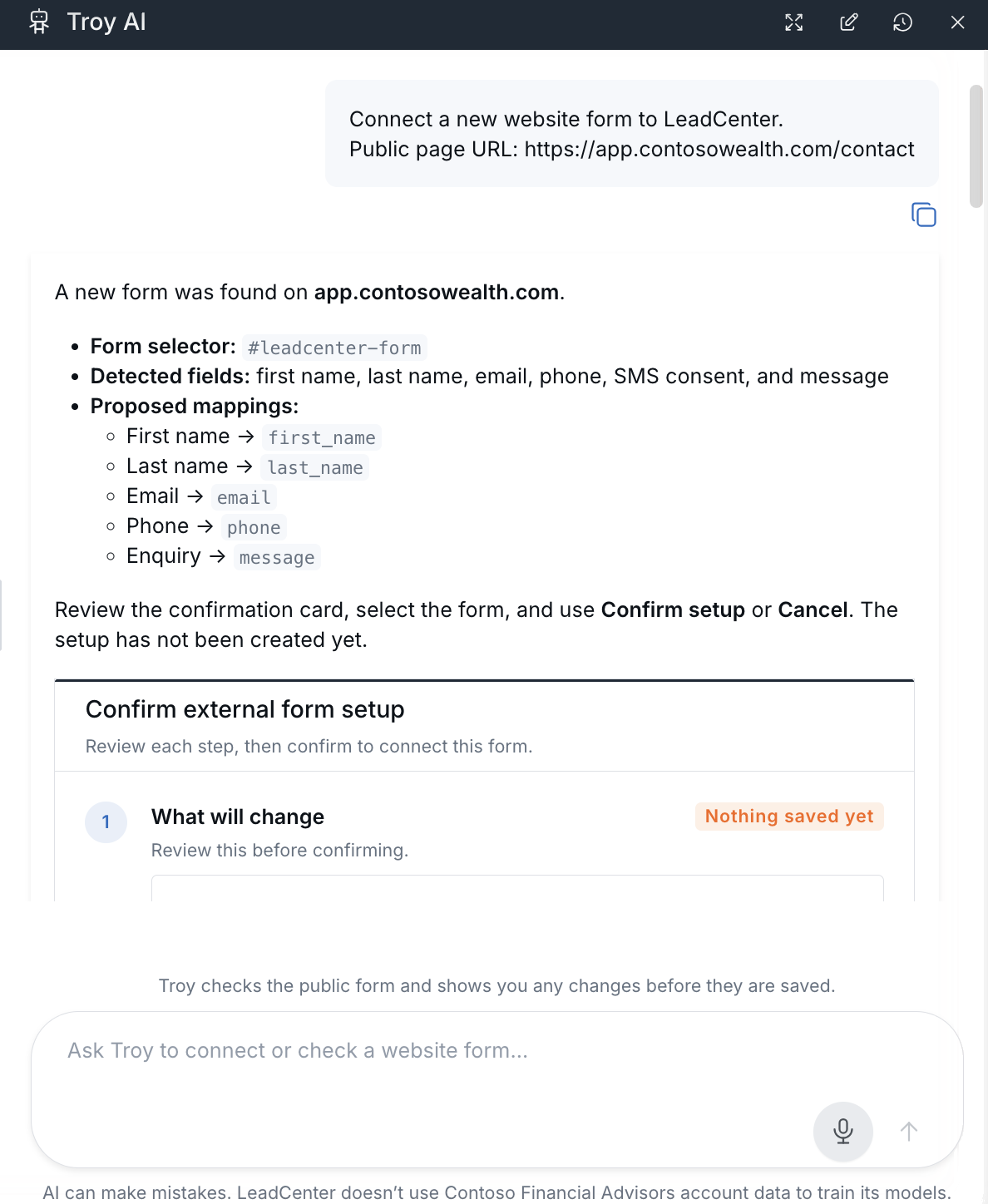
Troy finds the form and proposes how each field maps.
Before You Start
- Install the LeadCenter script on your website. Troy can check for it but can't add it for you. See Capturing Leads from Website Forms or How to Install LeadCenter JavaScript on WordPress.
- The form must be on a public web page and be a standard website form with at least an email or phone field. Forms that live inside another service's embedded frame, such as Google Forms or Typeform, can't be connected this way.
- You need permission to register website forms and update field mappings. If you don't see Troy AI on the page, ask your administrator.
Connect a New Website Form
- Open Website forms integration.
- Click Troy AI, then choose Connect a new website form to LeadCenter. You can also open Actions and choose Register form with Troy AI.
- After Public page URL:, paste the full address of the page that contains the form (not just your domain), then send.
- Review the setup card Troy shows:
- What will change — whether the website and form will be added. It shows Nothing saved yet until you confirm.
- Website script — whether your LeadCenter script was found on the page.
- Form details — enter a form title, and optionally choose a default Source, Stage, and UTM campaign values for new leads.
- Field mappings — each LeadCenter field and the website field it will be filled from. Troy preselects the matches it found. Change any dropdown that isn't right.
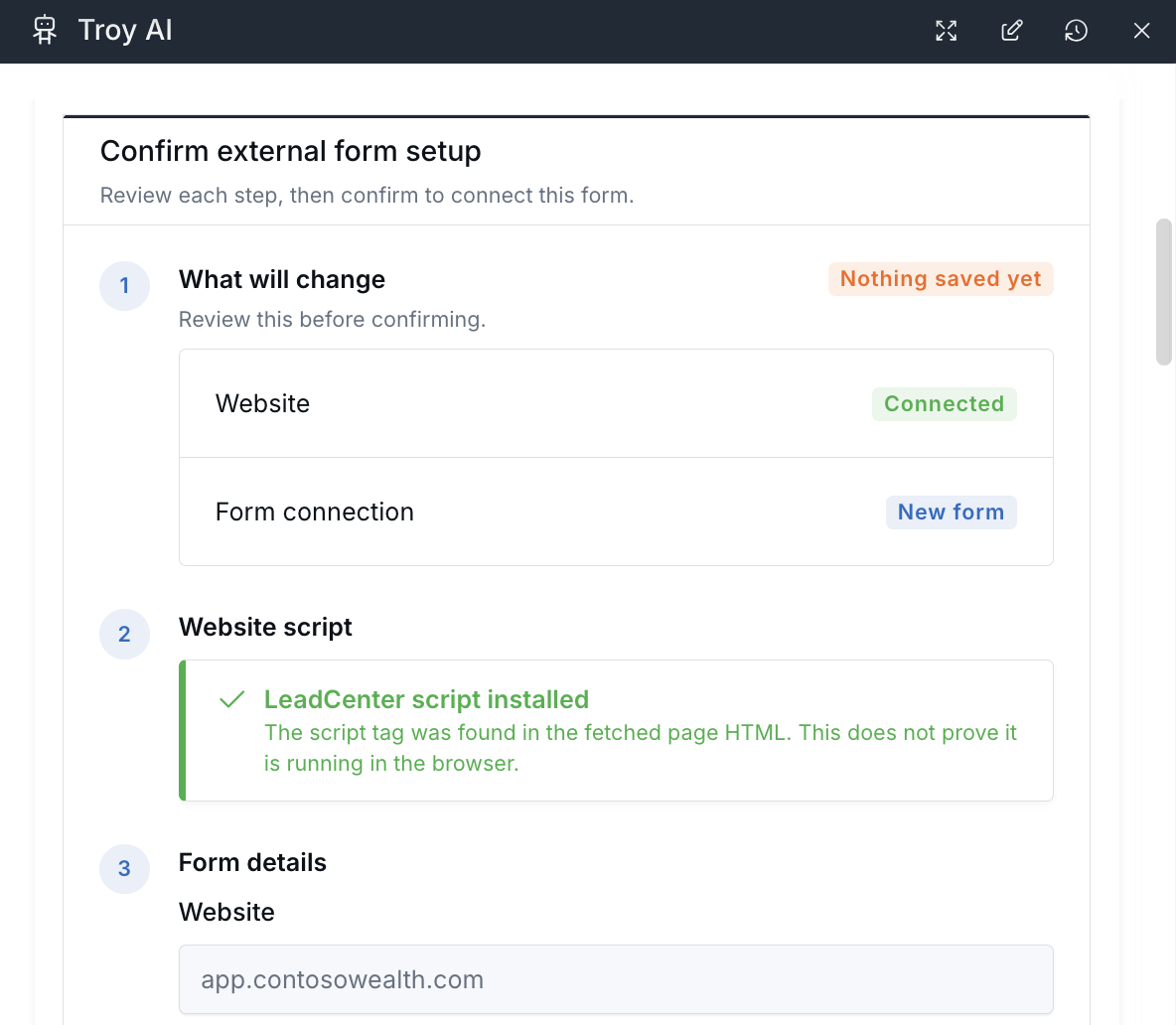
Review what will change before anything is saved.
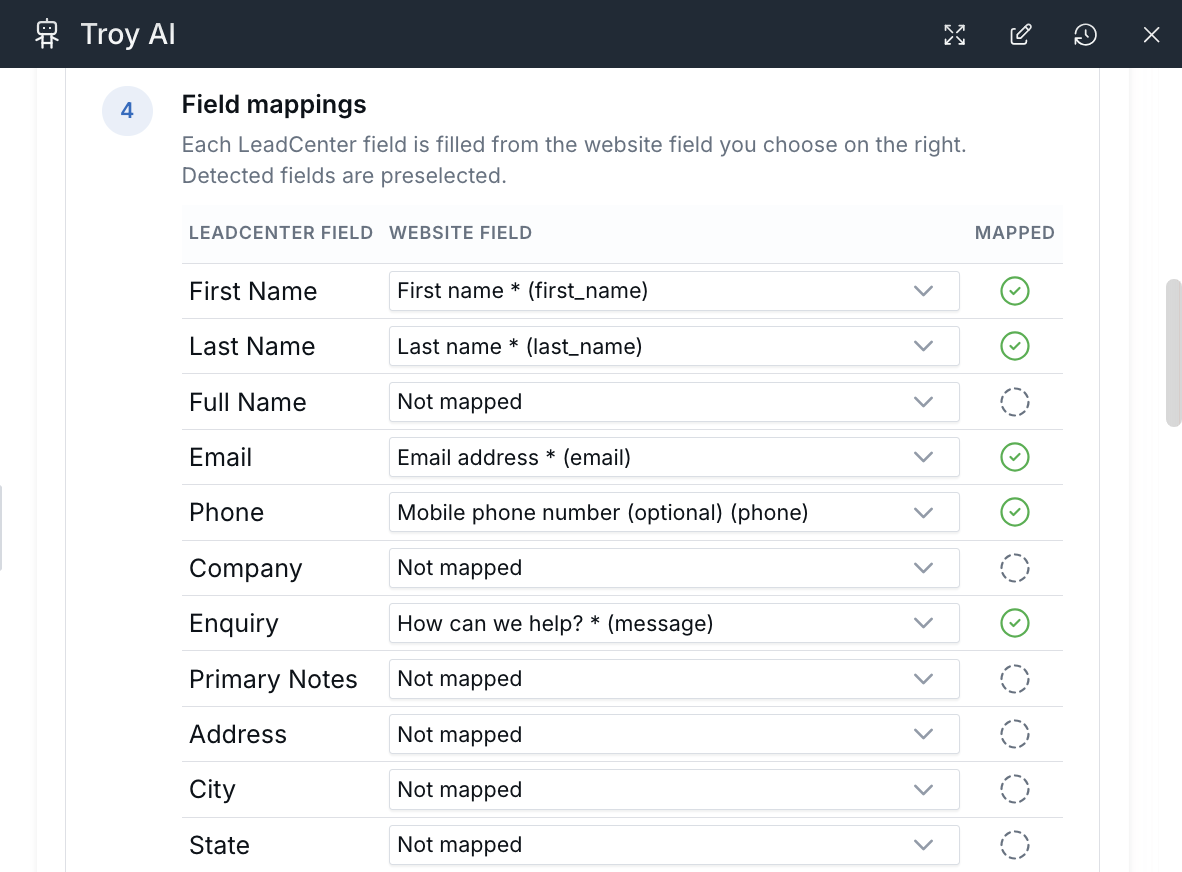
Troy preselects the website fields it matched.
- If the page has more than one form, select the one you want on the card.
- Click Confirm setup to connect the form, or Cancel to discard it.
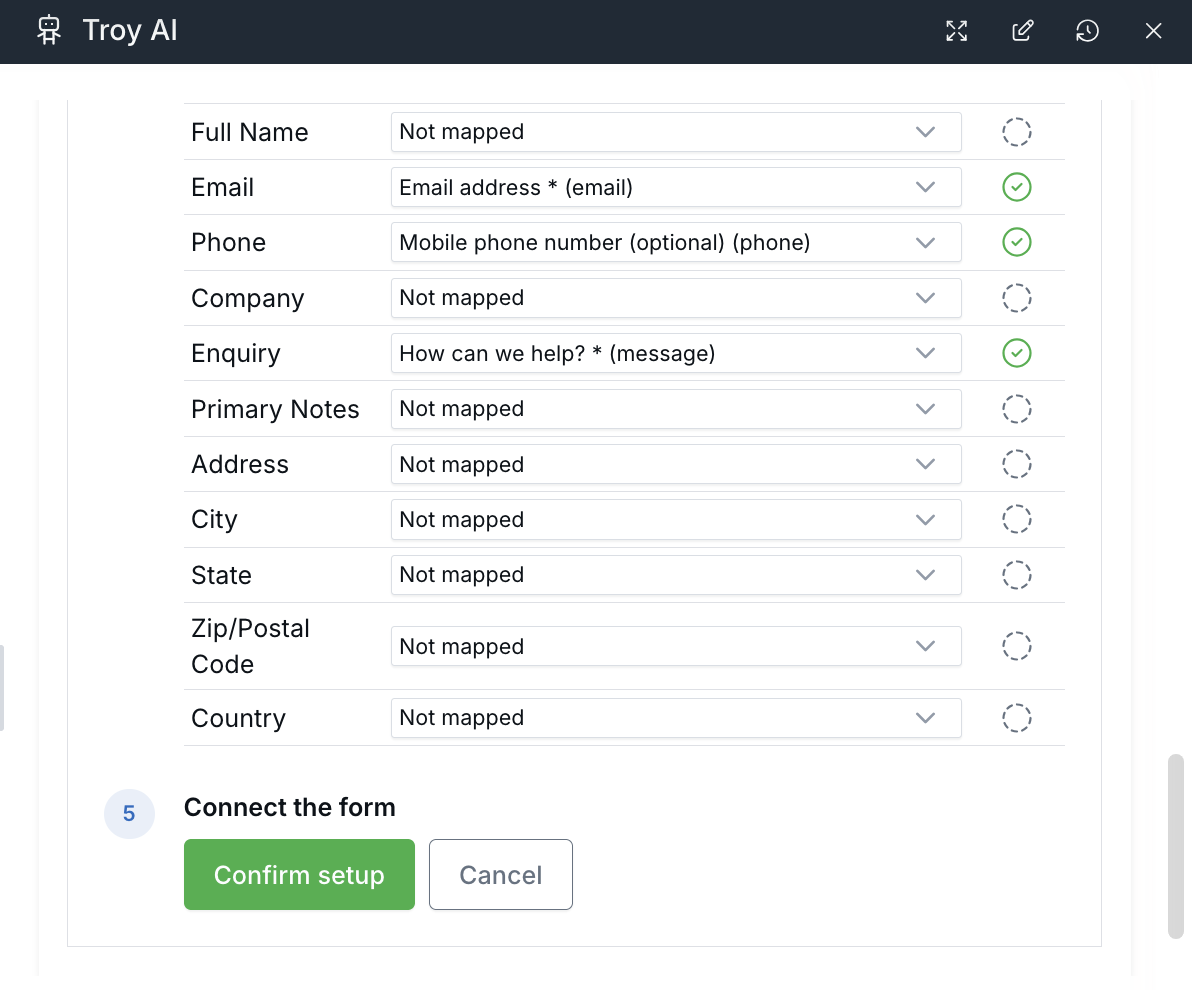
Nothing is saved until you click Confirm setup.
If the form on that page is already connected, Troy tells you its Form System ID instead of showing a setup card.
Test the Connection
- Submit a test entry on the form on your website.
- Tell Troy you've submitted it, for example "I submitted one."
- Troy shows the latest submission for that form, the values it received, and the contact it's linked to, with a link to View submissions.
If nothing arrived, make sure the LeadCenter script is loading on the page, submit again, wait a few seconds, and ask Troy to check again.
Check and Fix a Form That Isn't Working
- On Website forms integration, open the form row's Actions menu and choose Diagnose with Troy AI. The check starts right away.
- Or click Troy AI, choose Diagnose why my website form is not working, and send the form's Form System ID or its public page URL.
Troy checks:
- Whether the website and form are active.
- Whether the form still matches the form on your live page.
- Whether saved field mappings still point to fields on the page, and whether email or phone is mapped.
- Whether your LeadCenter script is on the page.
If everything checks out, Troy tells you no changes are needed. If Troy finds something it can fix in LeadCenter, such as an inactive form or outdated mappings, it shows a card with the proposed fix. Click the button on the card (Apply repairs or Save mappings) to fix the connection, or Cancel to leave the form as it is. A missing script has to be added to your website; the card can't fix that.
When Troy AI Can't Connect a Form
Troy won't show a setup card when:
- The address isn't a public web page, or the page can't be reached.
- You sent only your domain and the form is on another page. Send the exact page address.
- The page has no standard website form, for example when the form is embedded from Google Forms or Typeform.
- The form has no email or phone field.
In these cases, you can still connect the form by hand. See Capturing Leads from Website Forms.
Related Articles
- Use Troy AI on the Website Forms Page
- Capturing Leads from Website Forms
- Troubleshooting: Why Isn't My Form Capturing Leads?
Need help? Contact support@leadcenter.ai.

Need more help?
If you can't find the answers you're looking for, our support specialists are available to answer your questions and troubleshoot if necessary.
-
Phone Call (888) 291-7116. Our main hours are Monday to Friday 7 am-5 pm Central Time.
-
Support Send your questions and inquiries via email to support@leadcenter.ai. A support ticket will be created and one of our team members will get back to you as quickly as possible.