 Help Center
AI Agents
AI Agents
Use Troy AI on the Website Forms Page
Troy AI helps you get the forms on your website sending leads into LeadCenter. On the Website forms integration page, Troy can connect a new form from its page address, and find out why a connected form has stopped sending leads. You review everything Troy suggests before anything is saved.
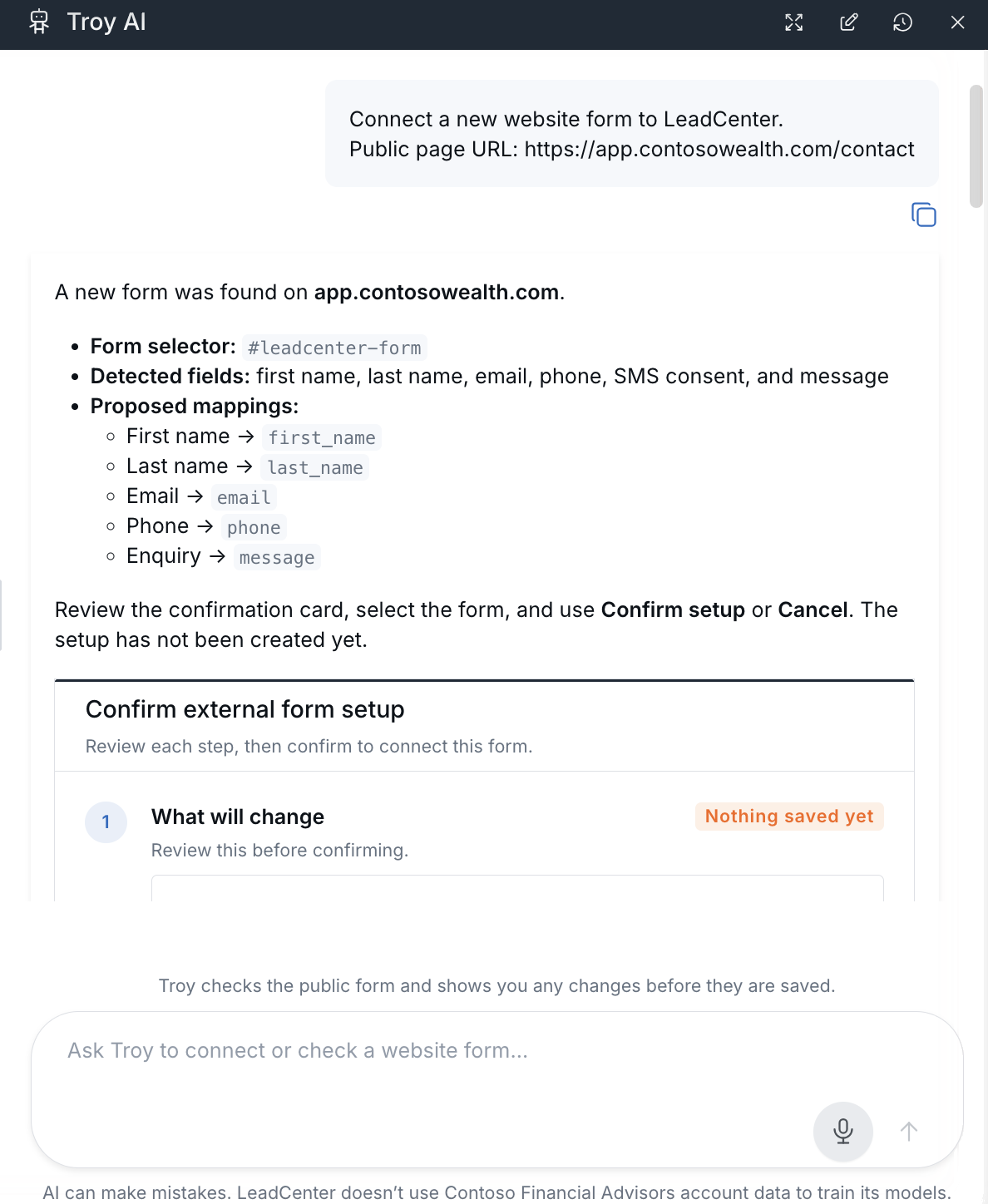
Troy finds the form on your page and suggests how each field maps.
Open Troy AI
- Open Website forms integration.
- Click the dark Troy AI button near the top of the page.
- Choose one of the suggested prompts, or type your own question.
Troy opens in a side panel so your forms list stays visible.
What Troy Can Do on This Page
| Prompt or shortcut | What it does |
|---|---|
| Connect a new website form to LeadCenter | Paste the address of the page your form is on. Troy finds the form, checks that your LeadCenter tracking code is installed, and suggests where each answer should go. Review the card and click Confirm setup to connect it. |
| Diagnose why my website form is not working | Send the form's Form System ID or its page address. Troy checks the connection and, if it can, shows a card with the fix for you to apply. |
| Register form with Troy AI (Actions menu) | Starts a new chat ready for you to paste the page address. |
| Diagnose with Troy AI (a form's Actions menu) | Starts the check for that form right away. |
After connecting a form, submit a test entry on your website and tell Troy. It shows the latest submission and the contact it's linked to.
Learn More
- Step-by-step guide: Connect Website Forms and Fix Connections with Troy AI
- Connect a form manually: Capturing Leads from Website Forms
Need help? Contact support@leadcenter.ai.

Need more help?
If you can't find the answers you're looking for, our support specialists are available to answer your questions and troubleshoot if necessary.
-
Phone Call (888) 291-7116. Our main hours are Monday to Friday 7 am-5 pm Central Time.
-
Support Send your questions and inquiries via email to support@leadcenter.ai. A support ticket will be created and one of our team members will get back to you as quickly as possible.