 Help Center
AI Agents
AI Agents
Use Troy AI on Notes
Troy AI on Notes helps you review note history, find follow-up items, summarize recent activity, and identify themes across client conversations.
Troy uses the Notes page you are viewing, including the full Notes list, a contact-filtered view, or a single note you have open.
Where to Find Troy AI on Notes
- Open Notes from the left sidebar.
- Use filters or search if you want to narrow the Notes list.
- Click Troy AI next to Create note.
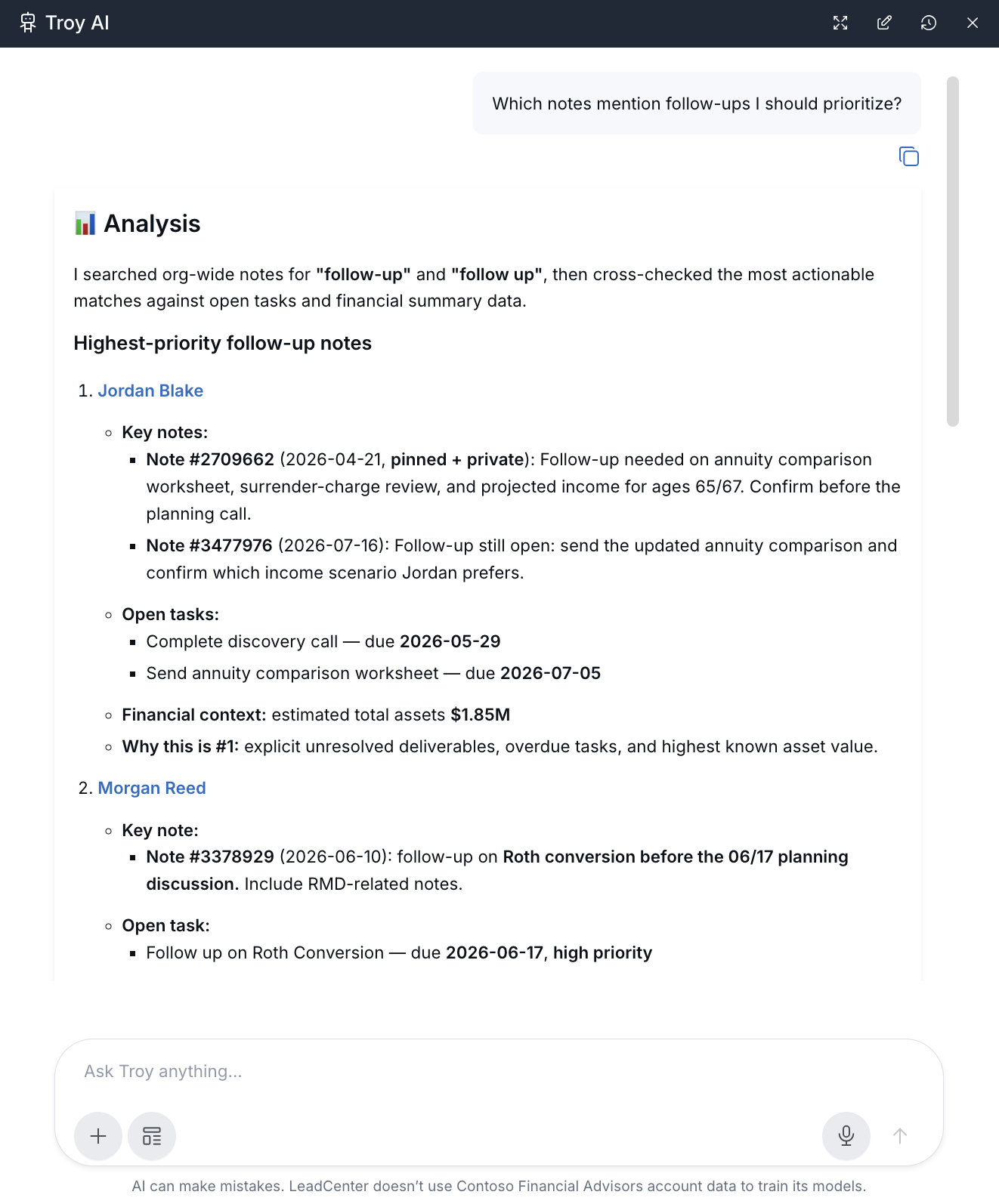
Ask About Notes and Follow-Ups
Use Troy to review notes before meetings, identify open items, or search for specific planning topics.
- Which notes mention follow-ups I should prioritize?
- Show notes that may need a response or action.
- Find notes about Roth conversions.
- Find notes about estate planning, trusts, or beneficiaries.
- Highlight patterns or themes in recent client notes.
Review Notes for One Contact
To focus Troy on one contact, filter the Notes list to that contact or open Notes from the contact’s record.
- Summarize this contact’s notes from the last 30 days.
- What follow-ups are implied by this contact’s notes?
- Draft a follow-up email based on recent notes.
- Highlight risks or concerns mentioned in this contact’s notes.
Review One Important Note
When a specific note is open, ask Troy about that note directly.
- Summarize this note and highlight key action items.
- What open items from this note still need attention?
- Suggest next steps for the contact tied to this note.
- Find related notes for this contact or topic.
How Troy Uses Notes Context
- No filter: Troy can help search and summarize across the Notes list.
- Contact filtered: Troy focuses on that contact’s notes.
- Single note open: Troy focuses on the note you are viewing unless you ask for broader context.
Change the filter, open a different note, or return to the full Notes list before asking a new question.
After Troy Answers
- Open the related contact record to continue your CRM workflow.
- Use Create note to log decisions or updates.
- Create a task or calendar follow-up for clear action items.
- Review any AI-drafted email, SMS, or note before sending or saving it.
Always verify AI summaries against the source note before using them for client communication or advice-related follow-up.
Tips
- Start with a broad question, then narrow to one contact or one note.
- Use the same terms your team uses in notes, such as Roth, RMD, rollover, trust, or beneficiary.
- Use note categories when you want Troy to focus on a specific type of note.
- Treat Troy’s response as a first pass and review the underlying notes before taking action.

Need more help?
If you can't find the answers you're looking for, our support specialists are available to answer your questions and troubleshoot if necessary.
-
Phone Call (888) 291-7116. Our main hours are Monday to Friday 7 am-5 pm Central Time.
-
Support Send your questions and inquiries via email to support@leadcenter.ai. A support ticket will be created and one of our team members will get back to you as quickly as possible.