 Help Center
AI Agents
Apply Claudia AI Settings to All Calendar Users
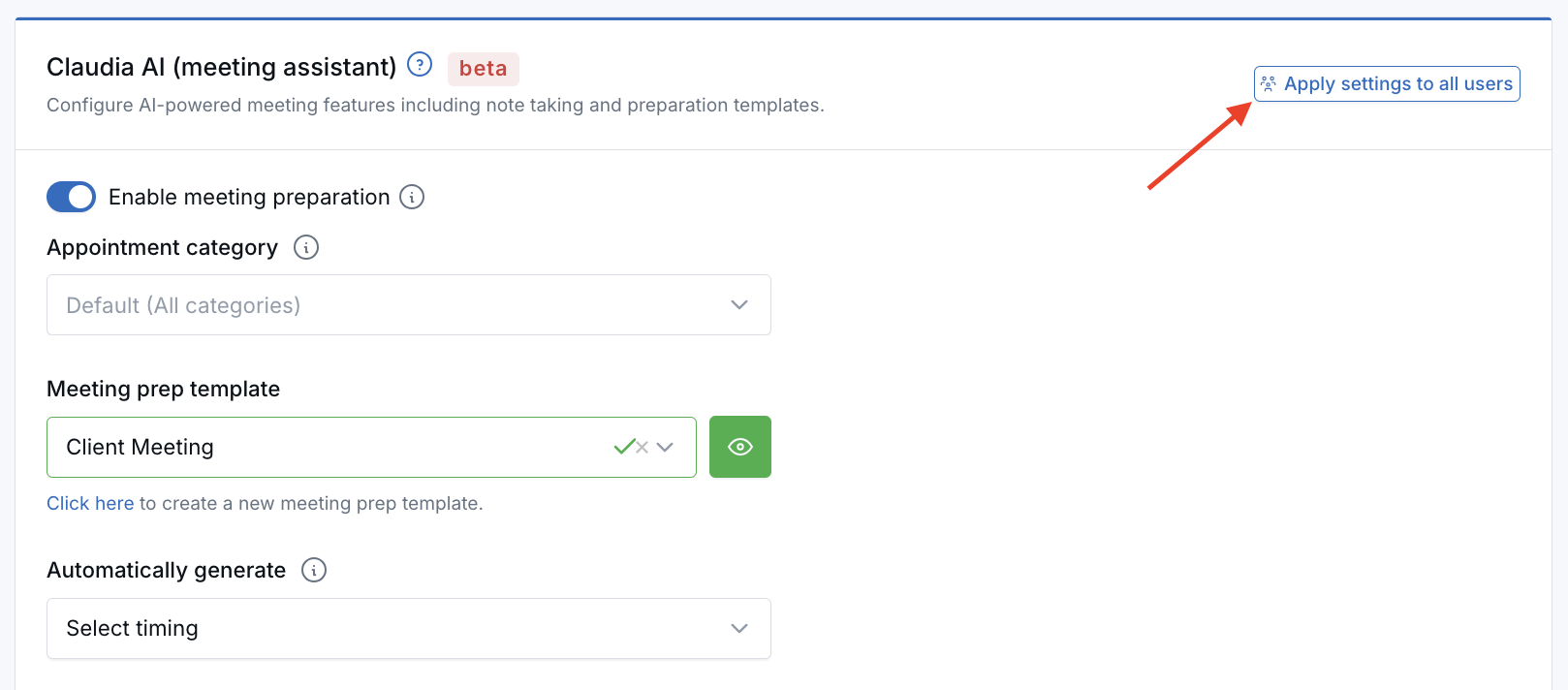
This feature allows you to copy the Claudia AI (meeting assistant) settings from one calendar to all other calendars in your account. This is useful when you want your team to use the same AI meeting configuration without manually updating each calendar one by one.
What Gets Copied
When you apply settings to all users, LeadCenter copies the Claudia AI settings from the current calendar to every other calendar in the account.
- Meeting Preparation — enabled or disabled, selected template, automatic generation timing, and category-specific overrides
- AI Note Taker — enabled or disabled, transcription, video/audio recording
- Meeting Summary — enabled or disabled and selected template, including category-specific overrides
- Draft Follow-up Email — enabled or disabled and selected template, including category-specific overrides
- Meeting Scorecard — enabled or disabled and selected template, including category-specific overrides
- Generate Tasks — enabled or disabled
- Meeting Sentiment Analysis — enabled or disabled
- Participation Metrics — enabled or disabled
How to Apply Settings to All Calendar Users
- Go to Calendars.
- Click the settings (gear) icon in the top-right corner to open calendar settings.
- The Claudia AI (meeting assistant) tab opens by default.
- Configure the AI settings you want to use as the source. If needed, review related setup guides such as AI Note Taker (Claudia AI), AI Meeting Summary Templates Setup and Instructions, and AI Meeting Analytics Overview.
- Click Save.
- Click Apply settings to all users.
- In the confirmation dialog, type apply all.
- Click Apply to all to copy those settings to the other calendars in your account.
Important Notes
- Save first — this feature copies the last saved settings only. Unsaved changes are not included.
- No undo — this action overwrites the Claudia AI settings on all other calendars and cannot be reversed automatically.
- Confirmation required — you must type apply all before the action can continue.
- Category overrides are included — if the source calendar has category-specific template overrides, those overrides are copied too and replace existing overrides on the other calendars.
Please note: Applying settings to all users replaces the existing Claudia AI setup on the other calendars. It is best used when you want one shared Claudia AI configuration across your team.
When This Is Useful
- when onboarding new advisors or team members
- when standardizing Claudia AI across the whole office
- when updating templates or AI behavior for all calendars at once
- when rolling out new Claudia AI features consistently
Troubleshooting
Settings were not applied
- Make sure you clicked Save before clicking Apply settings to all users.
- Make sure you typed apply all correctly in the confirmation dialog.
- Check whether an error message appeared at the top of the page.
No Other Calendars Found
- If LeadCenter shows a message saying no other calendars were found, your account may have only one calendar.
- This feature requires at least two calendars in the account.
Best Practices
- Use one calendar as your “source” or standard configuration before applying settings widely.
- Review category-specific template overrides carefully before applying them to all users.
- Test the source calendar first if you are rolling out a new Claudia AI configuration for the whole team.
- Document any office-wide Claudia AI standards so future calendar changes stay consistent.
Frequently Asked Questions
Does this copy unsaved changes?
No. Only the last saved calendar settings are copied.
Can I undo Apply settings to all users?
No. There is no automatic undo. If you need to change the configuration again, update the correct calendar settings and re-apply them.
Does this overwrite category-specific Claudia AI templates on other calendars?
Yes. Category-specific overrides from the source calendar replace the existing overrides on the target calendars.
Does this work if my account has only one calendar?
No. The feature requires at least one other calendar to apply the settings to.
Related Help
- Claudia AI Overview
- AI Note Taker (Claudia AI)
- AI Meeting Summary Templates Setup and Instructions
- Where to Find AI Meeting Summaries
If you need help applying Claudia AI settings across calendars, contact support@leadcenter.ai.

Need more help?
If you can't find the answers you're looking for, our support specialists are available to answer your questions and troubleshoot if necessary.
-
Phone Call (888) 291-7116. Our main hours are Monday to Friday 7 am-5 pm Central Time.
-
Support Send your questions and inquiries via email to support@leadcenter.ai. A support ticket will be created and one of our team members will get back to you as quickly as possible.