 Help Center
AI Agents
AI Agents
Use Troy AI in Your Inbox
Troy AI helps you work through your emails, calls, and text messages without leaving the inbox. It can summarize conversations, highlight what needs your attention, suggest follow-up actions, and help you prepare a reply.
Open Troy AI
- Open Emails, Calls, or Texts from your LeadCenter navigation.
- Click the dark Troy AI button near the top of the page.
- Choose one of the suggested questions, or type your own question in the chat box.
To focus on one conversation, open the email, text thread, or call first and then open Troy AI. Troy will use the item you are viewing as the starting point for its answer.
Emails
Use Troy AI to quickly understand messages and decide what to do next.
- Summarize an email and highlight what requires a response.
- Draft a professional reply or make a draft shorter and clearer.
- Review engagement with an email thread.
- Find unanswered messages and prioritize replies.
- Suggest follow-up actions based on the conversation.
Try asking:
- Summarize this email and highlight what I need to respond to.
- Draft a professional reply to this message.
- What emails in my inbox need follow-up today?
Use Troy AI While Writing an Email
- Open the email composer, for example by clicking Send email on the Emails page of your inbox.
- Click the Troy AI button in the composer header.
- Choose an action from the menu, or describe the email you want in the message box.
Troy opens in a sidebar on the right while the email editor stays in view. To change the sidebar's width, drag its left edge. LeadCenter remembers the width you choose.
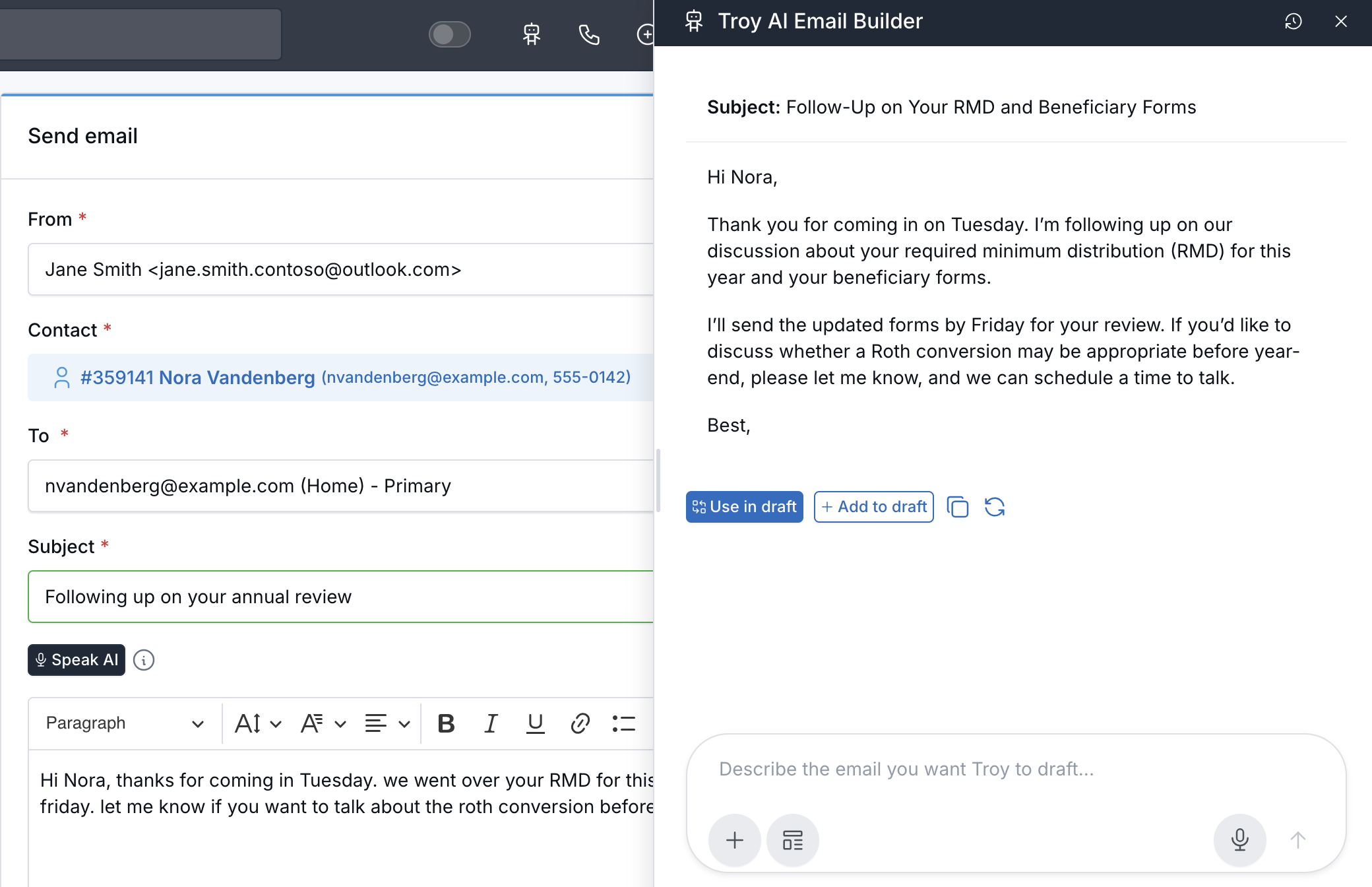
Troy opens beside your email so the editor stays in view.
- Write new email drafts a message from your instructions.
- Enhance with AI improves the email already in the editor.
- Formalize, Polish, Elaborate, and Shorten rewrite the current email in a different tone or length.
- Compliance check reviews the current email for potential issues.
Enhance, rewrite, and compliance actions need content in the email body first. If the body is empty, LeadCenter asks you to add content before continuing.
When Troy proposes an email, select Use in draft or Add to draft to place it in the editor, then review the subject and body before you click Send.
Check names, dates, and promised actions. Troy drafts emails but never sends them for you.
Calls
Use Troy AI to prepare for callbacks and turn call conversations into clear next steps.
- Summarize a call and identify decisions, objections, and next steps.
- Review the main takeaways from an available transcript.
- Compare recent calls with the same contact.
- Find calls that still need follow-up.
- Draft a follow-up task or note for you to review.
Try asking:
- Summarize this call and highlight decisions and next steps.
- Review the transcript takeaways and objections from this call.
- Which calls in my list need follow-up today?
If a call does not have a recording or transcript, Troy cannot review words that were not captured. It will not invent transcript details.
Texts
Use Troy AI to keep text conversations moving while maintaining the right tone.
- Summarize a text thread and identify what needs a response.
- Draft a professional SMS reply.
- Find unanswered text threads.
- Review recent activity with a contact.
- Suggest follow-up actions based on a conversation.
Try asking:
- Summarize this text thread and highlight what I need to respond to.
- Draft a professional SMS reply to this conversation.
- What text threads are waiting on my response?
Ask About Your Inbox
You can ask Troy AI about the messages or calls currently available in your inbox, even when you have not opened one specific item.
- Help me prioritize replies across my email.
- Summarize unread messages that look urgent.
- Help me prioritize callbacks across my call list.
- Which contacts texted me most recently?
For better results, include a timeframe, a priority, or the outcome you want. For example, ask for messages from the last seven days, high-priority follow-ups, or a short reply in a warm tone.
Review Before Sending or Saving
Troy AI provides suggestions and drafts. It does not send an email or text simply because it created a draft.
- Review and personalize an email or SMS draft before sending it.
- Check names, dates, promised actions, and other important details.
- Review any suggested task or note before saving it to LeadCenter.
- Use the normal Send or Save action when you are ready.
What Troy AI Can See
Troy AI follows the records and inbox access available to you in LeadCenter. Team members may see different results depending on their access. Troy does not give you access to messages, calls, or contacts that you cannot already view.
AI-generated answers can be incomplete or incorrect. Treat them as a starting point, and confirm important information in the original email, text, or call record before taking action.

Need more help?
If you can't find the answers you're looking for, our support specialists are available to answer your questions and troubleshoot if necessary.
-
Phone Call (888) 291-7116. Our main hours are Monday to Friday 7 am-5 pm Central Time.
-
Support Send your questions and inquiries via email to support@leadcenter.ai. A support ticket will be created and one of our team members will get back to you as quickly as possible.