 Help Center
AI Agents
Create or Update a Contact from a Document with Troy AI
Troy AI can read an attached PDF or image, such as a fact finder, intake packet, statement, or photo of handwritten notes, and prepare contact updates for your review. Nothing is saved to LeadCenter until you confirm the review cards.
Before You Start
- Troy AI must be available on your account.
- You can attach a PDF, PNG, JPEG, WebP, or GIF file up to 50 MB.
- Open an existing contact first when you want Troy to update that person. You can also create a contact from the document.
Map a Document
- Open Troy AI from the header or from the contact you want to update.
- Select the + (Add attachment) beside the message box, then choose Add PDF or Add image.
- Select the file and wait for it to finish attaching.
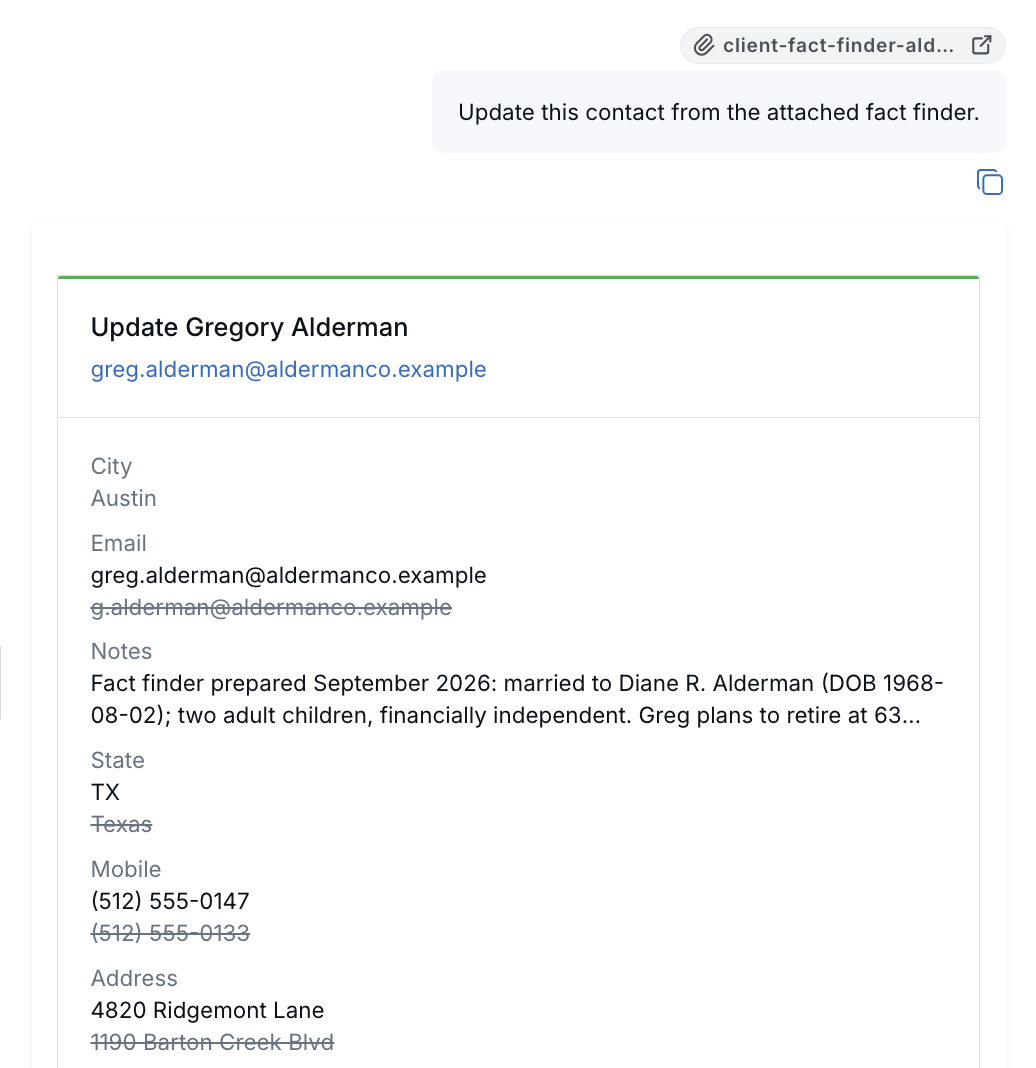
- Describe what Troy should do, such as Create a contact from this PDF or Update this contact from the attached fact finder.
- Review the contact card and any related-records card that appears.
- Confirm the contact card first. If a related-records card is present, review and confirm it afterward.
Review the Proposed Changes
- The contact card's heading includes the contact's name — for example, Update Gregory Alderman — rather than a plain "Create" or "Update" label.
- When a current value differs from the proposed value, the current value appears crossed out for comparison.
- Related records can include income, expenses, assets, liabilities, and phone numbers.
- For a new contact, confirm the contact card first. Related records are tied to the contact once it's created, so confirming the contact first avoids errors.
- Select Dismiss on any card you do not want to save.
AI-generated mappings can be incomplete or incorrect. Compare names, contact details, identification numbers, and financial amounts with the original document before confirming.
Tips for Better Results
- Use a clear scan or photo.
- State whether amounts are monthly or annual when the document is unclear.
- When a file contains several people, identify the person Troy should create or update.
- Tell Troy which fields it should not change when you want to preserve existing contact details.
- After confirming, review the contact's Overview, Contacts, and Financials sections.
Access and Other Mapping Options
Troy follows the contacts and records you are already allowed to view and edit. It does not grant access to other contacts.
To map a website or event form submission already stored in LeadCenter, use Map with AI from Form Data instead of attaching a PDF.

Need more help?
If you can't find the answers you're looking for, our support specialists are available to answer your questions and troubleshoot if necessary.
-
Phone Call (888) 291-7116. Our main hours are Monday to Friday 7 am-5 pm Central Time.
-
Support Send your questions and inquiries via email to support@leadcenter.ai. A support ticket will be created and one of our team members will get back to you as quickly as possible.