 Help Center
AI Agents
Ask Troy AI to Filter Contacts and Sales Pipeline Records
Troy AI can help you find contacts and Sales Pipeline records by using plain-English questions. Instead of building filters manually, describe the group of people you want to see, and Troy AI can return a matching list with a link to open that filtered view in LeadCenter.
Use this when you want to find people by stage, source, owner, tag, activity, date range, custom fields, Catchlight data, or other available filter criteria.
Where To Use This
Open Troy AI from the Sales Pipeline or Contacts list page.
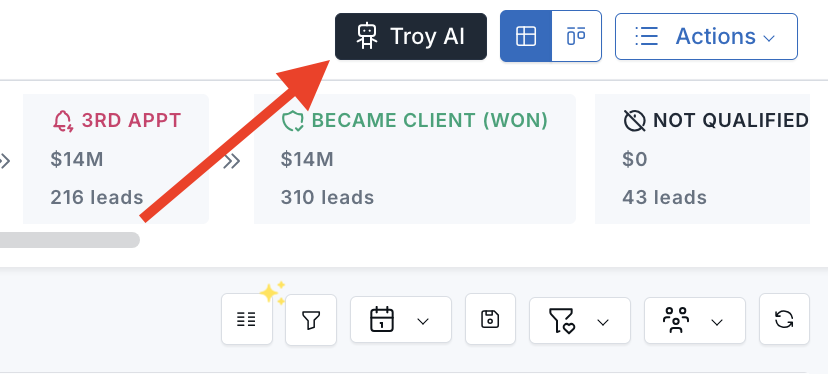
Troy AI follows your LeadCenter permissions. You only see records your role is allowed to access.
How It Works
- Open Troy AI from the Pipeline or Contacts list page.
- Ask for the group of people you want to find.
- Review the summary Troy AI provides.
- Click Open in Sales Pipeline or Open in Contacts when Troy AI provides a link.
- Work the filtered list in LeadCenter using your normal follow-up process.
If Troy AI gives you a summary but does not include a link, ask for one directly. For example, “Give me a link to open this in the Sales Pipeline.”
Example Filter Questions
- “Show me my contacts in the Qualified stage.”
- “Find contacts tagged VIP.”
- “Show me Sales Pipeline records with no activity in the last 30 days.”
- “List website contacts in New created in the last 7 days.”
- “Find contacts with estimated investable assets over $1,000,000.”
- “Show Sales Pipeline records with a Catchlight score above 70.”
What Troy AI Can Filter On
- Stage, source, medium, and category
- Owner and scheduler
- Tags and keywords
- Client status and office location
- Date ranges, such as contacts created between two dates
- Activity, such as no activity for a certain number of days
- Days in current stage
- Name, email, phone, or company search
- Custom fields configured for your organization
- Catchlight fields, when available
- Saved segments your organization has defined
Using The Link From Troy AI
When Troy AI includes Open in Sales Pipeline or Open in Contacts, the page opens with the relevant filters applied. From there, you can review records, adjust criteria, and continue your normal workflow.
The opened page is the best place to verify the full filtered list before taking bulk action.
Troubleshooting
| Problem | What To Try |
|---|---|
| No link appears in the response. | Ask Troy AI to include a link to open the list in Contacts or Sales Pipeline. |
| The wrong page opens. | Clarify whether you want Sales Pipeline records only or all matching contacts. |
| The list is empty. | Check spelling for stages, sources, tags, and names. Try a simpler question first. |
| The list is too large. | Add constraints such as owner, date range, stage, source, or tag. |

Need more help?
If you can't find the answers you're looking for, our support specialists are available to answer your questions and troubleshoot if necessary.
-
Phone Call (888) 291-7116. Our main hours are Monday to Friday 7 am-5 pm Central Time.
-
Support Send your questions and inquiries via email to support@leadcenter.ai. A support ticket will be created and one of our team members will get back to you as quickly as possible.