 Help Center
AI Agents
Manage Claudia AI Settings Across Calendars
Manage Claudia AI Settings Across Calendars
Claudia AI settings are configured separately on each person's calendar. Every user can manage Claudia on their own calendar. Account Owners and Admins can also edit another user's settings or copy one calendar's saved Claudia setup to every other user.
Open Claudia AI Settings
- Go to Calendars.
- Select the settings icon for the calendar you want to configure.
- Open Claudia AI (meeting assistant) in the left menu.
How the Settings Screen Works
The screen is divided into two areas:
- Section list: The left side lists each part of Claudia AI with its own on/off switch. Turning on a section also opens its settings.
- Section settings: The right side shows the options for the selected section.
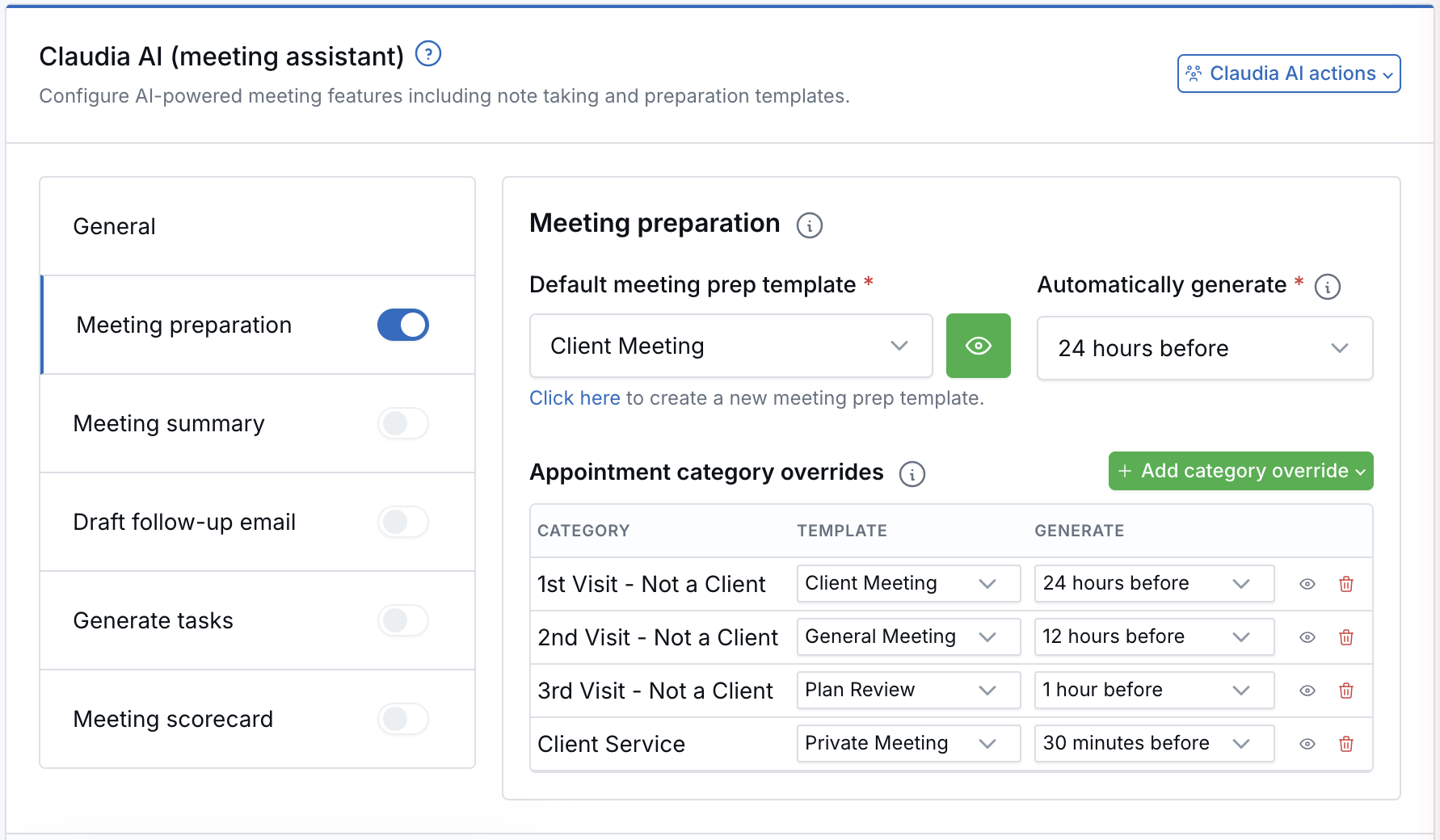
Hover over an information icon to review a short explanation of a setting.
Who Can Manage Settings
| Action | Who Can Perform It |
|---|---|
| Configure Claudia on your own calendar | Calendar owner |
| Edit Claudia settings on another user's calendar | Account Owner and Admin |
| Apply one calendar's settings to all users | Account Owner and Admin |
Owning the calendar you are viewing does not provide access to Apply settings to all users. This action is available only to the account Owner and Admin.
Configure General Settings
Select General to manage settings that apply across all of Claudia AI:
- Enable AI note taker: Allows Claudia to join supported Zoom, Google Meet, and Microsoft Teams meetings automatically.
- Default visibility for Claudia AI outputs: Choose whether notes, tasks, drafts, and transcripts are Visible only to me or Visible to all users. Content from internal meetings starts as Visible only to me.
- Video / audio recording: Turns meeting recording on or off.
- Meeting sentiment analysis: Turns sentiment analysis on or off.
- Participation metrics: Turns participation metrics on or off.
In-person meetings are not joined automatically. Start them with Record in-person meeting in the web application or Quick meeting in the mobile application.
Configure Template-Based Sections
The following sections require a template when they are enabled:
- Meeting preparation — also includes when the preparation should be generated before the appointment.
- Meeting summary
- Draft follow-up email
- Generate tasks
- Meeting scorecard
Use the preview button beside a template to review its contents. If no template is available for a section, open AI templates to create one, then return to the calendar settings.
Saving is blocked when a template-based section is enabled without a selected template. LeadCenter highlights the field that needs attention.
Sections That Require the AI Note Taker
Meeting summary, draft follow-up email, generate tasks, meeting scorecard, video / audio recording, sentiment analysis, and participation metrics rely on the AI note taker. Their switches are unavailable when Enable AI note taker is off.
Meeting preparation is the exception and can run whether or not the AI note taker is enabled.
Set Category Overrides
Each section uses its default template for every appointment unless you create an override for a specific appointment category.
- Select the section in the left list.
- Select Add category override above the overrides table.
- Search for and select the appointment category.
- Choose the template. For meeting preparation, also choose when it should be generated.
- Select Save Claudia AI settings.
The table lists every override for the selected section, making it easy to see which categories use settings that differ from the default. Remove an override and save to return that category to the default settings.
Save Your Changes
Select Save Claudia AI settings at the bottom of the Claudia AI screen. A confirmation message appears without reloading the page.
Save buttons on other Calendar settings tabs, including Basic details and Business hours, do not save Claudia AI changes. Save Claudia settings before moving to another tab.
Edit Another User's Claudia Settings
- Sign in as the account Owner or an Admin.
- Use the calendar dropdown at the top of Calendar settings to select the user's calendar.
- Open Claudia AI (meeting assistant).
- Update the required Claudia sections, templates, and category overrides.
- Select Save Claudia AI settings.
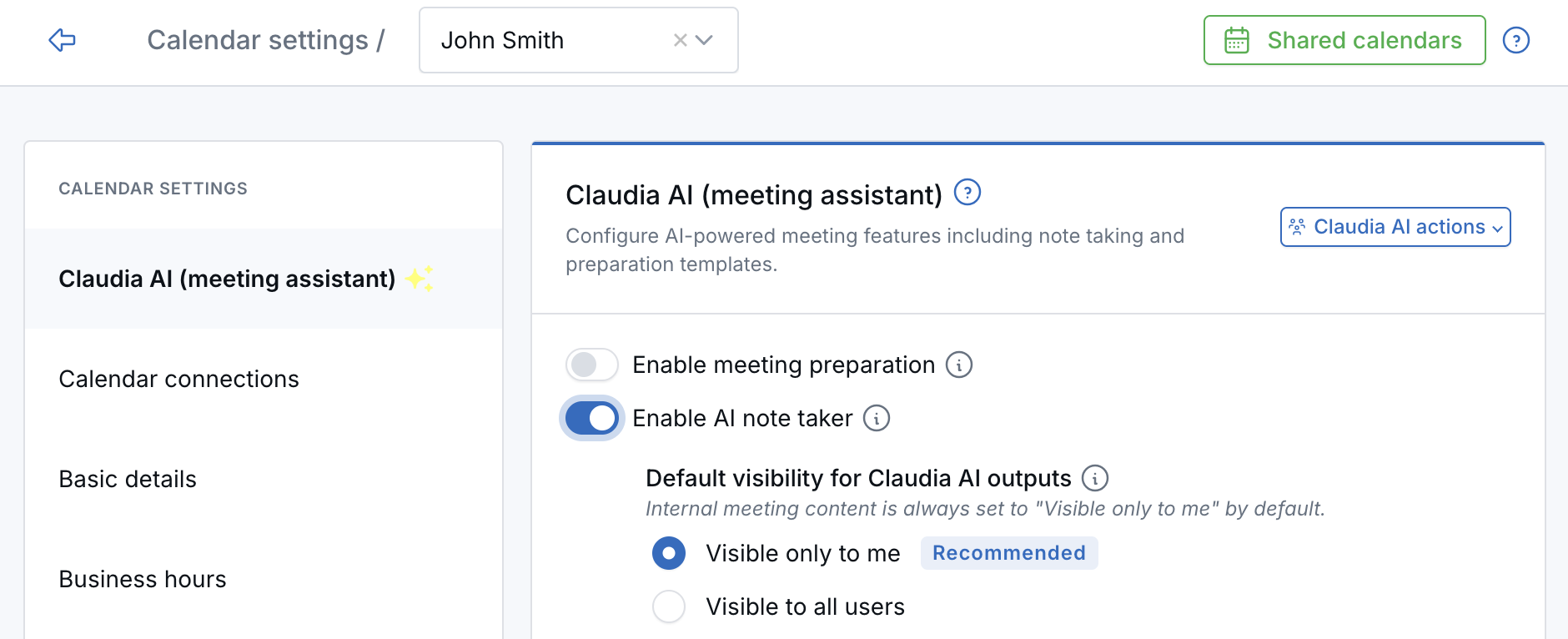
Users who are not the calendar owner, account Owner, or an Admin see the settings in read-only form. Their access to other calendar settings depends on their role.
Apply Settings to All Users
Use this action when every calendar in the account should use the saved Claudia setup from the calendar you are viewing.
- Configure Claudia on the source calendar and select Save Claudia AI settings.
- Open Claudia AI actions → Apply settings to all users.
- Type apply all in the confirmation box.
- Select Apply to all.
Important: Applying settings to all users overwrites the Claudia settings on every other calendar and cannot be undone. The action copies the settings that were already saved on the source calendar.
Editor and Limited users can still open Claudia AI actions → AI templates on their own calendar, but they do not see Apply settings to all users.
Troubleshooting
- A section switch is unavailable: Turn on Enable AI note taker under General. Meeting preparation does not require the AI note taker.
- Saving is blocked: Select a template for every enabled template-based section.
- No templates are available: Create the required template under AI templates, then return to the calendar.
- Changes did not appear: Confirm that you selected Save Claudia AI settings on the Claudia AI tab.
- An in-person meeting was not captured: Start it with Record in-person meeting in the web application or Quick meeting in the mobile application.
Important Behavior
- Claudia AI settings are stored separately for each calendar.
- Saving Basic details, Business hours, or another calendar tab does not change or save Claudia AI settings.
- Claudia changes take effect only after an authorized user selects Save Claudia AI settings.
- If the settings are read-only, switch to a calendar you own or ask the account Owner or an Admin to make the change.

Need more help?
If you can't find the answers you're looking for, our support specialists are available to answer your questions and troubleshoot if necessary.
-
Phone Call (888) 291-7116. Our main hours are Monday to Friday 7 am-5 pm Central Time.
-
Support Send your questions and inquiries via email to support@leadcenter.ai. A support ticket will be created and one of our team members will get back to you as quickly as possible.