 Help Center
AI Agents
AI Agents
Use Troy AI in Calendars
Troy AI in Calendars helps you review upcoming appointments, prepare for meetings, and identify follow-up items without leaving your calendar.
Troy uses the Calendars page you are viewing, including selected calendars, visible dates, filters, and the appointment you have open.
Where to Find Troy AI in Calendars
- Open Calendars from the left sidebar.
- Select the calendars you want to review.
- Use the available filters, such as Type, Category, or Source, if needed.
- Click Troy AI in the Calendars toolbar.
Ask About Your Schedule
Use Troy to get oriented before a busy day or week. You can ask questions like:
- What appointments do I have today?
- Show my upcoming client meetings this week.
- Which appointments should I prioritize preparing for?
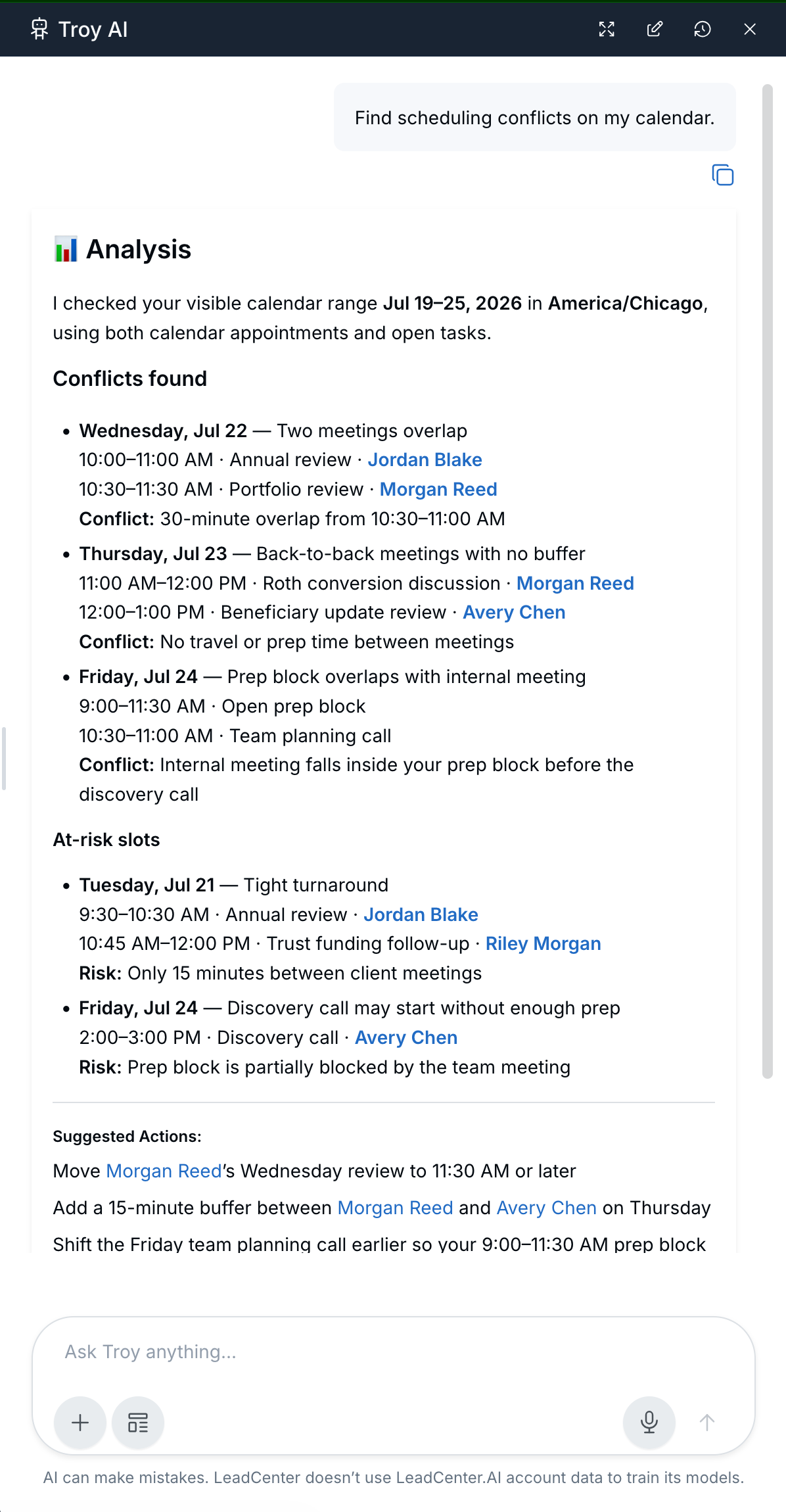
- Find scheduling conflicts on my calendar.
- Summarize my busiest days in the next two weeks.
Prepare for One Appointment
To ask about a specific meeting, open the appointment first. This helps Troy focus on that appointment and the related contact.
- What should I prepare for this appointment?
- Summarize this contact’s recent activity before the meeting.
- Highlight risks or open items I should address in this meeting.
- Draft a follow-up email after this appointment.
- Create a personalized SMS reminder for this appointment.
- What are the best next steps after this meeting?
How Troy Uses Calendar Context
- Selected calendars: Troy answers based on the calendars selected on the page.
- Visible date range: Troy focuses on the day, week, or date range you are viewing.
- Active filters: Filters such as Type, Category, and Source affect the appointments Troy reviews.
- Open appointment: When you open an appointment, Troy can focus on that meeting and its related contact.
For the best results, open the specific appointment before asking Troy to prepare for a meeting with one contact.
Best Practices
- Start with a broad schedule question, then narrow to one appointment when you need meeting prep.
- Confirm the correct calendars and filters are selected before asking Troy to summarize your schedule.
- Review times, attendees, and follow-up wording before sending anything to a client.
- Use Troy’s response as a starting point, then update the appointment, task, email, or SMS as needed.

Need more help?
If you can't find the answers you're looking for, our support specialists are available to answer your questions and troubleshoot if necessary.
-
Phone Call (888) 291-7116. Our main hours are Monday to Friday 7 am-5 pm Central Time.
-
Support Send your questions and inquiries via email to support@leadcenter.ai. A support ticket will be created and one of our team members will get back to you as quickly as possible.