 Help Center
AI Agents
AI Agents
Using Troy AI on a Contact Record
Troy AI lets you ask plain-English questions about a specific contact and get answers based on the information already in LeadCenter. Open Troy AI from a contact record when you want help reviewing recent activity, understanding the current status, or identifying the next best step for that person.
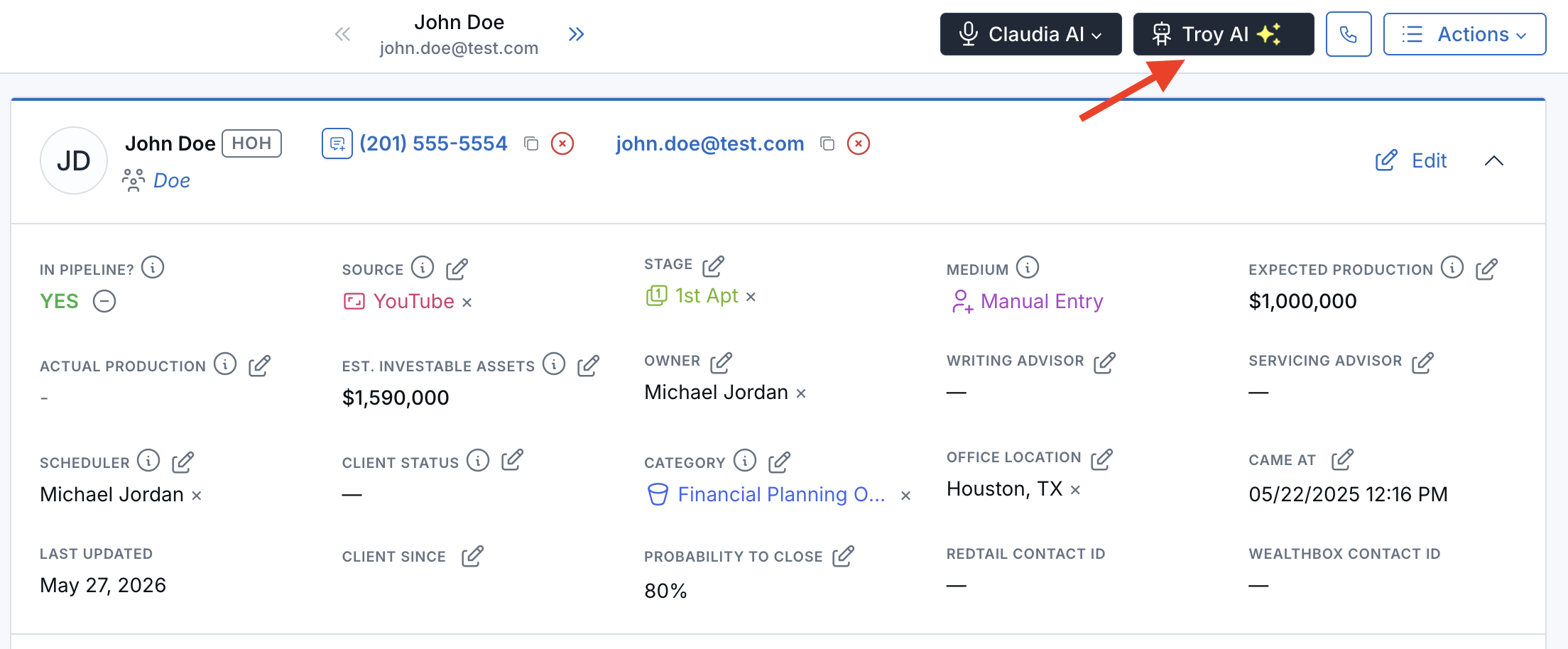
Troy AI is available from the contact detail page. Open the contact first, then use the Troy AI button on that contact record.
Overview
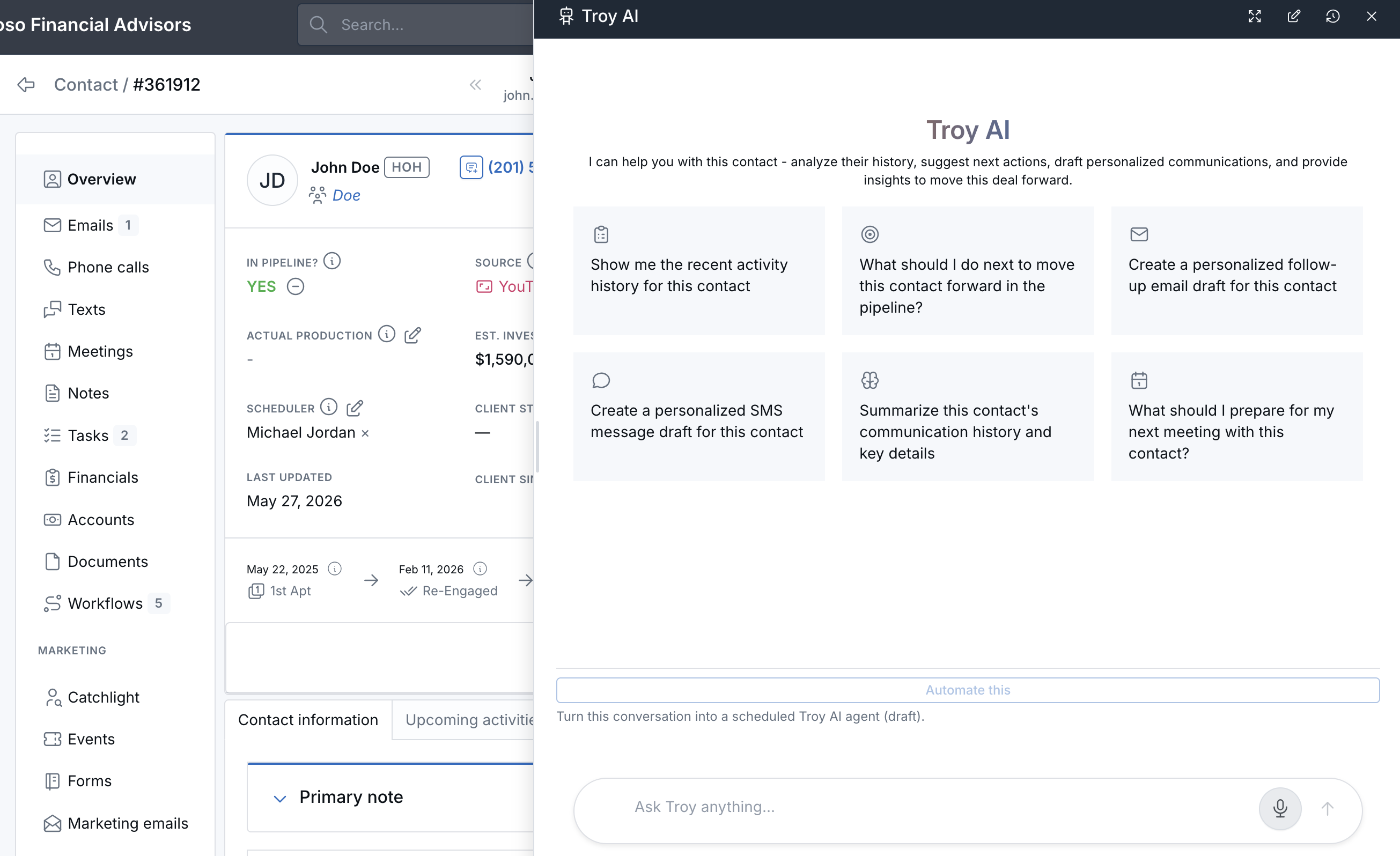
Troy AI opens as a side panel on the contact detail page. It is designed for contact-specific questions, such as recent activity, communication history, pipeline status, tasks, notes, appointments, and what to do next to move the contact forward.
When Troy AI opens, you can start with one of the suggested prompts or type your own question. Recent conversations are saved in the chat history inside the panel so you can return to them later.
Troy AI is designed to help you review contact information faster. It does not replace your judgment, compliance review, or firm policies.
Where to Find It
- Open Contacts from the sidebar.
- Click any contact to open its detail page.
- Click the Troy AI button in the top action bar of the contact.
- The Troy AI panel opens focused on that contact.
How to Use It
- Open Troy AI from the contact you want to review.
- Choose one of the suggested prompts to get started quickly, or type your own question in the chat box.
- Press send and wait for the reply.
- Continue the conversation with follow-up questions in the same panel.
- Use the full-screen option if you want a larger reading area.
- Open the chat history list to review or return to a past conversation.
Example Questions to Ask
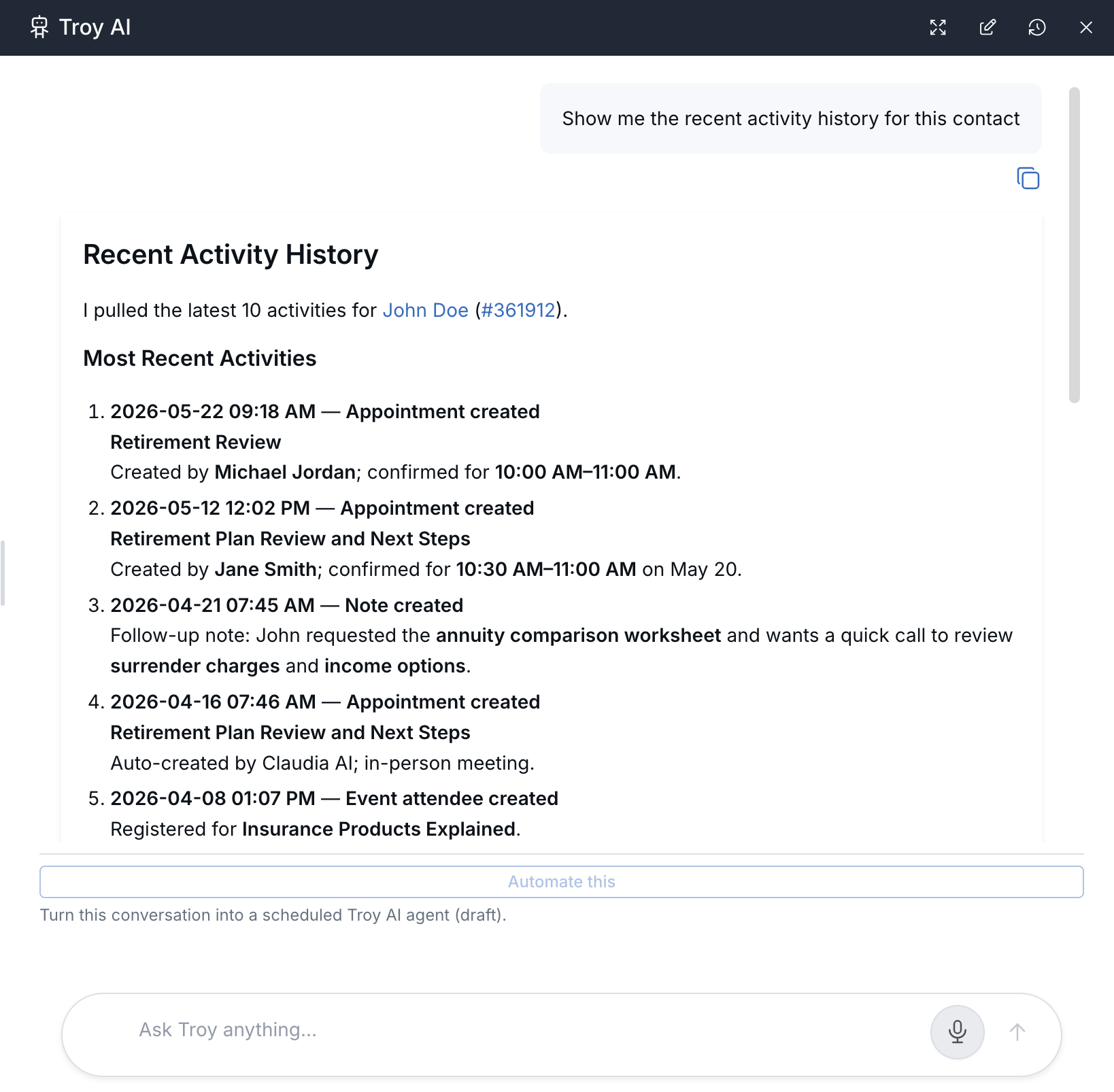
- Show me the recent activity history for this contact
- Summarize this contact's communication history and key details
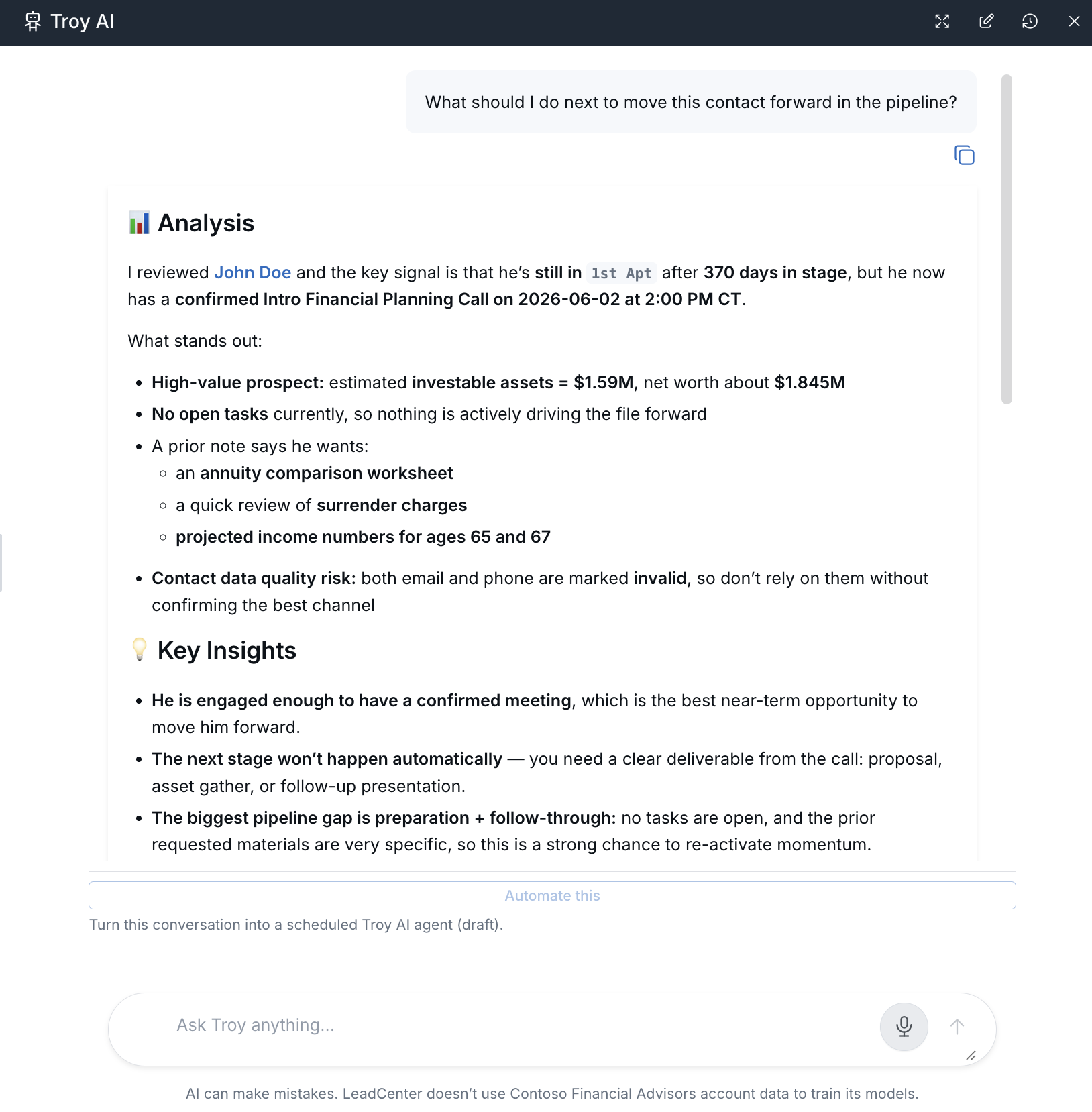
- What should I do next to move this contact forward in the pipeline?
Attach Images or PDFs to a Troy AI Chat
You can attach images and PDF documents to a Troy AI conversation so Troy can use the file as additional context when answering your question.
- Open Troy AI.
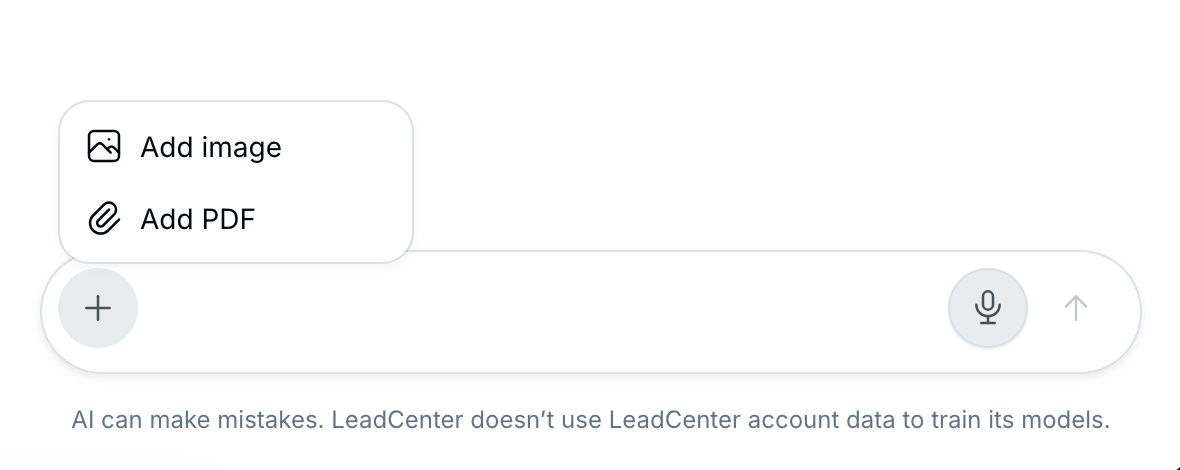
- Click the + button beside the message box.
- Select Add image or Add PDF.
- Choose the file from your device.
- Type your question or instruction, then send the message.
After the file is attached, ask Troy your question as usual. Troy can review the uploaded file together with available LeadCenter information to provide a more informed response.
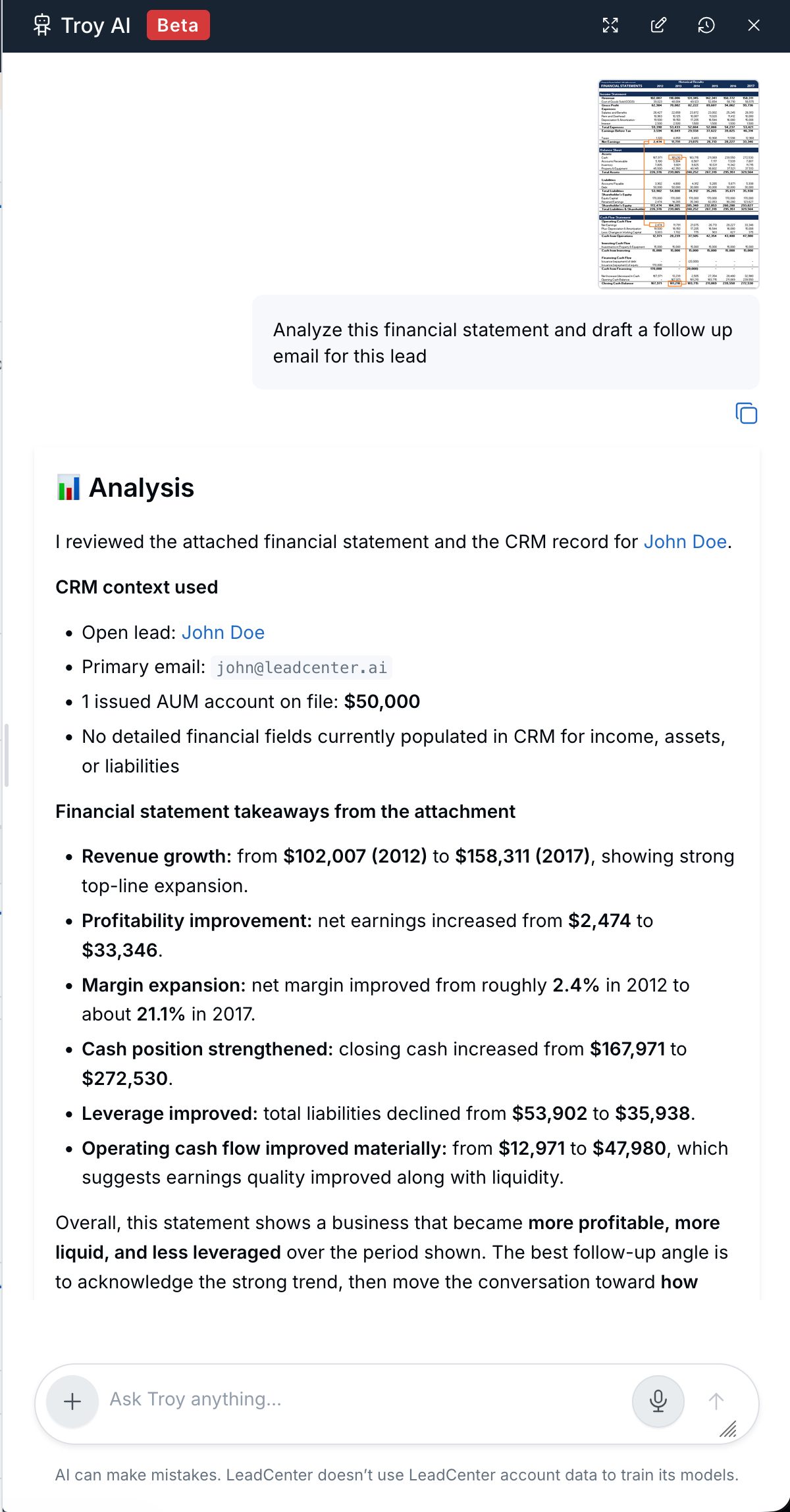
Troy currently supports image files and PDF documents. File availability and size limits may vary depending on your account configuration.
How Contact Context Works
When you open Troy AI from a contact record, the conversation is automatically focused on that contact. You do not need to paste the contact's name or ID into your question.
If you want to ask about a different contact, open that contact record and click Troy AI from the top action bar. This helps keep each conversation focused on the correct contact.
Links in Troy AI replies open in a new browser tab so your conversation stays in place.
Important Behavior
- Troy AI replies in the chat panel using information from the contact you are viewing.
- The send button stays disabled when the message box is blank.
- Troy AI may suggest next steps or draft wording, but you are responsible for reviewing and taking action.
- You can copy any reply into a note, task, email, or message as you would with any text.
- Recent conversations appear in the chat history inside the panel so you can come back to them later.
Best Practices
- Ask one focused question at a time. Short, specific questions usually produce the clearest answers.
- Start with a suggested prompt if you want a quick summary, then ask follow-up questions to go deeper.
- Mention what you are looking for, such as recent activity, communication history, or next step.
- Use follow-up questions to narrow the answer by topic or time period.
- Review every reply before acting on it. Troy AI is meant to save clicks, not to replace your judgment or compliance process.
Troubleshooting
-
Issue: The Troy AI button does not appear on a contact.
What to do: Troy AI may not be enabled for your account. Contact your LeadCenter administrator if needed. -
Issue: The chat panel does not open.
What to do: Refresh the page and try again. If the issue continues, try a different modern browser such as Chrome, Edge, or Safari. -
Issue: Troy AI is slow to reply or does not reply at all.
What to do: Try a shorter, more specific question. Close and reopen the chat panel. Refresh the page if a reply takes far longer than usual. -
Issue: The reply does not match what you know about the contact.
What to do: Reword your question with more detail, such as the time range or type of activity you care about. If the contact record is missing data, Troy AI cannot use it. -
Issue: Troy AI answered about a different contact than expected.
What to do: Confirm which contact record was open when you sent the message. Open the correct contact record, then open Troy AI again from that contact.
FAQs
Where do I open Troy AI?
Open a contact from Contacts, then click the Troy AI button on the contact page.
What can I ask Troy AI about?
You can ask about the contact you are viewing, including recent activity, communication history, status, and possible next steps.
Do I have to type my own question?
No. Troy AI includes suggested prompts that you can click to get started quickly.
Is the conversation saved?
Yes. Recent conversations are listed in the chat history inside the Troy AI panel so you can return to them later.
Can I share a Troy AI reply with my team?
Yes. You can copy the text of any reply and paste it into a note, task, email, or message wherever you normally collaborate.
Can Troy AI send emails or update contact records?
Troy AI may help suggest wording or next steps, but you remain responsible for sending messages and updating records in LeadCenter.
Does Troy AI replace my own judgment or compliance review?
No. Always review what Troy AI produces before acting on it, and follow your team's compliance process.

Need more help?
If you can't find the answers you're looking for, our support specialists are available to answer your questions and troubleshoot if necessary.
-
Phone Call (888) 291-7116. Our main hours are Monday to Friday 7 am-5 pm Central Time.
-
Support Send your questions and inquiries via email to support@leadcenter.ai. A support ticket will be created and one of our team members will get back to you as quickly as possible.