 Help Center
AI Agents
AI Agents
Generate Follow-Up Tasks with Claudia AI
Claudia AI can create follow-up tasks from meeting and call transcripts by using customizable meeting task templates. Task generation runs independently from meeting summaries and follow-up emails.
Task generation requires a written transcript and a selected meeting task template.
Manage Meeting Task Templates
- Go to the Marketing dashboard.
- Open AI Templates → Meeting tasks.
- Review Default meeting tasks, or select New template to create one for a specific workflow.
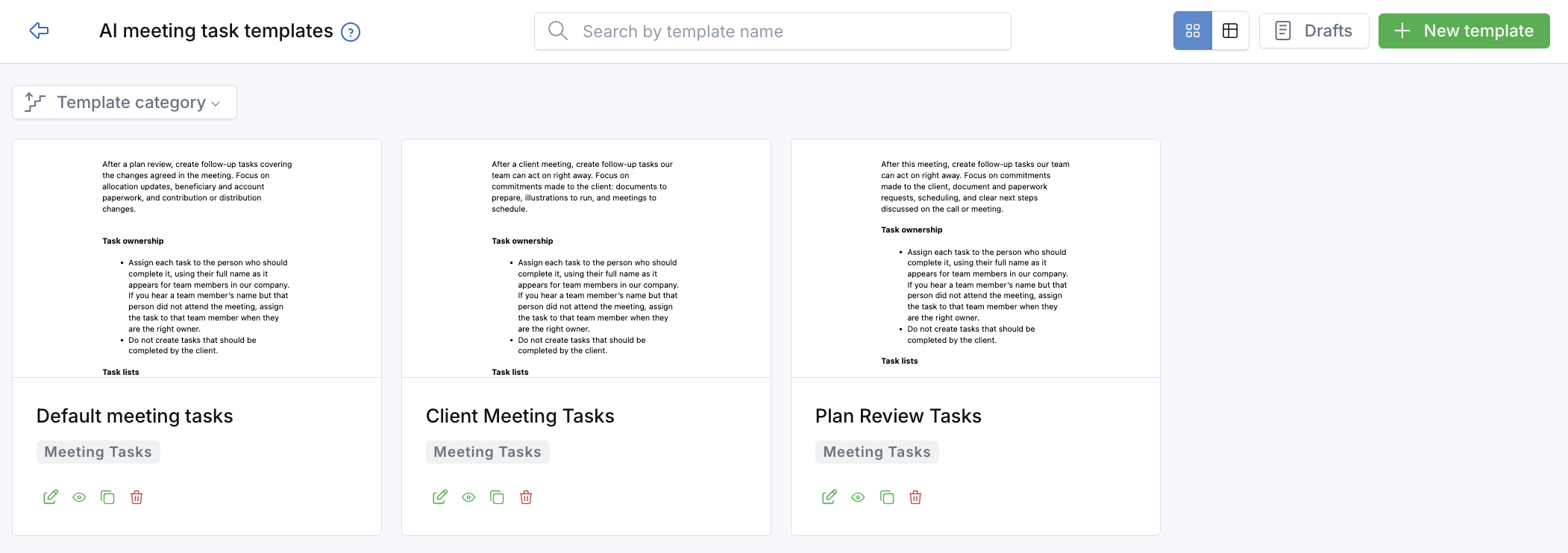
Keep separate templates for different meeting types, or start from Default meeting tasks.
Use the template editor to describe which action items Claudia should create, who should own them, when to use a client-named shared task list, and what to skip. Firms can maintain different templates for different meeting types.
Turn On Task Generation for Meetings
- Go to Calendars in the left sidebar.
- Open the host calendar for the meetings you want covered.
- Select Claudia AI (meeting assistant) on the left.
- Turn on Enable AI note taker if it is not already on. Tasks are generated from the transcript, so the meeting must be transcribed.
- Turn on Generate tasks.
- Select a Task template.
- Optional: use the Appointment category dropdown to apply a different template to specific categories. Select View configured settings to see which categories already have overrides.
- Select Save.
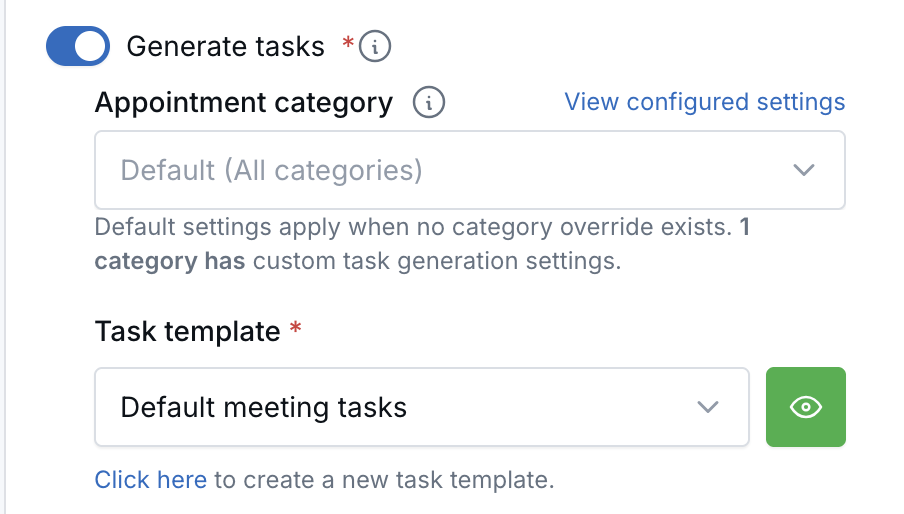
The Task template is required once Generate tasks is on.
After the meeting is transcribed, Claudia can generate tasks automatically according to the host calendar settings. You can also generate tasks manually from the appointment actions menu.
Turn On Task Generation for Phone Calls
- Go to Phone numbers, then open the Settings tab.
- Open Claudia AI settings.
- Turn on Transcribe calls. This is required for every AI feature below it.
- Turn on Create tasks.
- Select a meeting task template.
- Select Save.
For an individual call, use the manual summary flow and select Create tasks when a transcription is available.
Review Generated Tasks
- Tasks appear on the contact and on the meeting or call they came from.
- A note identifies each task as generated by Claudia AI.
- Tasks can include a title, detailed notes, an owner, and a due date when the conversation includes timing.
- If a client-named shared task list exists, Claudia can place the client's tasks there. Otherwise, tasks go to the inbox.
Review AI-generated tasks before relying on them. Update titles, owners, and due dates, or delete tasks that do not fit.
Default Template Behavior
The Default meeting tasks template directs Claudia to:
- Create actionable follow-ups for your team, such as preparing documents, sending emails, scheduling meetings, or coordinating internally.
- Assign tasks by using team members' full names as they appear in your company, including appropriate owners who were mentioned but did not attend.
- Exclude tasks that the client should complete.
- Use a client-named shared task list when one exists; otherwise, place tasks in the inbox.
- Skip vague, duplicate, or low-value reminders.
If Tasks Do Not Appear
- Confirm a transcript exists. Task generation requires a written transcript of the meeting or call. For meetings, check that Enable AI note taker is on; for calls, check Transcribe calls.
- Check the feature setting. Review the host calendar's Generate tasks setting or the Create tasks setting in Claudia AI settings.
- Select a template. A task template is required when task generation is enabled.
- Allow processing time. Generation usually finishes within about a minute. Refresh the contact, meeting, or call page if tasks are not visible right away.

Need more help?
If you can't find the answers you're looking for, our support specialists are available to answer your questions and troubleshoot if necessary.
-
Phone Call (888) 291-7116. Our main hours are Monday to Friday 7 am-5 pm Central Time.
-
Support Send your questions and inquiries via email to support@leadcenter.ai. A support ticket will be created and one of our team members will get back to you as quickly as possible.