 Help Center
AI Agents
AI Agents
Use Troy AI on Financial Questionnaires
Troy AI helps you review Financial Questionnaire (FQ) submissions without opening every row. On the Financial questionnaires page, you can ask plain-language questions about drafts, submitted forms waiting for verification, recent activity, and the public FQ link for a contact.
Open Troy AI
- Go to Financial questionnaires in LeadCenter.
- Wait for the submissions table to load.
- Click the dark Troy AI button near the top of the page.
- Choose a suggested question, or type your own question in the chat box.
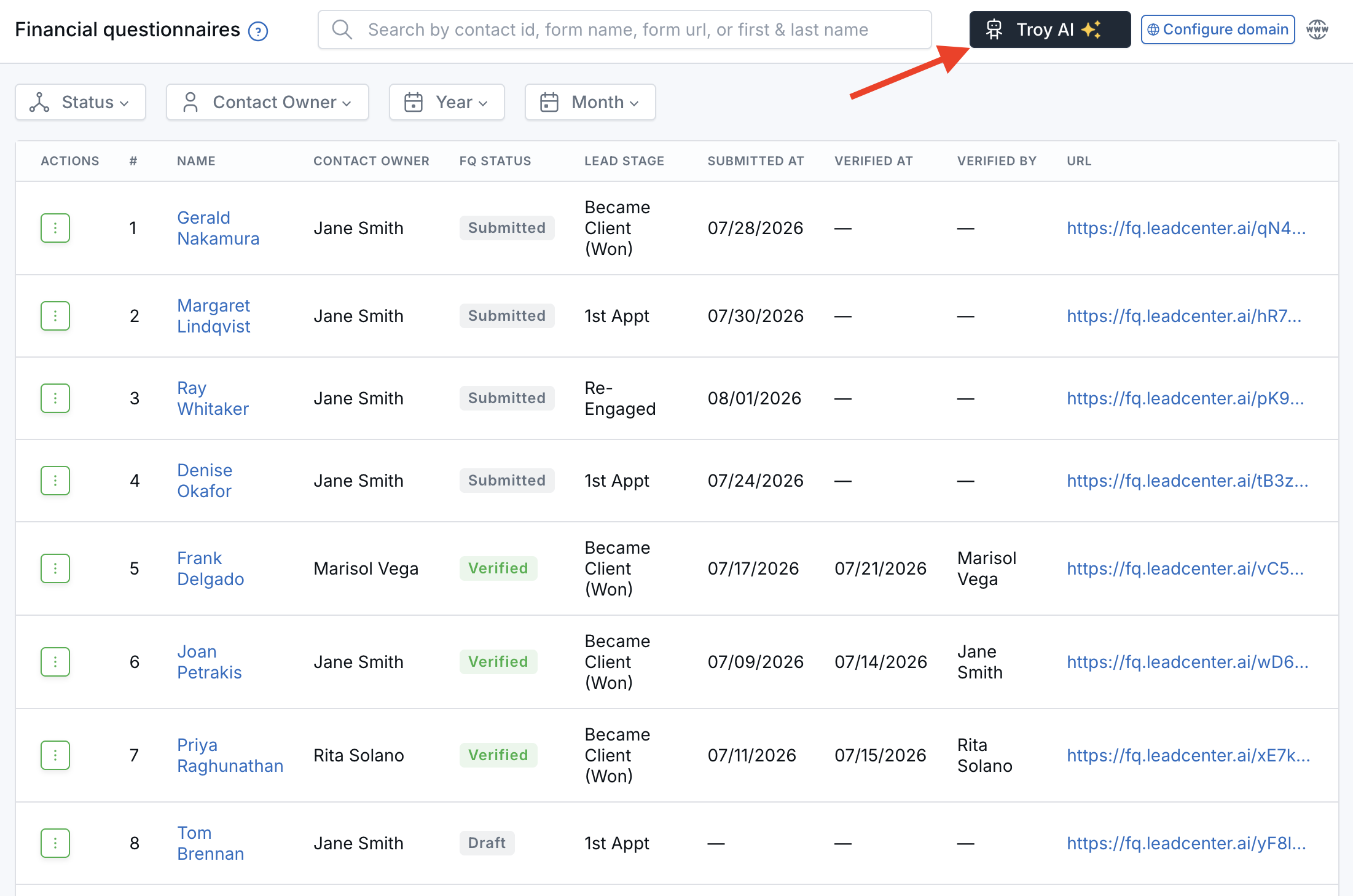
The Troy AI button sits above the questionnaire list.
When you open Troy from this page, it already knows you are looking at FQ submissions. Suggested prompts are focused on Financial Questionnaires, such as draft counts, unverified forms, and recent submissions.
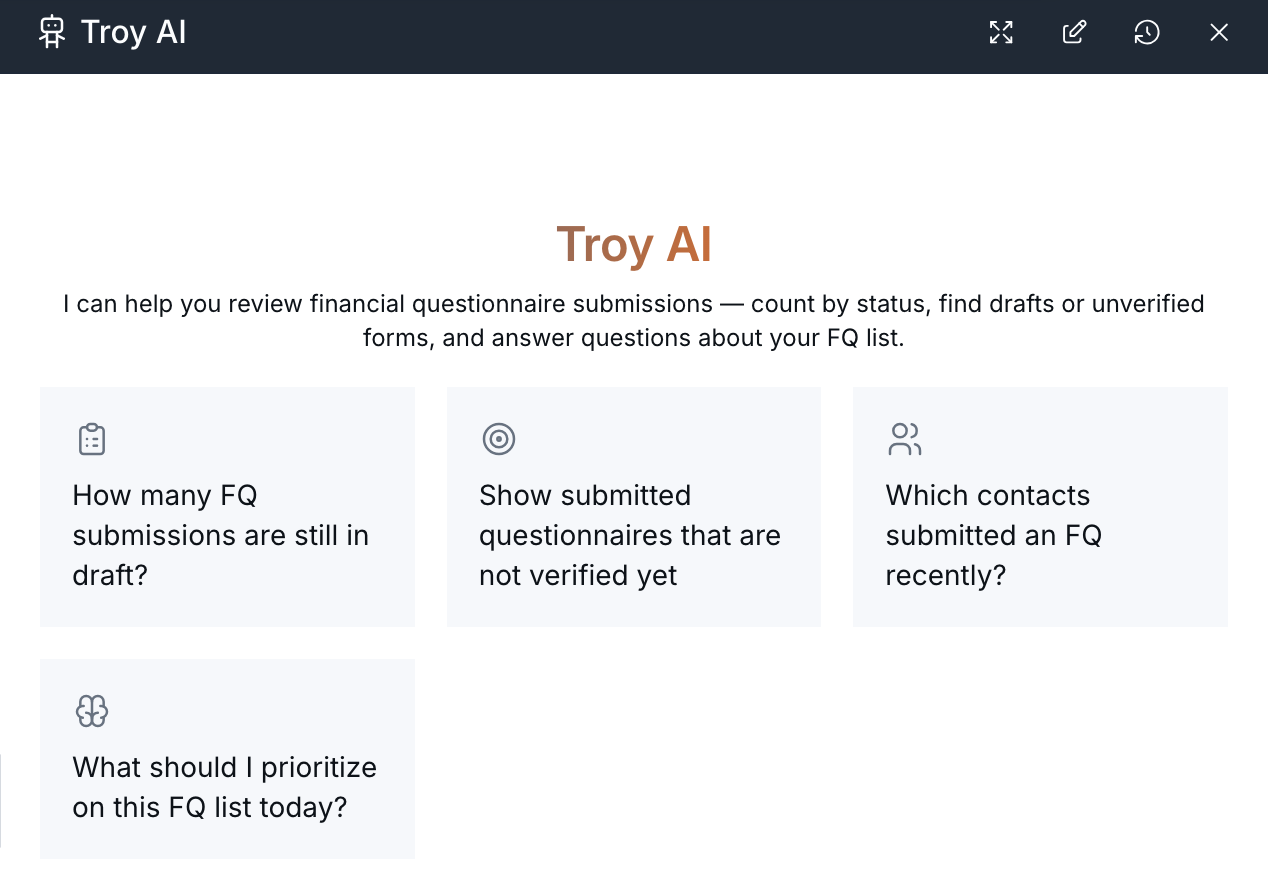
Troy opens with suggested questions about your FQ submissions.
What You Can Ask
Use Troy AI to triage your FQ list and dig into a specific submission.
- Count how many questionnaires are still in draft.
- Find submitted questionnaires that are not verified yet.
- See which contacts submitted an FQ recently.
- Get a priority suggestion for what to work on today.
- Look up the public FQ URL for a contact, which is the same link shown in the table URL column.
- When a submission is in focus, summarize it, check status, or see what still needs verification.
Try Asking
- How many FQ submissions are still in draft?
- Show submitted questionnaires that are not verified yet.
- Which contacts submitted an FQ recently?
- What should I prioritize on this FQ list today?
- What is the public URL for this contact's FQ?
- Summarize this financial questionnaire submission.
- What is the status of this FQ?
- What still needs verification on this FQ?
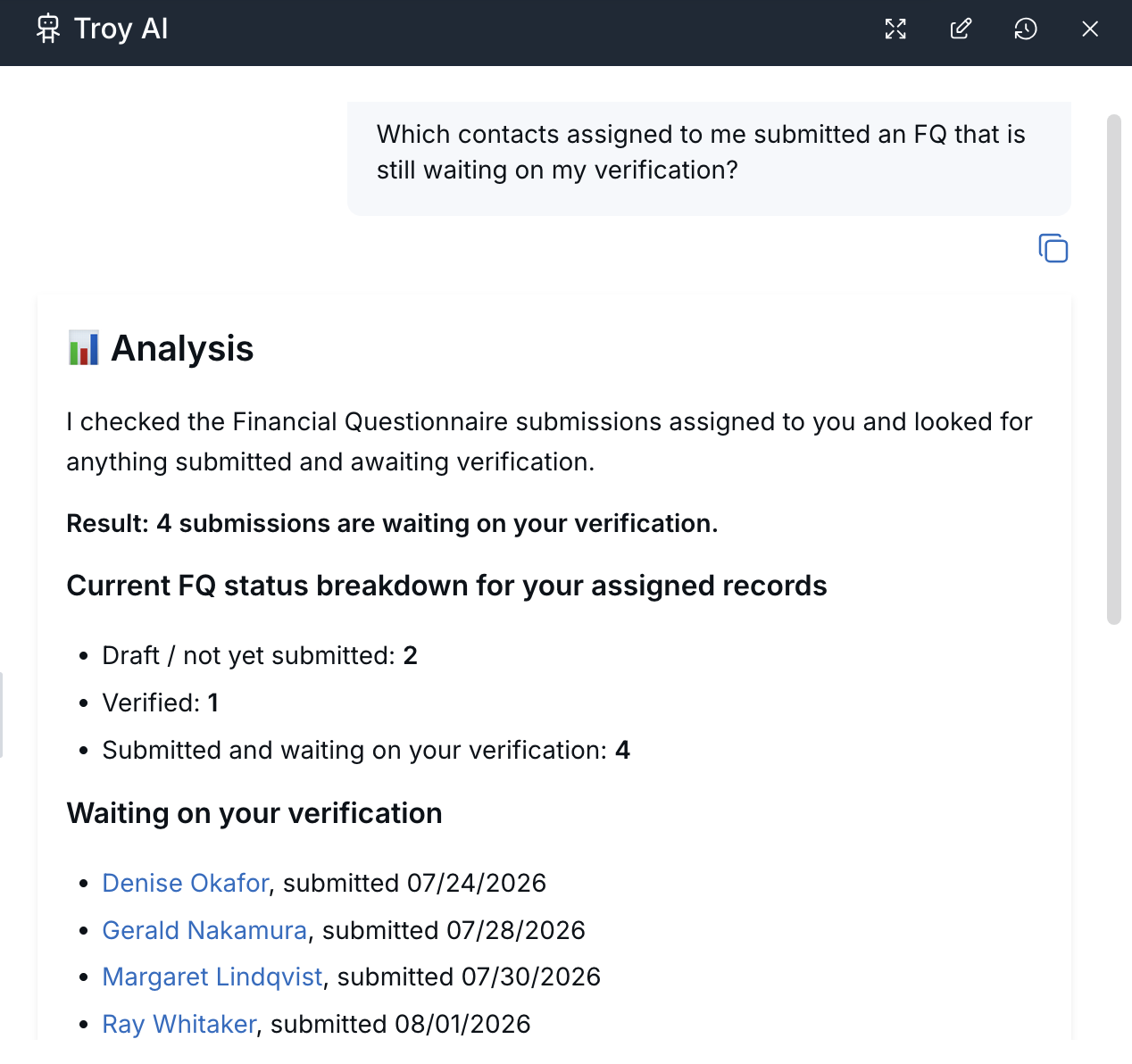
Troy shows which submissions are waiting on your verification.
For clearer answers, include a contact name or status, such as draft, submitted, or verified. When comparing submitted and verified answers, say whether you need status only or the actual questionnaire fields.
Tips for Clear Answers
- Let the FQ table finish loading before you ask about counts, so results line up with what you see.
- Ask for the public URL when you need the client-facing link from the URL column, not an internal admin path.
- Status, timestamps, verifier, URL, and comments come from the FQ list tools.
- Detailed field answers, such as what the contact submitted compared with what was verified, come from the contact FQ tools.
- Financial Questionnaires are for Financial Advisor accounts.
- Team members only see submissions and contacts they are already allowed to view.
What Troy AI Can See
Troy AI follows the FQ submissions and contacts you are already allowed to view in LeadCenter. It does not unlock questionnaires you cannot already open.
AI-generated answers can be incomplete or incorrect. Treat them as a starting point, then open the submission or contact in LeadCenter when you need to verify or act.

Need more help?
If you can't find the answers you're looking for, our support specialists are available to answer your questions and troubleshoot if necessary.
-
Phone Call (888) 291-7116. Our main hours are Monday to Friday 7 am-5 pm Central Time.
-
Support Send your questions and inquiries via email to support@leadcenter.ai. A support ticket will be created and one of our team members will get back to you as quickly as possible.