 Help Center
AI Agents
Troy AI Agents: Create, Test, Schedule, and Automate CRM Work
Troy AI agents are scheduled assistants that review your CRM and send you a report. When you ask them to, they can also take care of the follow-through, like rescheduling tasks or drafting emails.
You describe the job in plain English, run a test, and let the agent run on a schedule.
Quick Start
- Open Troy AI agents in the left sidebar, or go to the AI page and click View Agents.
- Click Create agent.
- Give it a name, choose the owner, and write the instructions (or start from a template).
- Choose a schedule and whether to email the report.
- Click Run test and review the result.
- Click Save.
Don't want to write the instructions yourself? Click Request agent and we'll build it for you. See Request an Agent.
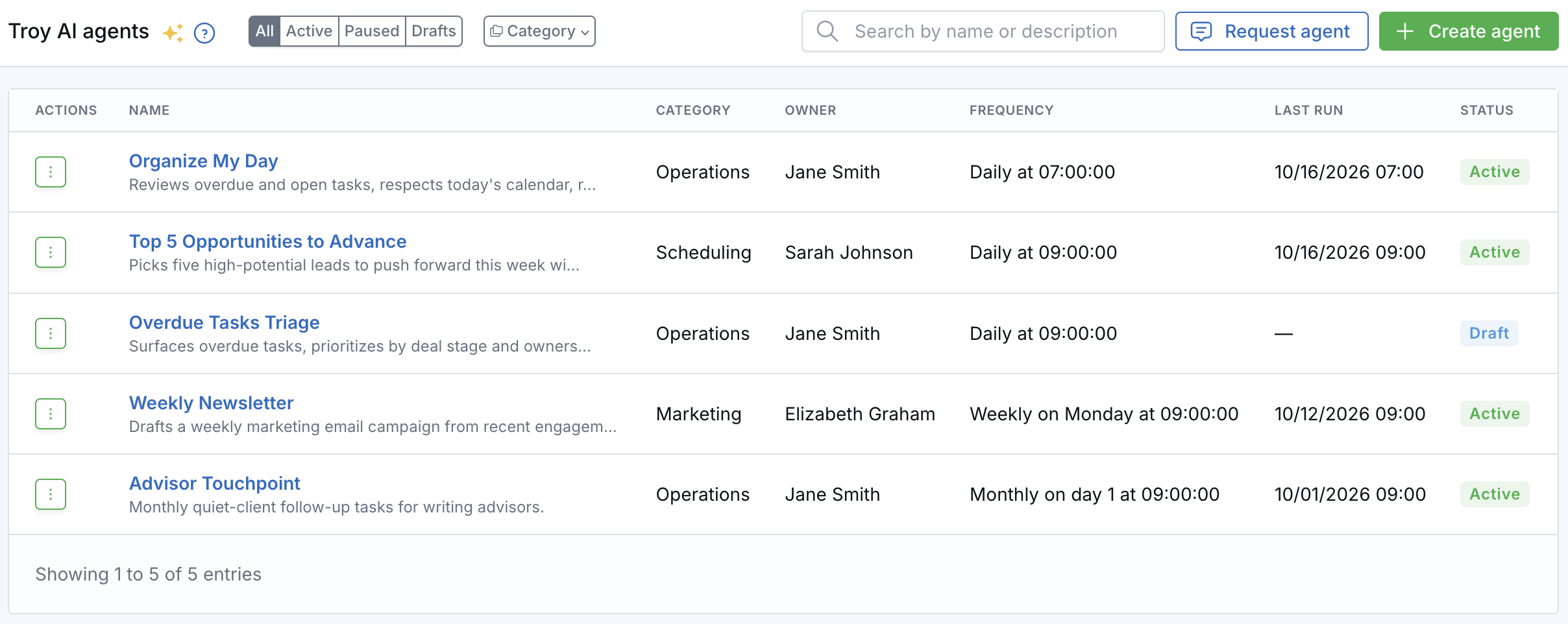
The Troy AI agents page. Filter by status or category, or search by name.
Create an Agent
Click Create agent and fill in the form:
| Field | What it does |
|---|---|
| Name | Shown in the list, reports, and emails. The button next to it opens Troy AI templates you can start from. |
| Description (optional) | A note for your team. Troy doesn't read it. |
| Category (optional) | Helps you filter the list. |
| Owner | Troy uses this person's access and permissions when the agent runs. Check Visible only to me to hide the agent from everyone else. |
| Agent prompt | The instructions Troy follows on every run. Type them or dictate them with Speak AI. |
| Email report when a run completes | Also emails the report to the addresses you add. Reports always appear in LeadCenter too. |
| Schedule frequency | Hourly, daily, weekly, monthly, quarterly, semi-annual, or custom, plus the day and time. |
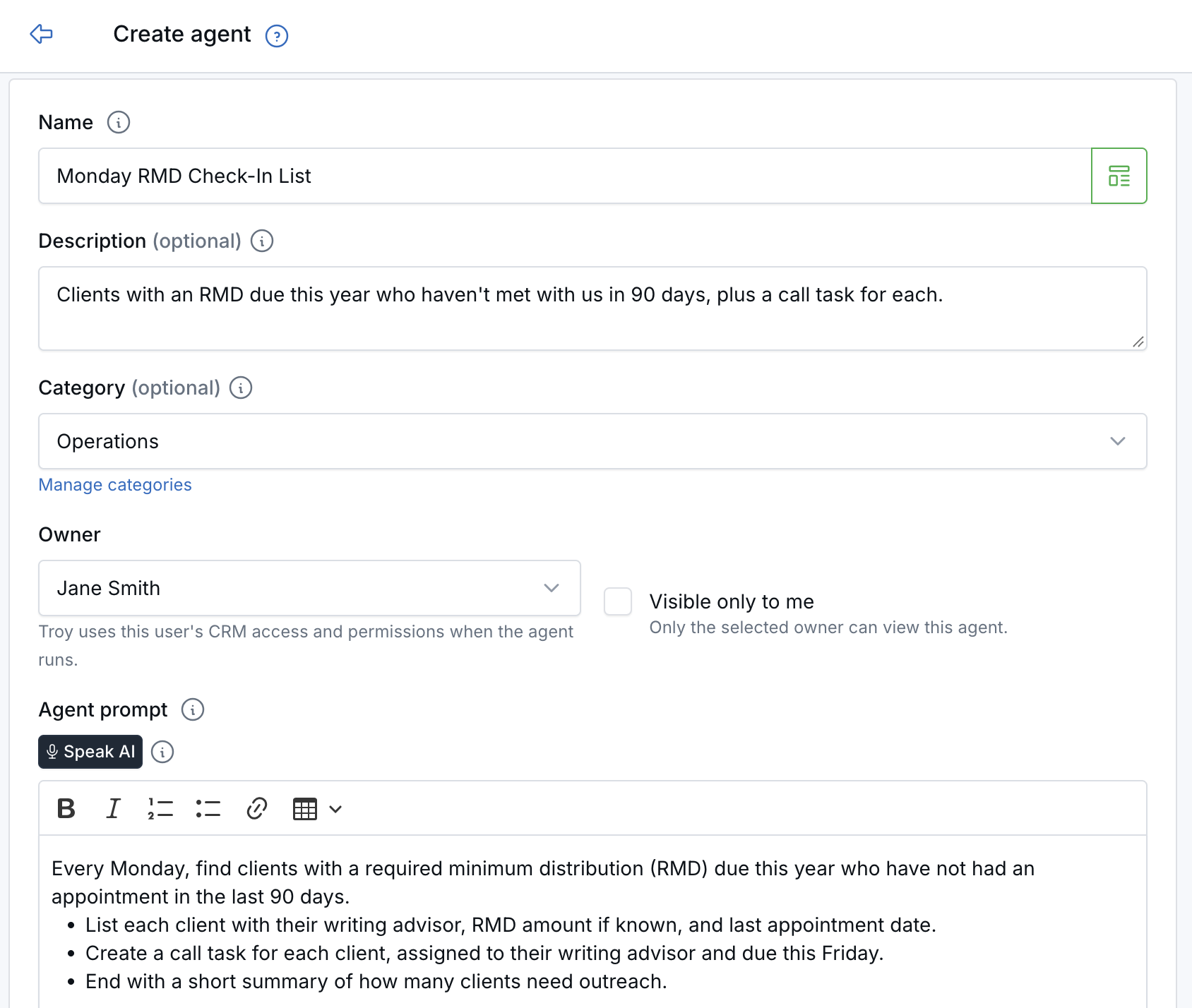
Name the agent, choose its owner, and write the instructions.
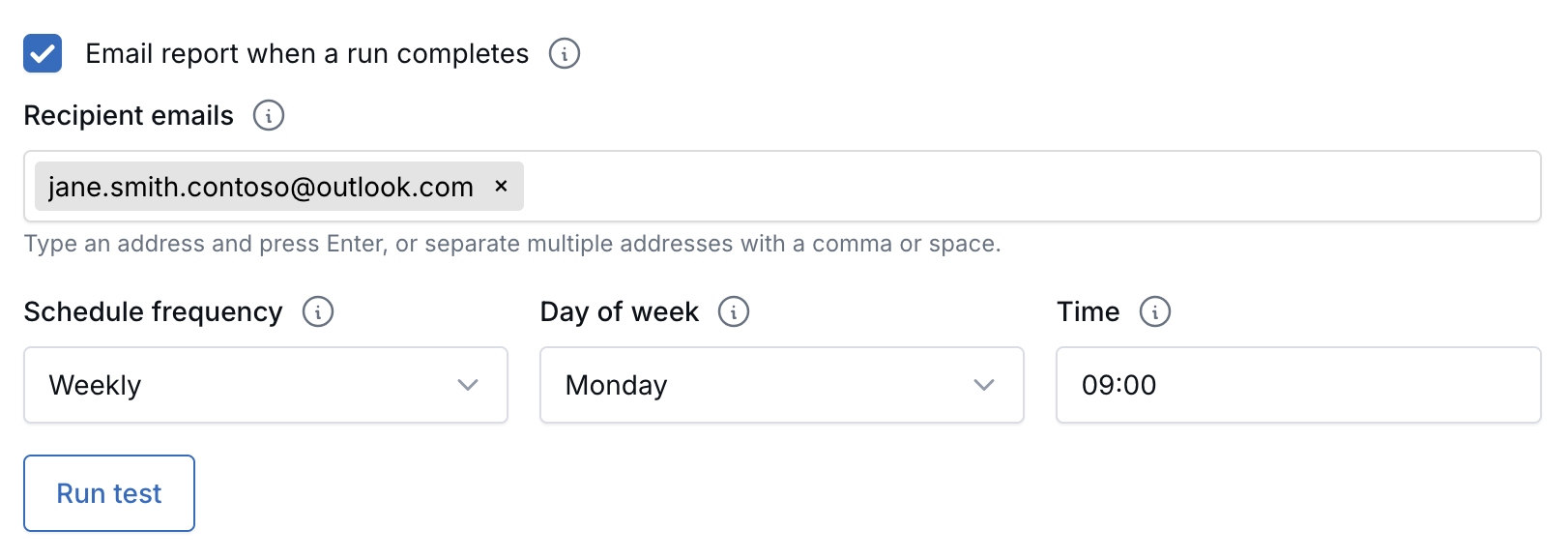
Choose who gets the report by email and when the agent runs.
Test and Read Reports
Always click Run test before you save. You can keep editing while it runs.
- Live progress: you'll see each step as Troy looks through your CRM.
- Notification: you'll get a notification when the test finishes. Click View result to jump to the report.
- Email: if email is on, recipients get the test report too, marked as a test.
Reports are split into short sections, such as Summary, Focus for today, Details, and Conclusion.
- Click a contact or task name to open it in a new tab.
- Click View leads in pipeline (when shown) to see those leads in your pipeline.
Run, Pause, and Resume
- Save: stores your agent and its schedule.
- Resume / Pause: use the agent's Actions menu (⋮) to start or stop its schedule. Draft and paused agents don't run.
- Run now: runs the agent right away, outside its schedule. Handy before a meeting.
- Run History: click an agent's name to see every run with its date, type (scheduled, manual, or test), and status. Click View results to open the full report.
Past reports are always kept, even when you pause an agent.
Agents That Take Action
If your instructions ask for it, Troy can make changes in LeadCenter during a run, using the owner's permissions:
- Tasks: reschedule overdue tasks, create follow-up tasks, and move tasks into the right list.
- Email: draft replies and outreach emails for you to review and send.
- Marketing: draft an email campaign for you to finish. Troy never sends or publishes a campaign on its own.
Every report lists what Troy changed. If nothing changed, the report explains why.
Templates to Start From
Click the template button next to Name to start from a ready-made agent, then edit it as you like:
- Organize My Day: moves overdue work into open time on your calendar and flags stale follow-ups.
- Unanswered Email Follow-ups: finds emails that need a reply and drafts the replies, with a task for each.
- Pipeline Advancement Tasks: picks deals to move forward this month and drafts outreach.
- Organize Task Inbox: sorts unfiled tasks into the right task lists.
- Weekly Newsletter: drafts a weekly email campaign. You choose the audience and send it.
Request an Agent
Not sure how to write the instructions? Ask us to build the agent for you.
- Open Troy AI agents and click Request agent.
- Choose how often it should run: Every weekday morning, Once a week, Once a month, or Once a quarter.
- Describe the job in your own words.
- Click Request this agent.
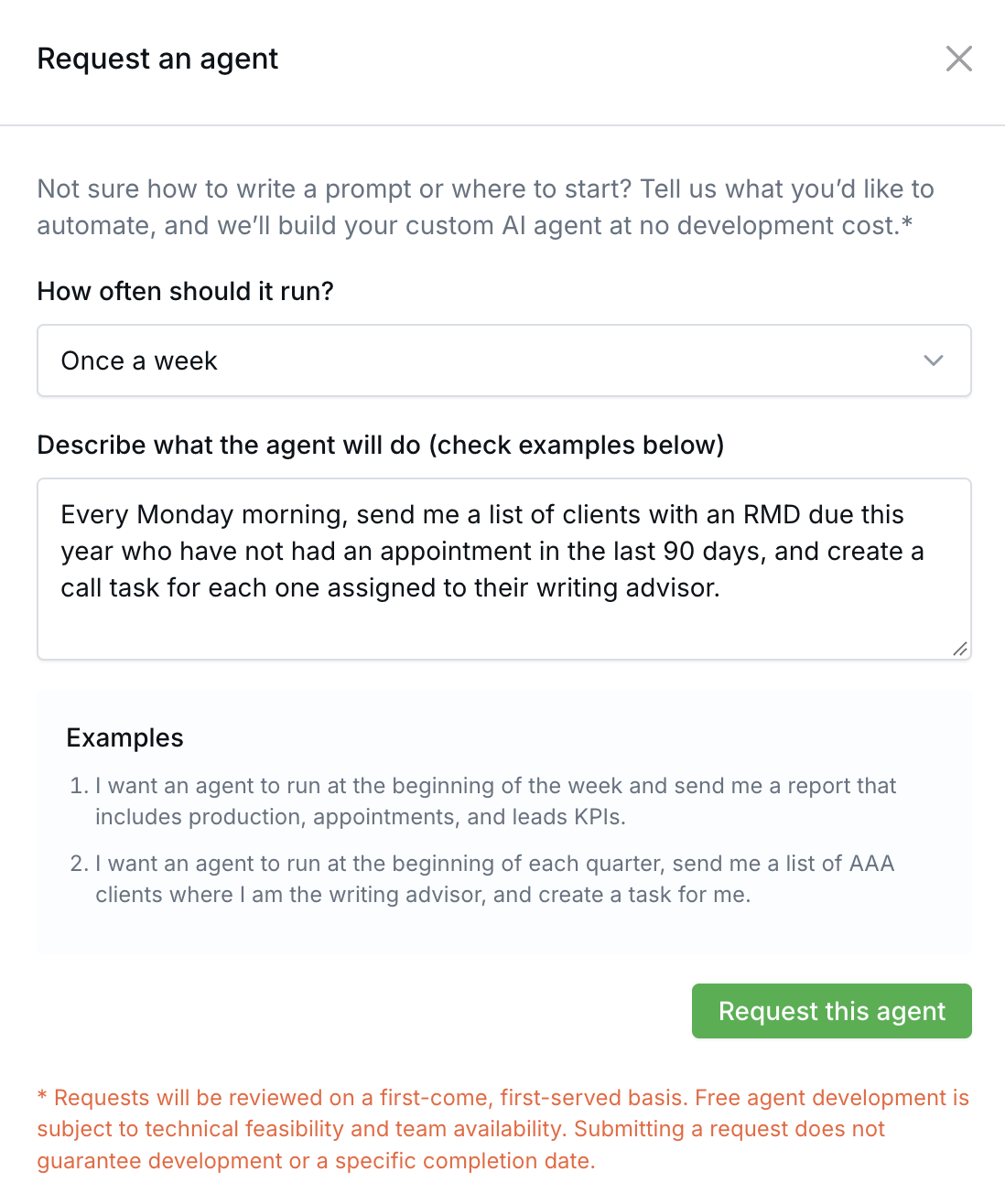
The Request an agent form.
Our support team receives your description, how often it should run, and your job title (if it's saved on your profile). LeadCenter's AI team builds requested agents at no development cost.
Requests are reviewed on a first-come, first-served basis. Free agent development is subject to technical feasibility and team availability. Submitting a request does not guarantee development or a specific completion date.
What Troy Can See
Troy only sees what the agent's owner can already access in LeadCenter. AI reports and changes can be incomplete or wrong, so always double-check important details before relying on them.
Troubleshooting
| Problem | What to do |
|---|---|
| Test stays on "Queued" | Wait a few minutes and try again. If it keeps happening, contact support@leadcenter.ai. |
| Run test or Run now is grayed out | Check that your account has an active CRM subscription (and a payment method, if your account needs one). |
| Test timed out | Make the instructions narrower (for example, one list or this week only) and test again. |
| Run failed | Open the report to see the error, adjust the instructions, and run another test. |
| Agent didn't update tasks | Check the report for the reason. Make sure your instructions clearly ask Troy to update or create tasks. |
| Troy changed something you didn't expect | Review what the report says it changed, undo it by hand if needed, and make the instructions more specific (for example, "only my tasks"). |

Need more help?
If you can't find the answers you're looking for, our support specialists are available to answer your questions and troubleshoot if necessary.
-
Phone Call (888) 291-7116. Our main hours are Monday to Friday 7 am-5 pm Central Time.
-
Support Send your questions and inquiries via email to support@leadcenter.ai. A support ticket will be created and one of our team members will get back to you as quickly as possible.