 Help Center
AI Agents
AI Agents
Use Troy AI in the Mobile App
Troy AI is available in the LeadCenter mobile app. Ask about your contacts, pipeline, tasks, appointments, notes, financial accounts, and events from your phone, and Troy answers in a chat. You can also attach a photo or PDF, insert one of your Troy templates, or speak your question instead of typing it.
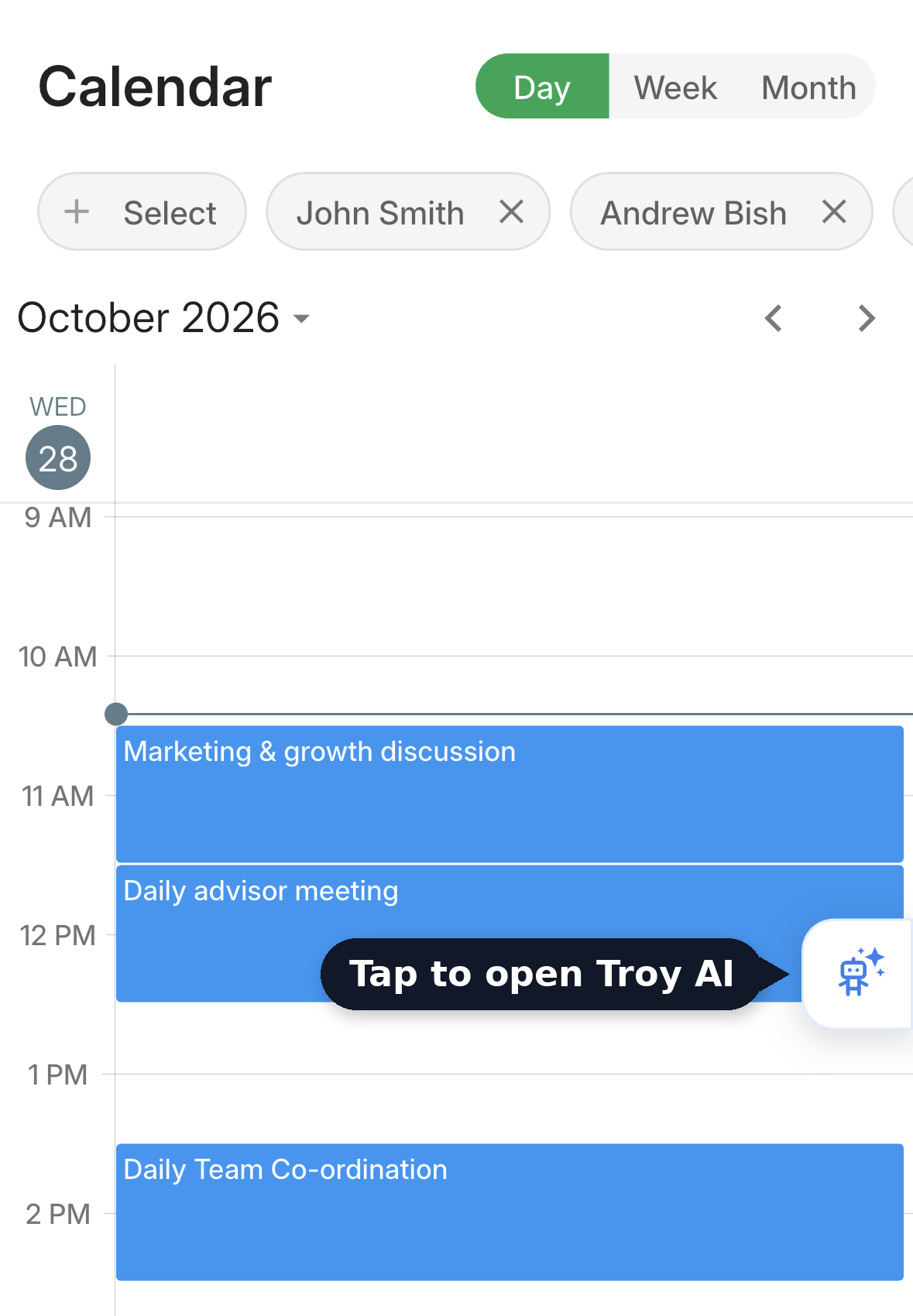
Tap the Troy button on the right edge of the screen.
Open Troy AI
Troy AI is in version 1.4.1 and later of the LeadCenter app for iPhone and Android. You can open Troy two ways:
- Troy button: On the Dashboard, Calendar, or Contacts tab, tap the white Troy button on the right edge of the screen. If it's in the way, drag it up or down. It stays where you leave it.
- More menu: Tap More, then tap Troy AI at the top of the menu.
Ask a Question
- Tap one of the suggested questions, or type your own.
- Tap the send arrow.
- Troy's answer appears as it's written. To end it early, tap Stop.
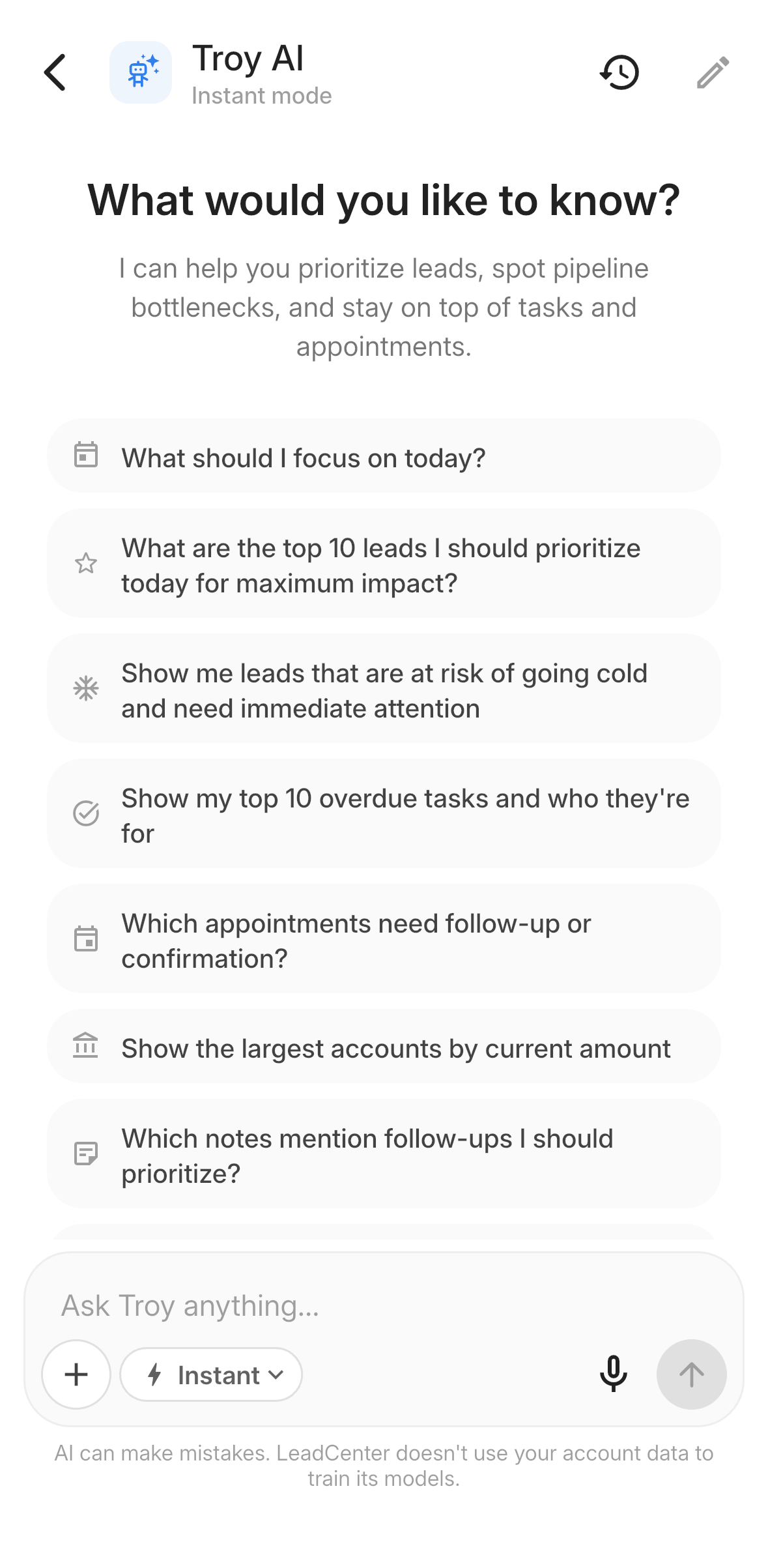
Tap a suggested question or type your own.
Some questions to try:
- "Which contacts in my pipeline haven't been contacted in the last 14 days?"
- "What appointments do I have this week, and which ones aren't confirmed yet?"
- "Which of my clients have an annuity renewing in the next 60 days?"
- "Summarize my last three notes on the Miller household."
When the answer is done, tap the copy icon to copy it, or the regenerate icon to have Troy answer again.
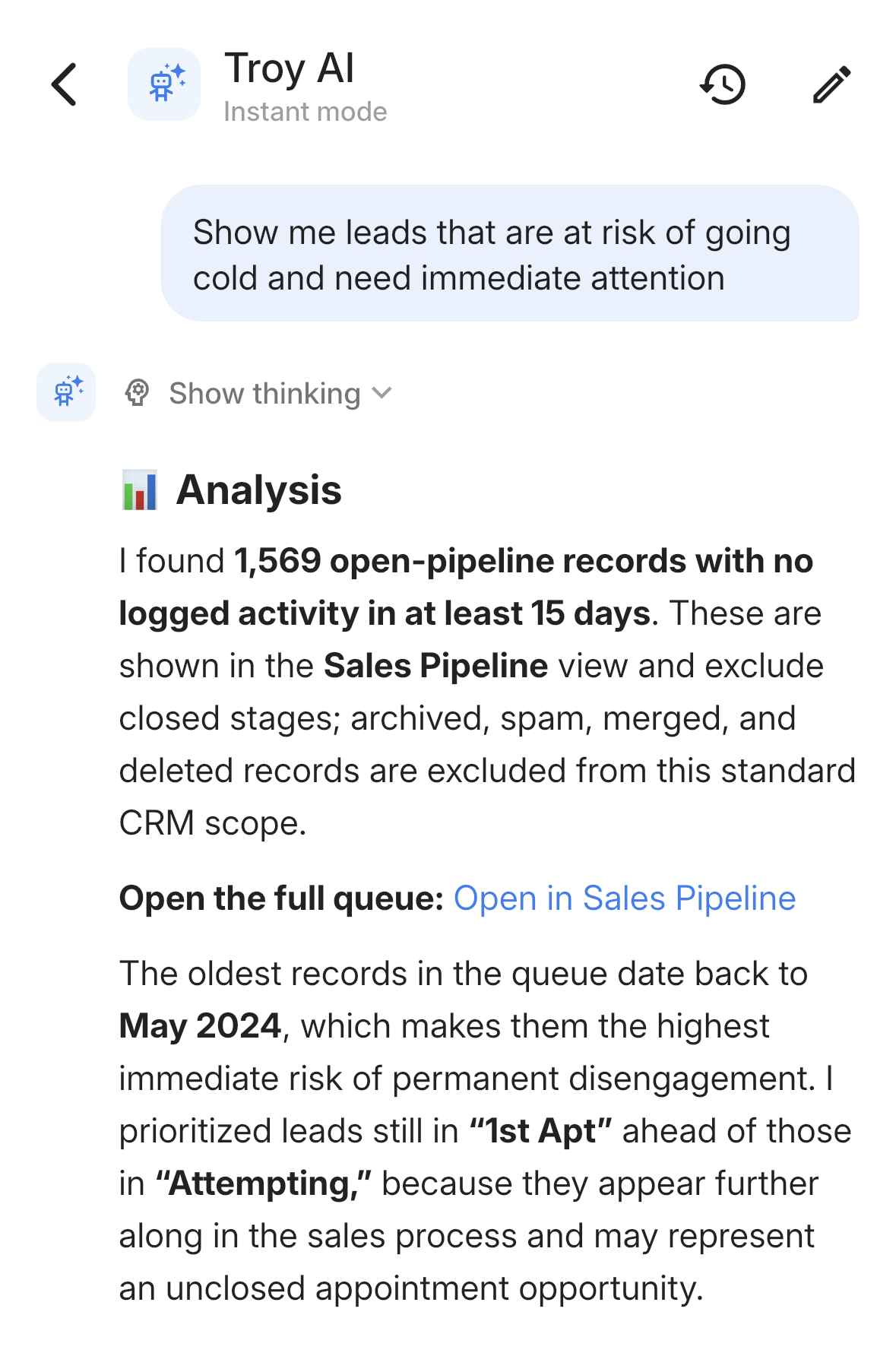
Troy's answer, with its steps tucked under Show thinking.
Choose Instant or Thinking
Tap the chip on the left of the text box to switch modes:
- Instant: A direct answer, best for quick lookups.
- Thinking: Troy works through the question first, best for comparisons and questions with several parts.
While Troy works, you can see the steps it's taking. When the answer is done, tap Show thinking to see them again. Your choice of mode stays the same when you start a new chat.
Attach a Photo or PDF
- Tap + in the text box.
- Choose Upload image or Upload PDF and pick the file.
- Type your question and tap the send arrow.
For example, snap a photo of a client's annual statement and ask Troy to list the account values and beneficiaries. Files can be up to 50 MB.
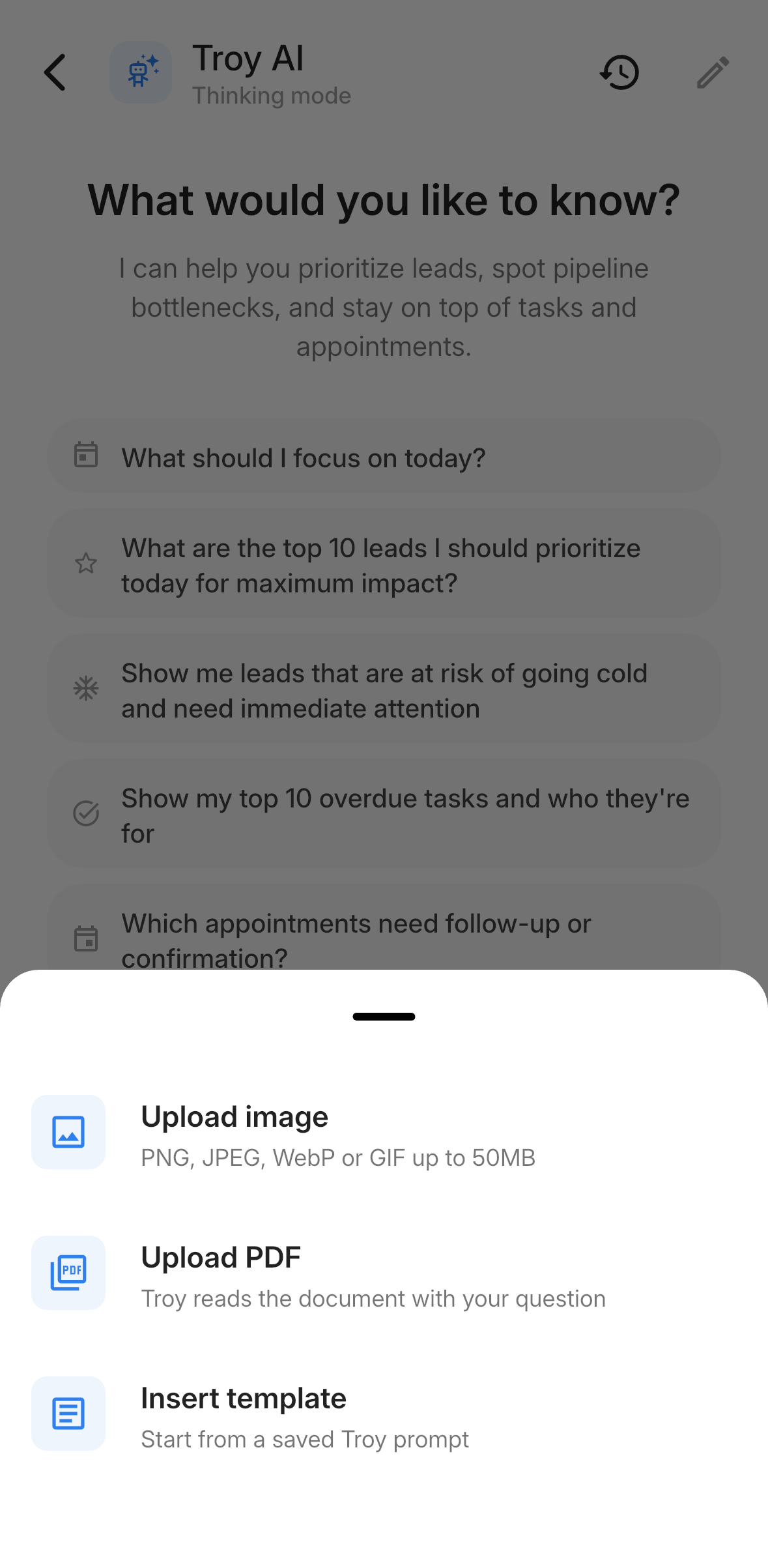
Tap + to attach a photo or PDF, or insert a template.
Insert a Template
- Tap + in the text box.
- Choose Insert template.
- Search for a template and tap it. Its text is added after anything you've already typed.
Speak Your Question
- Tap the microphone icon in the text box.
- Say your question, then tap stop.
- Check the text and tap the send arrow.
The first time, your phone asks for permission to use the microphone. Tap Allow.
Past Chats and New Chats
- Past chats: Tap the clock icon at the top to see your chats grouped by date. Tap one to open it again.
- New chat: Tap the pencil icon. Your current chat is saved.
Frequently Asked Questions
Does Troy use my data to train its models?
No. LeadCenter doesn't use your account data to train its models. Answers can still be wrong, so check anything important before you act on it.
Why are some answers longer than others?
Check the mode chip. Thinking mode works through the question first and usually gives a fuller answer. Instant answers right away.
Related Articles
- Use Troy AI For Pipeline And Contact List Questions
- Create Appointments in the LeadCenter Mobile App
- Create and Manage Tasks in the LeadCenter Mobile App
Questions? support@leadcenter.ai

Need more help?
If you can't find the answers you're looking for, our support specialists are available to answer your questions and troubleshoot if necessary.
-
Phone Call (888) 291-7116. Our main hours are Monday to Friday 7 am-5 pm Central Time.
-
Support Send your questions and inquiries via email to support@leadcenter.ai. A support ticket will be created and one of our team members will get back to you as quickly as possible.