 Help Center
Task Management
Task Management
Create and Manage Tasks in the LeadCenter Mobile App
Create tasks from the LeadCenter mobile app, assign an owner, choose your account's task stage and list, and filter the task list while working away from the web app.
Task creation requires the task-create permission. Without it, Task is hidden from the Create menu, contact actions, and Tasks screen.
Start a Task
- Tap the blue + in the bottom navigation bar and select Task.
- Open More → Tasks and tap the + icon.
- Open a contact, tap ⋮, and select Add Task. The contact is filled in automatically.
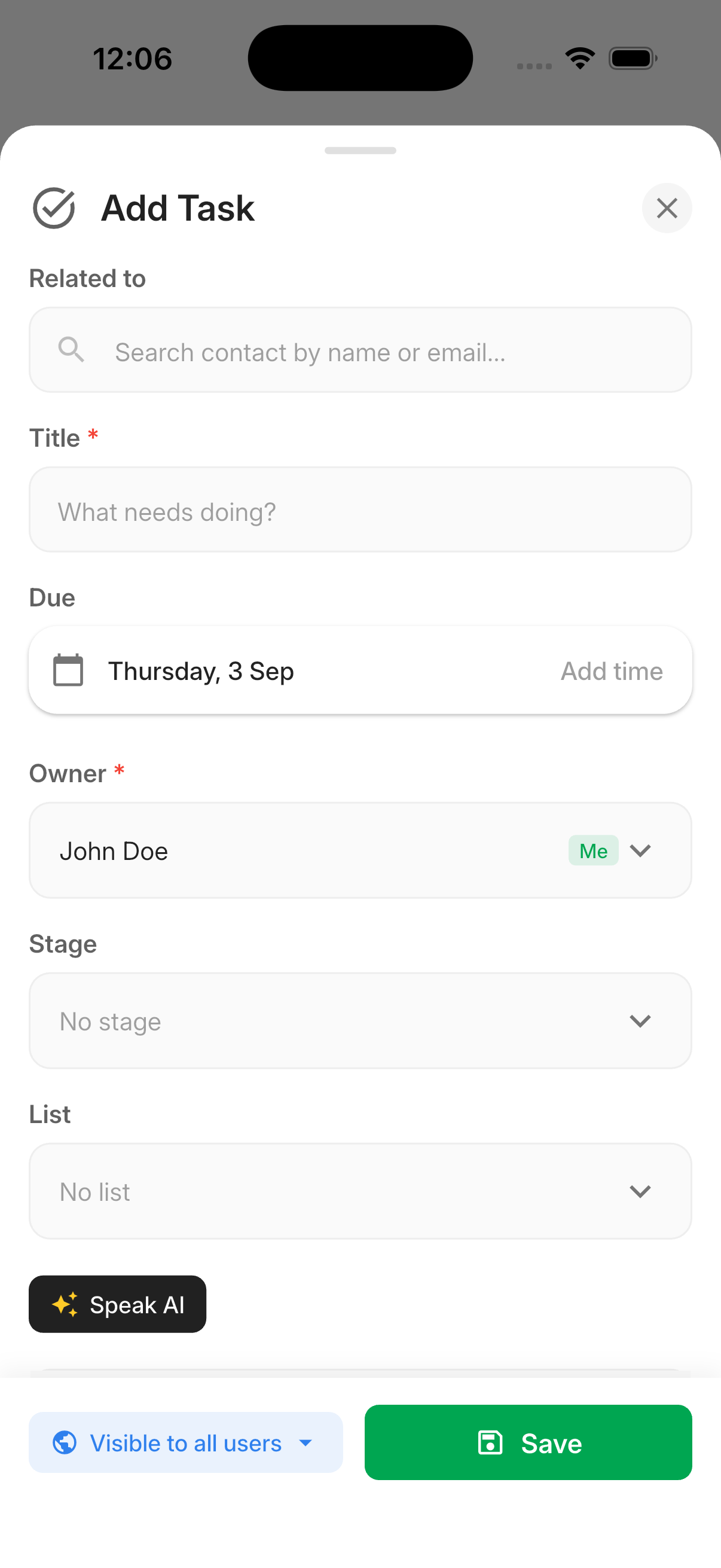
Create the Task
- Optionally select a contact under Related to.
- Enter the required Title.
- Optionally set a Due date and time.
- Select an Owner. The owner defaults to you.
- Optionally select one of your account's Stage values.
- Optionally select a List. Private lists display a lock.
-
Enter a description, use Speak AI for dictation, or type
@to notify another user. - Set the task visibility and tap Save.
A task created from a contact appears in that contact's Upcoming Activities after it is saved.
Due Dates
- A date without a selected time is saved as due at 9:00 AM.
- A task can be created without a due date.
- Due dates are aligned to the company timezone so team members see the same due time.
Filter the Task List
- Open More → Tasks.
- Tap the filter icon.
- Select a Scope: Inbox, Overdue, Today, or Upcoming.
- Optionally select one List and one or more Stage values.
- Tap Apply Filters.
Ungrouped includes tasks that are not assigned to a task list. Applied filters remain active as additional tasks load.
Complete a Task or Change Its Stage
- Tap the checkbox on a task row to move it to the stage configured as completed.
- From a task's detail screen, tap the pencil icon and select a stage under Not Started, In Progress, Completed, or Cancelled.
Stage names come from your account's configuration. Completing a task uses the stage your account has designated as completed.

Need more help?
If you can't find the answers you're looking for, our support specialists are available to answer your questions and troubleshoot if necessary.
-
Phone Call (888) 291-7116. Our main hours are Monday to Friday 7 am-5 pm Central Time.
-
Support Send your questions and inquiries via email to support@leadcenter.ai. A support ticket will be created and one of our team members will get back to you as quickly as possible.