 Help Center
Task Management
Task Management
Recurring Tasks
Managing repetitive work is easier with recurring tasks. You can create tasks that repeat on a schedule so routine follow-ups, reminders, and internal tasks do not need to be created manually each time.
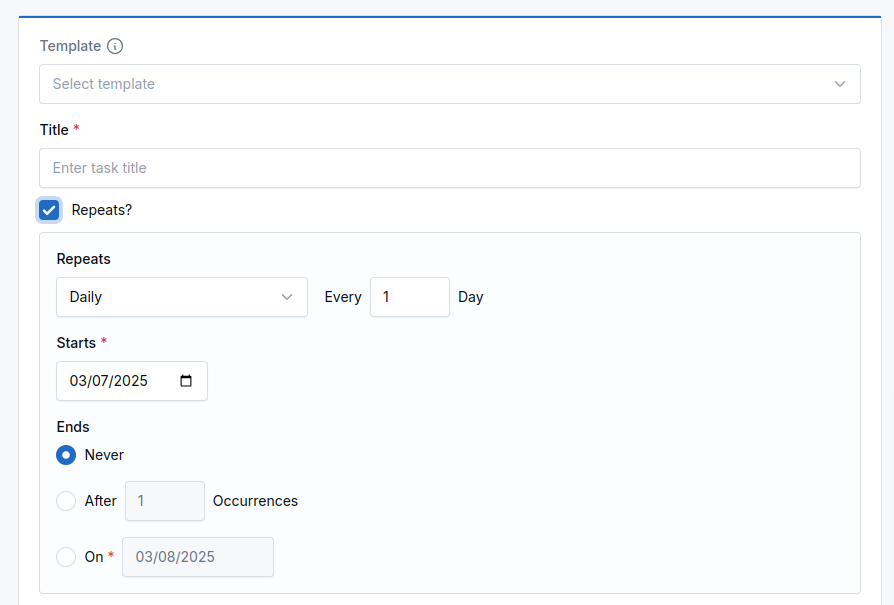
What Recurring Tasks Do
- Flexible scheduling — Set tasks to repeat daily, weekly, monthly, or yearly.
- Automatic task generation — When a recurring task is completed, LeadCenter automatically creates the next scheduled task.
- Custom end conditions — Choose whether the recurrence should never end, stop after a certain number of occurrences, or end on a specific date.
- Easy management — Use the Recurring filter to quickly find recurring tasks, and choose whether edits apply to one task or the rest of the series.
How to Create a Recurring Task
- Go to the Tasks page.
- Click Create Task from the Actions dropdown, or use the create button from the Tasks page.
- Enter the task title and any other task details.
- Turn on Repeats?.
- Select the recurrence frequency:
- Daily
- Weekly
- Monthly
- Yearly
- Set the start date.
- Choose the end condition:
- Never
- After X occurrences
- On a specific date
- Click Save.
View Recurring Tasks
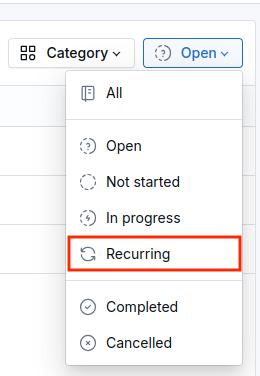
You can filter the task list to show only recurring tasks.
- Go to Tasks.
- Open the Status filter.
- Select Recurring.
Edit a Recurring Task
When you edit a recurring task, LeadCenter asks how you want the change applied:
- Only this task — updates just that one occurrence and keeps the rest of the recurring pattern unchanged.
- This task and all upcoming tasks in this series — applies the change to the current task and all future occurrences in the series.
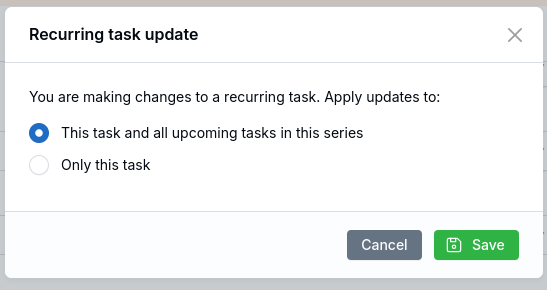
Tip: Choose Only this task if you only need to change one occurrence, such as moving one due date without affecting future tasks.
How Completion Works
When you mark a recurring task as Completed, only that occurrence is completed. LeadCenter then generates the next scheduled task in the series automatically.
Deleting a Recurring Task
When you delete a recurring task, LeadCenter gives you two options:
- Delete this task and end the series — removes the current task and stops future occurrences from being created.
- Delete only this task — removes just that single occurrence and keeps the recurring series active.
Important: Be careful when deleting recurring tasks, especially if you want the recurring pattern to continue.
Bulk Actions on Recurring Tasks
When you use a bulk action on tasks and your selection includes one or more recurring tasks, LeadCenter asks how the action should affect the recurring series.
This gives you control over whether the action applies only to the selected tasks or stops the full recurring series.
How It Works
- Select multiple tasks using the checkboxes.
- Choose a bulk action such as Complete, In Progress, Cancel, Change owner, Change creator, Reschedule, Move to list, or Delete.
- If none of the selected tasks are recurring, the bulk action continues as usual.
- If one or more selected tasks are recurring, LeadCenter shows a confirmation prompt before applying the action.
Recurring Task Options
- Only these tasks — applies the bulk action only to the selected task occurrences, while the recurring series continues creating future tasks.
- End the entire series — applies the bulk action and stops future occurrences from being created for the affected recurring tasks.
Tip: Choose Only these tasks when you want to update one specific occurrence without stopping the rest of the recurring schedule.
Where This Applies
This recurring-task prompt appears anywhere bulk task actions are available, including the main Tasks page and other task views that support bulk actions.
Important: If you are not sure which option to use, choose Only these tasks. This protects the recurring series from being stopped by mistake.
Best Practices
- Use recurring tasks for work that happens on a predictable schedule, such as weekly check-ins or monthly reviews.
- Use clear task titles so each generated occurrence is easy to understand.
- Review recurring tasks regularly and remove any series you no longer need.
- Use Only this task when making a one-time change so you do not accidentally update the entire series.
- Set an end condition if the recurring task is only needed for a limited period.
- When using bulk actions on recurring tasks, choose Only these tasks if you want to avoid stopping the full recurring series by mistake.
Frequently Asked Questions
What happens when I complete a recurring task?
The current occurrence is marked as completed, and LeadCenter automatically creates the next task in the recurring series.
Can I create recurring tasks that repeat yearly?
Yes. Recurring tasks support daily, weekly, monthly, and yearly schedules.
Can I stop a recurring task after a certain number of times?
Yes. You can set the recurrence to end after a set number of occurrences or on a specific date.
Can I edit just one recurring task without changing the rest?
Yes. When editing, choose Only this task to update just that one occurrence.
How do I find all recurring tasks?
Use the Recurring option in the Status filter on the Tasks page.
Need Assistance?
If you need help setting up or managing recurring tasks, contact support@leadcenter.ai.

Need more help?
If you can't find the answers you're looking for, our support specialists are available to answer your questions and troubleshoot if necessary.
-
Phone Call (888) 291-7116. Our main hours are Monday to Friday 7 am-5 pm Central Time.
-
Support Send your questions and inquiries via email to support@leadcenter.ai. A support ticket will be created and one of our team members will get back to you as quickly as possible.