 Help Center
Task Management
Task Management
Filtering, Searching, and Sorting Tasks
The Tasks page includes filtering, search, and sorting tools to help you quickly find the work you need. Combine filters to narrow tasks by owner, category, priority, status, source, task list, due date, and other criteria.
Search Tasks
Use the Search field at the top of the task table to find tasks quickly. Results update as you type.
Search checks:
- Task title
- Task notes
- Linked contact name
Tip: If you are looking for a task related to a specific person, search for the contact's first or last name.
Filter Tasks
Use the controls above the task table and in the left sidebar to narrow the results. Category, Priority, Status, and Source support selecting multiple values.
Owner Filter
Use the owner dropdown in the sidebar to filter tasks by:
- All
- A specific user
- A specific team
Category Filter
Open the Category filter and select one or more categories. The menu remains open so you can continue making selections.
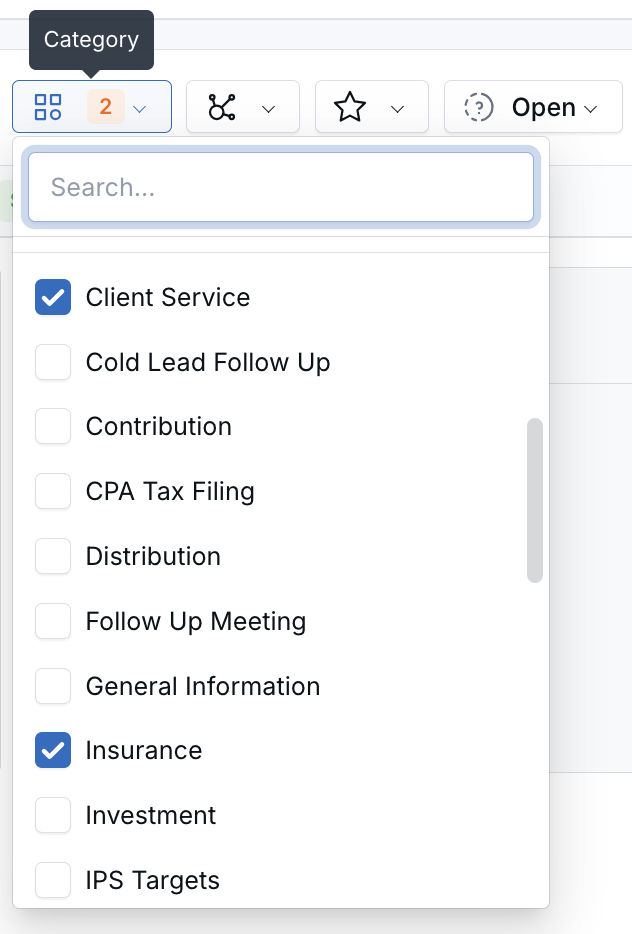
Two categories selected. Use the search box to find a value in a long list.
When multiple categories are selected, the filter button shows the number of selected values.
Priority Filter
Open the Priority filter and select one or more priority levels:
- High
- Medium
- Low
- None — tasks without a selected priority
Selecting multiple priorities shows tasks matching any selected value. For example, selecting High and Medium shows tasks with either priority.
Select All priorities, or remove the active Priority chip, to clear this filter.
Status and Stage Filter
Open the Status filter to select one or more built-in statuses or custom task stages.
Built-in options are:
- Open
- Not started
- In progress
- Recurring
- Completed
- Cancelled
Select All at the top of the menu to clear this filter. Custom stages appear in the same menu and support multiple selections.
Built-in statuses and custom stages remain separate and are mutually exclusive. Selecting statuses clears any selected stages, and selecting stages clears any selected statuses.
Source Filter
Use the Source filter to find tasks based on the records or processes to which they are linked.
- Open the Source filter, shown with the link icon next to the Category filter.
-
Select one or more sources:
- Workflow — tasks linked to a workflow
- Appointment — tasks linked to an appointment
- Account — tasks linked to a financial account
- Review the matching tasks.
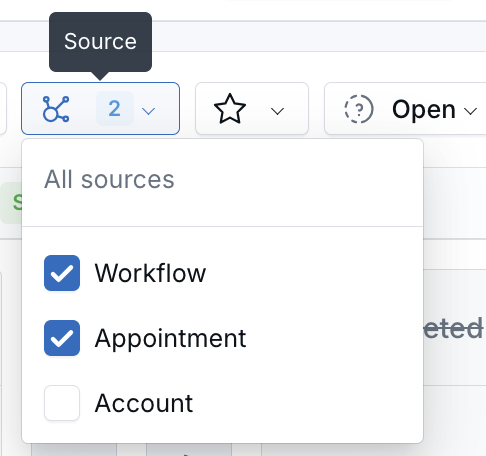
Workflow and Appointment selected. Choose All sources to clear the filter.
Source uses “any of” matching. If you select Workflow and Appointment, the results include tasks linked to a workflow or an appointment. A task does not need to be linked to both.
Select All sources, or remove the active Source chip, to clear this filter.
Task List Filter
Select a task list in the sidebar to show only tasks belonging to that list.
Due Date Filter
Use the due-date filter to narrow tasks by time period. Available options include:
- All Dates
- Past Due and Today
- Past Due and Next 7 Days
- Past Due and Next 30 Days
- Past Due and Next 6 Months
- Past Due and Next 12 Months
- Past Due
- Yesterday
- Today
- Tomorrow
- This Week
- Next 30 Days
- Next 6 Months
- Custom Range
Combine Filters
Filters work together. For example, you can select a team member, choose High and Medium priorities, limit the results to workflow-created tasks, and apply a due-date range.
Use Sidebar Views
The left sidebar includes built-in task views:
- Today
- Overdue
- Upcoming
These views act as quick filters for common task groups. Task lists, including Inbox, are listed separately below them.
How Sidebar Views Work with Task Lists
Sidebar views and task-list filters are mutually exclusive. Selecting a view such as Today or Overdue clears the active task-list filter. Selecting a task list clears the active sidebar view.
Review Active Filter Chips
Active filters appear as chips below the filter bar. These chips show exactly what is affecting the task list.
Examples include:
- Owned by
- From
- Category
- Priority
- Task list
- Status
- Type: Recurring
- Due
- Searching for
Click the X on a chip to remove that filter. Click Reset to clear all active filters at once.
Remembered Filters
The main Tasks page remembers your filter and sort selections when you leave the page and return from the sidebar.
Remembered selections include:
- Owner
- Category
- Status or custom stage
- Priority
- Source
- Due-date filter
- Task list
- Scope
- Sort order
Your last selected task view, such as List, Kanban, or Group by Workflow, is also restored.
Search text is not restored. Retype your search when you return to the Tasks page.
Main Tasks Page and Record-Specific Views
Remembered filters on the main Tasks page are stored separately from task views inside a contact or family. Using a contact or family task view does not replace the filters remembered for the main Tasks page.
Shared and Bookmarked Links
When you open a shared or bookmarked Tasks URL containing explicit filters, LeadCenter uses the filters in that URL. Your personal remembered filters do not override the link.
Sort Tasks by Due Date
Use the sort icon in the Due Date column header to change the order of the task table.
- First click — sorts ascending, with the earliest due date first
- Second click — sorts descending, with the latest due date first
The sort icon turns blue when sorting is active. The selected sort order is included with your remembered Tasks settings.
Best Practices
- Use Past Due and Today as a daily working view to stay on top of urgent tasks.
- Combine owner, due date, priority, and source filters to review a specific team member's workload.
- Use multi-select filters when related tasks span several categories, priorities, statuses, or stages.
- Use search when you know part of the task title, notes, or linked contact name.
- Check the active filter chips when a task appears to be missing.
- Click Reset before troubleshooting missing tasks to confirm whether a filter is hiding them.
Frequently Asked Questions
Why Can't I See a Task I Just Created?
Check the active filters first. A task may be hidden by owner, category, priority, status, stage, source, due date, or task-list filters. Click Reset to clear the filters and try again.
Does Search Check Task Notes?
Yes. Search checks the task title, task notes, and linked contact name.
Can I Select More Than One Category, Priority, Status, or Stage?
Yes. Category, Priority, and Status support multiple selections. You can also select multiple custom stages from the Status filter.
If I Select Workflow and Appointment, Must a Task Be Linked to Both?
No. The Source filter uses “any of” matching, so tasks linked to either a workflow or an appointment appear.
Are My Filters Remembered?
Yes. The main Tasks page remembers your filter, view, and sort selections when you leave and return from the sidebar. Search text is not remembered.
Will My Main Tasks Filters Appear on a Contact's Tasks Tab?
No. The main Tasks page and contact or family task views keep their remembered filters separate.
What Happens When I Open a Shared Tasks Link?
Filters included in the shared URL take priority over your remembered selections.
Why Did My Task List Disappear When I Selected Today?
Sidebar views and task-list filters do not remain active together. Selecting a sidebar view clears the active task-list filter, and selecting a task list clears the sidebar view.
Why Don't Sidebar Task-List Counts Change When I Filter by Priority?
Sidebar counts reflect the overall task-list totals. Priority filters only change the tasks shown in the main results.

Need more help?
If you can't find the answers you're looking for, our support specialists are available to answer your questions and troubleshoot if necessary.
-
Phone Call (888) 291-7116. Our main hours are Monday to Friday 7 am-5 pm Central Time.
-
Support Send your questions and inquiries via email to support@leadcenter.ai. A support ticket will be created and one of our team members will get back to you as quickly as possible.