 Help Center
Task Management
Task Management
Bulk Task Actions, Moving, and Copying Tasks
When you need to update, reorganize, or duplicate tasks, LeadCenter gives you tools to work faster. You can take action on one task at a time or select multiple tasks and update them together.
Select Tasks for Bulk Actions
You can select multiple tasks from the List view or the Kanban view, then use the bulk actions bar to update them together.
List view
Use the checkbox on each task row to select individual tasks. To select all visible tasks on the page, use the checkbox in the table header.
Kanban view
In Kanban, each task card has a checkbox in the top-right corner. Select one or more cards to show the bulk actions bar.
- Select individual cards — Click the checkbox on a task card. Clicking the checkbox selects the task without opening the task details panel.
- Select all in a column — Use the checkbox in a Kanban column header to select or clear every loaded task in that stage column.
- Select all loaded tasks — After at least one task is selected, use the master checkbox in the bulk actions bar to select every loaded task across the visible Kanban board.
Once tasks are selected, the bulk actions bar appears at the top of the view showing how many tasks are selected and which actions are available.
In Kanban, select-all applies to tasks that are currently loaded. If a column has more tasks available through scrolling, scroll to load more tasks before selecting them.
Switching between List, Kanban, and Group by Workflow clears your current selection because each view can show a different set of tasks.
Available Bulk Actions
| Action | What It Does |
|---|---|
| Complete | Marks all selected tasks as Completed. |
| In Progress | Changes all selected tasks to Under Progress. |
| Cancel | Changes all selected tasks to Cancelled. |
| Change owner | Reassigns all selected tasks to a different user or team. |
| Change creator | Updates the creator field on all selected tasks. |
| Reschedule | Sets a new due date and/or time for all selected tasks. |
| Move to list | Moves all selected tasks to a different task list. |
| Delete | Permanently deletes all selected tasks. |
| Change visibility | Updates selected tasks to Visible to all users or Visible to me only, based on your permission to change those tasks. |
Reschedule Tasks in Bulk
Use Reschedule when you need to move several selected tasks to a new due date. You can also set a specific due time for the selected tasks.
- Go to Tasks.
- Select two or more tasks using the row checkboxes.
- In the bulk actions bar, click Reschedule.
- Choose the new Due at date.
- Click Set time if you want to choose a specific time of day.
- Click Save to apply the new due date and time to the selected tasks.
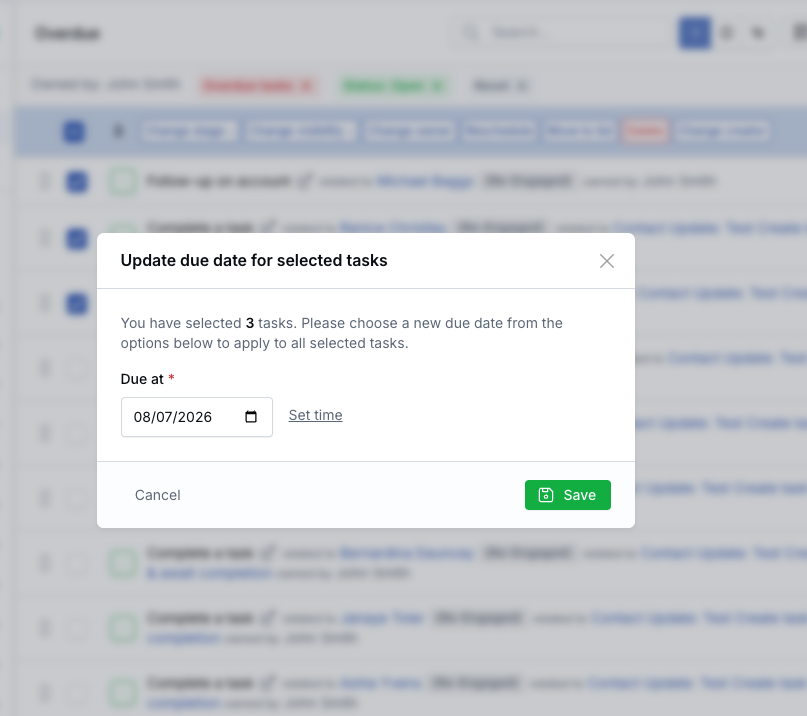
If you choose a date but do not set a time, the selected tasks default to 8:00 AM on the chosen date.
Recurring Tasks
If your selection includes recurring tasks, LeadCenter prompts you to choose whether the change applies only to the selected tasks or to the full recurring series before the new due date and time are applied.
Change Task Visibility in Bulk
You can update visibility for multiple tasks at once from the Tasks list using the same visibility options available when editing a single task.
- Go to Tasks.
- Select one or more tasks using the row checkboxes.
- In the bulk actions bar, click Change visibility.
- Choose one of these options:
- Visible to all users — removes private visibility from eligible tasks.
- Visible to me only — marks eligible tasks as private.
- Review the success message after the update finishes.
Private tasks show a lock icon on the task row. The same icon can also appear for tasks that belong to a private task list.
Who Can Change Visibility
Bulk visibility follows the same rules as the single-task edit form.
- You must be the task creator or the task owner.
- Tasks on a private task list are skipped because list-level privacy cannot be overridden from this bulk action.
- Tasks that already use the selected visibility are skipped.
- Tasks you do not have permission to change are skipped.
Large Selections
If more than 20 eligible tasks are selected, the update is processed in the background. LeadCenter shows a message that the action has been queued.
For smaller selections of 20 or fewer eligible tasks, the update happens immediately on the page.
If you queue a large batch, refresh the page shortly afterward to see the updated lock icons and visibility.
Where This Applies
The Change visibility bulk action is available anywhere the standard task list bulk actions bar appears, including the main Tasks page and task lists shown in full or compact list layouts.
Changing visibility does not affect whether future recurring tasks are created, and this action does not show a recurring-series prompt.
Delete Confirmation
If you choose Delete in bulk, LeadCenter shows a confirmation warning that the action is irreversible. You must confirm before the selected tasks are deleted.
Important: Deleting tasks cannot be undone.
Move a Task to a Different List
Moving a task changes only which task list it belongs to. Other fields, such as owner, status, and priority, stay the same.
Move one task
- Click the three-dot menu on the task row.
- Select Move to list.
- Choose the destination task list.
Move multiple tasks
- Select the tasks using the checkboxes.
- Click Move to list in the bulk actions bar.
- Select the destination task list.
Copy a Task
If you need a similar task with only a few changes, you can duplicate the task instead of creating it again from scratch.
- Click the three-dot menu on the task row.
- Select Duplicate.
- Confirm the copy action.
The copied task includes the main details from the original task, such as title, notes, priority, and status. After copying, you can edit the new task independently.
Tip: After duplicating a task, review the copy right away and update any details that should be different from the original.
Best Practices
- Use filters first to narrow the list before applying bulk actions.
- Use Change owner in bulk when reassigning tasks from one team member to another.
- Prefer Cancel instead of Delete when you want to keep a record of tasks that are no longer needed.
- Double-check your selected tasks before using bulk delete.
- Use Move to list to organize tasks that are still sitting in the Inbox.
Frequently Asked Questions
Is there a limit to how many tasks I can select for bulk actions?
In the List view, you can select all visible tasks on the current page. If you need to update more tasks, repeat the process page by page.
In the Kanban view, select-all applies to tasks that are currently loaded on the board. Scroll within a column to load more tasks before selecting them.
Can I undo a bulk action?
Some status changes can be reversed by selecting the tasks again and choosing a different status. However, Delete is permanent and cannot be undone.
Will assignees be notified of bulk changes?
Notifications follow the same rules as individual task changes. For example, if you change the owner, the new owner may receive a notification.
Does duplicating a task copy its documents and comments?
The duplicate copies the main task details, such as title, notes, priority, and status. Attached documents and comments may not be copied, so review the new task and re-attach anything you still need.
Need help? Contact support@leadcenter.ai.

Need more help?
If you can't find the answers you're looking for, our support specialists are available to answer your questions and troubleshoot if necessary.
-
Phone Call (888) 291-7116. Our main hours are Monday to Friday 7 am-5 pm Central Time.
-
Support Send your questions and inquiries via email to support@leadcenter.ai. A support ticket will be created and one of our team members will get back to you as quickly as possible.