 Help Center
Task Management
Task Management
Task Lists: Organizing Your Tasks
Task lists help you organize related tasks together. Think of them as folders for your work, such as Client Onboarding, Weekly Follow-Ups, or Marketing Campaigns.
Creating a Task List
- Go to Tasks.
- Click Actions → Create task list.
- Enter a name for the list.
- Optionally, make the list private.
- Click Save.
The new list appears in the sidebar under TASK LISTS.
The Inbox
The Inbox is a built-in task view that collects tasks not assigned to any task list. It is useful as a quick-capture area when you need to create a task quickly and organize it later.
Tip: Review the Inbox regularly and move tasks into the appropriate task lists so nothing gets lost.
Viewing Tasks in a Task List
Click any task list in the sidebar to show only the tasks in that list. Each task list also shows a count so you can quickly see how many tasks it contains.
Share a Task List
Any user with access to a public task list can share it with another LeadCenter user by email. The recipient receives read-only access to the list and its public tasks.
- Go to Tasks.
- Under My lists, open the three-dot menu for a public task list.
- Click Share.
- Enter the recipient's email address.
- Click Add.
Private and archived task lists cannot be shared. Changing a shared list to Visible to me only automatically revokes all existing shares.
For details about invitations, viewer permissions, and managing access, see Share a Task List (Read-Only).
Reordering Task Lists
You can drag and drop task lists in the sidebar to change their order. The order you choose is saved, so your lists stay arranged the way you prefer.
Editing a Task List
To edit a task list:
- Hover over the task list name in the sidebar.
- Open the list menu.
- Click Edit.
- Update the list name or privacy setting.
- Click Save.
Archiving a Task List
Archive a task list when you want to hide it from your active task-list sidebar without deleting it. Archived lists move to the Archived section and can be restored at any time.
- Go to Tasks.
- Find the list under TASK LISTS.
- Open the list menu.
- Click Archive.
- In the confirmation pop-up, click Archive task list.
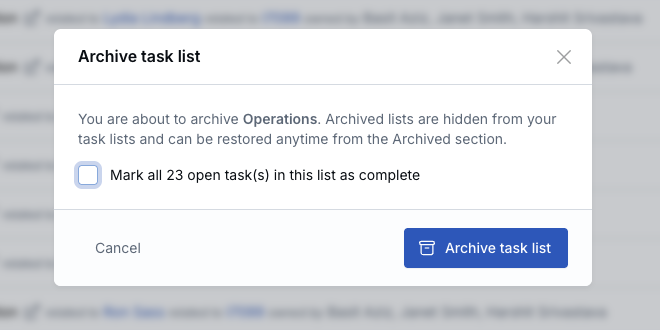
Choosing Whether to Complete Open Tasks
If the list has open tasks, the confirmation pop-up includes an option to Mark all open tasks in this list as complete.
- Leave the option unchecked to archive the list while keeping its tasks as they are.
- Select the option to complete open tasks in the list as part of archiving.
- Recurring tasks in the list are ended when you choose to mark open tasks complete.
- Workflow routing tasks are skipped so they can still be completed individually.
The Archived Section
Archived lists appear in a collapsible Archived section in the task-list sidebar.
- Archived lists are read-only.
- Archived lists cannot be edited, shared, reordered, or used for new tasks while archived.
- Archived lists are hidden from task list dropdowns when creating or editing tasks.
- The only available action on an archived list is Unarchive.
Unarchive a Task List
- Expand the Archived section in the sidebar.
- Open the list menu.
- Click Unarchive.
The list returns to your active TASK LISTS section with its normal actions restored.
Deleting a Task List
To delete a task list:
- Hover over the task list name in the sidebar.
- Open the list menu.
- Click Delete.
- Confirm the deletion.
Important: Deleting a task list does not delete the tasks inside it. Those tasks are moved to the Inbox.
Private Tasks and Private Task Lists
LeadCenter lets you control who can see your tasks using privacy settings at both the task level and the task list level.
Making a task private
When creating or editing a task, you can choose:
- Visible to all users — the default setting
- Visible to me only — only you and any additional assignees can see the task
Making a task list private
You can also make an entire task list private. When a task list is private:
- A lock icon appears next to the list name in the sidebar.
- All tasks inside the list are automatically private.
- Individual task visibility inside that list cannot be changed separately.
How privacy works
- Private tasks are hidden from other users in the main Tasks view.
- Private tasks do not appear on other users’ contact, company, or family pages.
- Task owners and additional assignees can still see private tasks they are associated with.
Best Practices
- Create task lists that match your real workflows, such as New Client Setup, Annual Reviews, or Compliance.
- Keep the Inbox clean by moving tasks into proper lists regularly.
- Archive completed or reference-only lists instead of leaving them in your active sidebar.
- Use private task lists for personal work that does not need team visibility.
- If you only need to hide one task, make the task private instead of the entire list.
- Try not to create too many lists. If a list usually has only a few tasks, consider combining it with another one.
- When collaborating with your team, keep shared work in public task lists so everyone has visibility.
Frequently Asked Questions
Does archiving delete my tasks?
No. Archiving hides the list from your active task-list sidebar, but keeps the list and its tasks available in the Archived section.
What is the difference between Archive and Delete?
Archive is reversible and keeps the task list available for reference. Delete removes the task list and moves its tasks to the Inbox.
What happens to tasks if I delete a task list?
The tasks are not deleted. They are moved to the Inbox.
Can I edit an archived task list?
No. Archived lists are read-only. Unarchive the list first if you need to edit it, reorder it, share it, or add tasks to it.
Can I share a private task list with specific users?
No. Only public task lists can be shared. If you change a shared list to Visible to me only, LeadCenter automatically revokes access for everyone with whom the list was shared.
See Share a Task List (Read-Only) for sharing instructions and viewer restrictions.
Can I make an existing public task private?
Yes. Edit the task and change its visibility to Visible to me only.
If I add an additional assignee to a private task, can they still see it?
Yes. Additional assignees can see private tasks they are assigned to.
Can I reorder the default views like Today, Overdue, Upcoming, and Inbox?
No. The default views stay in place. Only your custom task lists can be reordered.

Need more help?
If you can't find the answers you're looking for, our support specialists are available to answer your questions and troubleshoot if necessary.
-
Phone Call (888) 291-7116. Our main hours are Monday to Friday 7 am-5 pm Central Time.
-
Support Send your questions and inquiries via email to support@leadcenter.ai. A support ticket will be created and one of our team members will get back to you as quickly as possible.