 Help Center
Task Management
Task Management
Getting Started with Tasks
Creating and Editing Tasks
Task Lists: Organizing Your Tasks
Recurring Tasks
Assigning Tasks to Team Members
Bulk Task Actions, Moving, and Copying Tasks
Task Templates
Task List Templates
Filtering, Searching, and Sorting Tasks
Task Notifications and Reminders
Viewing Tasks on Contacts, Companies, and Households
Exporting Tasks to CSV
Using Tasks in Workflows
Convert a Note to a Task
Share Task Lists with External Users (Read-Only)
Create and Manage Tasks in the LeadCenter Mobile App
Convert a Note to a Task
You can now convert a note into a task in one click. LeadCenter carries over the linked contact and note content automatically, so you can turn follow-ups into action without re-entering the same information.
What This Feature Does
- Convert notes into tasks directly from the note’s action menu
- Carry over the contact automatically when the note is linked to a contact
- Reuse the note content in the new task so you can continue from the same context
How to Convert a Note to a Task
- Open any page where notes are available, such as the Notes page, a contact’s Notes tab, or a family’s Notes tab.
- Find the note you want to use.
- Open the note’s action menu.
- Click Convert to Task.
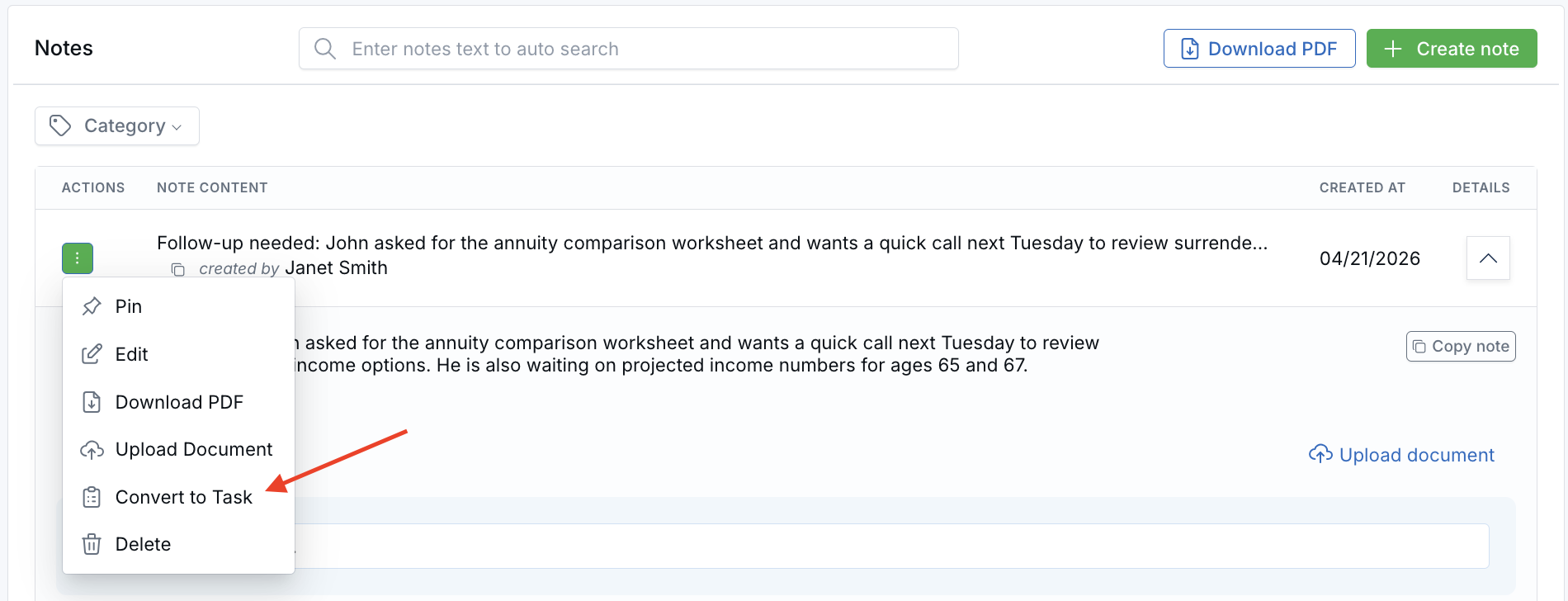
Open the note’s action menu and click Convert to Task.
- LeadCenter opens the task form with the linked contact and note content already filled in when available.
- Enter a title for the task and choose a due date.
- Adjust any other fields you need, then click Save.
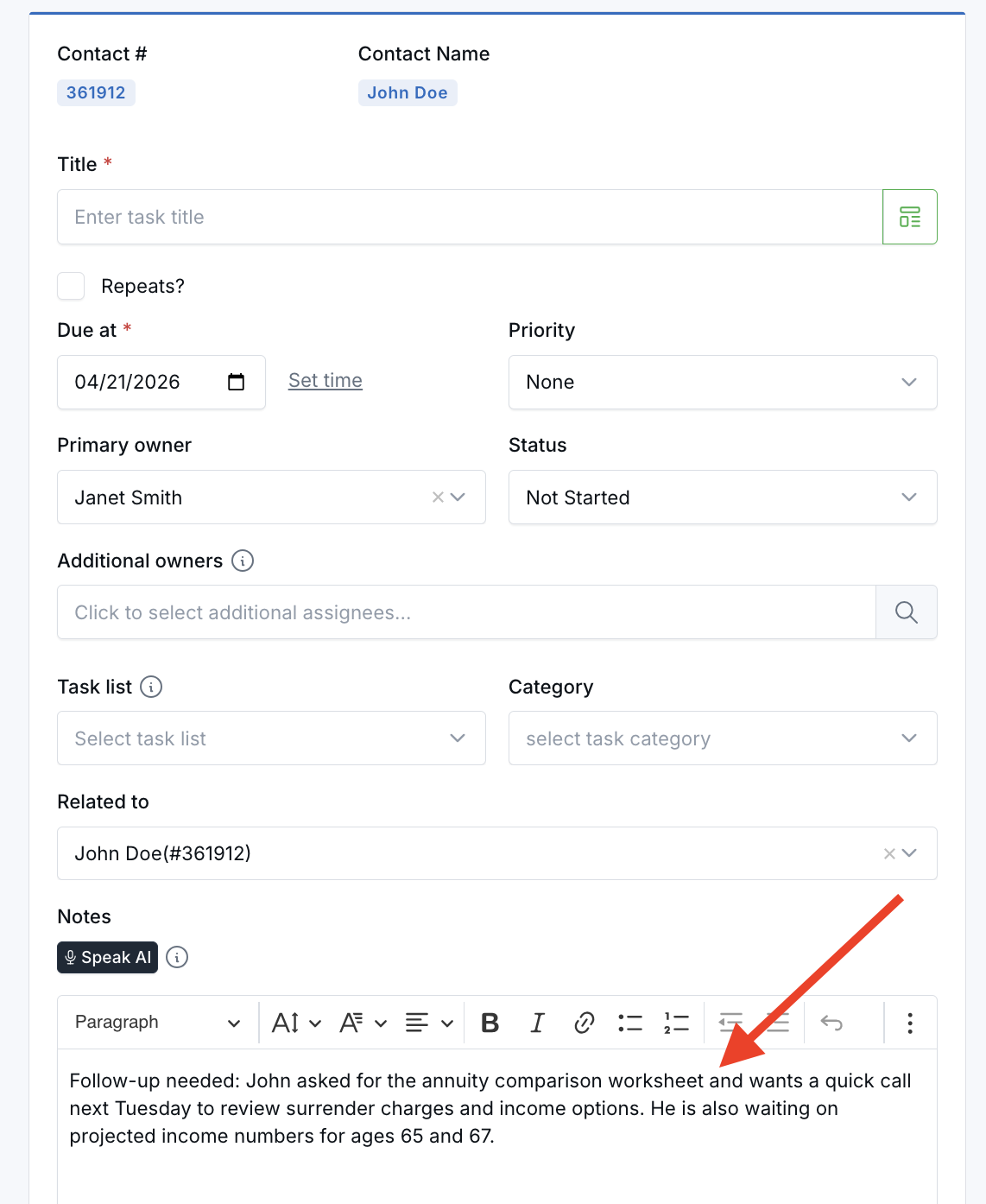
LeadCenter carries over the linked contact and note content automatically into the new task.
Where This Is Available
- Notes page — all notes across the account
- Contact Details → Notes tab — notes linked to a specific contact
- Family → Notes tab — notes linked to a household or family
Important Notes
- If the note is linked to a contact, the Related to field is filled in automatically.
- If the note is not linked to a contact, the task form opens with the Related to field blank so you can complete it manually.
- The original note is not deleted. Converting a note creates a new task and leaves the note unchanged.
- After saving the task, you are returned to the page you came from.
Please note: Converting a note creates a new task, but the original note remains unchanged.
Why This Is Helpful
- Move from notes to action faster — turn follow-up items into tasks without copying and pasting details manually
- Reduce duplicate entry — keep the note content and related contact connected as you create the task
- Make follow-up work easier to manage — capture next steps directly from notes while the context is still fresh
Related Help
If you need help converting notes into tasks, contact support@leadcenter.ai.

Need more help?
If you can't find the answers you're looking for, our support specialists are available to answer your questions and troubleshoot if necessary.
-
Phone Call (888) 291-7116. Our main hours are Monday to Friday 7 am-5 pm Central Time.
-
Support Send your questions and inquiries via email to support@leadcenter.ai. A support ticket will be created and one of our team members will get back to you as quickly as possible.