 Help Center
Workflows
Schedule a Workflow for a Group of Contacts
Use the Schedule trigger to start a workflow for a group of contacts at a date and time you choose, once or on a repeating schedule. LeadCenter starts a separate run for each contact who matches your filter, so everyone in the group goes through the same steps, such as a task, a wait, and then an email or text.
Example: Every quarter, create a task for your operations team to review each client's profile and beneficiaries, wait three days, then email the client a form to update their contact details.
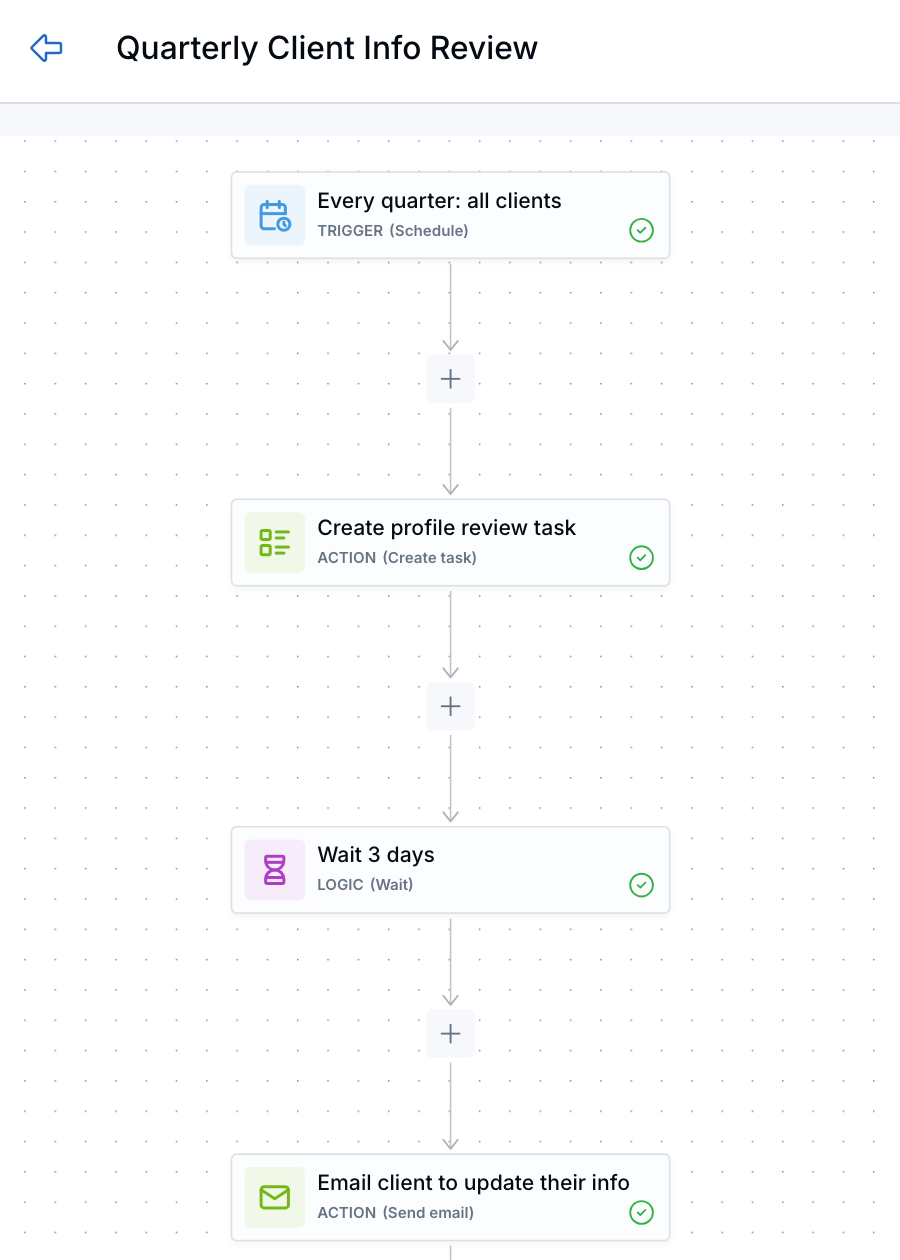
The example as a workflow: a Schedule trigger, a task, a wait, and an email.
Set Up a Scheduled Workflow
- Go to Workflows and open a workflow, or click Create workflow.
- Click the trigger at the top of the canvas and choose Schedule. To switch an existing trigger, click it, then click Change Trigger Type.
- Set the Date & time and the Timezone.
- To run it more than once, turn on Repeat this schedule. See Repeat a Schedule.
- Under Contact filter, click Choose a saved segment, or click Create one-time use segment to build a filter just for this workflow.
- Click Apply.
- Add the steps each contact should go through, such as Create task, Wait, Send email, or Send text.
- Click Save to keep a draft, or Save & Publish to turn the schedule on.
Tip: Click the pencil next to a step's name to rename it, like "Every quarter: all clients" or "Wait 3 days," so anyone can tell what the workflow does at a glance. See Understanding the Workflow Builder.
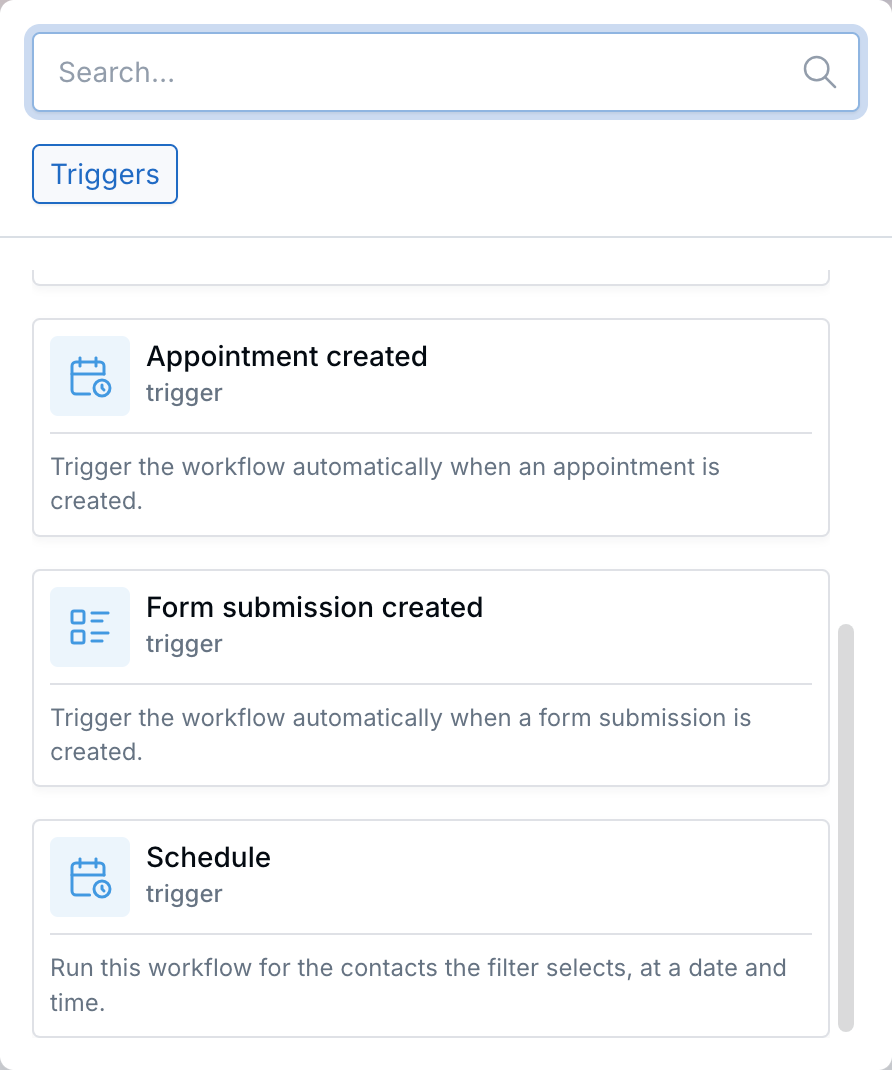
Choose Schedule from the trigger list.
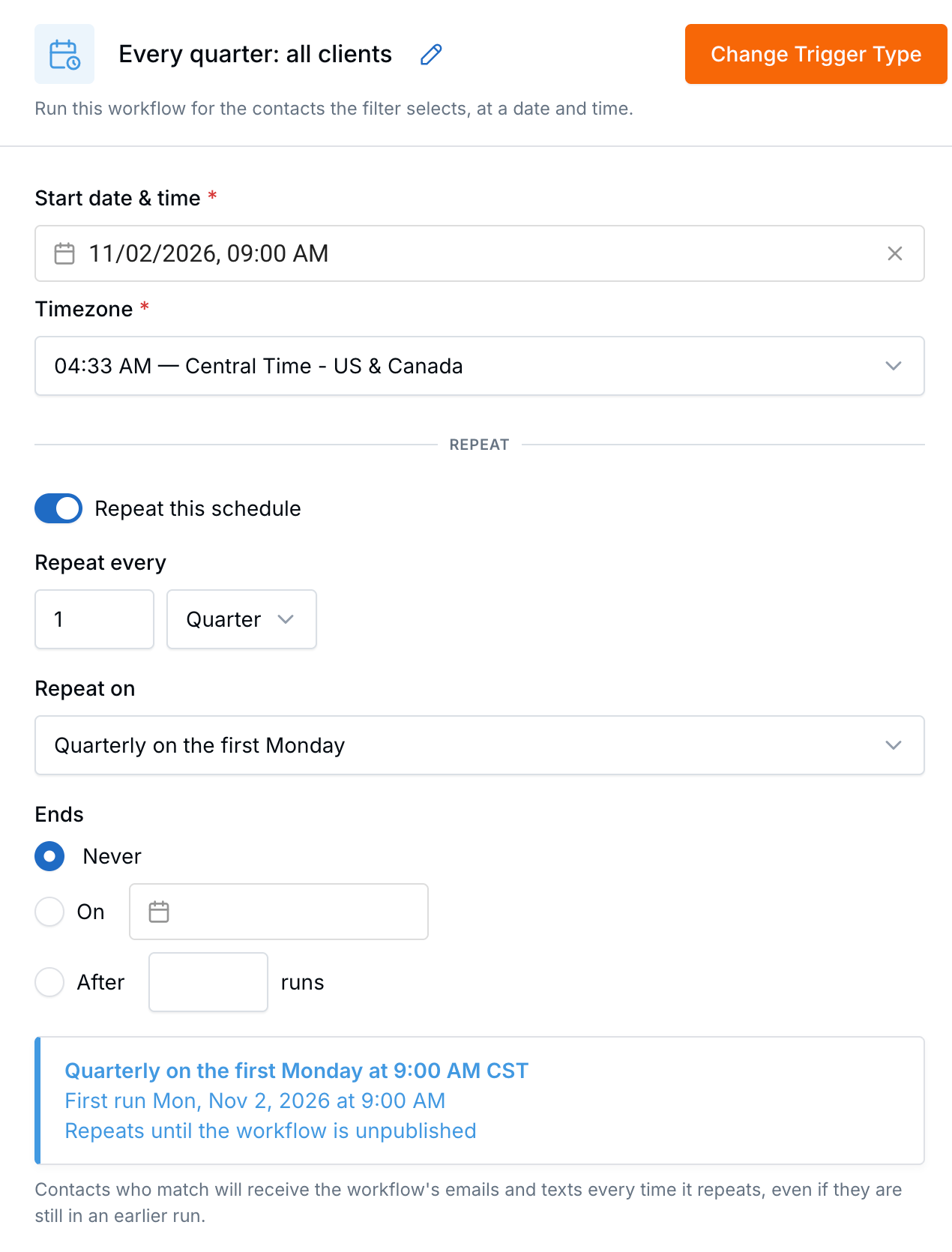
The Schedule trigger set to repeat every quarter on the first Monday. The summary shows when it first runs.
When the schedule runs, LeadCenter finds every contact who matches the filter and starts the workflow for each one. Each contact then moves through the steps on their own.
Repeat a Schedule
Leave Repeat this schedule off for a one-time run. Turn it on to run again automatically. Under Repeat every, choose how often:
- Days: every set number of days.
- Weeks: every set number of weeks, on one or more weekdays.
- Months: by day of the month (for example, the 15th) or by weekday (for example, the second Tuesday).
- Quarters: by day of the month or by weekday.
- Years: by date or by a weekday of a month.
Under Ends, choose Never (it repeats until you unpublish the workflow), On a date, or After a number of runs. A summary under these settings shows how often it repeats and when the first run is.
Note: If you pick a day that doesn't exist in a shorter month, like the 31st, the workflow runs on the last day of that month. A yearly February 29 schedule runs on February 28 in non-leap years. When you edit a repeating workflow, you can keep its original start date, and LeadCenter uses the next available run.
Who Enters the Workflow
- Checked every run: the filter is checked each time the schedule runs, not just when you publish. New contacts who match can enter, and contacts who no longer match are skipped.
- Repeat entries: a contact can enter again on a later run, even if an earlier run for them is still in progress.
- Exit steps: contacts who left this workflow through an Exit step are left out of future scheduled runs. See Exit Step: Prevent Future Workflow Runs.
- Counting: contacts are counted once per email address. Contacts without an email address are counted separately.
Important: On a repeating schedule, contacts who still match get the workflow's emails and texts every time it runs. Use a filter that changes as clients are handled (for example, a stage or tag), or add an Exit step, so clients don't get the same message over and over.
The 500-Contact Limit
The builder shows how many contacts your filter selects, right under the filter. You can publish a scheduled workflow for up to 500 contacts.
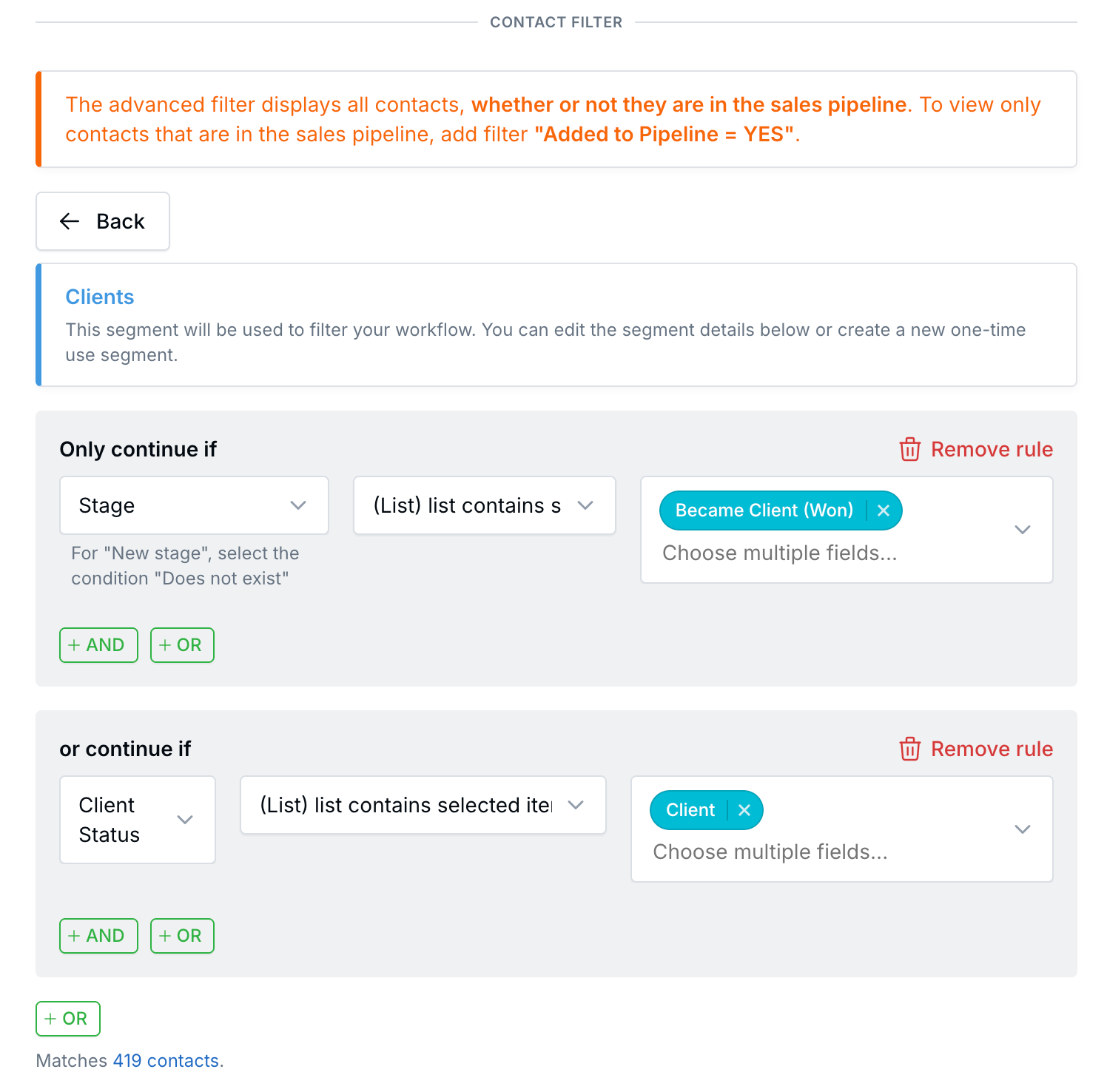
The saved Clients segment on the Schedule trigger. The count under the filter shows how many contacts it matches.
- Over 500, you can still save a draft. You'll see a warning.
- Save & Publish stays blocked until you narrow the filter.
- The limit is checked when you publish. If more contacts match later, the workflow runs for all of them. LeadCenter doesn't pick only the first 500.
Filters, Emails, and Branches
- The Schedule filter only decides who enters. Add a Contact filter step later if only some contacts should continue.
- The Schedule filter counts as the filter before a Send email or Send text step. Add another Contact filter if only some contacts should get that message.
- A Branch must come right after a Contact filter or Send email step, not right after the Schedule step.
- Don't add a separate campaign contact filter to a scheduled workflow. Put the filter on the Schedule step.
See Each Run
- One-time schedule: each contact's run appears in the workflow's normal run list.
- Repeating schedule: the workflow list shows each scheduled run, and how many runs are left if you set an end. Open a scheduled run to see the contact runs it started.
To learn more about run statuses and details, see Monitoring Workflow Runs.
Before You Publish
Save & Publish stays blocked until:
- The Schedule step has a complete contact filter.
- Repeat settings are complete, including the repeat days and when it ends.
- For weekly repeats, the start date falls on one of the selected days.
- A repeat with no runs left has a later start or end date.
You can still click Save to keep a draft. Any issue shows as a warning.
Scheduled Workflows vs. Email Campaigns
Email campaigns don't change. They keep their own schedule and contact filter. Use a scheduled workflow when you need more than one send, like a task, a wait, and then an email or text.
What Doesn't Change
- Workflows started by a contact, an appointment, or a form submission still run for that one record.
- Running a workflow by hand from Contacts or Pipeline works the same as before.
- Steps after the Schedule trigger follow their normal rules.
Related Articles

Need more help?
If you can't find the answers you're looking for, our support specialists are available to answer your questions and troubleshoot if necessary.
-
Phone Call (888) 291-7116. Our main hours are Monday to Friday 7 am-5 pm Central Time.
-
Support Send your questions and inquiries via email to support@leadcenter.ai. A support ticket will be created and one of our team members will get back to you as quickly as possible.