 Help Center
Event Marketing
Event Marketing
Steep Marketing Integration
Connect your Steep Marketing account to LeadCenter to automatically sync seminar and event registrations. When a registration matches an existing LeadCenter event, LeadCenter imports the registrant as a contact, adds the person as an attendee, and can also add guest attendees included with the registration.
This article covers:
- How to connect your Steep account
- How the integration behaves after registrations start syncing
- What happens when you disconnect and reconnect Steep
Before You Connect
Create your upcoming Steep events in LeadCenter before registrations start coming in. Steep registrations only sync to events that already exist in LeadCenter.
Recommended: Create the event in LeadCenter before registrations begin syncing. If a matching event does not exist yet, that registration is skipped. Creating the event later does not automatically import registrations that were already skipped.
How the Integration Works
- One connection per account — All users in the same LeadCenter account share one Steep connection.
- Read-only sync — The integration runs one way from Steep to LeadCenter.
- Registration sync only — LeadCenter imports registrations and attendee updates, but it does not create or update events from Steep.
- Matching event required — A LeadCenter event must already exist before registrations can import.
How to Connect Steep Marketing
- Go to Settings > Integrations > Events Marketing.
- Click Connect on the Steep card.
- Copy your API key from the Steep Integration Manager .
- Paste the API key into the connection field.
- Click Connect.
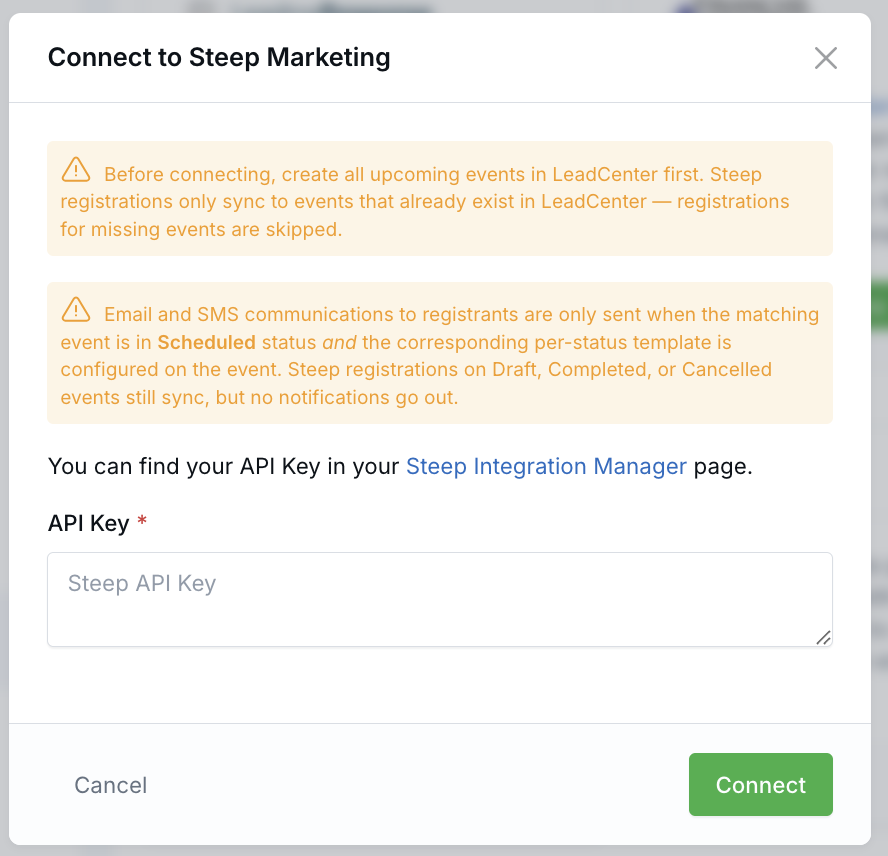
LeadCenter runs an initial sync after the connection is saved. Depending on how many registrations already exist, the first sync may take a few minutes.
What Gets Synced
When a Steep registration matches a LeadCenter event, LeadCenter imports the registration into the same event, attendee, and contact areas you already use in LeadCenter.
- Contact record — The primary registrant is added as a contact using available registration details such as first name, last name, email, mobile number, and address.
- Attendee record — The registrant is added to the matching LeadCenter event as an attendee.
- Registration details — The attendee status and registration date are carried over from Steep.
- Guest attendees — If the registration includes guests, LeadCenter can create guest attendee records linked to the primary registrant.
Steep does not create or update the LeadCenter event itself. Event details such as the event name, date, time, venue, and capacity remain managed in LeadCenter.
Fields That Do Not Sync
- Contact Notes entered in Steep do not sync into LeadCenter.
How Event Matching Works
LeadCenter matches Steep registrations to existing LeadCenter events using event details such as the start date, start time, ZIP code, venue name, city, and state.
The event title is not used for matching in-person events, so your LeadCenter event name can differ from the event name in Steep. For Steep webinars, LeadCenter can use the event name when more than one webinar is on the same date.
Matching works best when the LeadCenter event uses the same date, start time, and ZIP code as the Steep event.
- Match the start date, start time, and ZIP code as closely as possible.
- Create the LeadCenter event before registrations begin coming in from Steep.
- If two events happen on the same day in the same ZIP code, make sure their start times are accurate so registrations can be matched correctly.
- Changing a LeadCenter event's date, time, or ZIP code later does not move attendees who were already synced.
For more detail about how LeadCenter matches registrations to events, see How LeadCenter Finds Events When Receiving Registrations.
How Attendee Statuses Work
When Steep marks a registrant as Appointment Set, LeadCenter assigns the event attendee status Appointment scheduled. This applies when a registration first imports and during the daily refresh for upcoming events.
Steep often sends Appointment Set together with its attended flag. LeadCenter still assigns Appointment scheduled in that case. For every other Steep status, the attended flag maps to Attended.
Other Steep values map as follows: Canceled to Cancelled by attendee, No Show to No show, Waitlist to Waitlist, Confirmed to Confirmed, and anything else to Registered.
Steep is the source of truth for attendee status on upcoming synced events. If you manually change an upcoming attendee's status in LeadCenter, a later Steep sync can change it back to Steep's current value.
After an event has started, LeadCenter stops refreshing that event's attendees, so statuses set in LeadCenter then stay in place.
If you delete an attendee in LeadCenter, later Steep syncs do not bring that person back.
If you manually change an upcoming attendee's status in LeadCenter, a later Steep sync can change it back to Steep's current value.
How Event Emails and Text Messages Work
LeadCenter can send event emails and text messages when a new registration is imported or when an attendee status changes through the Steep sync.
For events marked Scheduled, LeadCenter can send the email or text message configured for Appointment scheduled when Steep reports Appointment Set. If no template is configured for that status, the attendee status still updates and no message is sent.
Event communications are sent only when all of these conditions are met:
- The matching LeadCenter event is in Scheduled status.
- The correct email or text message template is configured for that attendee status on the event.
- The contact has the required email address or mobile number.
- The attendee status is new or has changed.
If the event is still in Draft, Completed, or Cancelled status, attendee data can still sync, but event emails and text messages are not sent.
Guest attendees from Steep do not receive these event emails or text messages.
How Contact Matching Works
Before creating a new contact from a registration, LeadCenter checks whether the registrant already exists in your account.
For more detail about how LeadCenter matches registrations to existing contacts, see How LeadCenter Matches Event Registrations to Existing Contacts.
Sync Schedule
- New registrations are typically pulled every 10 minutes.
- Upcoming event registrations are refreshed daily at 7:02 PM Central Time for events starting within the next 30 days to capture status changes, confirmed or attended updates, guest list changes, and other attendee updates.
Because attendee updates are part of the daily refresh, changes made in Steep after the original registration can take up to 24 hours to appear in LeadCenter, and only while the event is still upcoming and within that 30-day window. After an event has started, attendee updates from Steep are not refreshed.
Guest Removal
If a guest is removed from a registration in Steep, the daily refresh can remove that guest from the LeadCenter attendee list while keeping the primary registrant and any remaining guests intact.
Disconnecting Steep
- Go to Settings > Integrations > Events Marketing.
- Click Disconnect on the Steep card.
- Confirm the disconnect.
Disconnecting Steep stops future syncs, but it does not remove events, contacts, or attendees that were already synced into LeadCenter. If a later sync rejects the API key, LeadCenter also disconnects Steep automatically.
Reconnecting Steep
If you disconnect Steep and connect it again later, LeadCenter treats the reconnection like a first-time connection. The next sync checks recent registrations only. It does not automatically replay every registration received while the integration was disconnected.
Before You Reconnect
Create the applicable Steep events in LeadCenter before reconnecting. Registrations can import only when a matching LeadCenter event already exists.
How to Reconnect
- Go to Settings > Integrations > Events Marketing.
- Click Connect on the Steep card.
- Copy your API key from the Steep Integration Manager .
- Paste the API key into the connection field.
- Click Connect.
A success message confirms that Steep is connected and the initial sync has started. You can continue using LeadCenter while the sync runs.
What the Reconnection Sync Includes
- Recent registrations — The first sync uses the same short registration window as a new connection, typically the previous day unless your account is configured differently.
- Older registrations — Registrations from earlier in the disconnected period are not imported automatically.
- Existing LeadCenter data — Events, contacts, and attendees imported before the disconnection remain in LeadCenter.
- Ongoing registrations — After the initial reconnection sync, new registrations continue syncing on the regular schedule.
Need older registrations? A longer backfill is not performed automatically. Contact LeadCenter Support when registrations outside the recent sync window must be imported.
Troubleshooting
- Invalid Steep API key — Make sure the full key was copied correctly and has not been revoked in Steep. If the key is rejected during a later sync, LeadCenter disconnects Steep automatically.
- No registrations are appearing — Confirm that a matching LeadCenter event exists for the Steep event.
- A registration was skipped — Create the matching LeadCenter event before further registrations come in. Already-skipped registrations are not imported automatically. LeadCenter also emails the account when a Steep event does not match (about once per day per event).
- An attendee status keeps changing back — Steep controls attendee status for upcoming synced registrations.
- A status change is not visible yet — Attendee updates from Steep can take up to 24 hours to appear in LeadCenter, and only for upcoming events in the next 30 days.
- Older registrations did not import after reconnecting — The reconnection sync checks only the recent registration window. Older registrations require a longer backfill.
Related Articles
- How LeadCenter Finds Events When Receiving Registrations
- How LeadCenter Matches Event Registrations to Existing Contacts
- Integration with Mail Houses

Need more help?
If you can't find the answers you're looking for, our support specialists are available to answer your questions and troubleshoot if necessary.
-
Phone Call (888) 291-7116. Our main hours are Monday to Friday 7 am-5 pm Central Time.
-
Support Send your questions and inquiries via email to support@leadcenter.ai. A support ticket will be created and one of our team members will get back to you as quickly as possible.