 Help Center
Workflows
Workflows
Start Workflows From Event Registrations
* Page referenced in this article: Workflows.
Start a workflow when a contact registers for an event, or when their registration changes, for example when their attendee status becomes Attended. The attendee is a contact, so the contact steps you already use (Contact filter, Send email, Send text, Create task, Update contact) work in these workflows too.
The Two Triggers
- Event attendee created — starts when a contact is registered for an event, whether from a registration form, the attendee list, an import or an integration. Guests are attendees too, so the workflow also starts once for each guest.
- Event attendee updated — starts when a field you choose changes on a registration. Under Fields to watch, pick one or more of Attendee status, Event (moved to another event), Notes, Meal, Source type and Promo code.
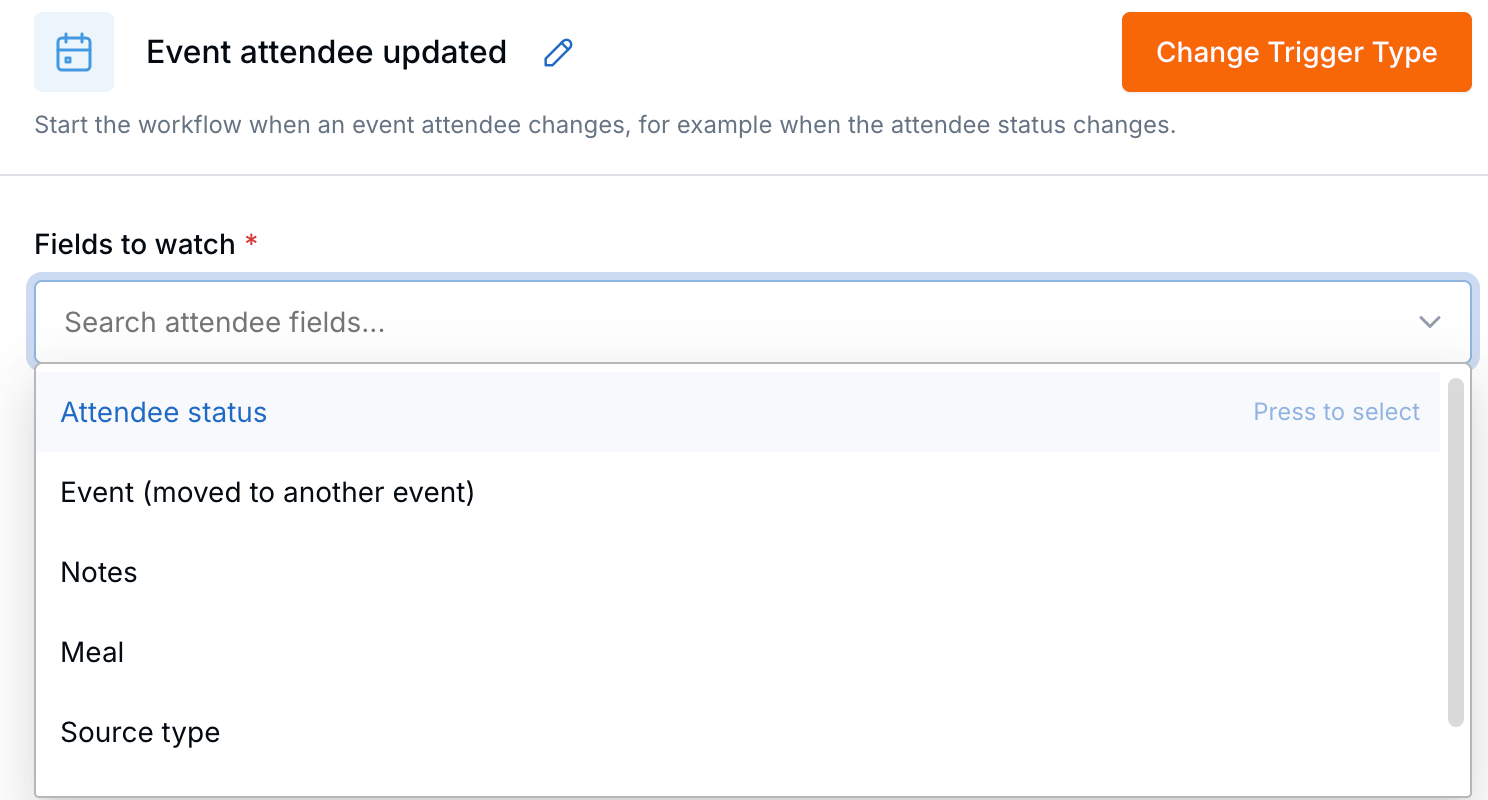
Pick the attendee fields that start the workflow.
Set Up an Event Attendee Workflow
- Go to Workflows and create a new workflow
- Choose Event attendee created or Event attendee updated as the trigger
- For Event attendee updated, choose the Fields to watch
- Optionally add an Event attendee filter, so the workflow only continues for the event, event type or attendee status you want
- Add your steps, such as Send email, Send text, Create task or Update event attendee
- Save and publish the workflow
Event Attendee Filter
The filter checks the registration that started the workflow, not the contact’s other registrations. A contact who attended an older event does not pass an Attendee status is Attended rule when they have only just registered for a new event.
You can filter on:
- Event
- Event type
- Event status — Draft, Scheduled, Completed or Cancelled
- Event source
- Event date
- Attendee status — for example Registered, Confirmed, No show or Attended
- Attendee type — Main attendee or Guest
Add a Branch after the filter to send attendees who match down one path and everyone else down another.
Update Event Attendee
This step updates the registration that started the workflow. Fields left on Don’t change are not touched.
- Attendee status — choose the new status. Two checkboxes control whether LeadCenter also sends the event’s own email and text for that status, if the event has them. Both are on by default.
- Notes, Meal, Source type and Promo code — choose Set to and enter a value, or choose Clear to empty the field.
Event Shortcodes in Emails and Texts
In a workflow that starts with an event attendee trigger, event shortcodes in Send email and Send text steps are filled in from the registration that started the workflow. That stays true after a Wait step, and when the contact is registered for other events as well.
Examples: [[event.name]], [[event.date]], [[event.time]], [[event_attendee_status.name]], [[event_attendee.confirm_link]] and [[event_attendee.cancel_link]]. To see the full list in the template editor, choose an Events category for the template.
Example: Follow Up with Everyone Who Attended
- Trigger: Event attendee updated, watching Attendee status
- Event attendee filter: Attendee status is Attended
- Send email with a thank-you template that uses
[[event.name]] - Create task for the advisor to call the contact
Important Notes
- The Event attendee filter and Update event attendee steps only work in workflows that start with one of the two event attendee triggers. A workflow that uses them with another trigger can’t be published.
- Changes made by a workflow step do not start workflows. For example, a status set by Update event attendee does not start an Event attendee updated workflow.
- Your event’s own confirmation, reminder and follow-up messages are still sent as before. If your workflow sends a similar email or text, the attendee receives both.
- Attendees added by an import or an integration start Event attendee created workflows too. Add an Event attendee filter if the workflow should only run for some events.
- Deleting an attendee or merging two contacts does not start a workflow.
- In workflows that start with another trigger, event shortcodes are not tied to a registration. Use an event attendee trigger when an email or text needs event details.
Related Articles

Need more help?
If you can't find the answers you're looking for, our support specialists are available to answer your questions and troubleshoot if necessary.
-
Phone Call (888) 291-7116. Our main hours are Monday to Friday 7 am-5 pm Central Time.
-
Support Send your questions and inquiries via email to support@leadcenter.ai. A support ticket will be created and one of our team members will get back to you as quickly as possible.