 Help Center
Calendars & Appointments
Calendars & Appointments
Create and Manage Time Blocks
Time blocks reserve calendar time for internal work such as meeting preparation, research, follow-up, and team coordination. A time block can be marked Busy or Free, linked to a contact for internal context, and configured with booking restrictions.
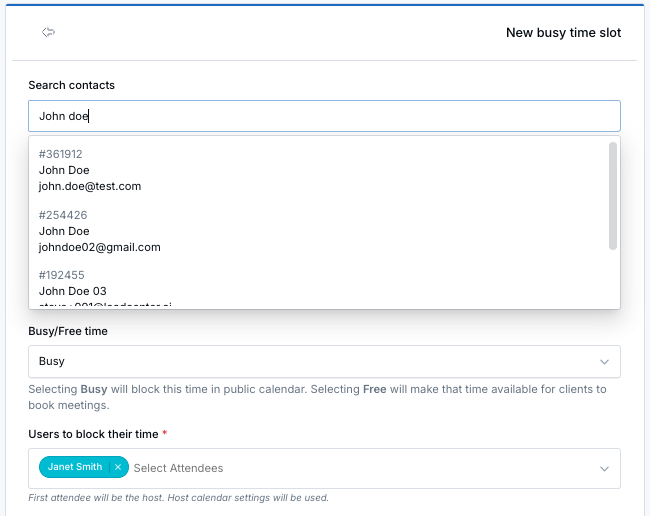
Linking a contact to a time block is separate from booking restrictions. The linked contact provides internal context for your team. Booking restrictions evaluate the appointment’s meeting category and the selected contact’s status, stage, or category.
How Free and Busy Time Blocks Work
- Busy — The time block always conflicts with appointments that overlap it. Its Warning or Block setting determines whether other team members can override the conflict.
- Free — The time remains available for appointments, but allowlists can restrict which appointments may use it.
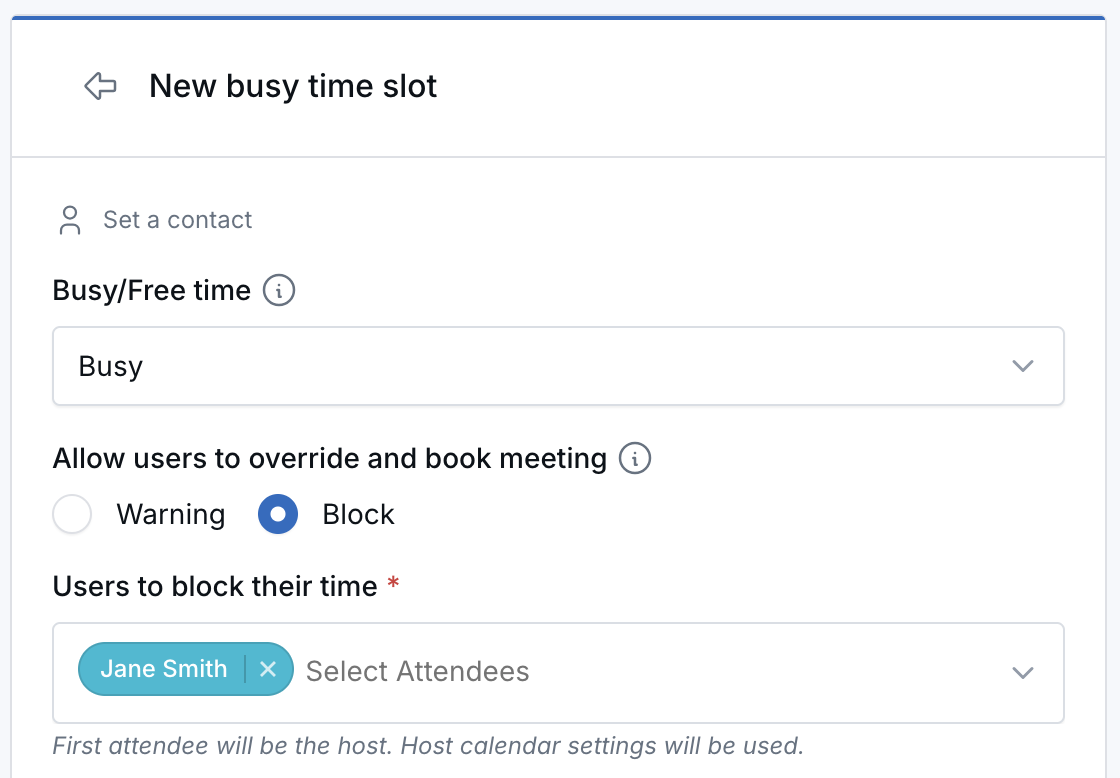
Time blocks are always internal. Linking a contact does not send the contact an email, reminder, calendar invitation, reschedule notice, or cancellation notice.
View Time Block Settings from the Calendar
Click a time block on the calendar to open its details panel. The Time block settings section shows how the block is configured without opening the edit form.
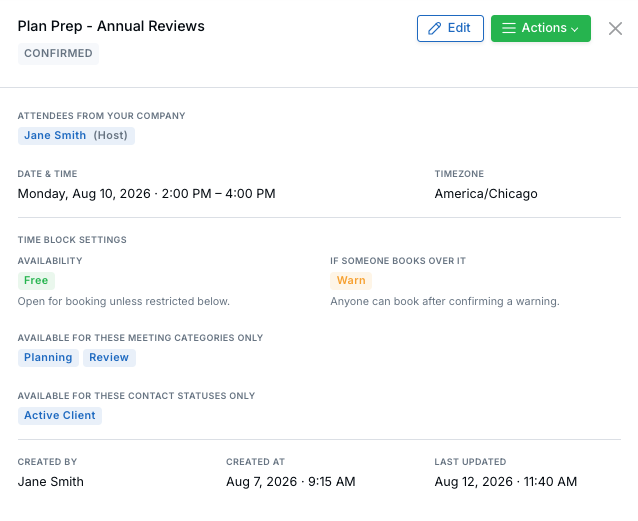
The settings section summarizes how the block behaves when someone tries to book over it.
What the Section Shows
- Availability — Shows Free or Busy. Busy blocks always conflict with overlapping appointments. Free blocks remain available unless a configured restriction applies.
- If someone books over it — Shows Warn or Block. Warn allows booking after confirmation. Block allows only a calendar owner to override the restriction.
- Locations — Shows the locations selected for a Free time block.
- Available for these [meeting categories] only — Shows the allowed meeting categories, contact statuses, contact stages, or contact categories for each configured restriction. The label names whichever restriction it applies to.
Read the Booking Restrictions
Only configured restrictions appear. When a Free time block has no restrictions, the panel shows Booking restrictions: None — any appointment can be booked in this slot.
Busy time blocks do not use allowlists, so their details show only availability and override behavior.
A time block created before the override setting existed displays Warn, matching how the block behaves when someone books over it.
Change the Settings
The settings panel is read-only. Click Edit at the top of the panel to change availability, override behavior, locations, or allowlists.
Create a Time Block from the Calendar
- Go to Calendars and open the calendar.
- Click the calendar at the date and time you want to reserve.
- Select Time block.
- Choose Busy or Free.
- In Users to block their time, select the team members whose calendars the block applies to. The first attendee becomes the host.
- Enter the date, time, and Subject.
- Use the Set a contact field to link a contact when the time relates to a specific client. This is optional.
- Configure any applicable booking restrictions and override behavior.
- Choose Visible only to hosts or Visible to all users.
- Click Save.
Create a Time Block from a Contact
Create a time block from a contact when you want the reserved time to appear in that contact’s appointment history.
- Go to Contacts and open the contact.
- Open the Appointments tab.
- Open the Create menu.
- Select Time block.
- Confirm that the contact is preselected.
- Complete the time block details.
- Click Save.
View a Time Block in Contact History
When a contact is linked to a time block, the time block appears in the contact’s Appointments tab with a Time Block label.
Edit or Remove the Linked Contact
- Add a contact: Edit the time block and select a contact.
- Change the contact: Remove the current contact and select another.
- Remove the contact: Click the × beside the selected contact, then save.
Set Booking Restrictions on a Free Time Block
A Free time block can limit which appointments may use that time. Restrictions can use the meeting category or information from the contact selected on the appointment.
- Create or edit a Time block.
- Set Busy/Free time to Free.
-
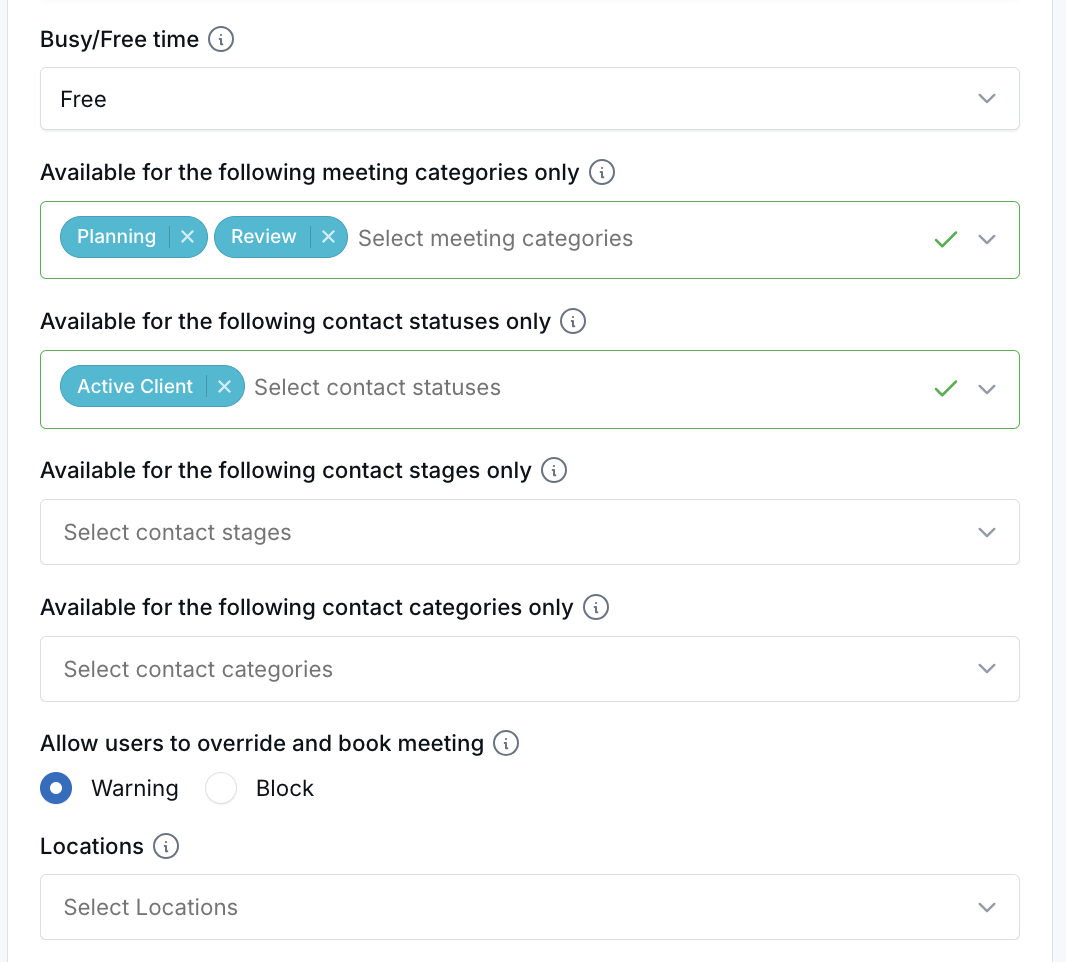
Configure one or more allowlists:
- Available for the following meeting categories only
- Available for the following contact statuses only
- Available for the following contact stages only
- Available for the following contact categories only
-
In Allow users to override and book meeting, choose how a mismatch is handled:
- Warning — A team member can confirm the warning and continue booking.
- Block — Team members who do not own the calendar cannot override the restriction.
- Optionally select applicable Locations.
- Click Save.
How Allowlists Evaluate Appointments
- Leaving an allowlist empty means that field is unrestricted.
- If an allowlist contains values, the appointment or selected contact must have a matching value.
- A blank appointment or contact value counts as a mismatch when the corresponding allowlist is configured.
- If the time block’s allowlist is empty, any value on the appointment or contact is allowed.
Contact-based restrictions use the selected contact’s status, stage, and category at booking time. If the time block requires one of these values and the contact does not have it set, LeadCenter treats it as a mismatch.
Time Blocks Created Before Booking Restrictions
Time blocks created before booking restrictions were introduced do not have an override setting saved. They behave as Warning, allowing team members to continue after confirming the warning.
When you open one of these time blocks, Warning is selected. Choose Block and save the time block when it should become a hard stop for team members who do not own the calendar.
When an Appointment Does Not Match
LeadCenter checks the restrictions when a team member creates or edits an appointment that overlaps a restricted Free time block.
- Create or edit an appointment that overlaps the restricted time.
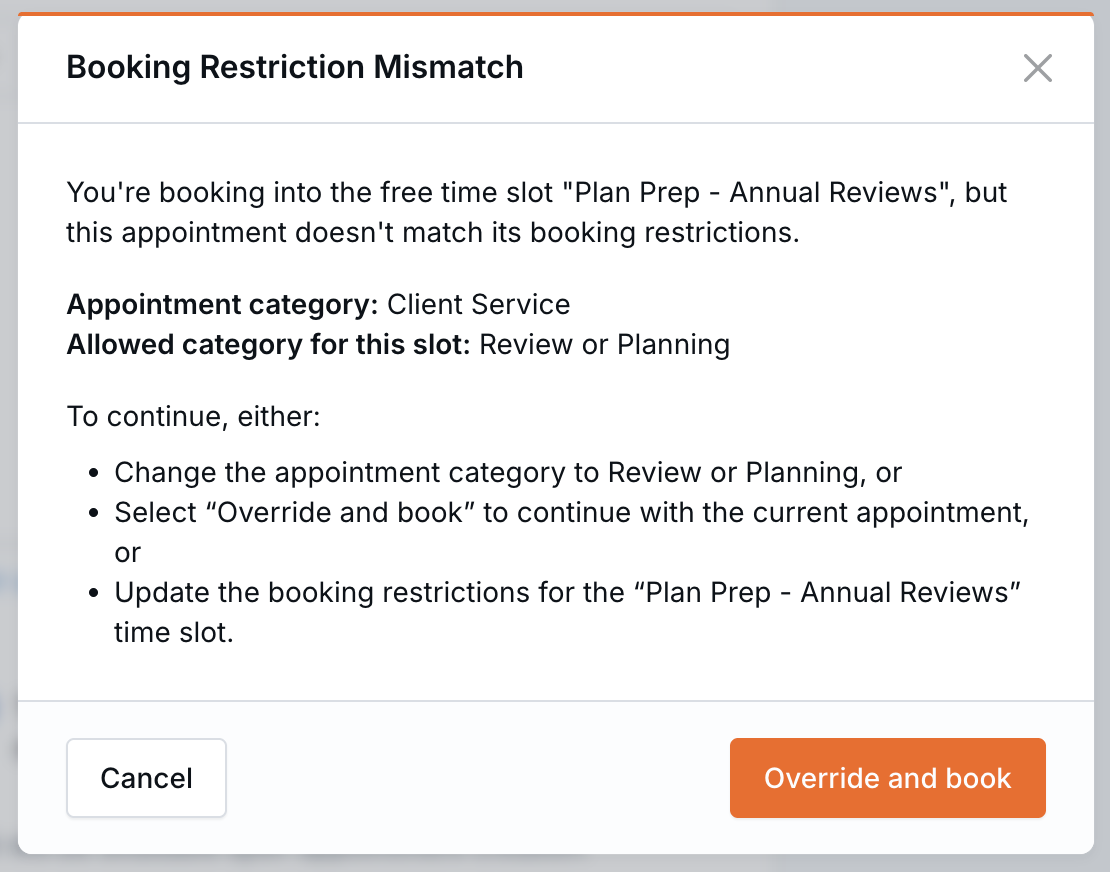
- Review the Booking Restriction Mismatch window if a value does not match. This window appears before the confirmation email window.
- For a Warning restriction, select Override and book or select Cancel to return to the appointment and correct the mismatch.
- For a Block restriction, a team member who does not own the calendar must change the appointment, move it to another time, or update the time block.
Calendar Owner Overrides
A calendar owner always receives a warning they can override, even when the time block is set to Block.
This applies to anyone who owns a calendar containing the time block. The calendar owner does not need to be the host of the appointment being booked.
Drag and Resize Checks
The same warning or block window appears when an appointment is dragged or resized into a restricted Free time block.
Restrictions are not checked when moving:
- Internal meetings
- Client review reminders
- Events synced from Google Calendar or Microsoft Outlook
Editing an Existing Appointment
When an appointment already overlaps a restricted time block, LeadCenter checks the restrictions again only when you change:
- The appointment time
- The attendees
- The meeting category
Changes to the subject, description, or other appointment details save without displaying the mismatch window.
Delete Values Used by Time Block Restrictions
A meeting category, contact status, contact stage, or contact category cannot be deleted while an active time block’s allowlist uses it.
LeadCenter refuses the deletion and identifies the time block using that value. Before deleting the value:
- Open the identified time block.
- Remove the value from its allowlist, or delete the time block.
- Delete the meeting category, contact status, stage, or category.
Cancelled time blocks do not prevent deletion. A value used only by a cancelled time block can be deleted.
Public Booking Link Behavior
Public booking links compare only the public link’s meeting category with the meeting-category allowlist on the Free time block.
- If the Free time block has a meeting-category allowlist, the time appears only when the public link has a category that matches one of the allowed categories.
- If the public link’s category is blank or does not match, the restricted Free time block is hidden.
- Free time blocks without a meeting-category allowlist remain available on every public booking link.
Set the meeting category while creating or editing the public calendar link. Use the information icon beside Category for its in-app explanation.
Public booking links evaluate only the meeting category. Contact status, stage, and category restrictions apply when a team member books an appointment with a selected contact.
Recurring Time Blocks
Restrictions saved on a recurring Free time block apply to every occurrence in the series.
Time Blocks vs. Appointments
| Feature | Appointment | Time Block |
|---|---|---|
| Contact required | Yes | No, linking a contact is optional |
| Client notifications | Available | Never sent |
| Visible to the client | Yes | No |
| Affects booking availability | Yes | Yes, based on Free or Busy behavior and configured restrictions |
| Appears in contact history | Yes | Yes, when a contact is linked |
Best Practices
- Use Busy when the time should conflict with all overlapping appointments.
- Use a restricted Free time block when only certain appointments should use the time.
- Use Warning when exceptions are allowed but should require confirmation.
- Use Block when only calendar owners should be able to override a mismatch.
- Link a contact only when the time block represents internal work for that contact.
- Before deleting a meeting category, contact status, stage, or category, remove it from active time block allowlists.

Need more help?
If you can't find the answers you're looking for, our support specialists are available to answer your questions and troubleshoot if necessary.
-
Phone Call (888) 291-7116. Our main hours are Monday to Friday 7 am-5 pm Central Time.
-
Support Send your questions and inquiries via email to support@leadcenter.ai. A support ticket will be created and one of our team members will get back to you as quickly as possible.