 Help Center
Financial Accounts
Financial Accounts
Exclude Production Split from Commission Calculation
When multiple writing advisors share a financial account, the production split shows how credit is allocated (for example, 50/50). By default, LeadCenter also applies that split in the automated commission calculation.
If your firm needs to track splits for reporting but not reduce commission for a specific advisor, use "Don’t include production split in commission calculation".
Overview
- Keep production split for reporting — the split is still stored and displayed in the Writing Advisors table.
- Choose how commission is calculated — you can exclude the split from automated commission calculations for an advisor.
- Clear indicator — an Excluded badge appears next to the advisor’s split when this option is enabled.
How It Works
Default behavior (split included)
By default, LeadCenter applies the production split as a multiplier in the automated commission calculation:
Commission Amount = Commission % × Product Fee × Amount Issued × Production Split %
When the option is enabled (split excluded)
When "Don’t include production split in commission calculation" is enabled, the production split is still recorded for reporting, but commission is calculated without applying the split:
Commission Amount = Commission % × Product Fee × Amount Issued
Example
- Default behavior: An advisor with a 50% split earns commission on 50% of the issued amount.
- With this option enabled: The split is still shown for reporting, but commission is calculated without applying the split.
How to Enable
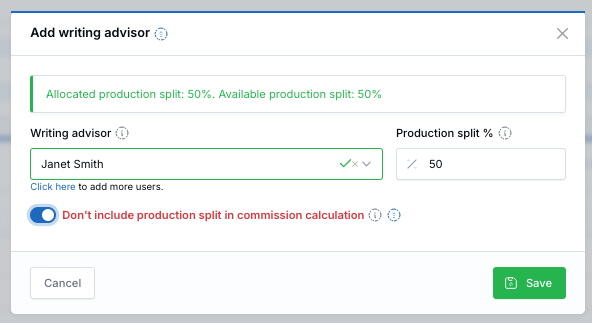
Turn on “Don’t include production split in commission calculation” when adding or editing a writing advisor.
- Open a financial account detail page.
- In Writing Advisors, click Add (new advisor) or Actions → Edit (existing advisor).
- Turn on "Don’t include production split in commission calculation".
- Click Save.
Where to Find Results
- In the Writing Advisors table, the advisor will show an Excluded badge next to their production split.
- Commission amounts for that advisor will be calculated without applying the split.
What Is Affected
- Commission amount — for that advisor, commission is calculated without the production split multiplier.
- YTD production — the full account value (100%) counts toward the advisor’s year-to-date production total, which is used to determine their commission plan tier.
Troubleshooting
- I don’t see the Excluded badge: Edit the writing advisor and confirm "Don’t include production split in commission calculation" is enabled, then click Save.
- Commission still looks reduced: Confirm the correct writing advisor was updated and that you are viewing the correct account and date range. If it still doesn’t look right, contact support.
FAQs
Does this remove the production split?
No. The split is still stored and shown for reporting. This setting only controls whether the split is applied to the automated commission calculation for that advisor.
Can I enable this for one advisor but not another?
Yes. This is a per-advisor setting on the financial account.
Need help? Contact support@leadcenter.ai.

Need more help?
If you can't find the answers you're looking for, our support specialists are available to answer your questions and troubleshoot if necessary.
-
Phone Call (888) 291-7116. Our main hours are Monday to Friday 7 am-5 pm Central Time.
-
Support Send your questions and inquiries via email to support@leadcenter.ai. A support ticket will be created and one of our team members will get back to you as quickly as possible.