 Help Center
Financial Accounts
Financial Accounts
Orion Transactions on Account Details
LeadCenter automatically syncs supported transactions from Orion and displays them directly on the account details page. This gives your team one place to review Orion transaction activity and take action on it without leaving the account record.
What This Feature Does
- Shows Orion transactions on the account record
- Keeps transactions updated automatically through ongoing sync
- Lets you convert transactions into sleeve accounts or company fee payments
- Supports bulk actions for conversion and deletion
- Includes additional cash-flow transaction types from Orion, including internal journals, held-away activity, and unknown contribution or distribution types
How It Works
- When you connect an account to Orion, LeadCenter syncs supported transactions along with the related account and asset data.
- New transactions continue syncing daily to keep the account up to date.
- Supported transaction types appear on the account details page under the Transactions card.
Open the account details page and look for the Transactions card. From there, you can review synced transactions, search by type, amount, security, or comments, and take action on one or more transactions.
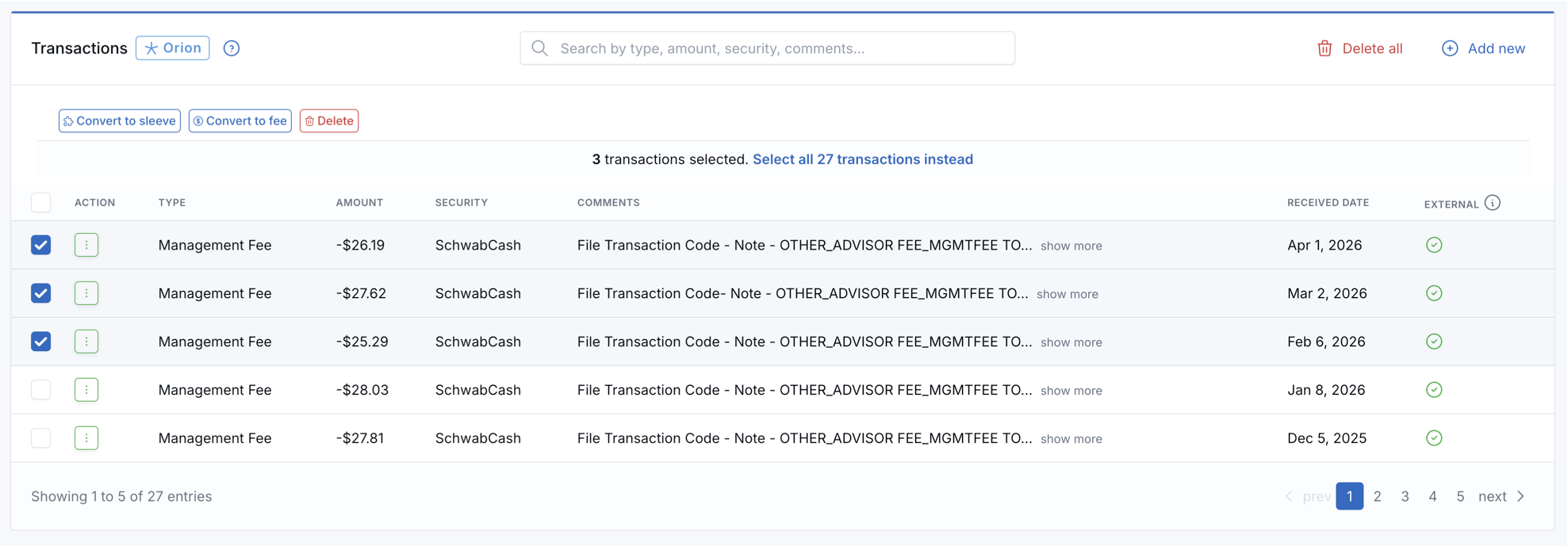
Viewing Transactions
- Go to the account details page and open the Transactions card.
- Accounts linked to Orion show an Orion badge in the card header.
- Transactions are paginated for easier browsing.
- Use the search bar to find transactions by type, amount, security, or comments.
Supported Transaction Types
LeadCenter syncs Orion transaction types that represent supported account activity, including contributions, distributions, fees, merges, account transfers, and selected cash-flow activity.
Contributions
- Unknown Contribution — Orion catch-all when cash increases without a more specific type.
- Internal Account Journal In — Cash transferred into the account from another managed account. This is common for Eclipse recurring contributions.
- Internal Account In (not billed) — Same as journal in, but not marked as billable in Orion.
- External Account Activity In — Cash inflow on held-away assets when Orion classifies it as a cash flow.
Distributions
- Unknown Distribution — Orion catch-all when cash decreases without a more specific type.
- Internal Account Journal Out — Cash transferred out to another managed account.
- Internal Account Out (Not Billed) — Same as journal out, but not marked as billable in Orion.
- External Account Activity Out — Cash outflow on held-away assets when Orion classifies it as a cash flow.
Other Supported Categories
- Fees
- Merges / account transfers
Note: Eclipse and sleeved accounts may show recurring contributions as Internal Account Journal In instead of a standard client contribution.
What Is Not Synced
High-volume portfolio activity is excluded by design, including:
- Buy / Sell exchanges and trades
- Dividends and reinvestments
- Option expirations and similar security events
Important: If your team needs another Orion transaction type enabled, contact support.
Converting Transactions
Each transaction includes an action menu with these options:
- Convert to Sleeve Account — Creates a new related sleeve account under the main account.
- Convert to Company Fee — Creates a new company fee payment using the transaction amount, date, and notes.
Use the action menu when converting one transaction or choosing a different amount option for a specific row.
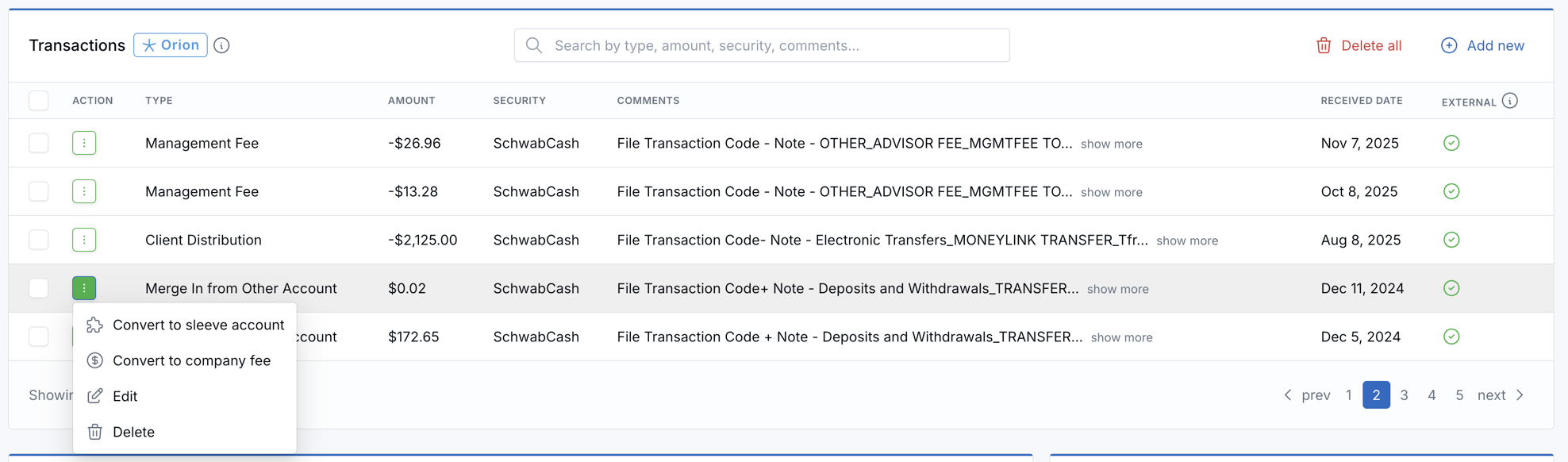
Choose the Amount for a Bulk Conversion
When you bulk convert transactions to related accounts, the Bulk convert to accounts window asks where the transaction amount is applied on each new related account.
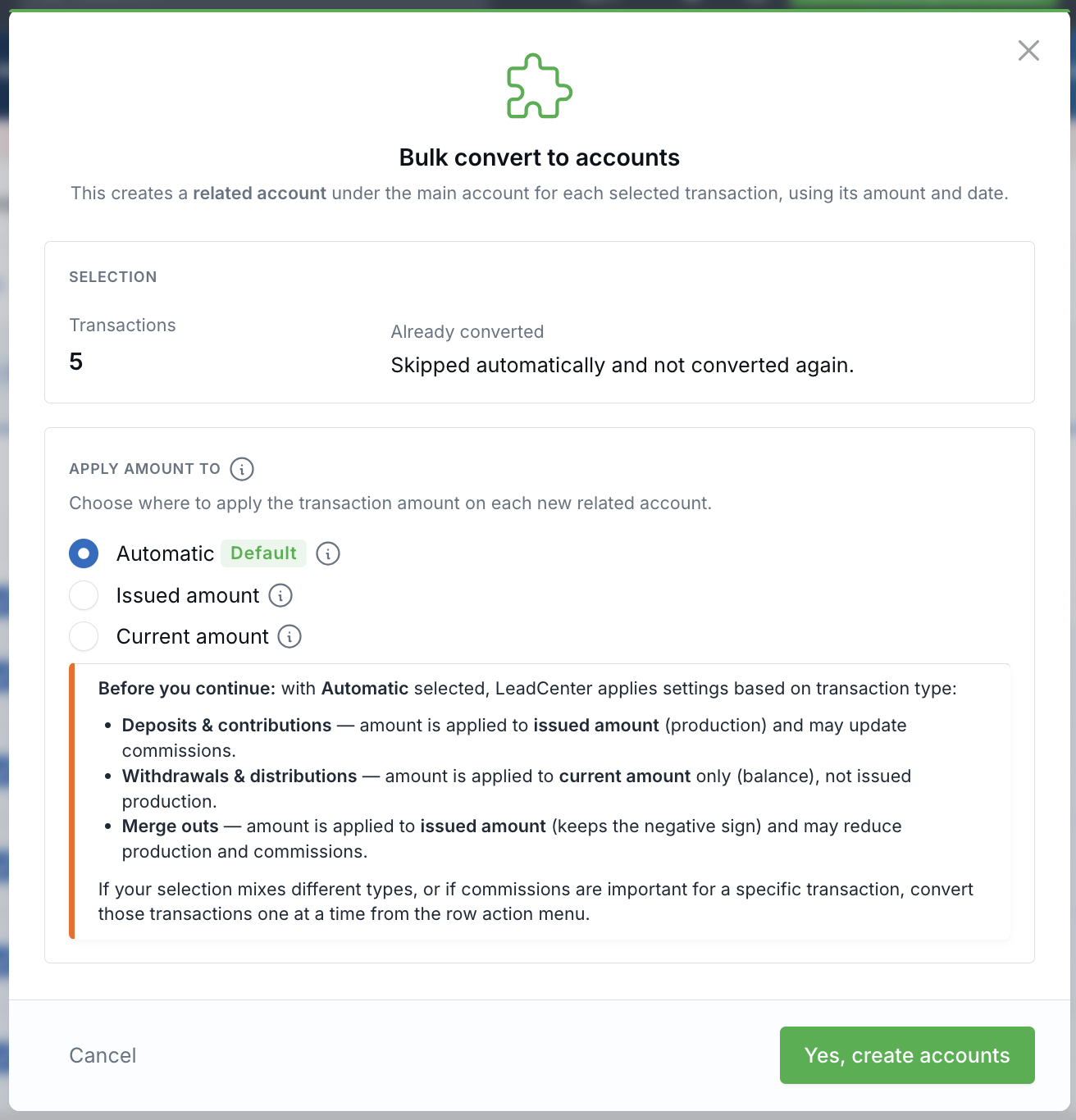
The Bulk convert to accounts window appears after you choose Convert to related account.
-
Automatic (Default) — Uses the transaction type:
- Deposits and contributions use the issued amount. This affects production and may recalculate commissions.
- Withdrawals and distributions use the current amount. This changes the balance without changing production or commissions.
- Merge outs use the issued amount and keep the negative sign. This may reduce production and commissions.
- Issued amount — Applies the issued amount to every selected transaction, regardless of type. This changes production and can recalculate commissions.
- Current amount — Applies the current amount to every selected transaction, regardless of type. This changes the balance only; production and commissions are unchanged.
Transactions that were already converted are skipped. Convert transactions one at a time from the row action menu when your selection mixes transaction types, or when commissions matter for a specific transaction.
Bulk Actions
The bulk action bar offers three actions:
- Convert to related account
- Convert to company fee
- Delete
- Use the checkboxes to select one or more transactions.
- Choose an action from the bulk action bar.
- For a related-account conversion, select the amount option and confirm.
Bulk conversion is available from account details and from Financial Accounts → Transactions. On the Transactions page, each new related account is created under that transaction's own main account.
When you select all transactions on the current page, LeadCenter can also include transactions across all pages.
Existing Orion Connections
The daily sync pulls recent transactions. If your firm connected to Orion before a transaction type was supported, older transactions of that type may not appear automatically.
Note: Ask support to run a transaction backfill for your firm if you need historical contributions, distributions, journal-ins, or similar transactions to appear on your accounts.
Unlinking from Orion
If an Orion account is unlinked from a LeadCenter account, the synced transactions are preserved on the account. They are not deleted automatically.
Note: Unlinking the account does not remove previously synced transaction history from the account record.
Additional Notes
- You can also add or edit transactions manually when needed.
- The Source of Funds field is populated automatically from Orion when available.
Why This Is Helpful
- Keeps Orion transaction activity visible on the account record
- Reduces switching between systems
- Makes it easier to turn transactions into tracked sleeve accounts or company fee payments
- Helps capture cash-flow activity from Eclipse, sleeved accounts, and held-away activity when Orion classifies it as a cash flow
- Improves efficiency with bulk actions and daily synced data
Troubleshooting
- I do not see the Transactions card: Confirm the account is linked to Orion.
- A transaction is missing: Confirm the transaction type is supported and that the transaction is recent enough to be included in the daily sync.
- An older transaction is missing: Ask support whether a transaction backfill is needed for your firm.
- I unlinked the Orion account: Previously synced transactions remain on the account and are not deleted automatically.

Need more help?
If you can't find the answers you're looking for, our support specialists are available to answer your questions and troubleshoot if necessary.
-
Phone Call (888) 291-7116. Our main hours are Monday to Friday 7 am-5 pm Central Time.
-
Support Send your questions and inquiries via email to support@leadcenter.ai. A support ticket will be created and one of our team members will get back to you as quickly as possible.