 Help Center
Financial Accounts
Financial Accounts
View and Export Household Accounts from a Contact
When a contact belongs to a family, their Accounts tab can show the accounts of every household member, not just the person you have open. You also get combined totals for the household, and you can download the list and totals as a CSV.
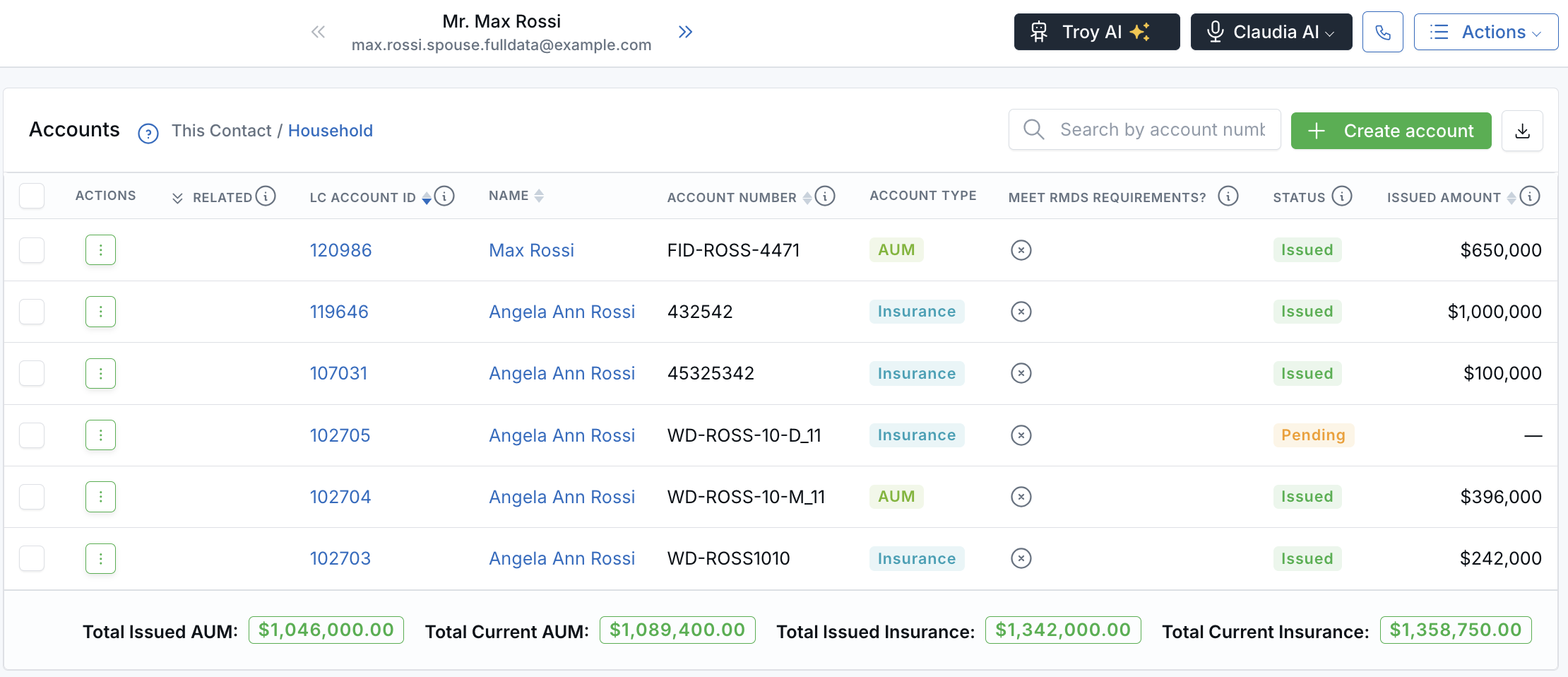
The Name column shows who owns each account, and the totals cover the whole household.
Before You Start
- The contact must belong to a household, and another member of that household must have accounts. To set up a household, see Families (Households).
- The contact doesn't need accounts of their own. If only their spouse has accounts, the Household view still shows them.
- To download accounts, your role needs permission to export accounts. Learn more in Roles & Permissions.
Switch Between Household and This Contact
- Open the contact from Contacts and click the Accounts tab.
- Next to the Accounts heading, use the This Contact / Household toggle. The view you're on is shown in blue.
- Household is selected by default. It lists every household member's accounts in one list, with a Name column showing who owns each account. Click a name to open that person's contact preview.
- This Contact shows only the accounts of the person you have open.
Note: If you don't see the toggle, the contact isn't in a household, or no one else in the household has accounts.
Read the Combined Totals
The totals under the list add up the accounts in the view you've selected. For example, if each spouse has $1,000,000 in current AUM, the Household view shows $2,000,000.
- Total Issued AUM and Total Current AUM
- Total Issued Insurance and Total Current Insurance
- Total Planning fees
Issued is the amount when the account was issued. Current is the account's value now. Only issued accounts are counted, and a total only shows when it's above zero.
The totals follow your search and filters, and they include matching accounts on every page of the list, not just the page you're looking at.
Download the Accounts and Totals
- Choose Household or This Contact, and apply any search or filters you want.
- Click the download icon next to Create account.
The CSV downloads right away. It includes the accounts in your current view, with the totals in summary rows at the top of the file. Household files end in -household-accounts.csv, and This Contact files end in -contact-accounts.csv.
What Stays With the Contact You Have Open
- Create account always adds the account to the contact you're viewing, not to the household.
- The number next to Accounts in the left menu counts only that contact's own main accounts, so it can be smaller than the Household list.
- On a household record, the Accounts tab already lists every member, so there's no toggle there. The Name column and the download icon work the same way.
Related Articles

Need more help?
If you can't find the answers you're looking for, our support specialists are available to answer your questions and troubleshoot if necessary.
-
Phone Call (888) 291-7116. Our main hours are Monday to Friday 7 am-5 pm Central Time.
-
Support Send your questions and inquiries via email to support@leadcenter.ai. A support ticket will be created and one of our team members will get back to you as quickly as possible.