 Help Center
Integrations
Integrations
Blueleaf Integration
The Blueleaf integration lets your firm bring Blueleaf households, accounts, holdings, and eligible transactions into LeadCenter. After the integration is connected, your team can review unlinked Blueleaf accounts, link them to existing financial accounts, or create new LeadCenter accounts from Blueleaf data.
Who Can Use Blueleaf in LeadCenter
Your firm must have the Blueleaf feature enabled in LeadCenter.
- To connect Blueleaf, you need permission to connect custodians.
- To view and manage linked or unlinked Blueleaf accounts, you need the Manage Blueleaf account links permission.
- Owner, Admin, and Editor users have this permission by default.
Connect Blueleaf
- Open Integrations → Custodians.
- Find the Blueleaf card.
- Paste the API token from Blueleaf. In Blueleaf, the token is found under Settings → Profile → API Access.
- Review the sync options below the token field.
- Click Connect.
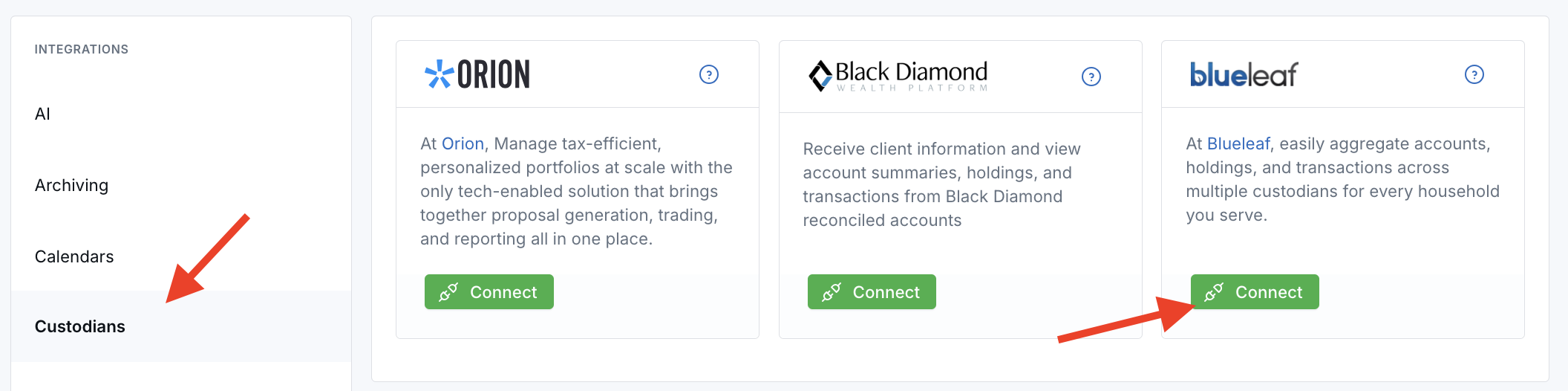
LeadCenter verifies the token, saves your preferences, and starts the first import. For large firms, the first import may take 30 minutes or longer. If the import is interrupted, it resumes from where it left off.
After Blueleaf is connected, click Settings on the Blueleaf card to update sync options. Changes apply on the next sync.
Accounts already imported into LeadCenter are not removed automatically when you narrow your Blueleaf sync settings. Remove or unlink those accounts manually if you no longer want them tracked.
To stop the integration, click Disconnect on the Blueleaf card. The user who connected Blueleaf receives an email confirmation. You can reconnect later with a new token.
Blueleaf Sync Options
Blueleaf sync options control which data LeadCenter requests during the first import and each nightly sync.
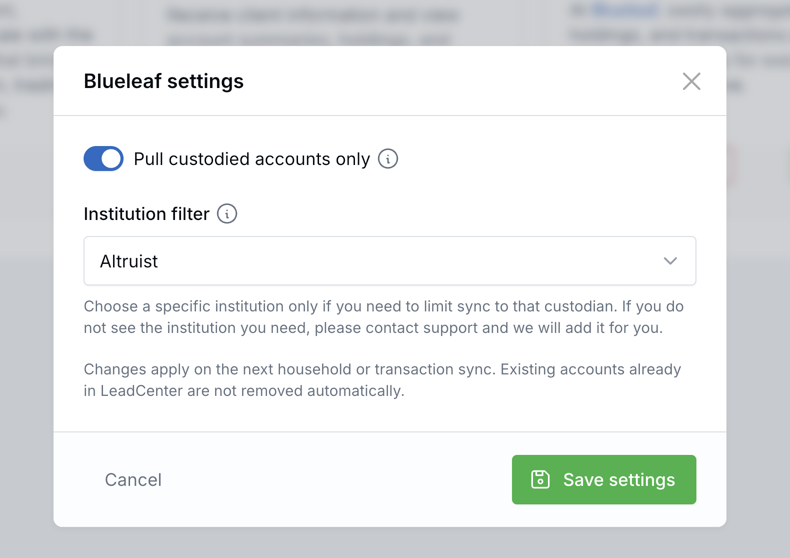
Pull Custodied Accounts Only
Default: On. When this setting is on, LeadCenter pulls only custodied accounts from Blueleaf. These are accounts on a direct custodian feed, such as Altruist or Charles Schwab -Direct.
Turn this setting off only if your firm also needs held-away or aggregated bank accounts from Blueleaf, such as accounts connected through bank logins.
Institution Filter
Default: All institutions. Use the institution filter if you want to limit the sync to one custodian, such as Altruist.
Important: These two settings work together. For Altruist-only direct-feed accounts, turn Pull custodied accounts only on and set Institution filter to Altruist. Custodied-only still includes other direct-feed custodians, such as Schwab -Direct.
If the institution you need is not listed, ask LeadCenter Support to add it.
Changing Settings After Connecting
- New settings apply on the next sync.
- Accounts imported from a wider sync remain in LeadCenter when you narrow filters.
- Remove or unlink accounts manually if you no longer want them tracked.
What Syncs from Blueleaf
- Households: The top-level grouping in Blueleaf.
- Accounts: Institution, account number, account name, current balance, and account type.
- Holdings: Positions under each account. Holdings are copied to LeadCenter assets after the account is linked.
- Transactions: Cash movement and fees only. Buys, sells, dividends, and other portfolio activity are not imported.
Issued Amount and Current Amount
Blueleaf provides the current account balance in its regular feed. LeadCenter also captures a one-time issued amount from the earliest available Blueleaf balance date.
- The issued amount stays fixed after it is captured.
- The current amount refreshes each night.
Review Unlinked Blueleaf Accounts
Open Financial Accounts → Unlinked Blueleaf accounts to review Blueleaf accounts that are not yet linked to LeadCenter financial accounts.
Use the search box to find accounts by name, account number, household ID, institution, or contact details.
When a Blueleaf household has more than one account, LeadCenter groups those accounts together so your team can review them as a set.
Available Actions
- Find & Link: Open a window where you can link the Blueleaf account to an existing issued account, create a new account for a contact, or replace an existing Blueleaf link.
- Auto link to possible match: Link the account in one click when LeadCenter finds an existing account with the same account number.
- Link all household accounts: Create one LeadCenter account for each Blueleaf account in the household under the contact you choose.
- Auto Link: Run automatic matching from the toolbar. LeadCenter checks account number first, then household email or name when creating separate LeadCenter accounts.
- Delete: Remove rows that should not be tracked in LeadCenter. You can delete a single row, selected rows, or an entire household group.
Blueleaf does not use Orion-style sleeves. Each Blueleaf account becomes its own LeadCenter financial account.
Find & Link Options
- Link to an existing issued account: Search LeadCenter accounts and link without creating a new account. This preserves the LeadCenter account's issued amount and issue date.
- Create a new account for a contact: Search for a contact and create a new LeadCenter account from the selected Blueleaf account data.
- Replace Blueleaf linked account: Replace an existing Blueleaf link on a LeadCenter account. This option is available for a single selected Blueleaf account.
What Happens When You Link or Create an Account
- The current balance and account number copy to the LeadCenter account.
- Holdings and eligible transactions copy to the LeadCenter account.
- The account type from Blueleaf, such as IRA, sets the tax type and tax-qualified flag when those fields are empty.
- The contact's writing advisor is applied when the LeadCenter account does not already have one.
Review Linked Blueleaf Accounts
The Linked Blueleaf accounts page lists every Blueleaf account that is tied to a LeadCenter financial account. Search works the same way as the unlinked page, including household ID search.
On the account details page, the Blueleaf section shows the external Blueleaf account ID, active status, and data source. The Blueleaf account ID links back to Blueleaf.
Use Unlink from the linked accounts page or from account actions to break the Blueleaf connection without deleting the LeadCenter financial account.
Blueleaf Transactions on Account Details
After an account is linked, eligible Blueleaf transactions appear on the LeadCenter account Transactions tab.
From the Transactions tab, you can:
- Convert to related account: Use for deposits, transfers in, and similar new money.
- Convert to company fee: Use for advisory or commission fees.
Transaction Types That Sync
LeadCenter stores the following Blueleaf transaction categories:
- Transfer
- Deposit
- Withdrawal
- Commissions and Fees
- Other
Purchases, sales, dividends, reinvestments, and other portfolio activity are skipped so the transaction list stays focused on cash movement and fees.
If your firm needs an additional Blueleaf transaction category enabled, contact LeadCenter Support.
Nightly Sync
Each night, LeadCenter automatically syncs Blueleaf data for connected firms.
- Refreshes households, accounts, and holdings using your current sync options.
- Captures issued amounts for accounts that do not have one yet.
- Updates current balances and holdings on linked LeadCenter accounts.
- Pulls new eligible transactions.
- Runs Auto Link for remaining unlinked Blueleaf accounts.

Need more help?
If you can't find the answers you're looking for, our support specialists are available to answer your questions and troubleshoot if necessary.
-
Phone Call (888) 291-7116. Our main hours are Monday to Friday 7 am-5 pm Central Time.
-
Support Send your questions and inquiries via email to support@leadcenter.ai. A support ticket will be created and one of our team members will get back to you as quickly as possible.